How to Pair Headphones to Vizio TV Easily and Fast

If your Vizio TV has Bluetooth, pairing headphones is usually as simple as putting the headphones in pairing mode and selecting them in the TV settings. If it does not, a Bluetooth transmitter connected through optical, AUX, or RCA is the fastest workaround.
If you want to know how to pair headphones to Vizio TV quickly, the answer depends on your TV model and your headphone type. Most newer Vizio Smart TVs can connect directly through Bluetooth, while older models usually need a Bluetooth transmitter or another audio workaround.
- Bluetooth first: Use built-in Bluetooth if your Vizio TV supports it.
- Older TVs: Add a transmitter when Bluetooth audio is missing.
- Gaming caution: Watch for lag if you play fast-paced games.
- Comfort matters: Choose headphones you can wear for long sessions.
How to Pair Headphones to Vizio TV: What Viewers Need to Know in 2025
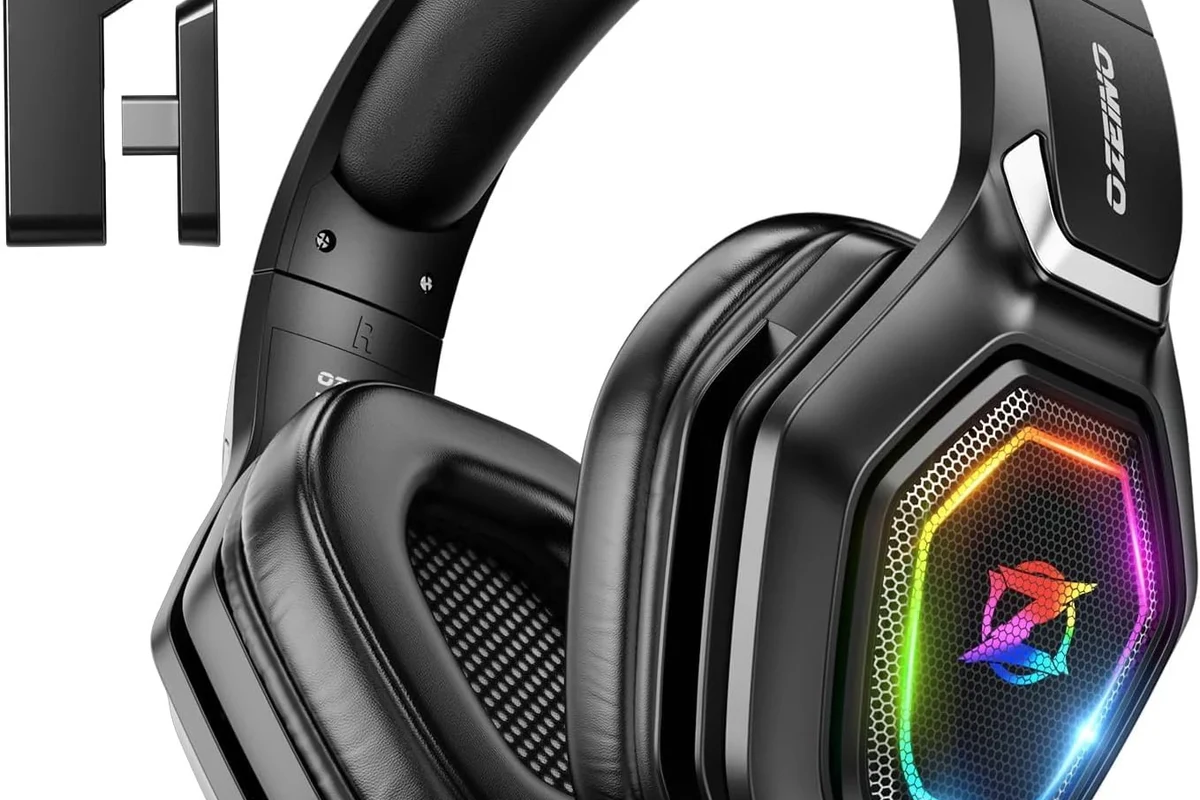
Search intent: quick setup for wireless listening, private TV watching, and gaming without disturbing others
Most people searching for how to pair headphones to Vizio TV want a fast, no-fuss way to watch movies, play games, or catch late-night shows without waking anyone up. In practice, the easiest path is usually Bluetooth on compatible Vizio TVs, but the best setup also depends on whether you use over-ear headphones, earbuds, or a gaming headset.
If you are comparing headphone options for TV use, it helps to understand the basics of different headphone types and how wireless audio behaves in real rooms. Bluetooth is convenient, but it is not always the lowest-lag choice for gaming or fast-action movies.
When pairing works best on Vizio TVs and when you may need a workaround
Pairing works best when your Vizio TV has built-in Bluetooth audio support and your headphones can enter pairing mode easily. If the TV menu includes a Bluetooth section, you are usually only a few steps away from connecting.
You may need a workaround if your Vizio TV is older, if the Bluetooth menu is missing, or if the TV does not support audio output to headphones directly. In that case, a transmitter connected through optical, AUX, or RCA output is often the most practical solution.
Check Your Vizio TV Model and Headphone Type Before You Start
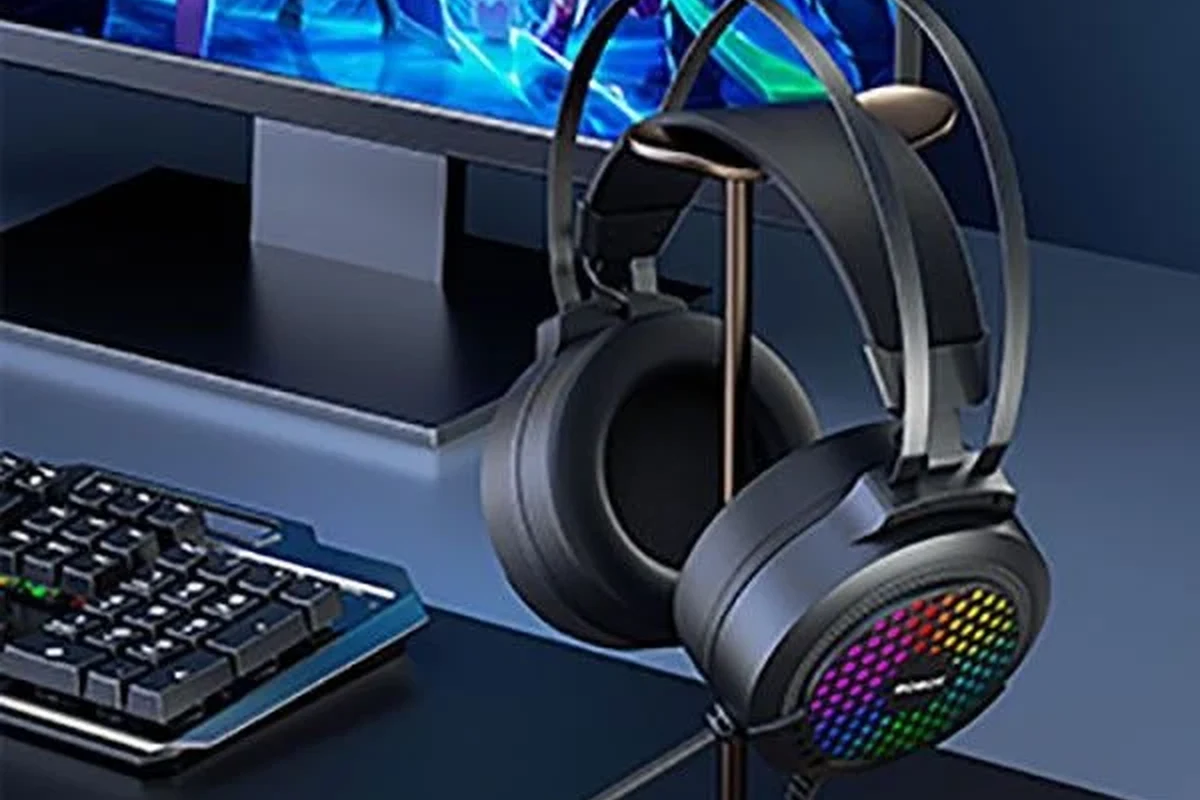
Bluetooth-enabled Vizio TVs vs. models that need an external transmitter
Before you try to connect anything, check whether your Vizio TV supports Bluetooth audio. Many newer smart models do, but not every Vizio TV includes the same wireless features.
If your TV has no Bluetooth audio option in settings, you will likely need an external Bluetooth transmitter. That small accessory can make an older TV behave more like a modern wireless setup.
Compatible headphone types: Bluetooth headphones, wireless earbuds, and RF headsets
Bluetooth headphones are the most common choice for Vizio TVs because they connect without extra hardware on compatible models. Wireless earbuds can also work well, especially for solo viewing in a quiet room.
RF headsets are another option, but they usually require a base station or transmitter. They can be a strong choice for TV watching because they often offer stable range and simple setup, though the exact experience depends on the model.
What to look for in the TV settings menu before pairing
Look for menu items such as Bluetooth, Audio, Speakers, Sound Output, or Device List. Some Vizio TVs hide wireless audio settings under the sound menu rather than the general settings area.
- Does the TV have a Bluetooth audio menu?
- Can the TV switch sound output to headphones?
- Is the TV firmware up to date?
- Does your headphone battery have enough charge?
How to Pair Bluetooth Headphones to a Vizio TV Step by Step
Put the headphones into pairing mode correctly
Start by putting your headphones into pairing mode. On most models, that means holding the power or Bluetooth button until the indicator light flashes and the headset becomes discoverable.
If you are not sure how your specific model behaves, check the manual or the manufacturer’s app. If you also use Bluetooth on other devices, you may want to review the basic Bluetooth connection process so you know what the pairing light and voice prompts should feel like.
Open the Vizio TV Bluetooth menu and select the device
On the TV, open Settings and go to the Bluetooth or Audio section. Then scan for available devices and wait for your headphones to appear in the list.
Select the headphone name and confirm pairing if the TV asks for approval. In some cases, the TV may take a few seconds to complete the connection, so do not rush to retry too quickly.
Confirm the connection and test audio output
Once paired, play a movie, show, or game and listen for sound through the headphones. If the TV still plays audio through its speakers, check the sound output setting and make sure headphones are selected.
A quick test at low volume is usually enough to confirm that the connection is working. This is also a good time to check whether the sound feels balanced and whether any delay is noticeable.
Practical example: pairing Sony, Bose, or Apple headphones to a Vizio Smart TV
Brand names can help with familiarity, but the process is usually similar across most Bluetooth headphones. For example, Sony, Bose, or Apple headphones often need pairing mode first, followed by a TV scan and device selection.
The exact button sequence may vary by model, so do not assume every headphone brand behaves the same way. If you are pairing a newer headset, it may reconnect automatically after the first successful setup, which makes future use much easier.
How to Connect Headphones to a Vizio TV Without Built-in Bluetooth
Using a Bluetooth transmitter through the optical, AUX, or RCA output
If your Vizio TV does not support Bluetooth audio, a Bluetooth transmitter is the most common workaround. You connect the transmitter to the TV’s audio output, then pair your headphones to the transmitter instead of the TV.
Depending on the model, the transmitter may use optical, 3.5mm AUX, or RCA connections. Optical is often preferred for TVs when available, but the right choice depends on your TV’s ports and your headset setup.
Best use cases for older Vizio TVs and budget setups
This setup is especially useful for older TVs that still work well but lack modern wireless features. It is also a smart option if you want to keep a budget TV and add private listening without replacing the whole screen.
For many households, a transmitter is the simpler and cheaper fix than buying a new TV. It can also be a good choice if you already own comfortable headphones and only need a way to send TV audio to them.
Price comparison: transmitter-only setup vs. buying a new Bluetooth headset
Costs can vary a lot by brand, feature set, and audio quality. In general, a transmitter-only setup may be the lower-cost path if you already own headphones, while a new Bluetooth headset may make sense if your current pair is old or uncomfortable.
If you are shopping for a new pair, it can help to compare comfort, battery life, and latency rather than focusing on wireless alone. A good overview of Bluetooth headphones explained simply can make those tradeoffs easier to understand.
Common Pairing Problems and How to Fix Them Fast
Headphones not showing up in the Vizio TV device list
If your headphones do not appear, first make sure they are in pairing mode and close enough to the TV. Then turn Bluetooth off and on again in the TV menu if that option is available.
It also helps to disconnect the headphones from phones, tablets, or laptops nearby. Many headphones can only actively pair with one device at a time, which can block the TV from finding them.
Audio delay, lip-sync issues, or weak signal problems
Bluetooth delay is one of the most common complaints during TV pairing. You may notice the actor’s lips move slightly before the sound arrives, especially with standard Bluetooth headphones.
Signal issues can also happen if you sit too far from the TV or if other wireless devices are crowding the room. For gaming and fast dialogue scenes, low-latency gear is usually the better choice.
Bluetooth audio delay can be more noticeable in gaming and action movies. If lip-sync matters to you, choose low-latency headphones or a transmitter designed to reduce lag.
TV connected but sound still plays through speakers
Sometimes the TV shows that your headphones are connected, but the speakers keep playing. In that case, go back into the sound output menu and manually switch audio from speakers to headphones or Bluetooth output.
Some Vizio models may also require you to mute the TV speakers separately. If the menu seems confusing, a simple restart of both the TV and headphones can help clear a stuck audio route.
Resetting Bluetooth, re-pairing devices, and updating TV firmware
If the connection keeps failing, remove the headphones from the TV’s device list and pair them again from scratch. This often fixes pairing glitches caused by old connection data.
It is also worth checking for TV firmware updates, since software fixes can improve Bluetooth stability. If you already use wireless audio elsewhere, learning how to reset Bluetooth headphones can save time when a device gets stuck.
Expert Advice: Avoid These Mistakes When Pairing Headphones to a Vizio TV
Why some Bluetooth headphones create noticeable lag for gaming and movies
Not all Bluetooth headphones handle TV audio the same way. Some are fine for talk shows and casual viewing but may feel delayed during gaming, sports, or fast-paced action scenes.
If you play games on your Vizio TV, latency matters more than many buyers expect. For that reason, some viewers prefer headphones or transmitters that are designed with lower delay in mind.
Warning about range limits, battery drain, and interference from other devices
Bluetooth range is usually enough for a living room, but walls, furniture, and other wireless devices can weaken the signal. If the audio cuts out, the problem may be distance rather than the headphones themselves.
Battery drain is another practical issue. Wireless listening is convenient, but long movie nights or gaming sessions may require frequent charging, especially with smaller earbuds.
Listening at high volumes for long periods can cause hearing damage. Keep volume at 60% or below for extended sessions.
Choosing low-latency headphones or transmitters for better TV audio
If your main goal is TV watching or gaming, low-latency support is worth prioritizing. That can mean a headset made for TV use or a transmitter that is built to reduce delay.
Comfort matters too, because even the best-sounding headphones are frustrating if they feel heavy after an hour. If you are comparing styles, a guide to headphones vs earphones can help you decide whether over-ear comfort or compact earbuds fit your routine better.
Best Listening Setup Tips for Movies, Gaming, and Late-Night TV
How to balance audio comfort, volume, and clarity for long sessions
For long sessions, keep the volume just loud enough to hear dialogue clearly without fatigue. A balanced sound profile usually works better than extreme bass when you plan to watch for hours.
If your headphones have an EQ app, a small boost in vocal clarity can make TV dialogue easier to follow. You do not need a dramatic tuning change; subtle adjustments are usually more comfortable.
Recommended setup choices for solo viewing, shared households, and gaming
For solo viewing, Bluetooth headphones on a compatible Vizio TV are the easiest option. In shared households, a transmitter can be useful because it keeps the room quiet while letting one person listen privately.
For gaming, prioritize low delay and a stable connection over fancy features you may not use. If you need a broader overview of wireless behavior, noise cancelling headphones can also be helpful in noisy rooms, though they do not solve latency on their own.
When a wired or RF option may outperform Bluetooth
Wired headphones can still be the most dependable choice if your TV has a compatible audio output and you want zero pairing hassle. RF headsets can also outperform basic Bluetooth in some TV setups because they are built around dedicated wireless audio.
The best option depends on your room, your budget, and how sensitive you are to delay. If you mostly watch dialogue-heavy shows, many choices will work fine; if you game often, the connection type matters much more.
Final Recap: The Fastest Way to Pair Headphones to a Vizio TV
Simple summary of the easiest connection method by TV type
If your Vizio TV has Bluetooth audio, pairing directly in the TV settings is the fastest method. Put the headphones in pairing mode, select them from the TV list, and test the sound.
If your TV does not have Bluetooth, use a transmitter through optical, AUX, or RCA output. That is usually the easiest workaround for older sets and budget-friendly setups.
Key takeaways for avoiding delays, compatibility issues, and setup frustration
Check your TV model first, because that tells you whether you can pair directly or need extra hardware. Then choose headphones based on comfort, battery life, and how much audio delay you can tolerate.
For the smoothest experience, keep firmware updated, stay within range, and choose low-latency gear when gaming or watching fast-paced content. If hearing comfort is a concern, follow safe listening habits or ask an audiologist for personalized guidance.
Frequently Asked Questions
Not always. Wired headphones can give a more stable connection, while wireless headphones are more convenient for TV watching. Sound quality depends on the model, your TV output, and how much latency you can tolerate.
Yes, especially in noisy homes. They can help reduce background sound so dialogue is easier to hear, but they do not automatically fix Bluetooth lag or improve TV audio output by themselves.
Closed-back headphones are usually better for TV because they block more outside noise and keep sound from leaking out. Open-back models can sound spacious, but they are less private and work best in quiet rooms.
Over-ear headphones are often the most comfortable for long sessions because they spread pressure around the ear. Earbuds can be fine for shorter viewing, but fit and comfort vary by person and ear shape.
Check Bluetooth support, battery life, comfort, latency, and whether the headphones can pair easily with your TV or transmitter. If you game, low-latency support matters more than extra bass or flashy features.
Try a small EQ adjustment that boosts voices and reduces overly heavy bass. Also keep the fit secure, stay within range, and choose a headset that matches your use case, whether that is movies, gaming, or late-night TV.