How To Connect Bluetooth Headphones: Easy Step Guide

Turn on headphone pairing mode, enable Bluetooth on your device, then select the headphones.
I’ve helped dozens of friends and tested many models, so I know how to connect Bluetooth headphones with calm, clear steps. This guide covers simple setup for phones, laptops, and tablets, plus fixes for common problems and tips from real tests to get reliable audio fast.
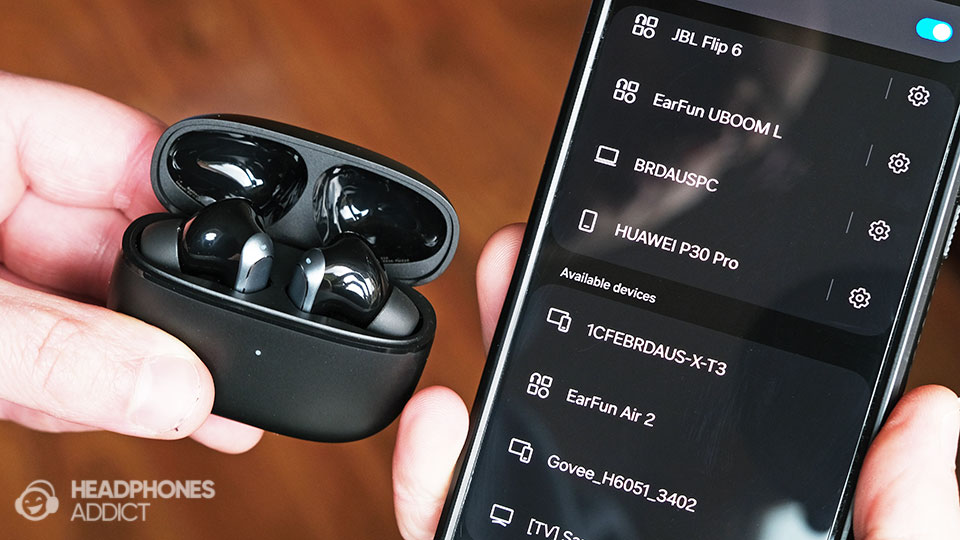
How Bluetooth headphones work
Bluetooth creates a short-range wireless link between your device and your headphones. The headphones use a pairing process to exchange an ID and set up a secure connection. Knowing the basics makes it easier to fix issues and get the best sound.
Bluetooth has versions and codecs. Newer versions use less power and have better range. Codecs like AAC, SBC, and aptX affect sound quality.
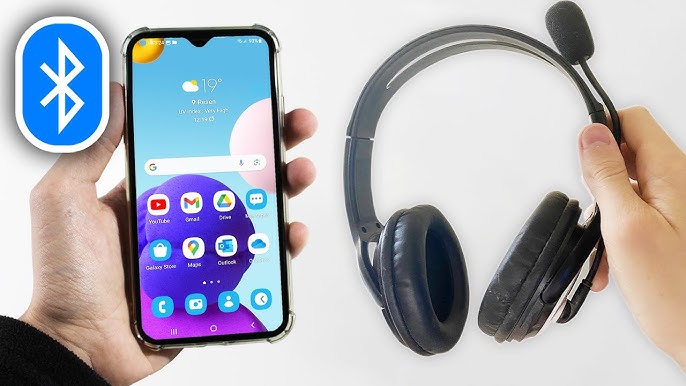
Before you start: quick checklist
- Charge both devices fully. Low battery can block pairing.
- Turn off other nearby Bluetooth devices. Fewer devices reduce interference.
- Keep devices within 10 feet (3 meters) for first pairing. Strong signal helps.
- Read the headphone manual for model-specific pairing steps. Some models use special gestures.
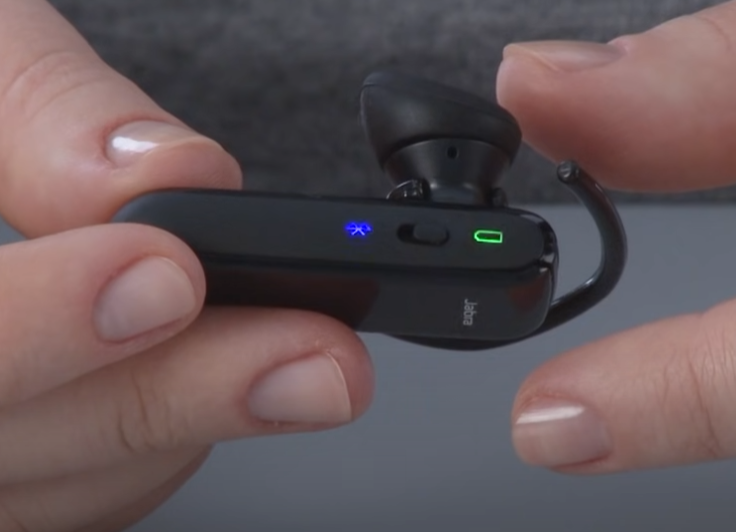
Step-by-step: how to connect Bluetooth headphones
Use these steps to learn how to connect Bluetooth headphones to phones, tablets, and computers. Follow the section for your device type.
Pairing with an iPhone or iPad
- Charge your headphones and turn them on.
- Put the headphones in pairing mode. Usually hold the power or pairing button for 3–5 seconds until a light flashes.
- Open Settings on your iPhone. Tap Bluetooth and toggle it on.
- Look under Other Devices. Tap your headphone name when it appears.
- Wait for “Connected” or a confirmation sound from the headphones.
If your iPhone asks for a code, enter 0000 or 1234 unless the manual lists another PIN. Learning how to connect Bluetooth headphones to an iPhone is often quick and reliable.
Pairing with an Android phone or tablet
- Turn on your headphones and enable pairing mode.
- Open Settings > Connections > Bluetooth (or search Bluetooth).
- Toggle Bluetooth on. Wait as your phone scans.
- Tap the headphone name under Available devices.
- Confirm any prompts and listen for a pairing tone.
Android variations exist. If your model uses an app, install it for extra features. Practicing how to connect Bluetooth headphones on different Android phones makes setup smoother.
Pairing with Windows 10 or 11
- Turn on headphones and set pairing mode.
- On your PC, open Settings > Devices > Bluetooth & other devices.
- Turn Bluetooth on. Click Add Bluetooth or other device > Bluetooth.
- Choose your headphone name from the list. Click Connect.
- Set headphones as the default audio device from the sound icon if needed.
If Windows does not show your headphones, remove old pairings or restart the Bluetooth service. This is a common tip for how to connect Bluetooth headphones to a PC.
Pairing with a Mac
- Turn on pairing mode on the headphones.
- On the Mac, open System Settings or System Preferences > Bluetooth.
- Make sure Bluetooth is on and wait for devices to appear.
- Click Connect next to your headphone name.
- Set the output device in Sound settings if audio does not switch automatically.
Macs usually pair easily. If you see “Not Connected,” toggle Bluetooth off and on and try again.
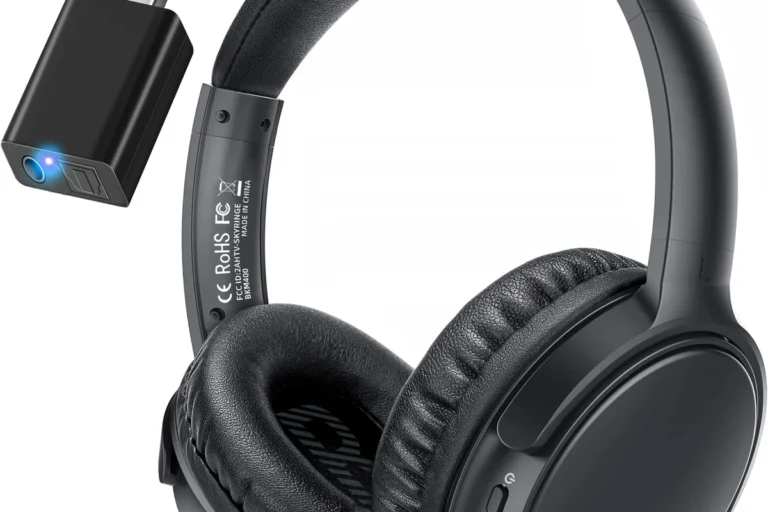
Using a Bluetooth transmitter or TV
- Plug the transmitter into the TV headphone jack or optical out.
- Power the transmitter and set it to pairing mode.
- Put your headphones in pairing mode.
- Wait for both to link. TV audio should route to the headphones.
This helps when a TV does not support Bluetooth natively. It’s a reliable way to know how to connect Bluetooth headphones for TV watching.
Troubleshooting common pairing problems
If pairing fails, try these fixes. I’ve used these steps to solve most issues during testing.
- Restart both devices. A reboot clears temporary glitches.
- Forget the device and re-pair. Remove the headphone entry from Bluetooth settings, then re-do pairing.
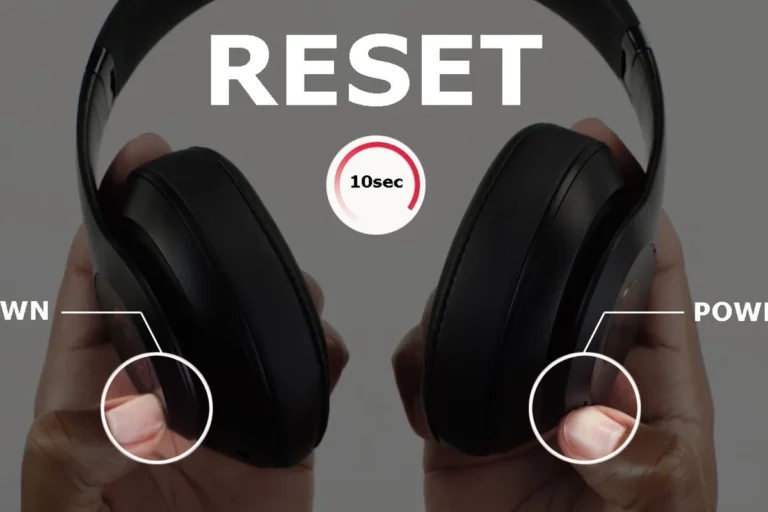
- Reset the headphones to factory settings. Check the manual for the reset button or long-press routine.
- Update firmware or drivers. Many brands release fixes that improve pairing stability.
- Reduce interference. Move away from Wi‑Fi routers, microwaves, and other active devices.
People often ask: Why won’t my headphones pair? Usually a device is not in true pairing mode or it’s already connected to another device. Try turning off Bluetooth on other nearby devices.
How do I fix no sound after pairing? Check the audio output on your device. Set the headphones as the active output in sound settings.

Tips, best practices, and personal experience
I’ve paired cheap buds and high-end cans. Here are lessons I learned the hard way.
- Keep firmware up to date. Manufacturers fix bugs that block pairing.
- Use only one pairing method at a time. Avoid trying Bluetooth and an app simultaneously.
- Label devices in your Bluetooth list. It helps when many devices appear.
- Pair with the case closed for true wireless earbuds only after opening the case only when instructed. Some earbuds enter pairing only with the case open.
- If you travel, carry a small USB Bluetooth dongle for older laptops.
A real mistake I made once: I tried pairing while on low battery and it failed repeatedly. After charging, pairing worked instantly. That taught me to check power first.

Frequently Asked Questions of how to connect bluetooth headphones
How do I put my headphones in pairing mode?
Most headphones need a long press on the power button or a dedicated pairing button for 3–7 seconds. Check the manual for model-specific steps.
Why can’t my phone find my headphones?
The headphones may not be in pairing mode or they might already be paired to another device. Turn off other Bluetooth sources and try again.
Do I need an app to connect Bluetooth headphones?
No, apps are optional. Most phones and laptops pair directly, but apps can add controls and firmware updates.
How do I connect two devices to the same headphones?
Some headphones support multipoint pairing. Enable multipoint in the headphone manual or pair both devices as usual; the headphones will switch between them automatically if supported.
How do I reset Bluetooth headphones?
Reset methods vary. Common steps include holding power and volume buttons together for 10 seconds. Check the manual for the exact reset procedure.
Conclusion
You can learn how to connect Bluetooth headphones quickly by following simple steps. Charge devices, enable pairing mode, and select the headphones from Bluetooth settings. Use the troubleshooting tips if things go wrong, and keep firmware updated for the best results. Try these steps now with your device, and leave a comment below about your experience or any model-specific tips you found helpful.