How to Connect Headphones to Samsung TV Easily and Fast

The fastest way is usually Bluetooth if your Samsung TV supports it, or a direct 3.5mm wired connection if it has a headphone jack. If neither works, a Bluetooth transmitter or adapter can bridge the gap.
If you want to know how to connect headphones to Samsung TV, the good news is that there are several easy ways to do it. The best method depends on whether your TV supports Bluetooth, has a headphone jack, or needs an adapter or transmitter.
- Bluetooth: Easiest option on supported Samsung TVs.
- Wired: Best for low latency and stable audio.
- Adapters: Useful when the TV lacks direct headphone support.
- Fixes: Check sound output, pairing mode, and volume first.
How to Connect Headphones to Samsung TV: What This Guide Covers in 2026
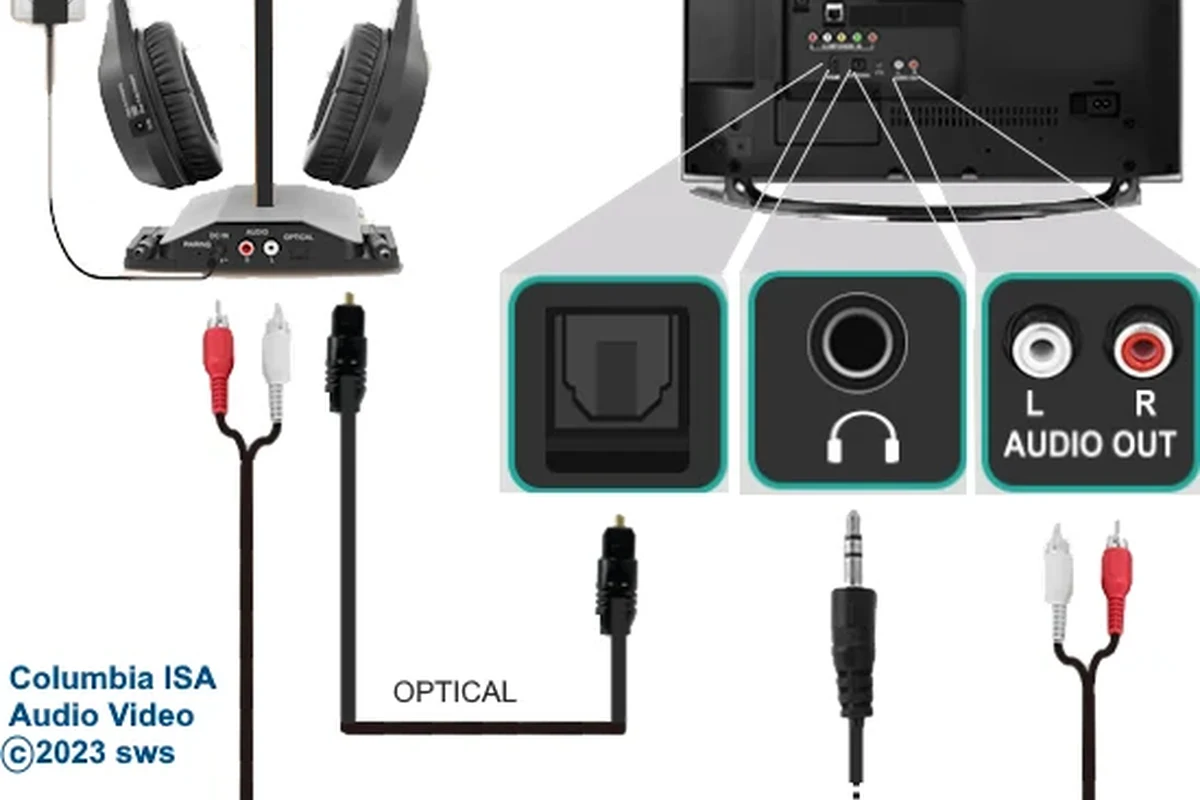
Samsung TVs have become more flexible over time, but not every model handles headphone output the same way. Some newer sets support Bluetooth audio directly, while older or budget models may still rely on wired outputs, optical audio, or external adapters.
This guide walks through the most practical options so you can watch movies, play games, or listen late at night without disturbing anyone. It also covers common issues like pairing problems, audio lag, and low volume so you can fix them quickly.
Compatibility can vary by Samsung TV model, software version, and headphone brand. If your TV menu looks different, check the sound settings or the user manual for your exact model.
Best Ways to Connect Headphones to a Samsung TV
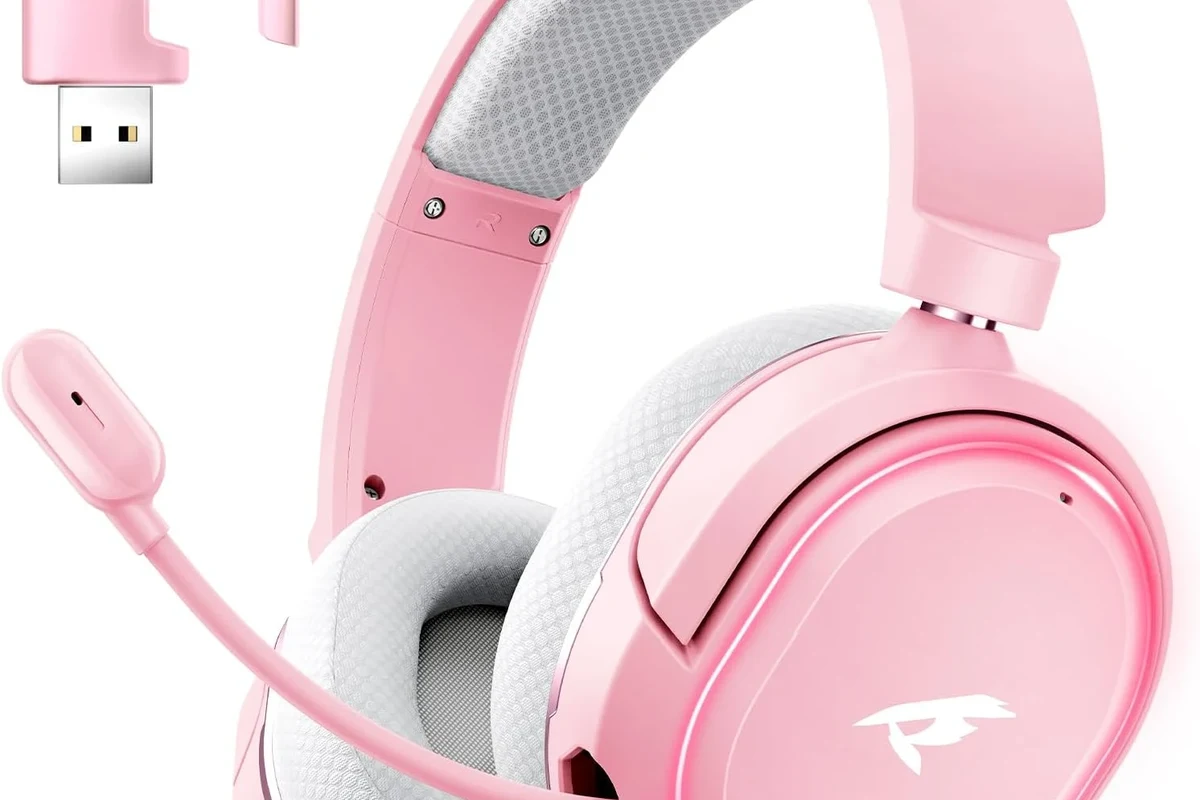
There are three main ways to connect headphones to a Samsung TV: Bluetooth, a wired 3.5mm connection, or an adapter-based setup. The right choice depends on how you watch and whether you care more about convenience, sound sync, or simplicity.
Bluetooth headphones
Bluetooth is the easiest option if your Samsung TV supports it. You can pair wireless headphones, earbuds, or a gaming headset without extra cables, which makes it ideal for casual viewing and shared living rooms.
If you already use Bluetooth headphones with phones or laptops, the process will feel familiar. The main tradeoff is that Bluetooth can sometimes introduce a small delay, which matters more for gaming and fast-paced sports.
Wired headphones with a 3.5mm jack
Wired headphones are still the simplest choice for many users because they usually avoid pairing issues and offer stable audio. If your Samsung TV has a dedicated headphone output, you can plug in directly and start listening right away.
This is often the most reliable setup for people who want low-latency sound. It is also a good fallback if your TV does not support Bluetooth audio out.
USB, optical, and adapter-based options
Some Samsung TVs may not have a headphone jack, or they may only offer digital audio outputs. In that case, you can use a Bluetooth transmitter, optical adapter, or a USB-C solution when supported by the TV and accessory.
Not every USB port on a TV sends audio. Some are only for media playback, firmware updates, or service use, so check your model before buying an adapter.
Step-by-Step: Pair Bluetooth Headphones to Samsung TV
If your TV supports Bluetooth audio, pairing usually takes only a few minutes. The exact menu names may differ slightly by model, but the general process is the same.
Open the TV sound settings
Go to the Samsung TV settings menu and open the sound or audio section. Look for an option such as Sound Output, Bluetooth Speaker List, or Audio Device Manager depending on your TV model.
Use the remote to enter the sound menu and select Bluetooth or audio output settings.
Turn on your headphones and make sure they are in pairing mode before scanning for devices.
Put headphones in pairing mode
Most Bluetooth headphones have a pairing button or a long press on the power button to enter discovery mode. A flashing light or voice prompt often confirms that the headset is ready to connect.
If your headphones were previously connected to a phone or tablet, disconnect them first. That can help the TV find them faster and reduce pairing conflicts.
Select the headset and test audio
Once the TV detects the headphones, choose them from the list and wait for the connection to complete. After pairing, play a show or open a streaming app to confirm the sound is coming through the headset.
If the audio still plays through the TV speakers, recheck the sound output setting and make sure the headphones are selected as the active device. For more general wireless setup help, see our guide on Bluetooth headphones explained.
How to Use Wired Headphones with Samsung TV
Wired listening is still a strong choice for viewers who want simple setup and dependable audio. It is especially useful for older TVs, people who dislike Bluetooth latency, and anyone who watches late at night.
Direct connection to the TV headphone output
If your Samsung TV has a 3.5mm headphone port, plug in your wired headphones just like you would with a phone or laptop. The TV may automatically switch audio to the headphone output, but in some cases you may need to change the sound output manually.
This setup is usually the fastest and least complicated. It also avoids battery concerns, which is helpful for long movie nights or extended gaming sessions.
Using a Bluetooth transmitter for non-Bluetooth TVs
If your Samsung TV does not support Bluetooth audio, a Bluetooth transmitter can send sound to wireless headphones. The transmitter connects to the TV through a headphone jack, optical port, or another supported audio output.
This is a smart option for older TVs, but performance depends on the transmitter quality and the headphones you use. If you want to reduce lag, look for low-latency support rather than assuming all transmitters sound the same.
Using a USB-C or optical adapter when needed
Some setups require extra hardware to convert the TV’s signal into a headphone-friendly format. Optical adapters and USB-C accessories can help in certain cases, but they only work if both the TV and adapter support the same output path.
Optical audio is digital, so it often needs a converter before you can use standard analog headphones directly.
Common Problems When Connecting Headphones to Samsung TV
Even when the steps are simple, a few common issues can get in the way. Most of them are easy to fix once you know where to look.
No sound after pairing
If the headphones connect but you hear nothing, check whether the TV is still sending audio to the built-in speakers. You may also need to raise the TV volume, since some models treat headphone output separately from speaker output.
- Headphones are selected as the sound output
- The headset volume is turned up
- The TV is not muted
- The headphones are charged
Audio delay while gaming or watching sports
Bluetooth delay can be noticeable when you are gaming, watching football, or following fast dialogue scenes. If lip-sync matters, wired headphones or a low-latency transmitter are usually better choices.
For readers who care about timing and responsiveness, our Bluetooth headphone lag fix guide can help you understand what causes the delay and how to reduce it.
TV does not detect the headphones
If the TV cannot find the headset, make sure the headphones are in pairing mode and not already connected to another device. Restarting both devices can also help clear a stuck connection.
Listening at high volumes for long periods can cause hearing damage. Keep volume at 60% or below for extended sessions.
Volume too low or one side missing audio
Low volume can happen if the TV output is limited, the headphones are not fully charged, or the adapter is not powered correctly. If one side of the audio is missing, check the cable, jack fit, and balance settings before assuming the headphones are broken.
For wired setups, a loose plug is one of the most common causes of uneven sound. Re-seating the connector often fixes the problem immediately.
Expert Advice: Best Headphone and Adapter Choices for Samsung TVs
The best audio setup depends on how you use your TV. A movie-only setup can prioritize comfort and convenience, while gaming and sports usually need lower latency and better lip-sync.
When to choose Bluetooth over wired for latency
Choose Bluetooth if convenience matters most and a tiny delay will not bother you. Choose wired if you want the most stable timing for gaming, rhythm games, or anything where audio sync is critical.
If you notice repeated pairing failures, severe audio delay, or hearing-related concerns, it is worth checking with an audiologist or a qualified audio specialist.
What to look for in low-latency transmitters and adapters
Look for transmitters that clearly support low-latency audio and match the TV output you plan to use. Also check battery life, range, and whether the adapter supports the headphone type you already own.
For readers comparing headphone styles, our types of headphones explained article can help you decide whether over-ear, on-ear, or in-ear models fit your setup best.
Price and value comparison: budget vs premium setup
Budget setups usually work fine if you only need basic TV listening. Premium setups may be worth it if you want better comfort, stronger wireless range, more reliable pairing, or cleaner sound for long sessions.
Mistakes to Avoid When Connecting Headphones to Samsung TV
A few small setup mistakes can make the process feel harder than it really is. Avoiding these common errors can save time and reduce frustration.
Assuming every Samsung TV supports Bluetooth audio out
Do not assume Bluetooth is available on every Samsung TV. Some models support Bluetooth only for remotes or accessories, not for audio output to headphones.
Using the wrong audio format or output setting
If you use an adapter or transmitter, the TV may need a specific output setting to work correctly. Digital audio formats, speaker output settings, and external device menus can all affect whether your headphones receive sound.
Ignoring battery life, range, and lip-sync issues
Wireless headphones are convenient, but battery life and range still matter. If you sit far from the TV or watch long sessions, make sure your headset and transmitter can handle that routine without constant recharging.
Final Recap: The Fastest Way to Connect Headphones to Samsung TV
The fastest way to connect headphones to a Samsung TV is usually Bluetooth on a supported model or a direct wired connection if your TV has a headphone jack. If neither option is available, a Bluetooth transmitter or adapter can still get the job done with a little extra setup.
For most viewers, the best choice comes down to convenience versus latency. If you want simple late-night watching, Bluetooth is easy; if you want the cleanest timing for gaming or sports, wired is often the safer bet.
- Bluetooth is the easiest option when your Samsung TV supports it.
- Wired 3.5mm connections are usually best for low delay.
- Adapters and transmitters help when the TV lacks direct headphone support.
- Check sound output settings if you get no audio after pairing.
Frequently Asked Questions
Bluetooth is more convenient, but wired headphones usually offer lower latency. If you watch sports or game a lot, wired is often the safer choice.
Over-ear headphones are often the most comfortable for long sessions because they spread pressure around the ears. Ear pad material, clamping force, and weight matter too.
Yes, noise-cancelling headphones can work very well for TV watching, especially in shared or noisy rooms. Just remember that sound quality and comfort still depend on the model.
Check Bluetooth support, latency, comfort, battery life, and whether your TV has a headphone jack or optical output. Also make sure the headphones fit your use case, such as gaming, movies, or late-night viewing.
Open-back headphones can work, but they leak sound and offer less isolation. They are usually better for quiet rooms than for shared spaces or late-night TV watching.
Start by checking the TV’s sound settings and using the right output mode. You can also adjust EQ on the headphones if available, but the best results depend on the TV, the headset, and the connection type.