Can You Connect JBL Headphones to Xbox Easily and Fast

Yes, but usually not by direct Bluetooth pairing. The most reliable way is to connect JBL headphones to the Xbox controller with a 3.5mm cable.
If you’re asking can you connect JBL headphones to Xbox, the short answer is yes—but usually not by standard Bluetooth pairing. In most cases, the easiest path is wired through the Xbox controller, or by routing audio through your TV, monitor, or another compatible device.
That matters because JBL makes many different headphone types, from Bluetooth over-ears to true wireless earbuds and gaming headsets. The best method depends on your exact JBL model, your Xbox version, and whether you need game audio only or both game and chat audio.
- Direct Bluetooth: Usually not supported on Xbox.
- Best method: Wired connection through the controller.
- Workarounds: TV audio and transmitters can help, but may add lag.
- Mic support: Check chat compatibility before buying accessories.
- Safety: Keep volume moderate during long sessions.
Can You Connect JBL Headphones to Xbox? Quick Answer and What Actually Works in 2026
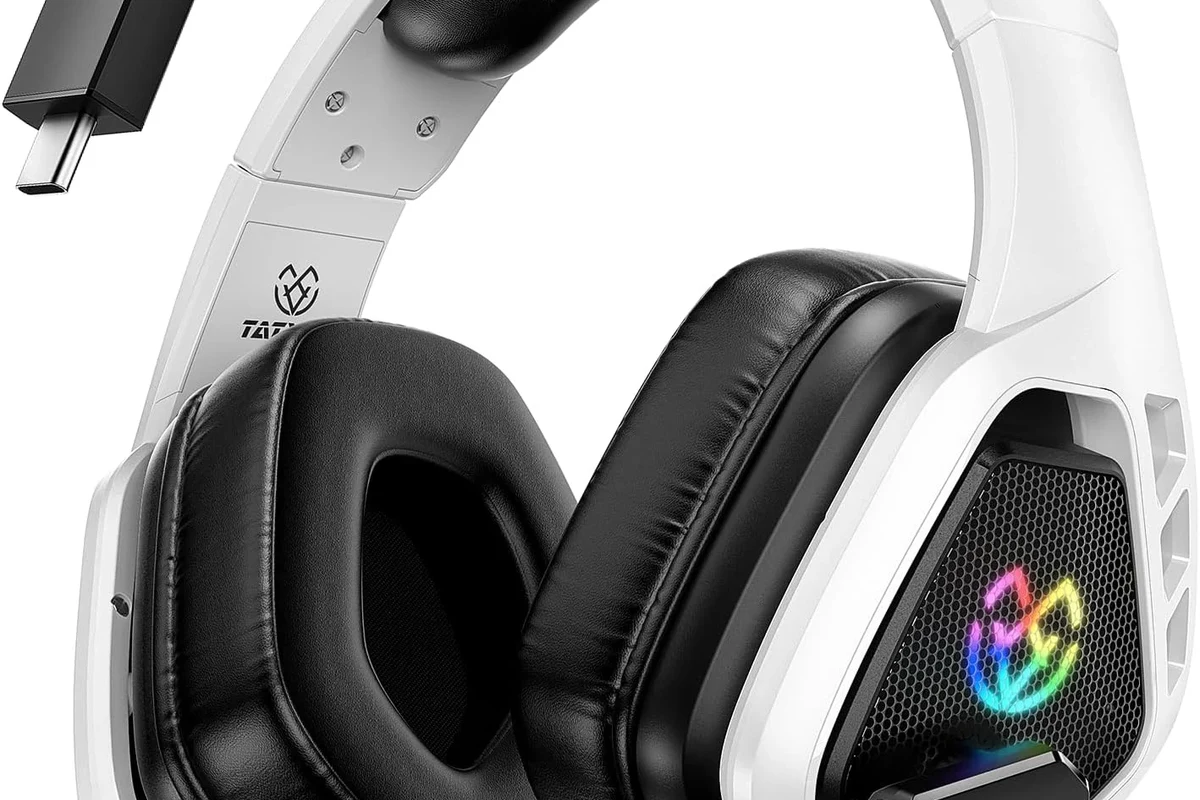
Most JBL Bluetooth headphones do not connect directly to Xbox consoles in the same simple way they connect to a phone. Xbox systems still rely on their own wireless audio approach, so the practical options are wired connections, TV audio routing, or external accessories.
In 2026, the most reliable setup for many JBL headphones is still the 3.5mm cable from the Xbox controller, if your JBL model supports wired listening. If not, you may need a Bluetooth transmitter or a different audio source, but those workarounds can add delay or limit microphone support.
Why Xbox Is Different: Bluetooth Limits, Wireless Standards, and JBL Compatibility
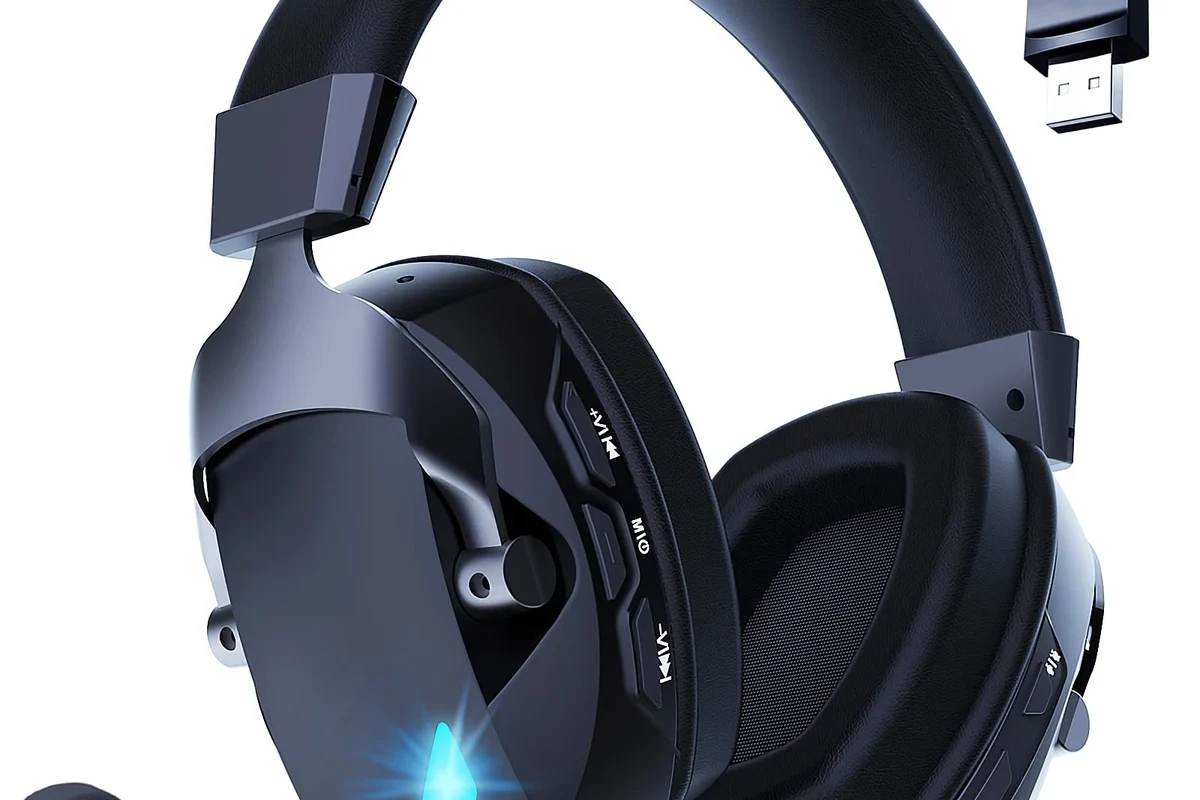
Xbox is a little unusual compared with phones, tablets, and PCs. Even though many people expect Bluetooth to work everywhere, Xbox consoles do not support standard Bluetooth headphone pairing for system audio in the usual way.
That is why JBL headphones that work instantly with an iPhone, Android phone, or laptop may appear incompatible on Xbox. If you want a deeper look at pairing basics, our guide on how to connect Bluetooth headphones explains the general process, but Xbox adds extra limits.
Why most JBL Bluetooth headphones won’t pair directly with Xbox consoles
Most JBL Bluetooth headphones use standard Bluetooth audio, while Xbox prefers its own wireless ecosystem and controller-based wired audio options. So even if your JBL headphones are excellent for music and streaming, they may not show up as a normal pairing option on the console.
Some users try to force a connection through menus or pairing modes, but that usually leads to frustration. If you want gaming audio with less hassle, a cable or Xbox-compatible accessory is typically the safer route.
Which Xbox models matter: Xbox Series X|S, Xbox One, and older systems
Xbox Series X|S and Xbox One are the most relevant models for JBL users today. Both are designed around controller audio, TV audio output, and Xbox-specific wireless accessories rather than universal Bluetooth headphones.
Older Xbox systems are even more restrictive, so if you are using an older console, direct JBL wireless pairing is even less likely to work. In that case, your best bet is almost always a wired or TV-based workaround.
Compatibility can vary by exact JBL model, controller version, TV features, and whether you need chat audio, game audio, or both.
Best Ways to Use JBL Headphones with Xbox Without Frustration
If your goal is fast setup and stable sound, focus on the methods that are most likely to work the first time. For most players, that means wired audio through the controller, or audio routed through a TV or monitor that already supports headphone output.
Wired connection through the Xbox controller and 3.5mm jack
This is usually the easiest solution if your JBL headphones include a detachable cable or a wired mode. Plug the 3.5mm cable into the controller, then connect the other end to your headphones and adjust the volume from the Xbox settings or controller controls.
This method is popular because it avoids Bluetooth pairing issues and usually gives lower latency than wireless workarounds. It is also the most practical option for players who want fewer dropouts during gaming sessions.
If your JBL headphones support both Bluetooth and wired use, switch to the cable for Xbox gaming whenever possible. It usually gives more stable sound and fewer delay problems.
Using a TV, monitor, or soundbar as the audio source
Another common approach is to send Xbox audio to your TV or monitor first, then connect your JBL headphones to that device if it has a headphone jack or audio-out feature. This can work well for people who already game through a home entertainment setup.
For some users, this is the cleanest way to keep the console setup simple. The tradeoff is that TV audio paths can vary, and some displays may add latency or limit microphone use.
Bluetooth transmitter workarounds: when they help and when they don’t
A Bluetooth transmitter can sometimes help if you want to use JBL Bluetooth headphones wirelessly with Xbox. The transmitter plugs into a compatible audio output, then sends sound to your headphones.
However, this is not a perfect fix. Some transmitters add lag, reduce audio quality, or make voice chat harder to use. If you care about competitive gaming or clear mic performance, a transmitter should be treated as a workaround, not the best default choice.
Cheap adapters can create delay, noise, or unstable connections. If you buy one, look for low-latency support and clear compatibility with your Xbox audio path.
Model-Specific JBL Headphones: Which Ones Are Easier to Use with Xbox?
Not every JBL model behaves the same way on Xbox. Some are better for wireless music, some are easier to use with a cable, and some are built specifically for gaming-style use.
JBL Tune and JBL Live series: common use cases and limitations
The JBL Tune and JBL Live lines are popular for everyday listening, travel, and casual gaming. Many of these models work well with phones and laptops, but they often need a wired connection or external adapter for Xbox.
If you already own one of these series, the key question is whether it supports passive wired audio. If it does, that usually makes Xbox use much easier.
JBL gaming headsets with dongles or wired options
Some JBL gaming headsets are easier to use because they are designed with console play in mind. If a headset includes a USB dongle, 3.5mm cable, or console-friendly connection method, it may be more straightforward than a standard Bluetooth model.
Still, check the exact connection type before buying. A “gaming” label does not always mean it will work the way you expect on Xbox.
Headphones that sound great for movies or music can still feel awkward for gaming if they have noticeable latency or weak chat support.
Over-ear vs. earbuds: comfort, latency, and mic tradeoffs
Over-ear JBL headphones usually give better comfort for long sessions and can provide fuller sound, especially for game effects and dialogue. They also tend to be easier to use with a cable.
Earbuds are more compact, but they can be less comfortable during long play sessions and may not offer the same microphone flexibility. If you plan to use Xbox party chat often, check mic support carefully before choosing earbuds over headphones.
Step-by-Step Setup Guide for the Fastest JBL-to-Xbox Connection
If you want the fastest path, start with the method most likely to work without extra accessories. In many cases, that is a wired connection through the controller.
How to connect JBL headphones through the controller
Make sure your headphones support wired playback. If they do, use the included audio cable or another compatible 3.5mm cable.
Insert the cable into the Xbox controller’s headphone jack, then connect the other end to your JBL headphones.
Open the console audio settings and confirm that headset output is enabled. Then raise or lower volume from the controller as needed.
How to route Xbox audio through a TV or external device
If your TV or monitor has a headphone output, connect your JBL headphones there after setting the Xbox to output audio through the display. This can be helpful if your controller cable is too short or if you prefer listening from the TV side of the setup.
Some soundbars and AV receivers can also pass audio to headphones, but the exact setup depends on the device. If you want to understand broader Bluetooth behavior across devices, our article on Bluetooth headphones explained simply is a useful reference.
How to test sound, chat audio, and microphone performance
After connecting, open a game or system sound test and confirm that both left and right channels are working. Then check party chat or in-game voice chat if your JBL model includes a microphone.
If you can hear game audio but your voice is not transmitting, the problem is usually mic support, cable type, or adapter compatibility. That is common with non-gaming headphones and many basic Bluetooth workarounds.
- Does the JBL model support wired audio?
- Does your setup need microphone input or only listening?
- Is there noticeable lag between action and sound?
- Are both game audio and chat audio working properly?
Common Mistakes That Stop JBL Headphones from Working on Xbox
Most connection problems come from expecting Xbox to behave like a phone or laptop. Once you understand the limits, it becomes much easier to avoid wasted time and unnecessary accessories.
Expecting standard Bluetooth pairing to work directly
This is the biggest mistake. If you assume your JBL Bluetooth headphones will pair normally with Xbox, you may spend a long time searching menus that will never give you the result you want.
Instead, start with the controller jack, then move to TV audio or a transmitter only if needed. That order saves time and avoids confusion.
Ignoring mic compatibility and chat restrictions
Many JBL headphones can play sound but still fail at chat audio or microphone input. That is especially true for simple listening headphones and some Bluetooth-only models.
If party chat matters to you, check whether your exact model and cable setup support voice input. Game audio alone is easier to achieve than full headset functionality.
Using cheap adapters that add lag or cut audio quality
Budget adapters can be tempting, but they often introduce delay, hiss, or unstable pairing. In gaming, even small delays can make dialogue, footsteps, and action feel off.
If you are already dealing with a Bluetooth headphone setup, adding a poor adapter can make things worse. A stable wired path is usually the cleaner choice.
Listening at high volumes for long periods can cause hearing damage. Keep volume at 60% or below for extended sessions.
Expert Advice: Best Accessories, Price Ranges, and Better Alternatives in 2026
If your JBL headphones are already part of your daily routine, it may still be worth adding a small accessory instead of replacing the whole headset. But the best choice depends on how often you game and whether you need low latency.
Cost comparison: wired adapter, Bluetooth transmitter, and Xbox-compatible headset
A simple wired solution is usually the least expensive if your JBL model already supports it. A Bluetooth transmitter may cost more and still create compromises, while a dedicated Xbox-compatible headset is often the most convenient but may also be the biggest purchase.
For readers comparing audio gear more broadly, our guide on types of headphones explained can help you decide whether over-ear, on-ear, or in-ear is the better fit for gaming.
When it makes more sense to buy a dedicated gaming headset
If you want easy chat support, low lag, and fewer setup steps, a dedicated gaming headset can be the better long-term answer. That is especially true if you play multiplayer games often and do not want to troubleshoot adapters.
On the other hand, if your JBL headphones already sound good and you only game occasionally, a wired connection may be all you need. That keeps costs down and lets you keep using the headphones you already enjoy.
Warning signs that an accessory will cause latency or audio dropouts
Be cautious if an accessory does not clearly mention low-latency use, console compatibility, or stable audio transmission. Vague product listings are often a red flag.
Also watch for reports of random disconnects, mono sound, or weak microphone support. Those are all signs that the accessory may not be a good fit for gaming.
If you have ongoing audio imbalance, hearing discomfort, or tinnitus concerns, speak with an audiologist or hearing professional before pushing volume higher to “fix” the problem.
Final Verdict: The Easiest and Most Reliable Way to Use JBL Headphones with Xbox
So, can you connect JBL headphones to Xbox? Yes, but the easiest reliable method is usually not direct Bluetooth pairing. For most JBL users, a wired connection through the controller is the fastest and most dependable option.
If your JBL model does not support wired use, your next best choices are a TV or monitor audio route, or a Bluetooth transmitter with low-latency support. For most players, though, the simplest answer is still to use the cable first and only add accessories if you truly need wireless convenience.
- Xbox usually does not pair directly with JBL Bluetooth headphones.
- Wired controller audio is the easiest and most stable solution.
- TV routing and transmitters can work, but may add lag or limit chat.
- Check mic support before buying accessories or relying on earbuds.
Frequently Asked Questions
Usually, no. Most JBL Bluetooth headphones do not pair directly with Xbox consoles the way they do with phones or laptops.
Wired is usually better for Xbox because it is more stable and has less lag. Wireless workarounds can work, but they may add delay or limit chat features.
Over-ear JBL headphones are often more comfortable for long gaming sessions and usually give a fuller sound. Earbuds can be convenient, but they may be less comfortable and offer fewer mic options.
Check for wired support, microphone compatibility, and whether the model can work through a 3.5mm connection. If you want wireless use, look for low-latency support and clear Xbox compatibility.
Yes, sometimes. A transmitter can send Xbox audio to JBL Bluetooth headphones, but it may add lag or reduce chat functionality.
Keep volume moderate and take breaks during long sessions. If sound feels too loud or uncomfortable, lower the level and consider speaking with an audiologist if you have hearing concerns.