How to Connect Bluetooth Headphones to Nintendo Switch Easily

Open the Nintendo Switch Bluetooth Audio menu, put your headphones in pairing mode, and select the headset when it appears. If you want the easiest setup, built-in Bluetooth works well for casual gaming, but wired or adapter-based options can be better for low-latency play.
If you want to know how to connect bluetooth headphones to nintendo switch, the good news is that Nintendo finally supports Bluetooth audio natively on the system. The setup is simple, but there are still a few limitations worth knowing before you pair your headphones.
- Setup: Pair through the Switch’s Bluetooth Audio menu.
- Limit: Some latency and wireless restrictions are normal.
- Best use: Great for handheld play and quiet TV gaming.
- Fixes: Restart devices, update firmware, and reduce interference.
- Choice: Adapters or wired headsets may suit competitive games better.
How to Connect Bluetooth Headphones to Nintendo Switch: What You Need to Know First
Before you start, it helps to understand what the Switch can and cannot do with wireless audio. That way, you can avoid pairing issues and choose the right headphone setup for your gaming style.
Why Nintendo Switch Bluetooth Audio Still Confuses Players in 2026
A lot of players still remember when the Switch did not support Bluetooth audio at all, which is why this feature can feel confusing even now. If you have used older guides, some of them may still mention workarounds or adapters that are no longer necessary for basic pairing.
The main reason people get tripped up is that Bluetooth audio on Switch has limits. For example, the system may reduce controller support while Bluetooth headphones are connected, and some users notice a small delay in sound depending on the headset model.
Supported Switch Models, System Requirements, and Bluetooth Limitations
Bluetooth audio works on the standard Nintendo Switch, Switch Lite, and Switch OLED as long as the system software is up to date. You do not need a special app, but you do need a compatible pair of wireless headphones or earbuds.
Note
Bluetooth audio features can vary by system update, headset model, and how many wireless devices are active at the same time.
Keep in mind that the Switch supports only a limited number of Bluetooth audio connections at once. If you already have multiple controllers or accessories connected, disconnecting one may help the pairing process go more smoothly.
Step-by-Step Guide to Pair Bluetooth Headphones with Nintendo Switch
The pairing process is straightforward once your headphones are ready. A clean setup usually takes just a minute or two if both devices are close together.
How to Put Your Headphones in Pairing Mode
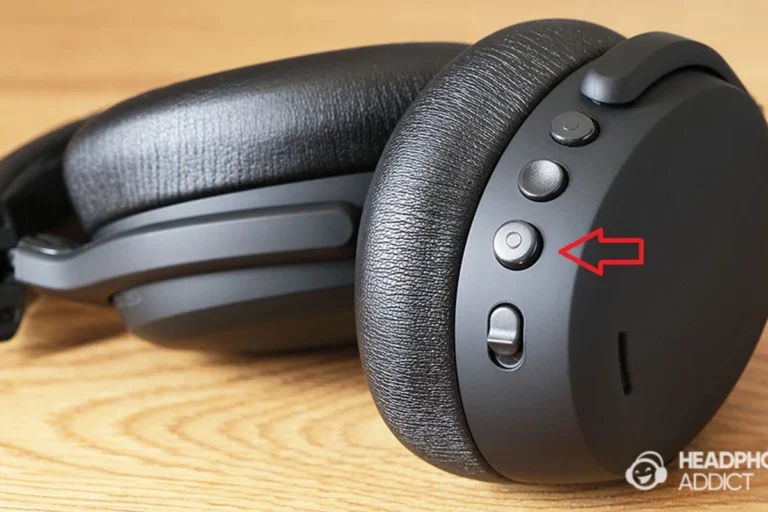
Start by turning on your headphones and putting them into pairing mode. On many models, this means holding the power button or a dedicated Bluetooth button until the light starts blinking.
If you are not sure how your model works, check the manual or the manufacturer’s support page. Different brands use different button combinations, and that small detail is often the difference between instant pairing and repeated frustration.
How to Enable Bluetooth Audio on the Switch Menu
On the Nintendo Switch home screen, open System Settings, then go to Bluetooth Audio. From there, choose the option to add a device or pair a new audio device.
From the home menu, go into the Switch settings and find the Bluetooth Audio section.
Choose the option that tells the console to scan for nearby Bluetooth headphones.
If the menu is not visible, make sure the console software is current. A system update often resolves missing menu items and improves general wireless stability.
How to Complete Pairing and Confirm the Connection
Once the Switch scans your headphones, select the device name from the list. If pairing is successful, the audio output should switch over automatically.
Test the connection by starting a game or opening a menu with sound effects. If you hear clean audio through your headphones, the setup is complete.
Best Real-World Use Cases for Bluetooth Headphones on Switch
Bluetooth audio is not just about convenience. In the right situation, it can make the Switch much easier to use without cables getting in the way.
Handheld Gaming on the Go
Handheld play is one of the best use cases for wireless headphones because it keeps your setup light and portable. You can play in bed, on the couch, or while moving around without a cable hanging from the console.
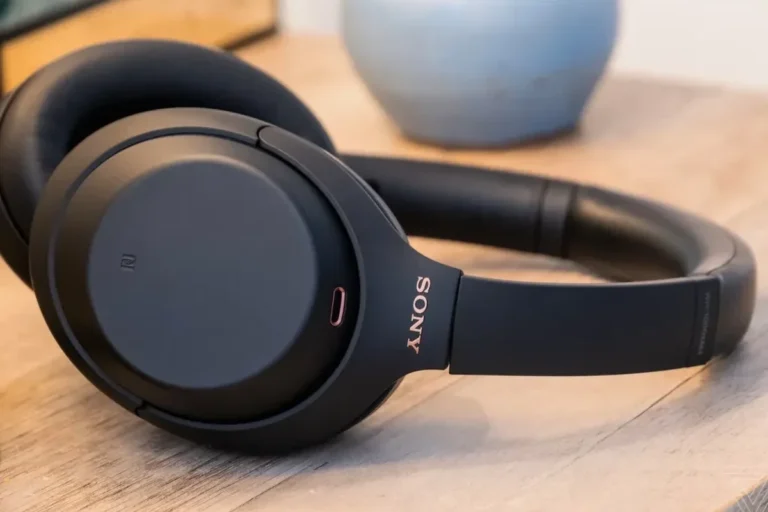
This is especially useful if you already prefer different types of headphones explained and want something compact like earbuds or lightweight on-ear models.
Docked Play for TV Gaming Without Disturbing Others
Bluetooth headphones are also useful when the Switch is docked and connected to a TV. You can enjoy game audio privately while keeping the room quiet for family members, roommates, or late-night sessions.
If you are comparing wireless audio options, our guide on bluetooth vs wired headphones sound quality can help you decide whether convenience or audio consistency matters more for your setup.
Using Wireless Headphones for Travel, Commutes, and Shared Spaces
Travel is another strong reason to use Bluetooth headphones with Switch. On a train, in a hotel, or in a shared living space, wireless audio keeps your gaming setup cleaner and easier to manage.
Audio Tip
If you travel often, choose headphones with stable Bluetooth connection, comfortable ear pads, and a battery life that matches your longest play sessions.
Common Bluetooth Headphone Problems on Nintendo Switch and How to Fix Them
Even when the pairing steps are correct, a few issues can still appear. Most of them are simple to troubleshoot if you know what to check first.
Headphones Not Showing Up in the Device List
If your headphones do not appear, make sure they are still in pairing mode and close to the console. Turning Bluetooth off and back on, then restarting the headphones, often helps.
You can also remove old pairings from the headset if it keeps connecting to another device first. For more general pairing help, this guide on how to connect bluetooth headphones covers the basics that apply across many devices.
Audio Lag, Dropouts, and Low Volume Issues
Latency is one of the most common complaints with wireless gaming audio. If the sound seems behind the action, try moving closer to the console, reducing interference, or testing another headset.
Dropouts and low volume can also happen if the headphones are low on battery or if multiple wireless devices are competing for signal. In some cases, a simpler headset or a different Bluetooth profile may perform better.
Listening at high volumes for long periods can cause hearing damage. Keep volume at 60% or below for extended sessions.
Controller Disconnects and Limited Wireless Device Support
One less obvious issue is that Bluetooth audio can reduce the number of wireless devices the Switch can handle comfortably. If a controller starts acting up, disconnecting and reconnecting accessories may help.
If you want to understand why this happens, the console is balancing several wireless signals at once. That is normal behavior, but it means a Bluetooth headset is not always the best choice for every setup.
Expert Advice: Mistakes to Avoid Before You Start
Most pairing problems come from small setup mistakes rather than a broken headset. Choosing the right model and knowing its limits can save you a lot of time.
Why Some Headphones Work Better Than Others
Not every Bluetooth headphone behaves the same way with a game console. Some models connect quickly and stay stable, while others are more prone to delay or random dropouts.
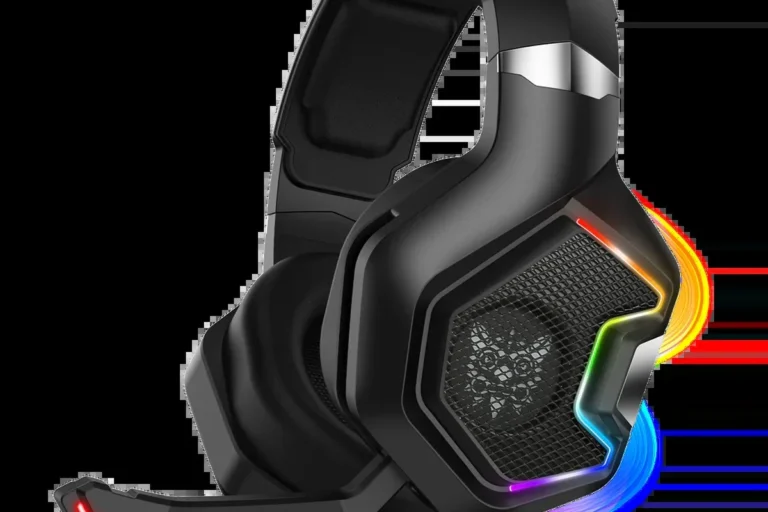
In general, gaming-focused wireless headsets and newer earbuds tend to be easier to use than older budget models. Build quality, antenna design, and firmware support can all affect the experience.
When Firmware Updates and Codec Support Matter
Headphone firmware updates can improve stability, fix pairing bugs, and sometimes help with connection reliability. If your model has a companion app, it is worth checking for updates before blaming the Switch.
If you experience persistent audio delay, repeated disconnects, or hearing-related discomfort, consider speaking with an audiologist or a professional audio specialist.
Codec support also matters, but it is not the only factor. Even a good codec cannot fully eliminate latency if the headset or console setup is not optimized for gaming.
Warning About Latency in Competitive or Rhythm Games
If you play rhythm games, fighting games, or fast shooters, Bluetooth audio may not feel as tight as wired sound. A small delay can throw off timing more than many players expect.
Important
For competitive play, a wired headset or a low-latency wireless adapter may be a better choice than standard Bluetooth audio.
Bluetooth Adapter vs Built-In Switch Audio: Which Option Is Better in 2026?
The built-in Bluetooth feature is the easiest option, but it is not always the best one. Some players still prefer a separate adapter for lower latency, broader headset support, or more flexible routing.
Price Comparison of Budget, Mid-Range, and Premium Solutions
Built-in Bluetooth is usually the most affordable route because it does not require extra hardware. A USB-C or USB-A adapter adds cost, but it may also add convenience depending on your setup.
Prices can vary a lot by brand, feature set, and whether you want a simple audio dongle or a more advanced low-latency device.
When a USB-C or USB-A Adapter Makes More Sense
An adapter can make sense if you want to use a headset that pairs poorly with the Switch’s built-in Bluetooth system. It may also help if you want to keep controller support more predictable while gaming.
That said, adapters are another accessory to carry, charge, or keep track of. If you want the simplest setup, native Bluetooth is still the easiest place to start.
Which Setup Delivers the Best Balance of Convenience and Sound Quality
For most casual players, built-in Bluetooth is the best balance of convenience and decent sound. It is simple, flexible, and good enough for relaxed play, story games, and everyday handheld sessions.
If you care more about timing accuracy, stronger consistency, or richer sound control, a wired connection or a quality adapter may be worth it. The best choice depends on your games, your headphones, and how sensitive you are to delay.
Final Recap: The Easiest Way to Enjoy Wireless Audio on Nintendo Switch
Connecting Bluetooth headphones to the Switch is easy once you know where the Bluetooth Audio menu is and how your headset enters pairing mode. The process is quick, but the real key is understanding the limits of wireless gaming audio.
Quick Summary of the Setup Process and Key Takeaways
Put your headphones in pairing mode, open Bluetooth Audio in the Switch settings, select the headset, and confirm the connection with a sound test. If the headset does not appear, restart both devices and try again.
- Pairing is simple through the Switch Bluetooth Audio menu.
- Latency and wireless limits are the main tradeoffs.
- Some headsets perform better than others for gaming.
- Adapters can help if you want more stability or lower delay.
Best Practices for a Smooth, Reliable Gaming Experience
Keep your headset updated, stay within a reasonable distance of the console, and avoid overloading the Switch with too many wireless accessories at once. If you notice lag or dropouts, test another headset or switch to a wired option for comparison.
For readers who want to understand headphone behavior more broadly, our guides on Bluetooth basics and wireless audio can help you make a smarter buying decision for both gaming and everyday listening.
Frequently Asked Questions
Wired headphones usually give more consistent sound and less delay. Wireless headphones are more convenient, but sound quality and latency can vary by model.
Yes, especially for travel or shared spaces, because they can help block outside noise. Just remember that active noise cancelling may affect battery life and comfort depending on the model.
Closed-back headphones are usually better for Switch because they isolate sound more and leak less audio. Open-back models can sound wider, but they are less practical in noisy places.
Look at comfort, latency, battery life, and whether the headset supports stable Bluetooth or wired use. Driver type, frequency response, and EQ options can also affect bass, clarity, and detail.
Budget needs vary by brand and features, but it helps to focus on reliability first rather than flashy extras. A mid-range model often gives a better balance of comfort, sound, and durability than the cheapest option.
Choose lightweight headphones with soft ear cushions and a headband that does not clamp too tightly. If you game for long periods, take breaks and keep volume at a safe level.