How to Restart Beats Headphones Fast and Easily

Restart Beats headphones by powering them off, waiting a few seconds, and turning them back on. If they still do not respond, use the correct model-specific soft reset and reconnect the headphones in Bluetooth settings.
If your Beats headphones are frozen, won’t pair, or seem unresponsive, the fastest fix is usually a restart, not a full reset. In most cases, a simple power cycle clears temporary glitches and gets your audio back quickly.
This guide from the Top Headphone Reviews Editorial Team explains how to restart Beats headphones in a beginner-friendly way, including common Beats over-ear models and true wireless earbuds. If you also want the broader Bluetooth side of the process, our guide on how to connect Bluetooth headphones can help once your Beats are powered back on.
- Start simple: A basic power cycle fixes many Beats glitches.
- Check power first: Low battery and charging issues can mimic a frozen headset.
- Use the right method: Restart and reset are not the same thing.
- Reconnect cleanly: Forget old Bluetooth entries if pairing keeps failing.
How to Restart Beats Headphones: What “Restart” Means for Beats Models
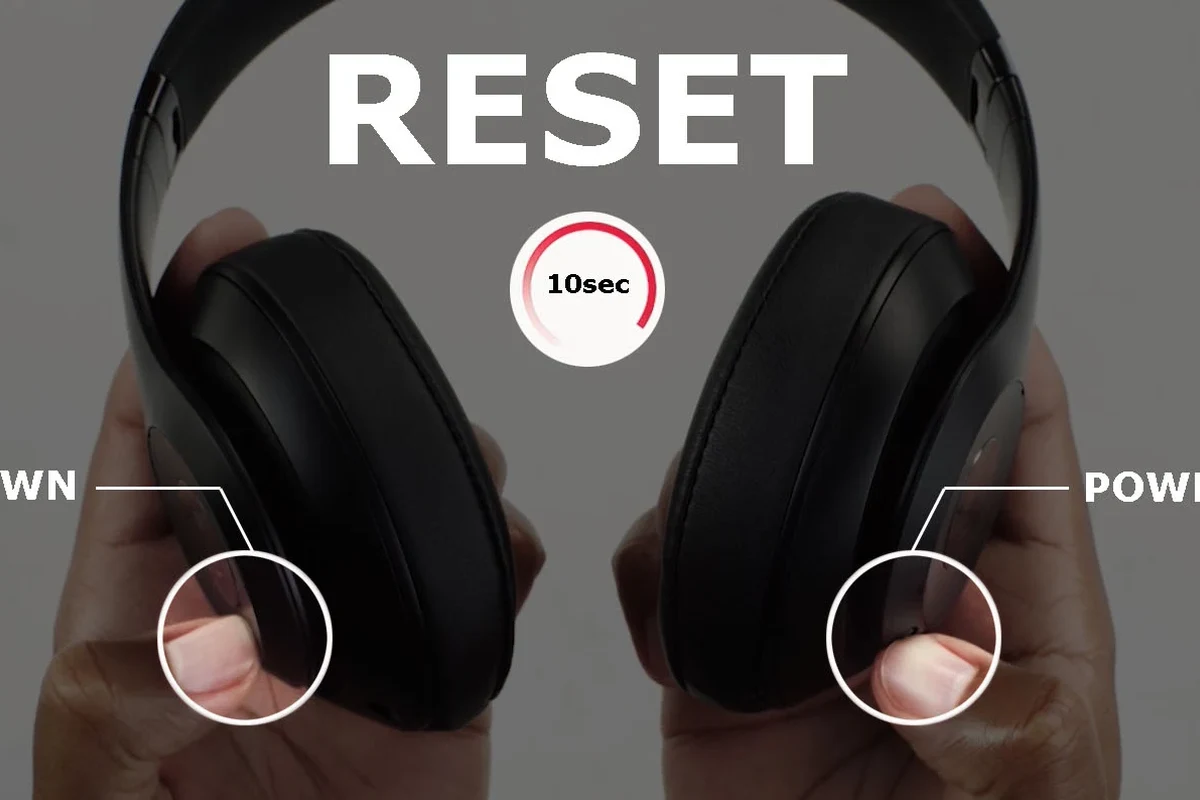
For Beats products, “restart” usually means turning the headphones off and back on, or using a brief button sequence to clear a temporary software hiccup. It is different from a factory reset, which removes saved pairing information and should only be used when a restart does not solve the issue.
Why a restart is different from a full reset
A restart is the lighter troubleshooting step. It keeps your saved settings and paired devices intact in many cases, while a reset is meant for deeper connection problems or when the headphones need to be set up again from scratch.
If your Beats only stopped responding after a stalled Bluetooth connection, a restart is usually the right first move. If you are dealing with repeated pairing failures, you may eventually need a reset, but do not jump there too quickly.
Which Beats models this guide covers in 2026
This article is aimed at common wireless Beats headphones and earbuds used in 2026, including popular Studio-style, Solo-style, and true wireless designs. Exact button behavior can vary by model generation, so always check your model if the controls do not match perfectly.
Beats model names and button layouts can differ slightly across generations. If your headphones behave differently, use the closest matching method below and consult the model manual if needed.
Search intent: quick fix for frozen, unresponsive, or pairing issues
Most readers searching for how to restart Beats headphones want a fast fix for one of three problems: the headphones are frozen, the controls are lagging, or Bluetooth pairing has become unstable. That is why the steps below start with simple checks before moving to button combinations.
Before You Restart: Quick Checks That Solve Most Problems
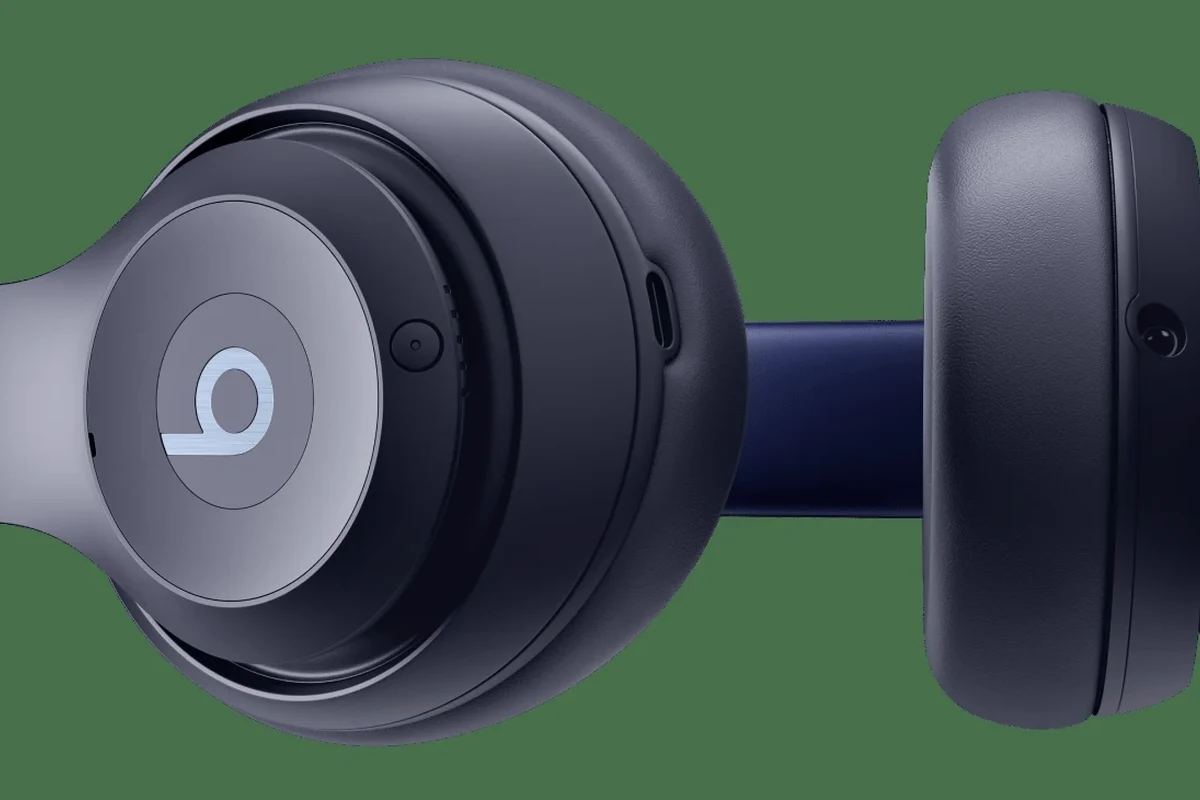
Before pressing any buttons, do a few quick checks. Many “broken” headphone problems are actually low battery, a bad cable, or a phone Bluetooth issue rather than a headphone failure.
Charge level, cable condition, and power source checks
Start with battery level. If your Beats will not turn on, plug them into a known-good charger and cable, then wait a few minutes before trying again.
For wired charging, inspect the cable and port for looseness, debris, or damage. A weak charging connection can make the headphones seem dead when they are simply underpowered.
- Battery is not fully drained
- Charging cable and adapter are working
- Charging port is clean and seated properly
Confirm whether the issue is headphones, phone, or Bluetooth settings
Try the Beats with another device if possible. If they work on a second phone or laptop, the problem may be your original device’s Bluetooth settings rather than the headphones themselves.
It also helps to check whether other Bluetooth devices are connecting normally. If everything else is failing, your phone, tablet, or computer may need a Bluetooth refresh as well.
If you use Beats with Apple or Windows devices, a device-side issue is common. For Windows readers, our guide to select headphones in Windows 11 can help after you restart and reconnect.
When a simple power cycle is enough
Sometimes the fix is as simple as turning the headphones off, waiting 10 to 20 seconds, and turning them back on. That brief pause can clear temporary glitches without touching your saved pairings.
If your Beats respond normally after that, you are done. If they still freeze, skip ahead to the model-specific restart or soft reset steps below.
How to Restart Beats Headphones Step by Step
The safest approach is to use the simplest restart method your model supports. In many cases, that means powering the headphones off fully, then turning them back on after a short wait.
Standard restart method for powered Beats headphones
Use the power control or button to shut the headphones down completely.
Leave them off for about 10 to 30 seconds so the internal system can clear.
Power them on again and check whether audio, controls, and Bluetooth respond normally.
This basic restart works well for many wireless headphones, especially when the issue is temporary lag or a stalled connection. If the headphones still do not respond, move to a force restart or soft reset.
Restarting Beats Studio, Solo, and over-ear models
For many Beats over-ear and on-ear models, a restart begins with a normal power-off and power-on cycle. If the headphones have a dedicated power button, use that first rather than holding random controls.
If the model seems stuck, try connecting it to power for a few minutes before restarting. On some headphones, a low battery can make the controls feel unresponsive even when the unit is not fully dead.
If you hear crackling, one-sided audio, or delayed button response after restarting, test the headphones with a second device before assuming the headphones are faulty.
Restarting Beats earbuds and true wireless models
With Beats earbuds and true wireless models, the restart process often involves placing the buds back in the case for a short time, then removing them again. That can help re-establish power and connection behavior.
Make sure the case has enough charge too. If the case battery is low, the earbuds may not restart properly or may fail to reconnect cleanly.
Many wireless earbuds appear “broken” when the real issue is the charging case. If the case cannot charge the buds, the restart will not help for long.
What to do if the power button does not respond
If the power button does nothing, do not keep pressing it aggressively. First, charge the headphones for at least a short period and try again.
If there is still no response, inspect the charging port, cable, and adapter. A device that will not power on may not need a restart at all; it may simply need a working charge cycle.
Do not force buttons or bend charging ports. Physical damage can turn a simple troubleshooting issue into a repair problem.
How to Force Restart or Soft Reset Beats Headphones
If a normal restart does not work, a force restart or soft reset may clear a deeper temporary lockup. This is useful when the headphones are frozen, the controls are stuck, or pairing fails repeatedly.
When a forced restart is the better choice
Choose a forced restart when the headphones will not respond to normal power controls, when the app or Bluetooth connection is stuck, or when the device keeps showing as connected but plays no sound.
If the headphones are still functioning normally, do not use a stronger reset just because you can. The lighter method is usually better for preserving your saved connections.
Button combinations by common Beats model type
Beats button combinations vary by model family, so check your exact model if possible. In general, many Beats headphones use a combination of the power button and another control, or a longer button hold, to trigger a deeper restart or reset-like action.
If you are unsure, use the official model instructions rather than guessing. A wrong button sequence can either do nothing or remove your saved pairings when you only wanted a restart.
Listening at high volumes for long periods can cause hearing damage. Keep volume at 60% or below for extended sessions.
Practical example: fixing frozen controls after a failed pairing
Imagine your Beats paired halfway, then stopped responding. In that case, the better move is to power them off, wait, and try a restart before deleting Bluetooth records or resetting the headphones.
If they still freeze after that, a soft reset may be the next step. That sequence gives you the best chance of fixing the issue without wiping settings too early.
How to Reconnect Beats After Restarting
After a restart, the next step is making sure your headphones reconnect cleanly. A restart is only useful if the device and your phone or computer can re-establish a stable Bluetooth link.
Re-pairing with iPhone, Android, Windows, and Mac
On most devices, open Bluetooth settings, select your Beats, and reconnect. If the headphones do not appear right away, turn Bluetooth off and back on once on the source device.
For Mac and Windows users, it can help to remove the old device entry and then pair again from scratch. That is especially useful if the headphones show as connected but no sound comes through.
If you are troubleshooting a Mac setup, our guide on wired headphones work on MacBook covers a few useful audio-device basics that also apply to Bluetooth output selection.
Clearing old Bluetooth entries and reconnecting cleanly
If your Beats keep reconnecting badly, forget the device from your phone or computer, then pair again after the restart. This clears stale connection data that can interfere with normal use.
It is a small step, but it often solves the “connected but no sound” problem better than repeated button presses. For background on Bluetooth behavior, our article on Bluetooth headphones explained simply is a useful companion read.
How to tell if the restart actually worked
You will know the restart worked if the headphones power on normally, controls respond, and Bluetooth reconnects without repeated drops. Sound should also return on the correct device and at normal volume.
If the same issue returns immediately, the problem may be firmware-related, battery-related, or hardware-related rather than a simple temporary glitch.
Common Mistakes When Restarting Beats Headphones
Most restart failures come from small mistakes, not from a bad pair of headphones. The good news is that these errors are easy to avoid once you know what to look for.
Holding buttons too long or using the wrong button sequence
One of the most common mistakes is pressing and holding buttons far longer than needed. That can trigger a different function or do nothing useful at all.
Use the exact restart or reset method for your model whenever possible. If you are unsure, check the model instructions before trying random combinations.
Trying a reset when only a restart is needed
People often move straight to a reset because it sounds more powerful. In reality, a restart is less disruptive and often solves the issue faster.
Only reset if the headphones keep failing after a restart and clean reconnect. Otherwise, you may erase useful pairing information without fixing the real problem.
Ignoring low battery or charging-port issues
A low battery can make Beats behave unpredictably, including refusing to restart cleanly. Likewise, a dirty or damaged charging port can make the headphones seem dead.
If the headphones are not charging reliably, solve that first. Restarting a device with no usable power will not help for long.
Expert Advice: When Restarting Beats Is Not Enough
If your Beats still misbehave after a restart, the issue may be deeper than a temporary glitch. At that point, it helps to look for signs of battery wear, firmware trouble, or physical damage.
Warning signs of battery failure, firmware problems, or hardware damage
Watch for symptoms such as very short battery life, failure to hold a charge, repeated random shutdowns, or controls that stop working even after a restart. Those are stronger signs of a hardware or battery issue.
Firmware problems can also cause connection drops or unstable pairing. If your model supports updates, check for one before repeating the troubleshooting cycle too many times.
When to update firmware before repeating the process
Firmware updates can improve stability, but they are not a magic fix for damaged hardware. Still, if your Beats app or device software shows an available update, it is worth installing before you assume the headphones are failing.
After the update, restart the headphones again and test them on one device first. That keeps the troubleshooting process simple and easier to judge.
When repair or replacement is more cost-effective than troubleshooting
If your Beats are old, physically damaged, or failing to charge, repeated restarts will not solve the root issue. In that case, repair or replacement may be the more practical option.
If you notice hearing changes, ringing in the ears, or pain while using headphones, consult an audiologist or hearing professional rather than pushing through the problem.
Final Recap: The Fastest Way to Restart Beats Headphones in 2026
The fastest way to restart Beats headphones in 2026 is to power them off, wait a short moment, and power them back on before trying anything more aggressive. If that fails, move to a model-appropriate soft reset, then reconnect cleanly on your phone or computer.
Best quick-action steps for most users
Start with battery and cable checks, then do a simple power cycle. If the headphones are still frozen or unresponsive, use the correct restart method for your Beats model and re-pair them afterward.
Key takeaways for avoiding repeat connection issues
Keep your headphones charged, clear old Bluetooth entries when problems repeat, and avoid jumping straight to a factory reset. For many users, that steady troubleshooting approach is enough to restore normal sound and pairing without extra hassle.
Frequently Asked Questions
Turn the headphones off, wait 10 to 30 seconds, then turn them back on. This simple power cycle often fixes temporary glitches without erasing your saved pairings.
A restart is a temporary power cycle that clears minor issues. A reset is deeper and may remove saved Bluetooth connections and settings.
The battery may be too low, the cable may be faulty, or the charging port may need cleaning. Charge the headphones with a known-good cable and adapter before trying again.
Open Bluetooth settings on your device, select your Beats, and pair again if needed. If the connection is unstable, forget the device and reconnect cleanly.
Yes, restart first because it is quicker and less disruptive. Only reset if the restart does not fix the problem or pairing keeps failing.
If the battery will not hold a charge, the controls stay frozen, or the headphones show physical damage, repair or replacement may be the better option. Persistent issues after restart and firmware checks are a good sign to seek help.