Do Wired Headphones Work on MacBook and How to Use Them

Yes, wired headphones work on most MacBooks, either through a built-in 3.5mm jack or with a USB-C adapter. The main thing to check is whether your headphone plug and microphone needs match the MacBook connection you are using.
Yes, wired headphones work on MacBook in most cases, and they are often the simplest way to get reliable audio with no pairing or battery issues. The exact setup depends on your MacBook model, the headphone plug type, and whether you also want microphone support.
- Compatibility: Most MacBooks support wired audio directly or with an adapter.
- Mic support: Headset microphones need the right plug and adapter.
- Sound quality: Wired can be more consistent and lower-latency than Bluetooth.
- Setup: Check macOS output settings if audio does not switch automatically.
Do Wired Headphones Work on MacBook? Search Intent and Quick Answer for 2026 Users
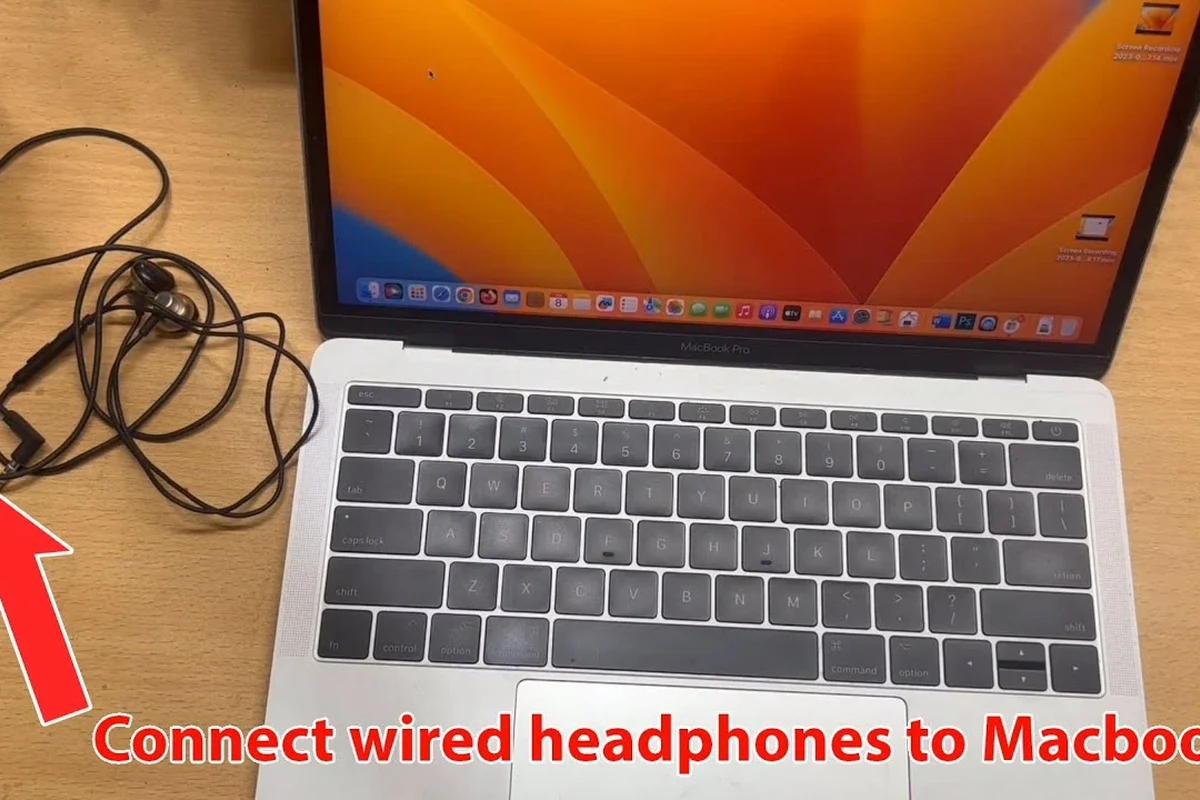
If you are asking do wired headphones work on MacBook, the short answer is yes. Most MacBook models can play audio through wired headphones directly or with a simple adapter.
For everyday listening, wired headphones are usually plug-and-play. For calls, recording, or gaming, the microphone and adapter type matter more than people expect.
MacBook compatibility can vary by model year, headphone plug design, and whether the headset uses a standard audio plug or a combo mic plug.
Which MacBook Models Support Wired Headphones Directly?
MacBook support for wired headphones is generally straightforward, but not every model uses the same connection. Some have a built-in 3.5mm jack, while others rely on USB-C audio accessories.
MacBook Air and MacBook Pro with 3.5mm headphone jack
Many MacBook Air and MacBook Pro models include a 3.5mm headphone jack, which makes wired listening easy. If your headphones use a standard 3.5mm plug, you can usually connect them and start listening right away.
This is the most convenient setup for casual users. It also avoids charging, Bluetooth pairing, and latency issues that can happen with wireless audio.
USB-C-only MacBook models and what that means for audio
Some MacBook models do not include a headphone jack and instead use USB-C ports for accessories. In that case, you will need a USB-C to 3.5mm adapter, USB-C headphones, or a DAC.
This does not mean wired headphones stop working. It just means the audio path changes from a direct analog jack to a digital accessory or converter.
If your MacBook has only USB-C ports, choose a well-reviewed adapter that supports both audio playback and microphone input if you plan to take calls.
How to Connect Wired Headphones to a MacBook the Right Way
Connecting wired headphones to a MacBook is usually simple, but using the right method helps avoid low volume, no microphone input, or poor sound. The best option depends on the headphone plug and how serious you are about audio quality.
Using the built-in 3.5mm headphone jack
If your MacBook has a headphone jack, start there. Plug in the headphones firmly, then check the sound output in macOS if audio does not switch automatically.
For most consumer headphones, this is the easiest and most reliable setup. It works especially well for music, video calls, and general everyday use.
Insert the 3.5mm connector fully into the MacBook’s headphone jack.
Open Sound settings and confirm the headphones are selected as the output device.
Using USB-C headphones or a USB-C audio adapter
If your headphones have a USB-C plug, connect them directly to a USB-C port if the headset is compatible with macOS. If they use a 3.5mm plug, a USB-C audio adapter is the usual solution.
Adapter quality matters here. A cheap dongle may work for basic playback, but it can sometimes limit volume, mic support, or long-term durability.
Not every USB-C adapter is the same. Some are made for charging only, some are audio-only, and some support both audio and microphone input.
Connecting studio headphones with an external DAC or amp
Studio headphones and higher-impedance models may sound better with an external DAC or amp. This is especially true if your headphones need more power than the MacBook can comfortably provide.
This setup is not required for most people, but it can improve volume control and clarity for demanding headphones. If you want to learn more about power needs, see our guide on whether headphones need an amp.
Some MacBooks can drive many headphones well on their own, but a better DAC or amp can still help with harder-to-drive models and cleaner output.
Sound Quality, Mic Support, and Compatibility Differences to Know
Wired audio on MacBook is not just about plugging in a cable. Sound quality, microphone behavior, and compatibility can change depending on the headset design and adapter used.
When wired headphones sound better than Bluetooth on MacBook
Wired headphones often sound more consistent than Bluetooth because they do not rely on wireless compression or battery management. That can make them a better choice for focused listening, editing, and low-latency tasks.
If you are comparing connection types, our breakdown of Bluetooth vs wired headphones sound quality explains why many users still prefer a cable for critical listening.
Why some headphone mics work and others do not
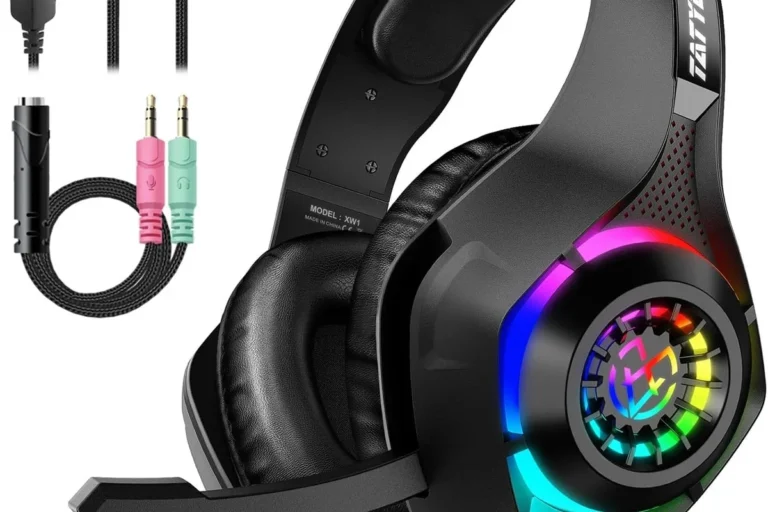
Not every wired headset microphone works the same way on a MacBook. A headset with a built-in mic may need a compatible TRRS plug, while a headphone-only cable will not carry mic input at all.
If the mic is not detected, the issue may be the plug standard, the adapter, or the Mac’s input settings. In some cases, the headphones play sound fine but the mic must be selected manually in macOS.
Impedance, volume, and audio output limitations on MacBook
Most everyday headphones work fine directly from a MacBook, but some higher-impedance models may sound quieter than expected. That does not always mean something is broken; it may simply mean the headphones need more power.
For a deeper look at power needs and compatibility, our article on what a headphone amplifier does can help. If your headphones sound muffled or weak, it may also be worth checking why headphones sound muffled.
Listening at high volumes for long periods can cause hearing damage. Keep volume at 60% or below for extended sessions.
Common Mistakes People Make When Using Wired Headphones on MacBook
Most MacBook headphone problems come from small setup mistakes rather than from the Mac itself. A few simple checks can save a lot of frustration.
Buying the wrong adapter or dongle
One of the most common mistakes is buying a USB-C adapter that does not support the features you need. Some adapters only handle audio playback, while others also support inline microphones and controls.
Before buying, check whether the adapter is meant for headsets, headphones, or charging. If you need a mic for calls or recording, confirm that support is included.
Assuming every 3.5mm plug supports microphone input
A standard headphone plug is not always the same as a headset plug. Many headphones are audio-only, while headset models use a combined plug for both sound and microphone.
If you plug in a headset and the mic does not work, the issue may be compatibility rather than a defect. This is especially common with older adapters and mismatched plug standards.
Overlooking Mac audio settings and output selection
Sometimes the headphones are working, but macOS is still sending sound to speakers or another device. That can happen after connecting Bluetooth devices, docks, or USB audio gear.
Go to Sound settings and confirm the correct output is selected. If needed, disconnect other audio devices and test again.
If sound is missing after plugging in wired headphones, restart the audio app first, then check macOS output settings before replacing any hardware.
Best Budget and Mid-Range Ways to Use Wired Headphones with MacBook
You do not need an expensive setup to enjoy wired headphones on a MacBook. In many cases, a simple adapter is enough, and a DAC only becomes useful when your headphones demand more from the laptop.
Low-cost adapter options and typical price ranges
Budget users usually only need a basic USB-C to 3.5mm adapter or a simple replacement cable if the MacBook has a headphone jack. Prices vary by brand, build quality, and whether the adapter supports microphone input.
For casual listening, a low-cost adapter can be perfectly fine. Just avoid the cheapest no-name options if you need reliable daily use.
When a premium DAC is worth the extra cost
A premium DAC or headphone amp can make sense if you use studio headphones, want stronger volume control, or care about cleaner output. It is also useful if your current adapter introduces hiss, dropouts, or weak sound.
For many people, though, the built-in MacBook output is already enough. The upgrade is only worth it when your headphones or workflow actually need it.
Wired vs wireless: practical comparison for MacBook users
Wired headphones are usually better for simplicity, zero battery concerns, and low latency. Wireless headphones are better for movement and convenience, especially if you often step away from the desk.
If you are deciding between both, our guide on wired vs wireless headphones can help you weigh comfort, sound, and convenience. For users who want to understand the broader category, types of headphones explained is a useful starting point.
- Wired headphones are usually the easiest MacBook audio option.
- Adapters matter more when the MacBook lacks a headphone jack.
- Mic support depends on plug type and adapter compatibility.
Expert Advice: When Wired Headphones Are the Better Choice and What to Watch Out For
Wired headphones still make a lot of sense for MacBook users who want dependable audio without charging or pairing. The best setup depends on whether you are working, editing, gaming, or traveling.
Best use cases for work, editing, gaming, and travel
For work calls and long editing sessions, wired headphones are often the most dependable option. They are also useful for gaming or video editing when you want to reduce lag and avoid battery interruptions.
Travel users may still prefer wireless for convenience, but wired can be a smart backup when battery life matters. If comfort is a priority, consider whether you prefer over-ear, on-ear, or in-ear styles before buying a new pair.
Warning signs of poor adapter quality or audio interference
Static, crackling, low volume, or intermittent connection can point to a low-quality adapter or cable. In some cases, the problem is not the MacBook at all but the accessory between the Mac and the headphones.
Choose adapters with clear compatibility details and avoid vague product listings. If you hear persistent noise or distortion, switch adapters first before assuming the headphones are defective.
If you have ongoing hearing concerns, tinnitus, or pain during listening, speak with an audiologist. If your headset or adapter keeps failing across devices, a professional audio specialist can help isolate the issue.
Final Recap: The Easiest Way to Use Wired Headphones on a MacBook in 2026
In 2026, the easiest answer is still yes: wired headphones work on MacBook, either directly through a headphone jack or through a USB-C adapter. For most users, the simplest path is to match the plug type, check macOS audio output, and choose an adapter that supports the features you need.
If you want the most hassle-free setup, use the built-in jack when available. If your MacBook is USB-C-only, pick a reliable audio adapter or DAC based on your headphone type, mic needs, and how much sound quality matters to you.
Frequently Asked Questions
Wired headphones can be better for lower latency, no battery concerns, and more consistent sound. Wireless headphones are more convenient if you move around a lot.
Many noise-cancelling headphones work in wired mode, but the sound and ANC behavior depend on the model. Some features may still need battery power even with a cable connected.
Open-back headphones can sound more spacious, but they leak sound and are less private. Closed-back headphones are usually better for shared spaces, calls, and travel.
Check plug type, impedance, microphone support, and whether an adapter is needed. Comfort, build quality, and cable length also matter for daily use.
Start with a good fit, then check EQ settings and audio source quality. If the headphones are hard to drive, a DAC or amp may also help.
Over-ear headphones are often the most comfortable for long sessions, but fit and weight matter most. Soft ear cushions and a secure headband usually help reduce fatigue.