Do USB C Headphones Work on MacBook A Complete Guide

Yes, most USB-C headphones work on a MacBook if they support standard USB audio. The main exceptions are models that depend on phone-only apps, custom drivers, or proprietary features.
Yes, do usb c headphones work on macbook is usually a simple yes — as long as the headphones use standard USB audio that macOS can recognize. In most cases, a MacBook will detect them automatically and route sound through the USB-C connection without extra software.
The catch is that “USB-C” on the box does not always mean the same thing. Some headphones are true digital USB audio devices, while others are made for specific phones, gaming systems, or proprietary apps, so compatibility can vary by model and by MacBook generation.
- Compatibility: Standard USB audio is the key requirement.
- Setup: Direct connection is usually plug-and-play on macOS.
- Limits: Some app-based features may not work on MacBook.
- Buying tip: Check for macOS support before you buy.
How USB-C Audio Works on MacBook: Compatibility, Power, and Digital Signal Basics

USB-C headphones do not send sound the same way a 3.5mm analog plug does. Instead, the MacBook sends digital audio over the USB-C port, and the headphones convert that signal into sound using a built-in DAC, or digital-to-analog converter.
That digital process is why USB-C headphones can sound clean and consistent, but it also means the headphones must speak a language macOS understands. If the headset uses standard USB Audio Class support, the MacBook usually recognizes it as soon as you plug it in.
Some USB-C headphones need more than simple power and audio support. If they rely on special companion software, custom drivers, or phone-only features, macOS may only support basic playback and microphone functions.
USB-C vs. 3.5mm vs. Bluetooth: Why the Connection Type Matters
USB-C headphones are different from 3.5mm headphones because the audio stays digital until the headphones process it. With a 3.5mm jack, the MacBook’s internal audio hardware does the conversion instead.
Bluetooth headphones work differently again. They are wireless and depend on pairing, codecs, and battery life, which makes them convenient but sometimes less predictable for latency-sensitive tasks. If you want a broader look at that tradeoff, our guide on wired vs wireless headphones explains the everyday differences clearly.
For many MacBook users, USB-C sits in the middle: it is wired like a cable connection, but it behaves like a digital audio device. That can mean better stability than Bluetooth and fewer adapter issues than analog setups.
MacBook Models and macOS Support That Affect Headphone Recognition
Most modern MacBook Air and MacBook Pro models support USB-C audio well, especially when running current versions of macOS. Newer Macs are generally more likely to recognize standard devices without any manual setup.
Older Macs can still work, but compatibility may depend on the exact port, adapter, and operating system version. If a headphone or adapter is not recognized, the issue is often not the MacBook itself but the way the accessory handles USB audio.
Some USB-C headphones draw power and carry audio through the same cable, so a single port can handle both sound and microphone input at once.
Which USB-C Headphones Work Best on MacBook Models
The best USB-C headphones for MacBook are usually the ones that rely on standard USB audio and do not require a special app to function. That includes many wired earbuds, some travel headsets, and several gaming or studio models.
If you are comparing options, it helps to think about how you will use them. A headset for video calls may not be the best choice for music editing, and a studio model may be overkill for casual commuting.
Wired USB-C Headphones with Built-In DACs
Wired USB-C headphones with built-in DACs are often the simplest choice for MacBook users. You plug them in, macOS detects them, and you can usually start listening right away.
These models are a strong pick if you want a stable connection for work, streaming, or editing. They also avoid Bluetooth lag and battery concerns, which can be useful during long sessions.
If you want the least hassle, choose USB-C headphones that clearly say they support standard USB audio or macOS compatibility.
USB-C Earbuds Designed for Phones That Also Work on MacBook
Many USB-C earbuds made for phones also work on MacBook, especially if they are simple plug-and-play models. These are often the easiest budget-friendly option for calls, podcasts, and casual music listening.
Still, some phone-focused earbuds may lose features on a Mac, such as in-app EQ, touch customization, or noise control settings. The audio may still work, but the full feature set may not carry over.
If you are deciding between earbuds and over-ear styles, our overview of headphones vs earphones can help you choose based on comfort, portability, and sound preference.
Gaming and Studio USB-C Headsets: When Compatibility Gets Tricky
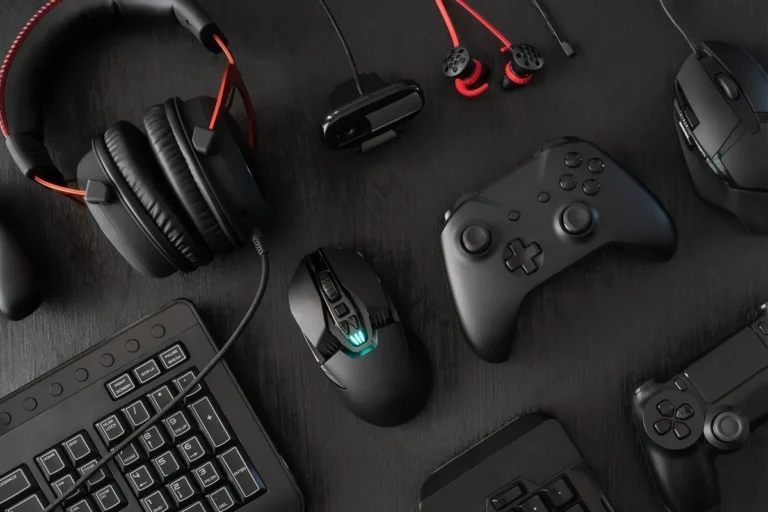
Gaming headsets and studio headsets can work very well on MacBook, but they are also the category most likely to create confusion. Some models use software for surround sound, mic processing, or EQ presets that may be limited on macOS.
If the headset depends on a USB control app, custom driver, or console-specific feature, you may get basic audio but not the advanced extras. That does not always make it a bad choice, but it is worth checking before buying.
Do not assume every USB-C headset will unlock all features on a MacBook. Mic monitoring, virtual surround, and custom buttons may work differently depending on the brand and software support.
How to Connect and Set Up USB-C Headphones on a MacBook
Setup is usually simple, but a clean connection matters. Before troubleshooting, make sure the cable is fully seated, the port is clean, and the headphones are not already connected to another device.
If you use other audio gear often, it can also help to understand how macOS handles output selection. Our guide on selecting headphones on Windows 11 is Windows-focused, but the general idea of checking the correct output device is the same across systems.
Plug-and-Play Setup Steps for MacBook Air and MacBook Pro
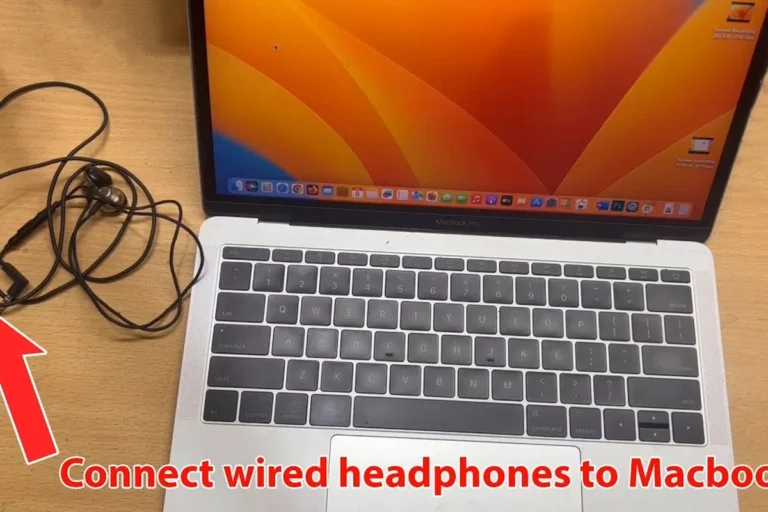
Most USB-C headphones are plug-and-play on MacBook Air and MacBook Pro. You connect the cable, wait a moment, and the Mac should switch audio automatically.
Use the MacBook’s USB-C port first before trying hubs or docks. Direct connection removes one more possible point of failure.
macOS may need a short moment to detect the device and load the default audio profile.
Play a short audio clip and check whether the microphone is working if your headset includes one.
How to Check Sound Output, Mic Input, and Volume Controls in macOS
Open Sound settings in macOS and confirm that the USB-C headphones appear as the selected output device. If the headset has a microphone, check the input tab too.
Volume controls may behave differently depending on the headphone design. Some USB-C headphones use their own inline controls, while others let macOS control volume directly.
- Is the USB-C device selected as the output source?
- Does the microphone appear in the input list?
- Is the volume muted in macOS or on the headset?
- Are you using a direct port instead of an unreliable hub?
Common Problems When USB-C Headphones Don’t Work on MacBook
When USB-C headphones fail on a MacBook, the cause is usually one of a few common issues: unsupported audio protocols, a faulty adapter, or a port problem. The good news is that many of these are easy to isolate.
Before assuming the headphones are broken, test them on another device if possible. That simple step can tell you whether the issue is with the headset, the cable, or the MacBook.
Unsupported Audio Protocols, Faulty Adapters, and Low-Power Devices
Not every USB-C accessory uses the same audio protocol. Some are designed mainly for specific phones or gaming platforms, and they may not support macOS fully.
Adapters can also be a weak link. A cheap USB-C hub or dongle may pass power but fail to pass audio properly, especially if the accessory is already power-sensitive.
If your USB-C headphones only work through certain adapters, the accessory may be the problem rather than the MacBook. Try a direct connection first before replacing the headphones.
macOS Detection Issues, Firmware Conflicts, and Port Troubleshooting
Sometimes macOS simply does not detect the headset right away. A restart, port change, or unplug-and-replug cycle can solve the issue quickly.
If the device still does not appear, check for firmware updates from the manufacturer. Some audio gear depends on firmware fixes to behave correctly across different operating systems.
If your headset works inconsistently across multiple Macs, or the mic cuts out during calls, it may be worth speaking with the manufacturer’s support team or an audiologist if you are also noticing volume imbalance or hearing discomfort.
Expert Advice: Mistakes to Avoid Before Buying USB-C Headphones for MacBook
The biggest mistake is assuming any USB-C plug automatically guarantees full MacBook compatibility. In reality, the cable shape matters less than the audio standard behind it.
It is also easy to overpay for features you may not use. A MacBook user who mainly takes calls may not need gaming surround modes or app-based tuning, while a video editor may care more about low latency and accurate monitoring.
Why “USB-C” on the Box Does Not Always Mean Audio Compatibility
Some products use USB-C only for charging or basic data, not audio. Others may support audio but only in a limited way on macOS.
Look for clear language such as “USB audio,” “plug-and-play,” or broad computer compatibility. If the product page only talks about phones, tablets, or a companion app, be cautious.
For readers comparing connection types, our article on Bluetooth vs wired headphones sound quality is useful for understanding why a wired USB-C setup can be appealing on a laptop.
When to Choose USB-C Headphones Over a USB-C to 3.5mm Adapter
A USB-C to 3.5mm adapter can be a smart choice if you already own good analog headphones. It is often cheaper and gives you more flexibility with existing gear.
USB-C headphones make more sense when you want an all-in-one digital setup, or when your headphones already include a built-in DAC and microphone tuned for USB use. They are also convenient if you want to avoid carrying an extra adapter.
- USB-C headphones usually work on MacBook if they use standard USB audio.
- Some models lose app-only or platform-specific features on macOS.
- Direct connection is more reliable than many hubs and adapters.
- Always check mic support, software needs, and Mac compatibility before buying.
Price, Value, and Best Use Cases for MacBook Users
Price matters, but so does the type of listening you do. A budget USB-C earbud may be perfect for calls and travel, while a more expensive headset may be better for editing, comfort, or better microphone performance.
As a rule, spend based on your use case rather than the label on the box. That usually leads to a better result than chasing the most advanced spec sheet.
Budget Picks vs. Premium Models: What You Gain at Each Price Point
Budget USB-C headphones often give you the basics: sound, microphone support, and easy MacBook recognition. They are a practical choice if you mainly need a dependable daily driver.
Premium models may offer better materials, more comfortable ear cushions, stronger microphones, better tuning, or extra software features. Just remember that premium does not always mean better macOS integration.
Best Scenarios for Work Calls, Music, Editing, and Travel
For work calls, choose a USB-C headset with a clear microphone and stable plug-and-play support. Comfort matters too if you wear it for long meetings.
For music, focus on sound balance and fit. For editing, low latency and accurate playback are more important than flashy features. For travel, compact earbuds may be easier to carry, while over-ear models can offer a more immersive experience.
- Simple wired setup
- No Bluetooth pairing needed
- Often stable for calls and editing
- Not all models support macOS fully
- Some features may need vendor software
- Adapters and hubs can cause issues
Final Recap: The Best Way to Know If USB-C Headphones Will Work on Your MacBook
The best way to know if USB-C headphones will work on MacBook is to check whether the model supports standard USB audio and macOS compatibility. If it does, chances are very good that it will work with little or no setup.
If the product page is unclear, look for mentions of computer support, plug-and-play use, or macOS. When in doubt, a simple USB-C to 3.5mm adapter may be the safer choice for older analog headphones, while a true USB-C headset is ideal when you want a direct digital connection.
Listening at high volumes for long periods can cause hearing damage. Keep volume at 60% or below for extended sessions.
Frequently Asked Questions
Yes, many USB-C headphones work directly on MacBook if they support standard USB audio. Some models may still offer only basic features on macOS.
Wired USB-C headphones are often more stable and avoid pairing or battery issues. Bluetooth is convenient, but it can add latency and codec variation.
Check for macOS compatibility, standard USB audio support, and microphone support on computers. It also helps to confirm whether any app-based features are available on Mac.
Not always. Sound quality depends more on the headphone tuning, DAC quality, fit, and your preferences than on the connector alone.
Often yes, but comfort depends on weight, clamp force, ear cushion material, and your head shape. In-ear models are more portable, while over-ear models may feel better for longer use.
Look for clear microphone quality, reliable plug-and-play support, low latency, and a comfortable fit. For editing, accurate sound balance matters more than extra effects or flashy features.