How to Connect Bose Headphones to TV Easily and Fast

Connect Bose headphones to your TV by using Bluetooth if your TV supports it, or by adding a Bluetooth transmitter for older models. Wired 3.5mm or receiver-based setups are the simplest low-delay options when you want stable TV audio.
If you want to know how to connect Bose headphones to TV, the fastest answer is usually Bluetooth pairing, but the best method depends on your TV model and your Bose headphones. Newer TVs may connect directly, while older sets often need a Bluetooth transmitter, optical adapter, or wired workaround.
- Fastest method: Try built-in Bluetooth first on your TV.
- Best backup: Use an optical or 3.5mm Bluetooth adapter for older TVs.
- Lowest lag: Wired connections usually work best for gaming.
- Most comfortable: Bose over-ear wireless models suit long movie sessions.
How to Connect Bose Headphones to TV: What Viewers Need to Know First
Before you start, check whether your TV has built-in Bluetooth audio output. Many TVs support Bluetooth for remotes or soundbars, but not all of them send audio to headphones reliably.
It also helps to know which Bose model you own. Wireless Bose headphones are usually the easiest to use for TV watching, while wired models can still be a smart choice for simple setups and low-cost connections.
Bluetooth menus and audio options vary by TV brand and even by year. If your TV’s settings look different from the steps below, check the sound or audio output menu first.
For readers comparing connection methods more broadly, our guide on how to connect Bluetooth headphones can help you understand pairing basics before you start with your TV.
Which Bose Headphones Work Best with TVs in 2026
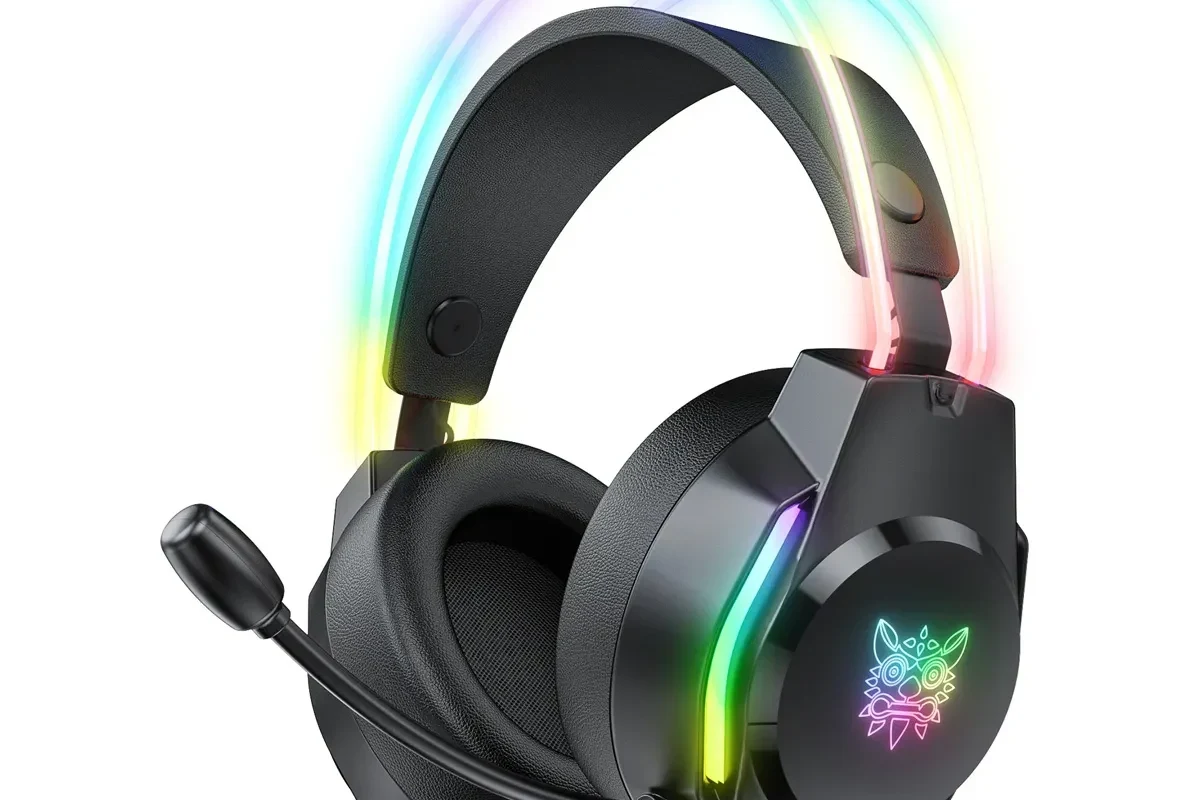
In 2026, most Bose wireless over-ear headphones are the easiest option for TV use because they offer comfort for long sessions and simple Bluetooth pairing. That said, the “best” Bose model depends on whether you care most about convenience, low delay, or comfort.
Bluetooth Bose models and TV compatibility
Bluetooth Bose headphones work best with modern smart TVs, streaming devices, and external adapters. If your TV supports Bluetooth audio output, pairing is often as simple as putting the headphones into pairing mode and selecting them from the TV’s sound menu.
Compatibility can still vary by TV brand, Bluetooth version, and software updates. Some TVs connect cleanly but may introduce audio lag, especially during gaming or fast dialogue scenes.
Bluetooth headphones can sound perfectly fine for movies and shows, but lip-sync delay is the most common complaint when people use them with TVs.
Wired Bose headphones and when they still make sense
Wired Bose headphones can still be useful if your TV has a headphone jack or if you use an AV receiver with a dedicated output. They are often the simplest choice when you want a stable connection with no pairing process.
Wired setups can also reduce delay, which is helpful for sports and gaming. The tradeoff is less freedom to move around, and not every newer TV includes a usable analog audio jack.
Fastest Ways to Connect Bose Headphones to TV
If you want the quickest path, start with your TV’s built-in Bluetooth. If that fails, an external Bluetooth adapter is usually the next best option because it works with many older TVs and can improve compatibility.
Pairing directly through a Bluetooth TV
This is the easiest method when your TV supports Bluetooth audio. Turn on pairing mode on your Bose headphones, open the TV’s Bluetooth audio settings, and select the Bose device from the list.
Once paired, the TV should route sound to the headphones automatically. If the TV keeps switching back to speakers, you may need to change the sound output setting manually.
Using a Bose transmitter or external Bluetooth adapter
If your TV does not support Bluetooth audio, a transmitter or adapter can solve the problem. These devices usually plug into an optical port, 3.5mm jack, or USB audio source and then broadcast sound to your headphones.
This method is especially useful for older TVs and for people who want a more stable wireless connection. It may also give you more control over latency, depending on the adapter you choose.
Connecting through a Roku, Fire TV, or streaming device
Some streaming devices offer headphone or private listening features through their apps or companion devices. This can be a convenient path if you mainly watch through a streaming stick or box instead of the TV itself.
Just remember that the audio route may depend on the device and app. If the stream device sends sound through the TV first, you may still need Bluetooth pairing or an adapter for the headphones.
Step-by-Step Setup for Common Bose TV Connection Methods
The exact steps depend on your TV brand and which Bose headphones you own, but the general process is similar across most setups. Start with the easiest option and only move to adapters if the built-in Bluetooth route does not work.
How to pair Bose headphones with a Samsung, LG, Sony, or TCL TV
Go to the audio or sound output menu and look for Bluetooth headphones, Bluetooth audio, or device connection options.
Use the Bluetooth button or pairing controls on your Bose model until the headphones appear ready to connect.
Choose the Bose device from the list and confirm the connection if the TV asks for approval.
Play a show or movie, then make sure the TV speakers are muted or switched off if you want private listening.
Samsung, LG, Sony, and TCL all organize menus differently, so the labels may not match exactly. If the headphones do not appear, restart both devices and try the pairing process again.
How to use an optical-to-Bluetooth adapter for older TVs
Look for an optical port on the back of the TV, since many older sets use that connection for digital sound.
Plug the optical cable into the adapter and power the adapter according to its instructions.
Put the headphones in pairing mode and connect them to the adapter instead of the TV.
Test a dialogue-heavy scene and check whether the adapter offers any latency or sync settings.
This setup is a strong choice when the TV itself cannot send Bluetooth audio. It is also a practical upgrade if you want to keep using Bose headphones without replacing a perfectly good television.
How to connect with a 3.5mm audio jack or AV receiver
If your TV has a headphone jack, a simple 3.5mm cable can connect directly to wired Bose headphones. This is one of the easiest plug-and-play methods, though it depends on the TV still having that output.
Some people also connect through an AV receiver or sound system with a headphone output. That can be useful if your TV routes all audio through a home theater setup and you want a private listening option.
Not every 3.5mm port behaves the same way. On some TVs, the headphone jack lowers speaker volume automatically, while on others you may need to change the audio output manually.
Best Use Cases: Movies, Late-Night Viewing, and Gaming on TV
Bose headphones are especially useful when you want better privacy, clearer dialogue, or a more focused listening experience. They can be a strong TV accessory for apartments, shared homes, and late-night viewing.
Watching without disturbing others
Private listening is one of the biggest reasons people connect Bose headphones to a TV. You can watch action movies, talk shows, or sports without waking kids, roommates, or neighbors.
Noise-cancelling Bose models can make this even easier by reducing room noise and helping you hear quieter dialogue more clearly. For a deeper look at this feature, see our guide on how noise cancelling headphones work.
Minimizing audio delay for gaming and sports
For gaming and live sports, delay matters more than it does for casual TV watching. Even a small lag can make voices feel out of sync or make fast action look disconnected from the sound.
If you play on a console or watch fast-paced content often, a wired connection or low-latency adapter is usually the safer choice. Bluetooth can still work, but performance varies by TV, adapter, and headphone model.
Using Bose headphones for dialogue clarity and immersive sound
Bose headphones are often a good match for viewers who want clean dialogue and a comfortable over-ear fit. That makes them useful for long movie nights, documentaries, and streaming series with lots of conversation.
If you like a more open, spacious presentation, remember that headphone tuning and fit affect the experience as much as the TV connection method. For general headphone type guidance, you may also find our types of headphones explained article helpful.
Common Problems When Connecting Bose Headphones to TV
Most connection issues come from a mismatch between the TV’s audio output options and the headphones’ Bluetooth behavior. The good news is that many of these problems are easy to fix once you know where to look.
No sound, failed pairing, or unstable Bluetooth connection
If the headphones pair but no sound plays, check whether the TV is still sending audio to its internal speakers. Also make sure the Bose headphones are not connected to another device at the same time.
For unstable connections, move closer to the TV, restart both devices, and remove old pairings if the list is full. Resetting Bluetooth settings can help when a device has been paired and unpaired many times.
If pairing keeps failing, power off the TV fully for 30 seconds before trying again. A fresh restart often clears temporary Bluetooth glitches.
Audio lag and lip-sync issues
Audio lag is one of the most common complaints with TV headphones. It usually shows up as voices arriving slightly after the picture, which is especially noticeable in dialogue scenes.
To reduce lag, try a wired connection, a low-latency adapter, or a TV setting labeled audio delay or lip sync. Results can vary, so test with a show that has clear speech and visible mouth movement.
Volume control and TV audio output conflicts
Sometimes the headphones and TV fight over volume control, especially when the TV treats the headphones as an external speaker. In other cases, the TV may lower the headphone volume too much or mute the speakers in a way you did not expect.
Check the TV’s sound output menu, the Bose headphone volume, and any adapter controls. A small adjustment in the wrong place can make it seem like the connection is broken when it is really just a routing issue.
Expert Advice: Mistakes to Avoid Before Buying an Adapter or New TV
Before buying extra gear, it is worth checking what your current TV already supports. In many cases, the cheapest solution is simply using the right output port or a basic adapter that matches your setup.
Why some TVs need a separate Bluetooth transmitter
Some TVs include Bluetooth, but only for remotes, keyboards, or accessories rather than audio. That means the menu may show Bluetooth support even though it will not connect properly to headphones.
A separate transmitter is often the cleanest fix because it is designed specifically for audio streaming. It can be a better long-term choice than forcing a weak built-in Bluetooth feature to do the job.
When low-latency codecs matter for Bose users
Low-latency support matters most if you watch action scenes, sports, or play games on the same TV. Without it, Bose headphones may sound great but still feel slightly behind the picture.
Codec support varies by TV, adapter, and headphone model, so do not assume every wireless setup will perform the same. If delay is a priority, check for low-latency features before buying anything new.
If you have ongoing hearing discomfort, ringing, or difficulty understanding dialogue even at normal volume, consider speaking with an audiologist or hearing professional.
Cost comparison: built-in Bluetooth vs adapter vs upgraded audio gear
Built-in Bluetooth is the simplest option when it works, because there is no extra device to set up. An adapter adds cost, but it can solve compatibility problems and improve reliability on older TVs.
Upgrading to a newer TV or audio system may make sense if you want better long-term performance, but it is not always necessary. For many Bose users, a well-chosen adapter is the best balance of convenience and cost.
Final Recap: The Easiest Way to Connect Bose Headphones to TV in 2026
The easiest way to connect Bose headphones to TV in 2026 is usually direct Bluetooth pairing on a smart TV. If that does not work, an external Bluetooth transmitter or optical adapter is often the most dependable backup.
Choose wired if you want the simplest low-lag setup, and choose wireless if comfort and convenience matter more. Either way, the best connection method depends on your TV, your Bose model, and how sensitive you are to delay, volume control, and long-session comfort.
Listening at high volumes for long periods can cause hearing damage. Keep volume at 60% or below for extended sessions.
Frequently Asked Questions
Wireless Bose headphones are more convenient for couch viewing and late-night watching. Wired headphones are often better if you want the most stable connection and less audio delay.
Yes, noise cancelling can help reduce room noise and make dialogue easier to hear. It is especially useful in shared homes or when watching at lower volume.
Closed-back headphones are usually better for TV because they block more outside noise and keep sound from leaking. Open-back headphones can sound spacious, but they are less private and less practical for shared spaces.
For TV use, comfort, clarity, latency, and connection type matter more than chasing big numbers. If you listen to a lot of dialogue, a balanced sound profile and easy EQ control can help.
Look for low-latency connection options, a comfortable over-ear fit, and clear voice reproduction. If delay is a problem, wired or transmitter-based setups usually work better than standard Bluetooth.
Check whether your TV has optical, 3.5mm, or Bluetooth audio output and confirm the adapter supports your setup. Also consider build quality, ease of pairing, and whether the adapter is meant for headphone listening rather than speakers.