How to Connect Wireless Headphones to TV Easily

Use your TV’s built-in Bluetooth first if it supports audio output pairing. If it does not, a Bluetooth transmitter or RF base station is the most reliable way to connect wireless headphones to a TV.
If you want to know how to connect wireless headphones to TV, the easiest method is usually Bluetooth pairing on a smart TV. If your TV does not support Bluetooth, a transmitter, RF base station, or streaming-device workaround can still get you private audio with very little hassle.
- Best first step: Check whether your TV already has Bluetooth audio.
- Older TVs: A transmitter or RF base station usually solves compatibility issues.
- Gaming: Low-latency support matters more than extra features.
- Shared rooms: Look for flexible audio output settings and stable range.
How to Connect Wireless Headphones to TV: What Viewers Want in 2025
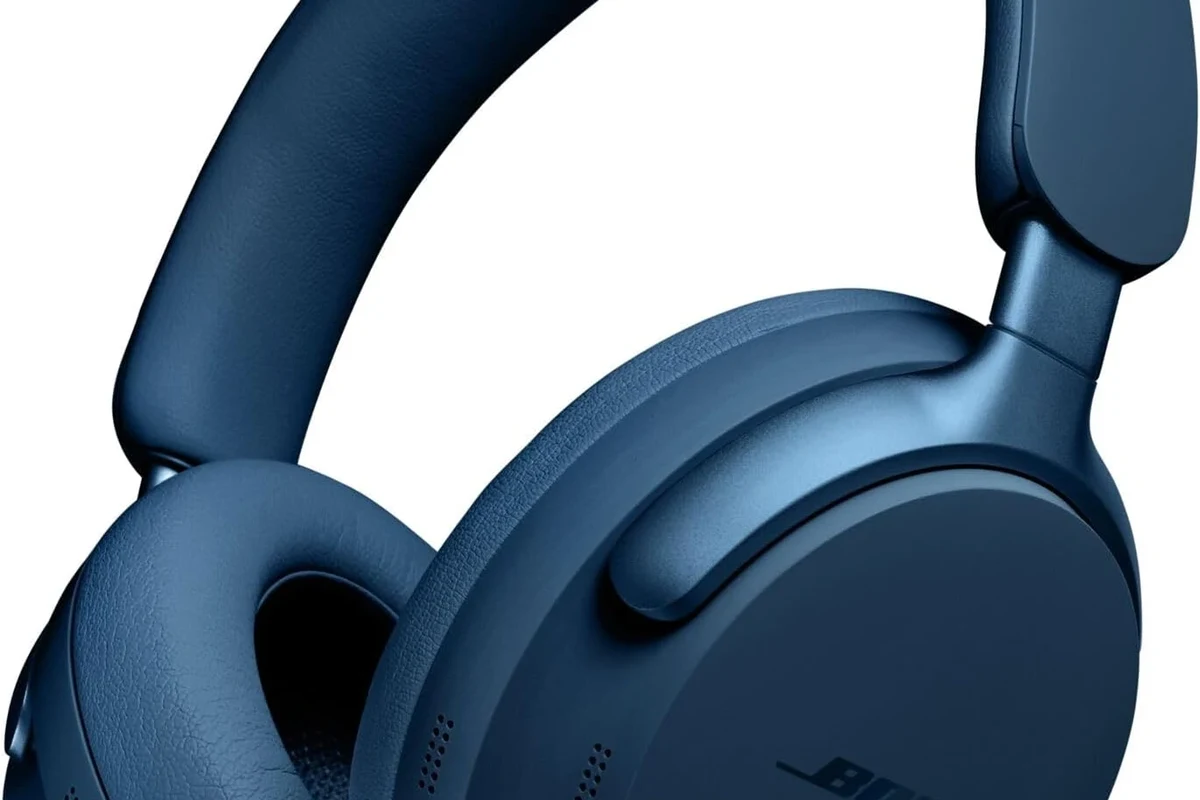
Most TV viewers in 2025 want one thing: simple wireless audio without losing sync or sound quality. That means checking your TV’s output options first, then choosing the right headphone connection method for your setup.
For some people, the goal is late-night streaming with no household noise. For others, it is smooth gaming, clear dialogue, or a setup that works with both a TV and a console. The best solution depends on your TV model, headphone type, and how sensitive you are to delay.
Check Your TV’s Wireless Audio Options Before You Buy or Pair
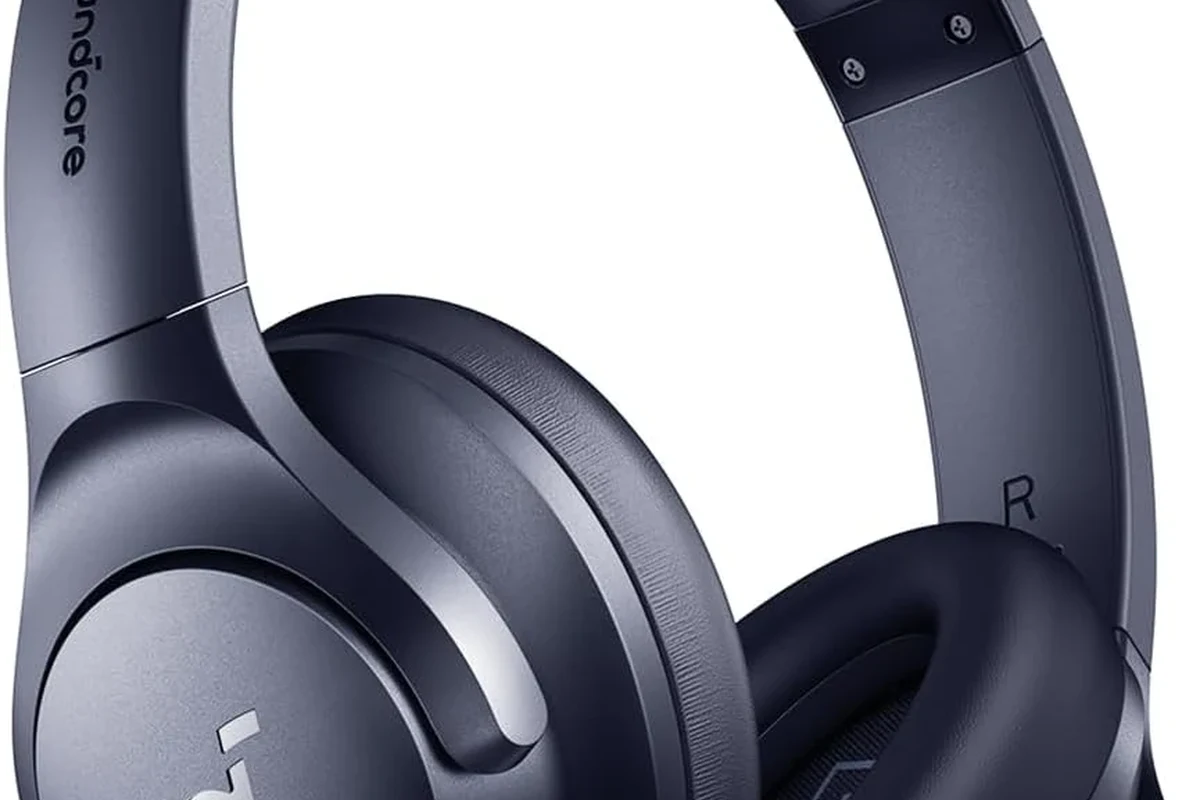
Before you buy new headphones or a transmitter, check what audio outputs and wireless features your TV already has. That quick step can save money and prevent pairing problems later.
- Does the TV have built-in Bluetooth?
- Does it support headphone mode or audio output switching?
- Are optical, AUX, USB, or HDMI ARC outputs available?
- Will the TV let you use speakers and headphones at the same time?
Bluetooth built into the TV
If your TV has Bluetooth audio support, pairing is usually the fastest path. Go into the sound or accessory settings, put your headphones in pairing mode, and select them from the TV’s device list.
Not every TV Bluetooth menu works the same way. Some models pair easily but limit codec support, while others may not allow all headphone features. If you already know how to connect Bluetooth headphones to phones or laptops, the TV process will feel familiar, but the menus are often less consistent.
RF transmitter support and proprietary wireless docks
Some wireless headphones use RF instead of Bluetooth. These sets often come with a dock or base station that connects to the TV and sends audio over a dedicated wireless signal.
RF systems can be a smart choice if you want longer range or fewer dropouts in a large room. They are less universal than Bluetooth, though, so make sure the base station matches your TV’s output ports before you buy.
Optical, AUX, and USB audio output compatibility
Older TVs often rely on optical audio, 3.5 mm AUX, RCA, or USB audio options. These outputs can work with a transmitter, but the exact method depends on the device.
Optical is common for cleaner digital audio, while AUX is simple and budget-friendly. USB compatibility varies a lot by TV brand and model, so it is best to confirm the manual before assuming it will charge or send audio the way you want.
TV audio menus may hide useful settings such as “external speaker,” “headphone out,” or “audio delay.” Those options can change how smoothly your headphones work.
Step-by-Step Ways to Connect Wireless Headphones to a TV
There is no single best setup for every TV. The right method depends on whether your television has Bluetooth, whether you need low latency, and whether your headphones are designed for direct pairing or use a base station.
Pairing Bluetooth headphones directly to a smart TV
This is the simplest option when it works. Open the TV’s sound settings, enable Bluetooth, place the headphones in pairing mode, and confirm the connection on-screen.
Find the Bluetooth or sound output menu on your smart TV.
Hold the pairing button until the indicator light flashes or the voice prompt appears.
Choose the device from the list and wait for the confirmation message.
If the sound seems delayed, check whether the TV has a lip-sync or audio delay setting. If not, you may need a different connection type for movies or gaming.
Using a Bluetooth transmitter with older TVs
A Bluetooth transmitter plugs into your TV’s audio output and sends sound to wireless headphones. This is often the best workaround for older TVs without built-in Bluetooth.
Choose the transmitter input that matches your TV, such as optical, AUX, or RCA. Then pair your headphones to the transmitter, not the TV itself. For readers who also care about wireless behavior outside the home, our guide on wired vs wireless headphones can help frame the tradeoffs more clearly.
Connecting via RF base stations for longer range
RF headphones usually connect through a dock or base station that plugs into the TV. Once the base station is connected, the headphones link automatically or with a simple sync button.
This setup can be useful in larger rooms or homes where Bluetooth range is inconsistent. It is also a practical choice if you want a more dedicated TV listening system and do not need the same headphones for a phone or laptop.
Using a soundbar or streaming device as a workaround
Some households route audio through a soundbar, AV receiver, or streaming device that supports headphone output or wireless pairing. This can be a useful workaround if the TV itself has limited audio features.
Be careful, though: every extra device adds another possible delay point. If your setup already has a soundbar, check whether it supports simultaneous headphone output before buying more gear.
Best Use Cases for Different TV Setups and Headphone Types
The best wireless headphone setup depends on how you watch and what you listen to. Movie fans, gamers, and shared households often need very different solutions.
Late-night streaming and apartment viewing
For quiet viewing, comfort and battery life matter most. Lightweight over-ear headphones or comfortable wireless earbuds can work well if you mainly want clear dialogue and less room noise.
If you often watch for long sessions, consider closed-back headphones for better isolation. Noise cancelling can also help reduce low background sounds, though results vary by model and fit.
Closed-back headphones usually block more outside sound than open-back models, which makes them a better fit for private TV listening in shared spaces.
Gaming on consoles with low-latency audio needs
Gaming is where delay becomes obvious fast. If you play action games, rhythm games, or competitive titles, look for low-latency Bluetooth support or a transmitter designed to reduce lag.
Standard Bluetooth may be fine for casual play, but it can make footsteps, gunfire, or dialogue feel slightly behind the picture. If gaming is your main use case, prioritize latency over flashy features.
For gaming and sports, even a small audio delay can be distracting. If lip-sync matters to you, choose a low-latency transmitter or a wired fallback option.
Shared living rooms with multiple listeners
In a shared room, the best choice is often a setup that lets one person use headphones while others keep the TV speakers active. Not all TVs allow this, so check audio output settings before you buy.
RF systems and some transmitters can be easier for this than Bluetooth alone. If your household switches between solo and group viewing, flexibility matters more than maximum sound quality.
Common Problems When Connecting Wireless Headphones to TV
Most setup problems are not caused by the headphones alone. They usually come from TV settings, unsupported codecs, weak signal range, or the wrong kind of transmitter.
Audio delay and lip-sync issues
Delay is the most common complaint with wireless TV audio. Bluetooth compression, TV processing, and weak transmitters can all add lag.
Try the TV’s audio delay setting first. If that does not help, use a low-latency transmitter or a dedicated RF system instead of a standard Bluetooth connection.
Only one earbud or one headphone mode working
Some true wireless earbuds switch into a single-ear mode if the pairing process is interrupted. That can happen if one bud is not seated properly in the case or if the TV remembers an old connection.
Reset the earbuds, remove the device from the TV list, and pair again. If the issue keeps happening, the TV may be struggling with the earbuds’ connection profile.
TV volume control not affecting headphone sound
Some TVs separate headphone volume from speaker volume. That means the remote may control the TV speakers while the headphone level stays on the transmitter or headphone side.
Check both the TV menu and the headphone controls. If you use a base station, it may have its own volume dial or gain setting.
Connection drops, interference, and pairing failures
Wireless dropouts can happen when the signal is blocked by walls, cabinets, or other devices. Bluetooth is especially sensitive to interference from crowded 2.4 GHz environments.
Move the transmitter or base station closer to the listening area and keep firmware updated if the device supports it. If problems continue, reset the headphones and start the pairing process from scratch, similar to the steps in our how to reset Bluetooth headphones guide.
What Experts Recommend: Avoid These Mistakes Before You Set Up
A good wireless TV setup starts with compatibility, not just brand names or marketing claims. The wrong purchase can leave you with sound delay, poor range, or features you never use.
Buying headphones without checking codec support
Codec support matters because not every Bluetooth headphone and transmitter speaks the same language. A mismatch can affect sound quality, delay, or both.
If you are pairing a TV, transmitter, and headphones from different brands, check compatibility before buying. This is especially important if you expect better clarity for dialogue or lower lag for gaming.
Ignoring latency requirements for gaming and sports
Movies can tolerate a little more delay than games or live sports. If you watch fast-moving content, choose headphones and transmitters with low-latency support whenever possible.
For casual TV watching, standard Bluetooth may still be perfectly acceptable. The key is matching the gear to the use case, not assuming every wireless setup performs the same.
If you have persistent hearing discomfort, ringing, or trouble understanding dialogue at normal volume, consult an audiologist or hearing professional. A fit issue, hearing change, or TV audio setting could be part of the problem.
Overlooking range, battery life, and multi-device pairing
Wireless convenience only helps if the headphones stay connected and last through your viewing session. Battery life, charging style, and range should all be part of the decision.
Multi-device pairing is also useful if you plan to move between a TV, phone, and tablet. For more background on how Bluetooth behaves across devices, see our Bluetooth headphones explained guide.
Cost Guide: Free Built-In Bluetooth vs Budget Transmitters vs Premium Wireless Systems
There are three broad ways to set up wireless TV audio: use what the TV already has, add a budget transmitter, or invest in a more premium wireless system. Your best choice depends on your TV age, your listening habits, and how picky you are about delay.
When a simple Bluetooth setup is enough
If your TV already supports Bluetooth and you mainly watch streaming shows, the free option may be enough. This is the simplest path for viewers who want convenience over advanced performance.
It works best when your headphones pair quickly, your room is not too large, and small timing differences do not bother you.
When to spend more for low-latency or better range
Spend more if you game, watch sports, or sit far from the TV. A better transmitter or RF system can improve stability and reduce the frustration of repeated reconnects.
Premium wireless systems may also offer more comfortable dock charging, stronger range, or easier switching between devices. The right upgrade depends on whether your current setup has a real problem or just a few minor annoyances.
Price comparison by TV age and headphone type
New smart TVs may only need your existing Bluetooth headphones, while older TVs often need a transmitter or RF dock. True wireless earbuds can work, but over-ear headphones are often more comfortable for long TV sessions.
If you want a quick rule, start with the cheapest compatible option that meets your latency needs. Then upgrade only if you notice lag, weak range, or poor comfort during longer viewing sessions.
Final Recap: The Easiest Way to Connect Wireless Headphones to TV in 2025
The easiest way to connect wireless headphones to TV is usually built-in Bluetooth, if your television supports it well. If not, a Bluetooth transmitter or RF base station can deliver a better experience, especially for older TVs or low-latency needs.
For most viewers, the smartest approach is simple: check your TV outputs, match the right headphone type to your use case, and test for delay before settling in for a long watch. That way, you get private listening without sacrificing comfort, clarity, or sync.
- Use built-in Bluetooth first if your TV supports it.
- Choose a transmitter or RF system if you need better range or lower lag.
- Match the setup to gaming, streaming, or shared-room viewing.
- Check volume, sync, and pairing settings before buying more gear.
Frequently Asked Questions
Wireless headphones are more convenient for moving around the room and watching quietly. Wired headphones can still be better if you want the simplest setup and no latency.
Yes, noise-cancelling headphones can reduce background noise and make dialogue easier to hear. Results vary by model, fit, and how loud the room is.
Closed-back headphones are usually better for TV because they block more outside noise and keep sound from leaking out. Open-back models can sound spacious, but they are less private in shared rooms.
For TV use, check Bluetooth support, latency, battery life, comfort, and whether the headphones fit your listening style. Sound quality also depends on drivers, tuning, and how well the headphones match your ears.
For gaming, prioritize low latency and stable connection. For movies and casual TV, comfort, battery life, and clear dialogue are usually more important.
Look for lightweight construction, soft ear cushions, and a headband that does not clamp too tightly. Build quality matters too, but long-session comfort should come first.