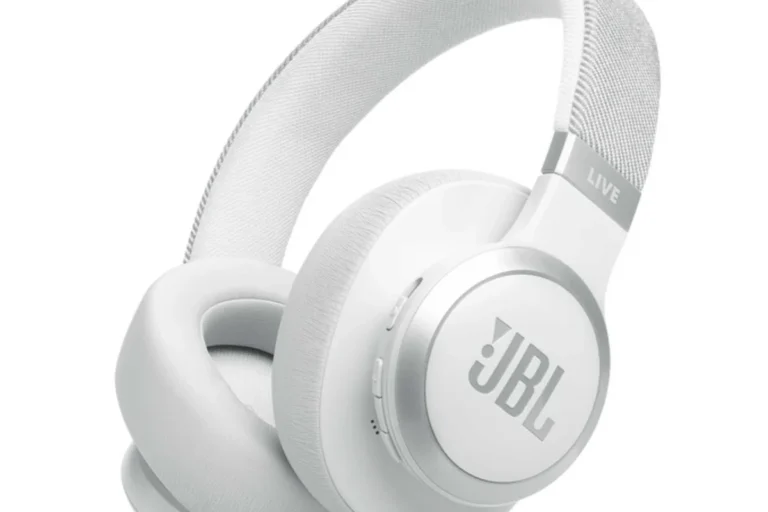
How To Reset Bluetooth Headphones: Quick Fix Guide

Resetting Bluetooth headphones is usually done by powering off, holding the power button, and clearing paired devices.
I’ve reset dozens of models and written clear, friendly steps on how to reset bluetooth headphones so you can fix pairing bugs, audio glitches, or battery issues fast. This guide walks through simple resets, full factory resets, brand-specific steps, troubleshooting after a reset, and real tips from my own testing to help you get back to listening quickly.

Why reset your bluetooth headphones?
Resetting can fix many small problems. Common issues include headphones not pairing, cutting out, odd audio delay, or failing to charge. A reset clears temporary settings and reconnects the device fresh.
Resetting is not always needed. Try simple fixes first, like restarting your phone or toggling Bluetooth. If those fail, knowing how to reset bluetooth headphones gives you a reliable next step.
A reset can also remove old pairings so you can pair with a new device. That is useful when you give headphones to someone else or swap between devices often.
Quick reset vs full factory reset for bluetooth headphones

Quick reset
- Reboots the wireless module.
- Keeps most settings and custom profiles.
- Good for one-off pairing issues.
Factory reset
- Erases all pairings and saved settings.
- Restores original firmware settings.
- Use when persistent errors remain after quick resets.
Knowing which to use helps. A quick reset is fast and low risk. A factory reset solves deeper issues but requires re-pairing.
How to reset bluetooth headphones: general step-by-step guide
These steps work for many models. Follow them in order and test after each step.
- Turn off the headphones completely. Wait 10 seconds.
- Turn them on while holding the power button for 10–15 seconds. Look for a flashing LED or voice prompt.
- If that doesn’t clear pairing, press and hold the power and volume up (or down) buttons together for 10–20 seconds.
- For factory reset, hold power and both volume buttons for 15–30 seconds until lights flash in a specific pattern.
- On your phone or computer, remove or forget the headphones from Bluetooth settings.
- Reboot your phone or computer.
- Put the headphones in pairing mode and pair them again.
If the exact button combo above doesn’t work, consult the manual. The process varies by model, but the idea stays the same: hold specific buttons longer to trigger a reset.
People also ask: How do I reset my Bluetooth headphones if I lost the manual? Try a long-press of the power button and any volume or multifunction button together for 15–30 seconds. That often forces a factory reset.
Each brand uses different combos. These examples show common patterns. If your model differs, check the guide that came with your headphones.
Apple AirPods and AirPods Pro
- Place both AirPods in the case and close the lid for 30 seconds.
- Open lid, press and hold the case button for about 15 seconds until the LED flashes amber then white.
- Reconnect to your device.
Sony (wireless over-ear and earbuds)
- Turn off the headphones.
- Press and hold the power and NC/Ambient buttons for 7–10 seconds.
- For factory reset, use Sony’s app or hold power and volume buttons together for 10–20 seconds.
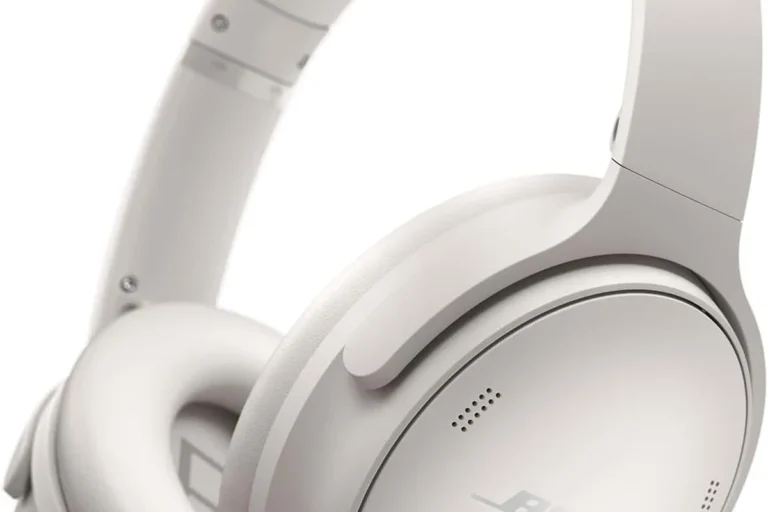
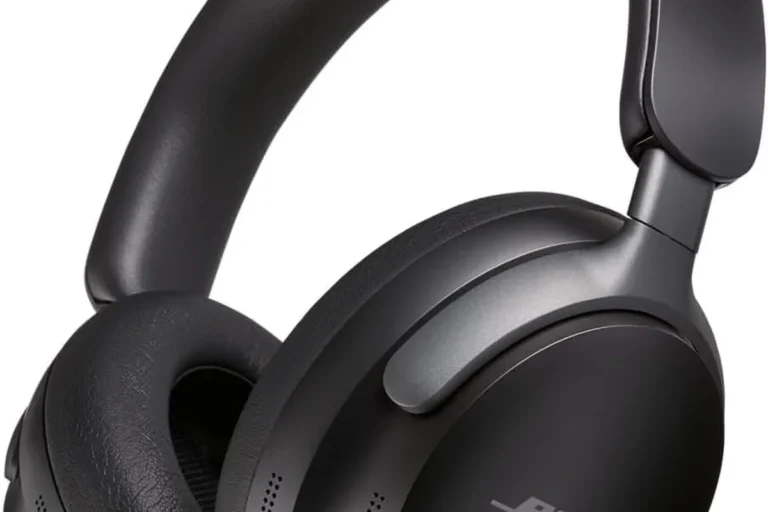
Bose
- Power off the headphones.
- Hold the power button for 10 seconds or until you hear a voice prompt that says “Bluetooth device list cleared.”
- Re-pair with your device.
Samsung Galaxy Buds
- Place buds in the case and close the lid.
- Open the case, press and hold both touchpads for 10–15 seconds.
- Use the Galaxy Wearable app to reset if needed.
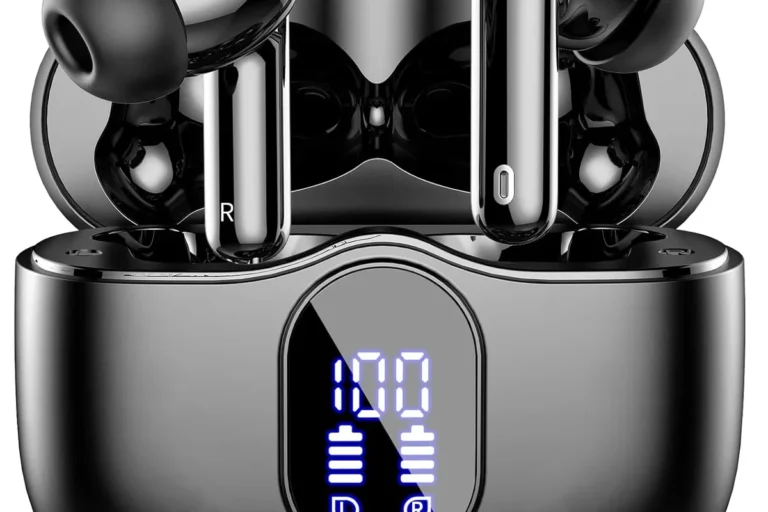
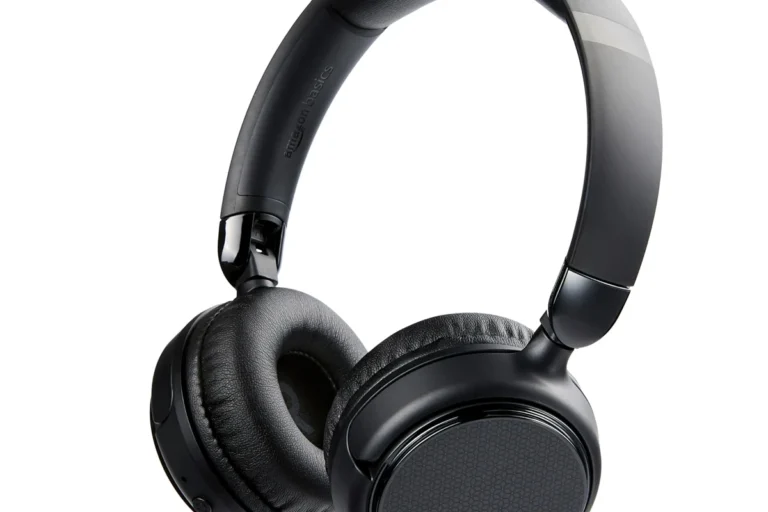
Generic earbuds and budget brands
- Most use power button + multifunction button combos for 10–20 seconds.
- Try removing device from Bluetooth on your phone then long-press power to reset.
Troubleshooting after a reset
If pairing still fails, try these checks.
- Check battery charge and charge for at least 30 minutes.
- Test with another device to rule out phone or laptop Bluetooth issues.
- Remove older Bluetooth devices from your device’s paired list to avoid conflicts.
- Update your phone or laptop Bluetooth drivers and headphone firmware if available.
- Try wired mode (if available) to confirm the headphones hardware is fine.
If audio still stutters, consider contacting support or checking if a firmware update addresses known issues.
Tips to avoid future pairing problems
Small habits reduce headaches later.
- Keep firmware and apps updated.
- Fully charge before long trips.
- Remove unused pairings on your phone yearly.
- Use one device at a time for initial pairing.
- Store headphones in case to prevent accidental button presses that can change modes.
From my testing, keeping the charging case clean and contacts dry helped avoid many false low-battery reports that look like Bluetooth issues.
Common mistakes and what I learned
I once reset a pair of headphones three times before realizing my laptop’s Bluetooth adapter needed a driver update. Lesson: try the source device too. Other mistakes:
- Holding buttons too briefly. Long presses matter.
- Forgetting to remove old pairings on the phone.
- Skipping firmware updates.
My tip: document the model number before you try resets. It makes searching for exact steps fast and reduces trial-and-error time.
Frequently Asked Questions of how to reset bluetooth headphones
How long should I hold the power button to reset headphones?
Most models respond to a 10–20 second hold. For a full factory reset, try 15–30 seconds while pressing power with one or two other buttons.
Will resetting delete custom sound settings?
A factory reset usually removes custom profiles and EQ settings. A quick reset may keep those settings intact.
Do I need to remove the headphones from my phone before resetting?
It helps. Forgetting or removing the device from Bluetooth settings makes re-pairing cleaner and avoids cached conflicts.
Can I reset headphones that are not turning on?
If they won’t power on, charge them for at least 30 minutes, then try a reset. If they remain unresponsive, battery or hardware faults may be the cause.
Will resetting fix audio lag in video calls?
Sometimes. Resetting can clear Bluetooth negotiation issues. If lag persists, check the device’s Bluetooth codec settings or use a wired connection if available.
Conclusion
Resetting bluetooth headphones is a simple, effective step to fix pairing, audio, or connection woes. Start with quick resets, move to factory resets when needed, and follow brand-specific steps for the best results. Use the troubleshooting tips and habits above to avoid repeat problems.
Try a reset today if your headphones act up, and leave a comment below about your model and which reset step worked for you. Subscribe or check back for more headphone tips and step-by-step guides.