How to Connect Bluetooth Headphones to Fire TV Easily

Open Fire TV’s Bluetooth menu, put your headphones into pairing mode, and select them from the device list. If the connection fails, check battery, range, updates, and whether the headphones are already connected to another device.
If you want private listening on your streaming setup, learning how to connect bluetooth headphones to fire tv is usually straightforward. The basic idea is to put your headphones in pairing mode, open the Fire TV Bluetooth menu, and confirm the connection once both devices see each other.
- Pairing is simple: Use Fire TV’s Bluetooth menu and your headphone pairing mode.
- Compatibility matters: Most modern Bluetooth headphones work, but results vary by model.
- Lag can happen: Low-latency models or wired options may be better for gaming.
- Comfort counts: Closed-back and noise-cancelling designs suit shared spaces best.
How to Connect Bluetooth Headphones to Fire TV: What You Need Before You Start
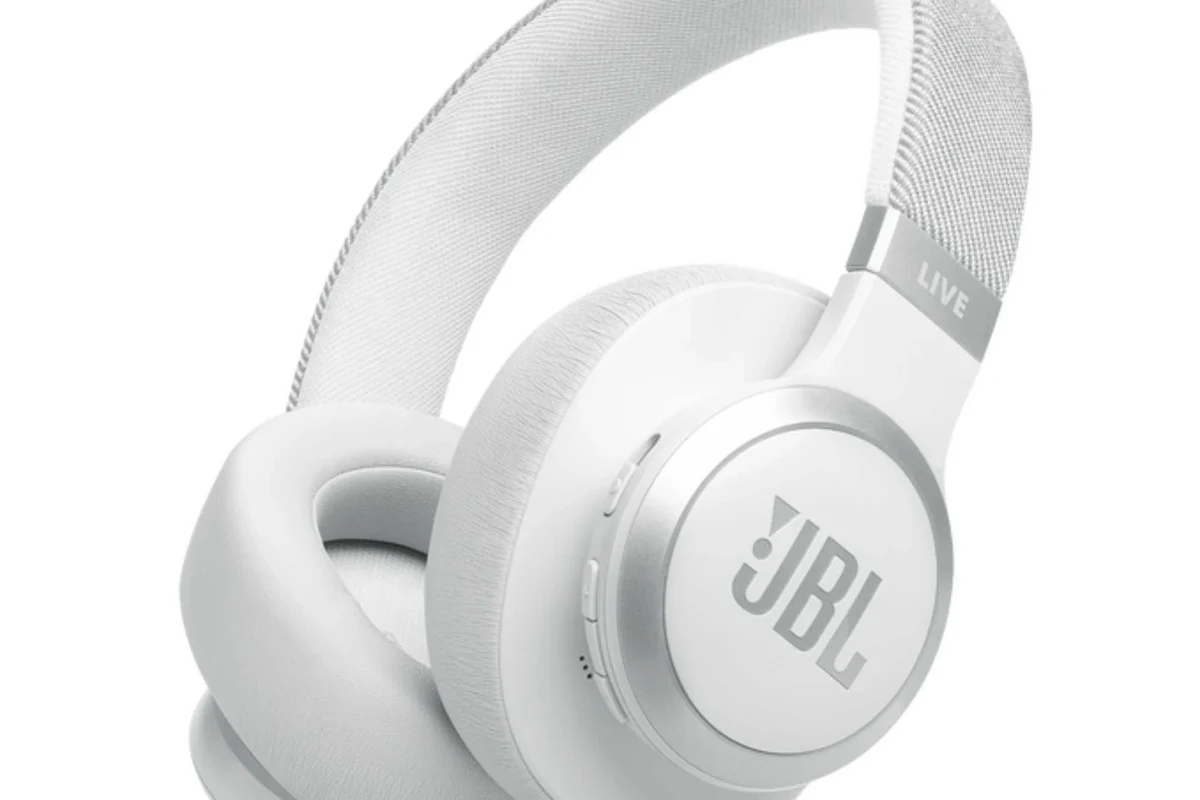
Before pairing, it helps to know what your Fire TV device supports and what kind of headphones you’re using. Most pairing issues happen because of compatibility, outdated software, or simple setup mistakes rather than a broken headset.
Supported Fire TV devices and Fire OS versions
Many Fire TV sticks, Fire TV boxes, and Fire TV Edition televisions support Bluetooth audio, but the exact menu path can vary by model and Fire OS version. If your device is older, the Bluetooth menu may be slower or slightly different, so it is worth checking for system updates first.
If you are unsure whether your streaming device is set up correctly in the first place, it can help to review a broader guide on how to connect bluetooth headphones in general. That makes it easier to spot whether the issue is with Fire TV, the headphones, or the pairing process itself.
Bluetooth headphone compatibility basics
Most modern wireless headphones, earbuds, and gaming headsets should pair with Fire TV as long as they support standard Bluetooth audio. That said, compatibility can still vary by brand, Bluetooth version, and how the headphones handle multipoint connections or gaming modes.
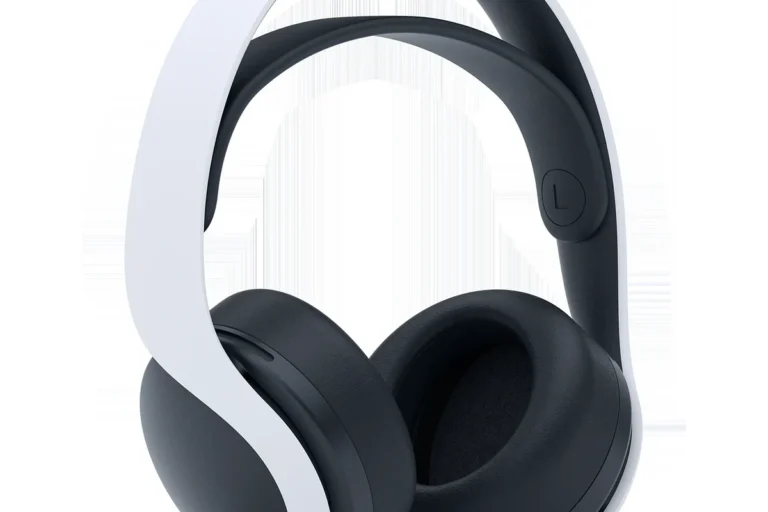
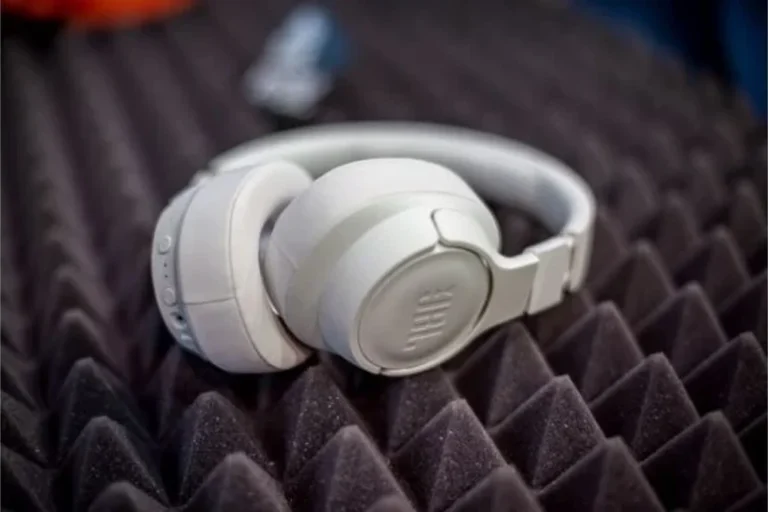
Closed-back over-ear headphones are often the safest choice for movie nights because they block more outside noise and keep sound from leaking into the room. In-ear models can work well too, especially if you want something lightweight for long streaming sessions.
Why users search for this setup: private listening, late-night TV, and gaming
People usually connect headphones to Fire TV for three simple reasons: private listening, lower household noise, and better dialogue clarity. It is especially useful if you watch late at night or share a room with other people.
For gaming, Bluetooth headphones can be convenient when you want a cleaner setup with fewer cables. Just remember that wireless audio may introduce a little lag depending on the headphones and the content you are watching or playing.
Listening at high volumes for long periods can cause hearing damage. Keep volume at 60% or below for extended sessions.
Step-by-Step Guide to Pair Bluetooth Headphones with Fire TV
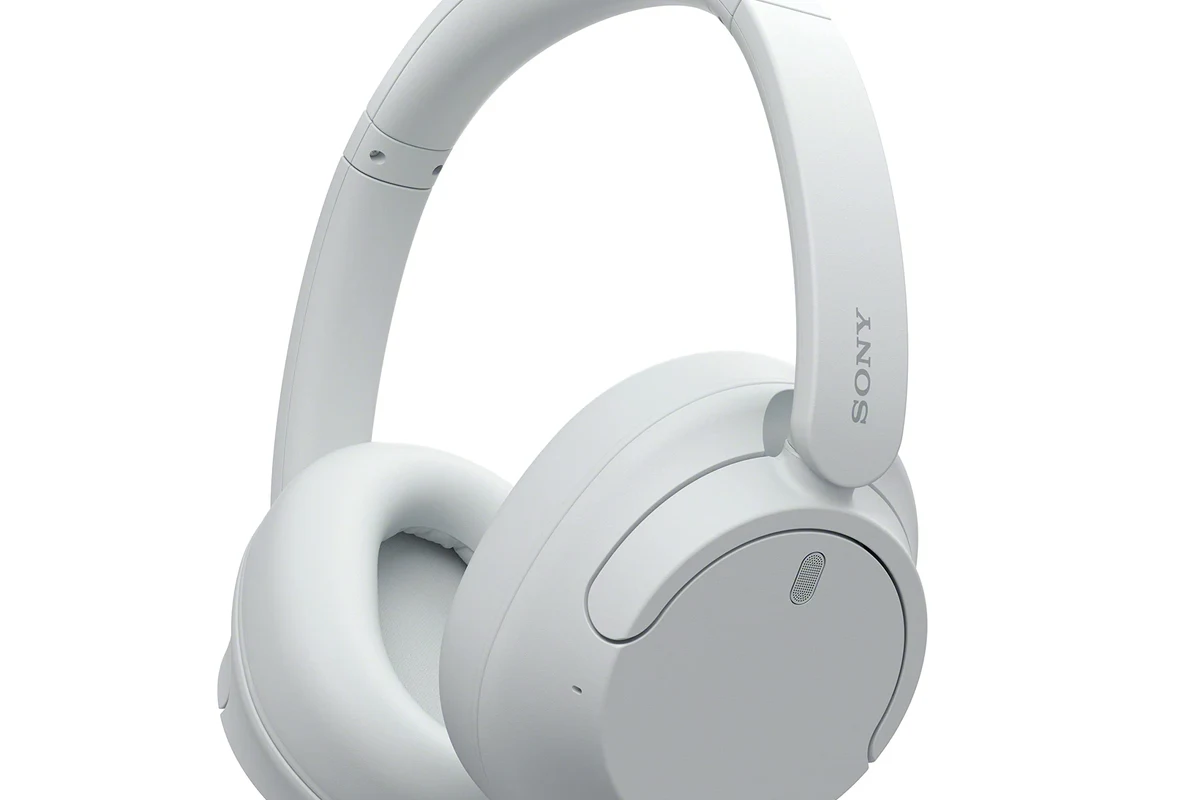
The pairing process is simple once you know where the Bluetooth menu lives. The key is to have both devices ready at the same time so Fire TV can detect your headphones quickly.
Using the Fire TV settings menu to enter pairing mode
Start from the Fire TV home screen and open the Settings menu. From there, go to the Controllers and Bluetooth Devices section, then choose the option to add or pair a new device.
Your Fire TV should begin searching for nearby Bluetooth devices. Leave that screen open while you put your headphones into pairing mode so they can appear in the list.
Go to Settings, then Controllers and Bluetooth Devices, and select the option to add a new device.
Hold the pairing button or follow the model-specific pairing method until the indicator light flashes.
Choose your headphone name from the list and wait for the confirmation message.
Putting your headphones into pairing mode correctly
This step is where many people get stuck. Some headphones enter pairing mode with a dedicated button, while others require holding the power button for several seconds until the light flashes or a voice prompt says they are ready.
If your headphones are already connected to a phone, laptop, or tablet, disconnect them first. Many models will not appear on Fire TV if they are busy maintaining another active Bluetooth connection.
If your headphones support multipoint, temporarily turn off Bluetooth on your phone during setup. That can make Fire TV detection faster and reduce pairing confusion.
Confirming the connection and testing audio output
Once Fire TV shows your headphones in the device list, select them and wait for the pairing confirmation. After that, play a movie, show, or trailer to make sure the sound is coming through the headphones and not the TV speakers.
If the audio still plays through the television, check the Fire TV sound settings and make sure the headphones are the active output device. A quick volume test is also useful because some headphones default to a lower level than expected.
Some Fire TV devices remember previously paired headphones and reconnect automatically later. If you change headphones often, removing old devices can make the menu easier to manage.
Best Use Cases: When Bluetooth Headphones Work Great on Fire TV
Bluetooth headphones are not just a convenience feature. In the right situation, they can improve comfort, reduce distractions, and make TV audio easier to understand.
Watching movies without disturbing others
This is one of the best reasons to use wireless headphones with Fire TV. You can keep the room quiet while still hearing every detail, which is ideal for apartments, shared bedrooms, or late-night viewing.
Noise-cancelling headphones can be especially helpful here because they reduce background hum from fans, air conditioners, or nearby conversations. If you want to understand the difference between models, our guide on noise cancelling headphones explains the basics in simple terms.
Gaming with a Fire TV device and reducing room noise
For casual gaming, Bluetooth headphones can make the experience feel more immersive and less distracting. They also help keep sound contained if you are playing while others are sleeping or working nearby.
That said, gaming performance depends on more than just comfort. Latency, microphone support, and Bluetooth stability can all matter if you want responsive audio during fast-paced games.
Using headphones for better dialogue clarity and late-night viewing
Many viewers turn to headphones because TV dialogue can be hard to hear at low volume. A good pair can make voices clearer without forcing you to raise the overall loudness.
This is especially useful for older shows, heavily mixed action movies, or content with quiet speech and loud effects. If you want a fuller overview of fit styles, our article on types of headphones explained can help you choose between over-ear, on-ear, and in-ear options.
Common Problems When Connecting Bluetooth Headphones to Fire TV
Even though pairing is usually easy, a few common issues can interrupt the process. Most of them have simple fixes if you know what to look for.
Headphones not showing up in the device list
If your headphones do not appear, they may not be in pairing mode, they may already be connected elsewhere, or they may be too far from the Fire TV device. Move closer and try again with both devices restarted if needed.
It can also help to reset the headphones and remove them from any other paired devices. If you need a refresher on that process, see our guide on reset bluetooth headphones before trying again.
Audio delay and lip-sync issues
Bluetooth audio delay is one of the most common complaints on streaming devices. You may notice that voices do not match mouth movement perfectly, especially in fast dialogue scenes or action content.
Some headphones handle delay better than others, but Fire TV itself can also influence the result. If lag is a major problem, a dedicated low-latency headset or a Bluetooth transmitter may be a better fit than a standard everyday pair.
Connection drops, low volume, or one-ear audio problems
Dropouts can happen when the signal is weak, the battery is low, or there is interference from other wireless devices. Low volume may also come from the headphone’s own volume control rather than Fire TV settings.
If you hear audio in only one ear, check the headphone balance, restart the headset, and test the pair with another device. Sometimes the issue is with the headphones themselves, not the Fire TV connection.
Fire TV already connected to too many Bluetooth devices
Some Fire TV devices can become cluttered if too many controllers, speakers, or headphones have been paired over time. That can make new devices harder to connect or reconnect automatically.
Removing unused Bluetooth devices from the settings menu often solves the problem. It also makes future pairing faster and reduces the chance of your headphones linking to the wrong device.
If you keep hearing lag, distortion, or frequent cutouts even after basic troubleshooting, consider speaking with an audiologist for hearing-related concerns or a professional audio specialist for device-specific setup advice.
Expert Advice: How to Improve Sound Quality and Reduce Lag
Once your headphones are connected, the next step is making the experience sound better and feel more stable. A few practical adjustments can make a noticeable difference.
When to use low-latency headphones or a Bluetooth transmitter
If you mainly watch movies or play games, low-latency headphones are often worth considering. They are designed to reduce the delay between what you see on screen and what you hear in your headphones.
A Bluetooth transmitter can also help if your Fire TV setup or headphones do not play nicely together. Results vary by model, so it is best to check compatibility before buying.
How Fire TV placement and interference affect performance
Bluetooth works best when the Fire TV device has a clear signal path and is not blocked by metal objects, thick furniture, or crowded entertainment centers. Distance matters too, especially if you sit far from the TV.
Other wireless devices in the room can also interfere. Wi-Fi routers, game controllers, and multiple Bluetooth accessories may all contribute to weaker performance in busy setups.
Bluetooth headphones can behave differently from one room to another because walls, furniture, and nearby wireless signals can all affect stability.
When to switch from Bluetooth to wired or TV-based audio options
Bluetooth is convenient, but it is not always the best choice for every viewer. If you want the most stable audio possible, a wired connection, TV headphone jack, or a dedicated wireless RF headset may perform better.
This is especially true for people who are sensitive to delay or who want consistent volume for long sessions. For a broader sound-quality comparison, our article on Bluetooth vs wired headphones sound quality is a helpful next read.
Bluetooth Headphones vs Other Listening Options for Fire TV
There is no single best listening method for every home theater setup. The right choice depends on your budget, how much latency you can tolerate, and whether you care more about convenience or sound consistency.
Bluetooth headphones compared with Fire TV remote headphone jack alternatives
Some setups use a remote or accessory with a headphone jack, but that is not always available on every Fire TV model. Bluetooth is usually easier because it avoids extra cables and keeps the setup cleaner.
Still, wired headphone options can be more reliable for latency and connection stability. If your main priority is zero lag, wired audio often has the edge.
Comparison with soundbars, TV speakers, and wireless RF headphones
Soundbars are better if you want room-filling audio and a more cinematic feel. TV speakers are the simplest option, but they usually offer the least detail and clarity compared with headphones or a good soundbar.
Wireless RF headphones can be a strong alternative for viewers who want more stable long-range listening. They are less common than Bluetooth, but they can be a smart pick for living rooms where lag or dropouts matter.
Typical price ranges for budget, mid-range, and premium headphone options
Prices vary widely by brand, build quality, and features like noise cancellation or gaming mode. Budget models may be fine for casual viewing, while premium options often focus on comfort, better microphones, or stronger noise isolation.
Key audio insight hereThe best Fire TV headphones are not always the most expensive; they are the ones that match your room, your ears, and your listening habits.
Common Mistakes to Avoid During Setup
Most pairing problems come from simple oversights. Avoiding a few common mistakes can save time and frustration.
Skipping firmware updates on Fire TV or headphones
Old software can create pairing bugs, audio glitches, or missing menu options. It is a good habit to check for updates on both your Fire TV device and your headphones before troubleshooting anything else.
Pairing from the wrong menu or using the wrong device mode
Some users try to connect from the TV’s general settings instead of the Fire TV Bluetooth menu. Others forget to put the headphones into pairing mode, which means the devices never actually discover each other.
- Fire TV Bluetooth menu opened correctly
- Headphones in pairing mode, not just powered on
- Old connections removed if necessary
- Battery level high enough for setup
Ignoring battery level and Bluetooth range limitations
Low battery can make headphones unstable during pairing or playback. Range matters too, and even a short move away from the TV can cause dropouts if the signal is weak or blocked.
For the most reliable experience, keep the headphones charged and stay within a reasonable distance of the Fire TV device. That simple habit prevents many connection issues before they start.
Final Recap: The Easiest Way to Connect Bluetooth Headphones to Fire TV
In most cases, the easiest way to connect bluetooth headphones to fire tv is to open the Fire TV Bluetooth menu, put your headphones into pairing mode, select them from the device list, and test the audio right away. If the connection does not work, the problem is usually a simple one like battery level, range, or an old saved pairing.
Quick summary of the setup process
Start with updated Fire TV software, then activate pairing mode on your headphones and choose them from the Bluetooth device list. Once connected, play a short video to confirm that sound is coming through correctly.
Best practices for reliable everyday use
Keep your headphones charged, remove unused Bluetooth devices, and stay aware of interference from other wireless gear. If you watch TV late at night or in a shared space, closed-back or noise-cancelling headphones are often the most practical choice.
What to do next if you still want better wireless audio performance
If Bluetooth still feels laggy or unstable, consider low-latency headphones, a Bluetooth transmitter, or a different audio output method. The best setup depends on your room, your budget, and how sensitive you are to delay or sound leakage.
Frequently Asked Questions
Wireless headphones are more convenient, but wired headphones usually offer more stable audio and less lag. If latency matters most, wired or low-latency wireless options may be better.
Yes, noise cancelling headphones can work very well for Fire TV because they help reduce background noise. They are especially useful for movies, late-night viewing, and shared rooms.
Closed-back headphones are usually better for TV because they block more outside noise and prevent sound leakage. Open-back models can sound wider, but they are less private and less ideal for shared spaces.
Look at comfort, Bluetooth stability, battery life, and whether the headphones have low-latency support. Driver type, tuning, and EQ options can also affect bass, clarity, and dialogue quality.
Budget headphones can work fine for casual viewing, while mid-range and premium models often add better comfort, stronger noise isolation, and improved sound. The right price depends on your room, listening habits, and feature needs.
Check ear cushion material, headband padding, weight, and overall build quality if you plan to wear them for long sessions. A comfortable fit matters as much as sound quality for everyday TV use.