How to Connect Bluetooth Headphones to Apple TV Easily

To connect Bluetooth headphones to Apple TV, put the headphones in pairing mode, open Apple TV settings, and select them from the Bluetooth list. If needed, switch the audio output in Control Center after pairing.
If you want private listening on Apple TV, Bluetooth headphones are one of the easiest solutions. The setup is usually quick, but the exact steps can vary a little depending on your Apple TV model, tvOS version, and headphone brand.
- Pairing: Use Settings or Bluetooth to add headphones first.
- Apple devices: AirPods and Beats usually connect more easily.
- Troubleshooting: Check battery, tvOS updates, and pairing mode.
- Best use: Great for private movies, less ideal for low-latency gaming.
Why Connecting Bluetooth Headphones to Apple TV Matters for Late-Night Viewing
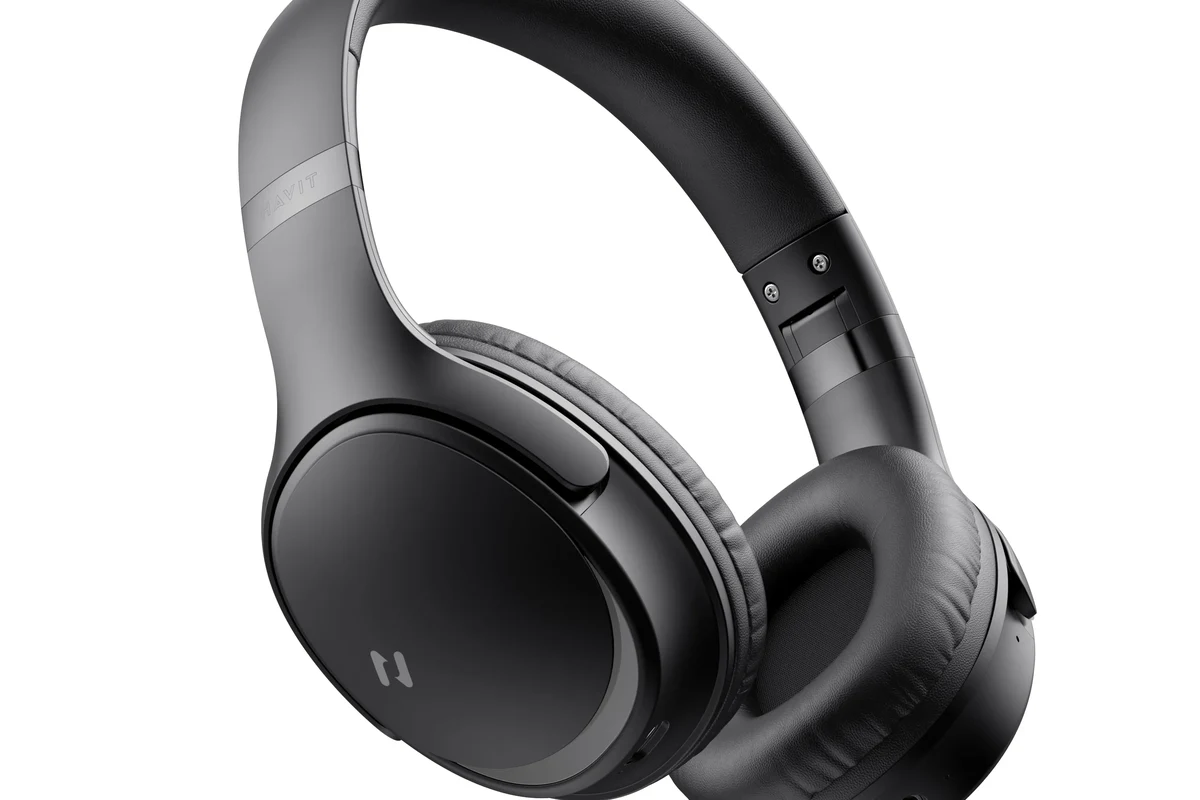
Learning how to connect Bluetooth headphones to Apple TV can make a big difference if you watch movies after hours or share a home with light sleepers. It lets you enjoy clear dialogue, strong bass, and immersive sound without waking anyone up.
It is also useful in apartments, dorms, and family rooms where the TV volume needs to stay low. For many readers at Top Headphone Reviews, this is the simplest way to keep the audio personal while still using the big screen.
What You Need Before Pairing Bluetooth Headphones with Apple TV
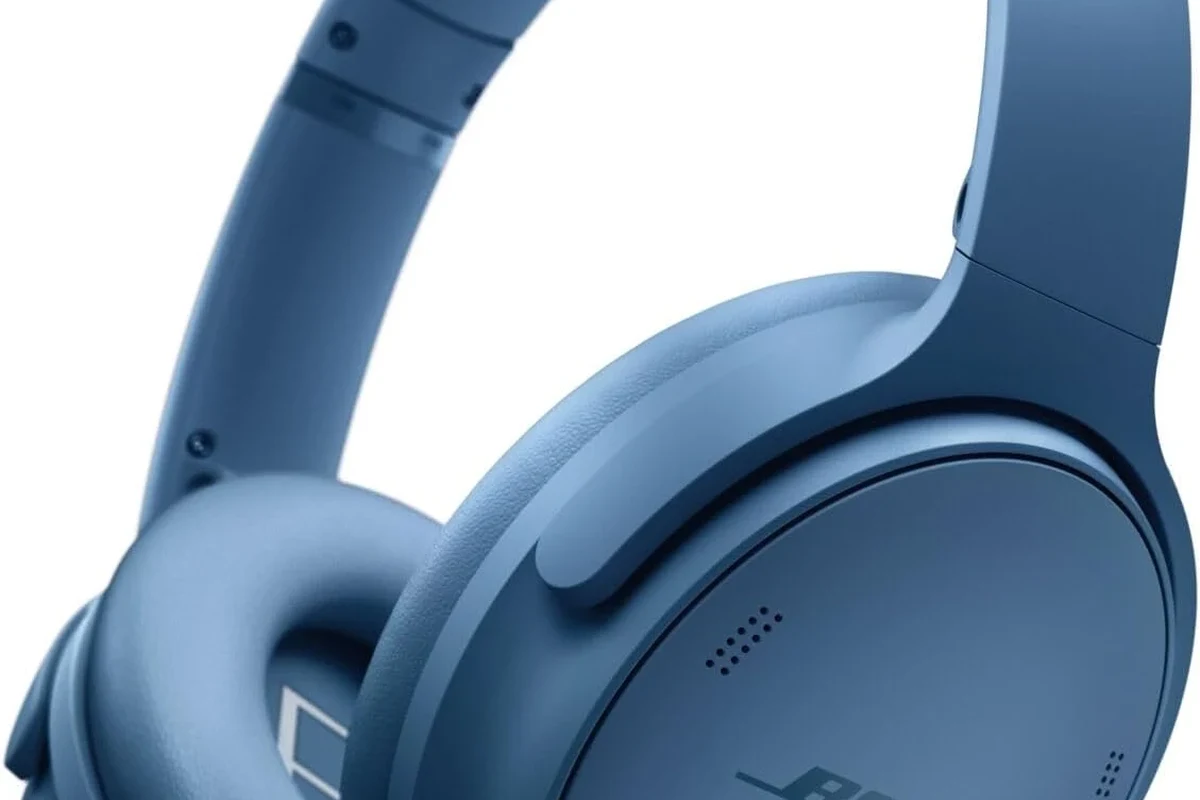
Before you start pairing, it helps to check a few basics. That saves time and makes connection problems much easier to troubleshoot.
Compatible Apple TV models and tvOS requirements
Most modern Apple TV devices support Bluetooth audio, but software matters too. If your Apple TV is running an older version of tvOS, pairing menus may look different or some features may be limited.
It is a good idea to update the device before pairing, especially if you are using newer headphones or AirPods. A current tvOS version usually gives you the smoothest connection and the fewest audio glitches.
Menu names can change slightly between Apple TV generations and tvOS updates, so your screen may not match every step exactly.
Bluetooth headphone compatibility and battery checks
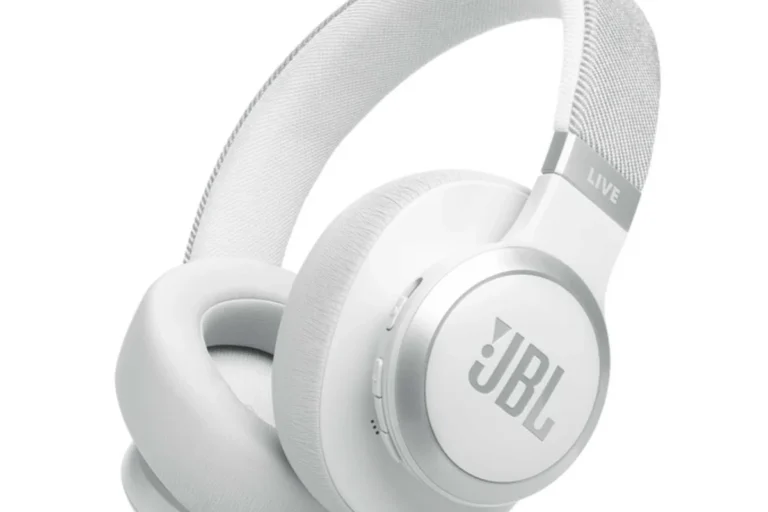
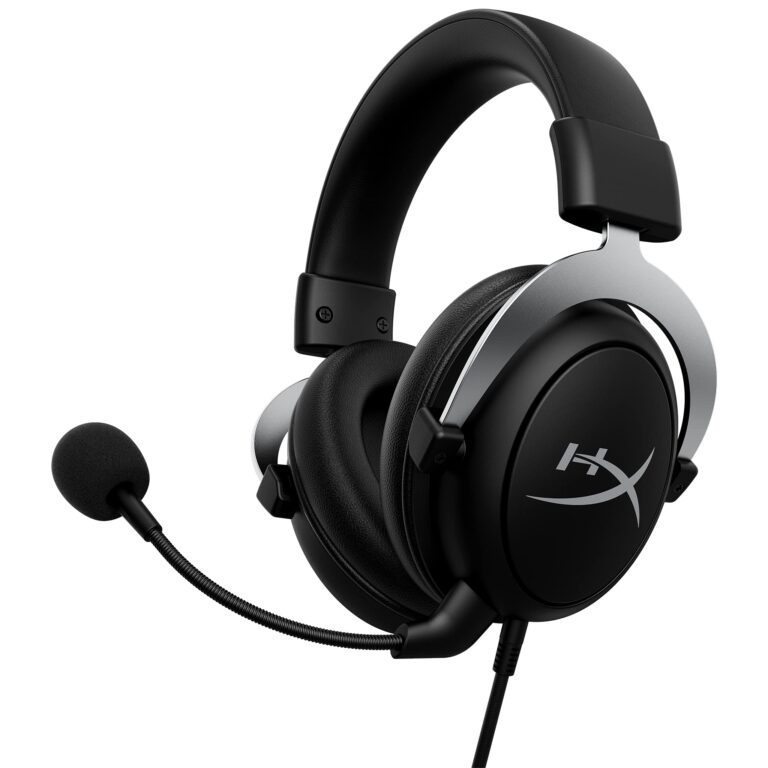
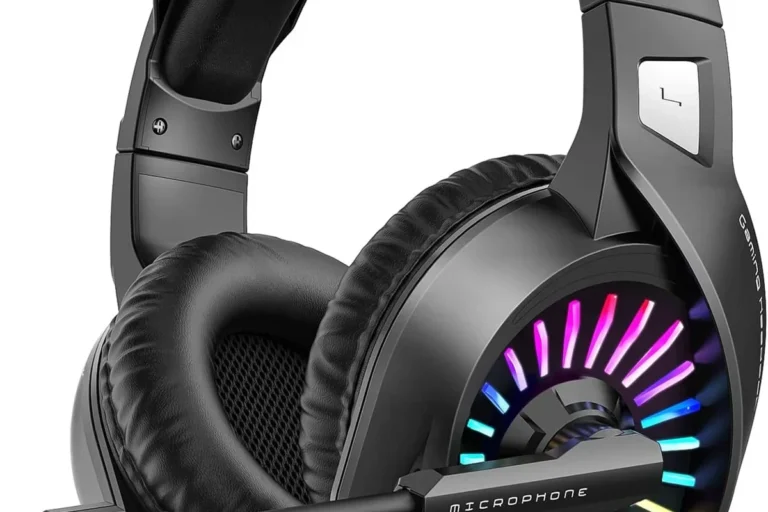
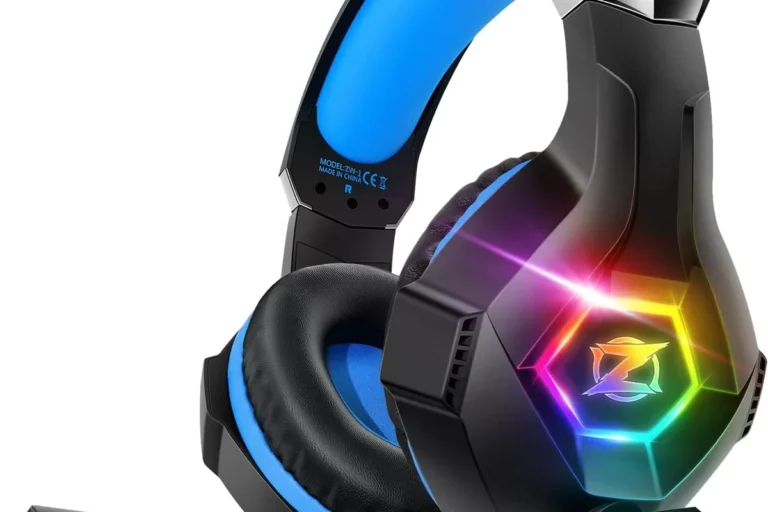
Most Bluetooth headphones, earbuds, and many gaming headsets can work with Apple TV, but compatibility may vary by brand and model. If you use a more unusual headset, check whether it supports standard Bluetooth audio pairing.
Also make sure the headphones are charged. Low battery can cause failed pairing, weak range, or random disconnects that look like Apple TV problems when the real issue is power.
- Headphones are charged or plugged in
- Apple TV is updated to the latest available tvOS
- Headphones are in pairing mode, not just powered on
- No other device is actively connected to the headphones
How to Connect Bluetooth Headphones to Apple TV Step by Step
The process is straightforward once you know where to look. In most cases, you will pair the headphones once and then reconnect them later from the Control Center.
Go to Settings, then choose Remotes and Devices or Bluetooth, depending on your Apple TV version. This is where you start the pairing process for most third-party headphones.
Follow the headset’s instructions so it becomes discoverable. Usually this means holding the power button or Bluetooth button until a light flashes or a voice prompt confirms pairing mode.
Wait for the name of your headphones to appear on screen, then select it. If prompted for confirmation, approve the connection and wait for the audio to switch over.
Pairing AirPods and Beats with automatic Apple integration
AirPods and many Beats models usually offer the easiest experience because they are designed to work smoothly across Apple devices. If the same Apple ID is used, your headphones may appear quickly without much manual setup.
That said, automatic behavior is not guaranteed in every home setup. If they do not appear right away, use the standard Bluetooth menu and put the headphones back into pairing mode.
Apple devices often remember paired audio gear, so once your headphones are connected the first time, reconnecting later is usually much faster.
Connecting third-party Bluetooth headphones through Settings
For non-Apple headphones, the Settings menu is the most reliable route. This is true for over-ear models, on-ear headphones, and many wireless earbuds that support standard Bluetooth audio.
If your headphones do not show up, move them closer to the Apple TV and make sure they are not already connected to a phone, tablet, or laptop. Some headphones only connect to one device at a time.
If the headphones are paired but you hear no sound, disconnect them from your phone first. Many Bluetooth headsets will keep sending audio to the last active device.
Switching audio output from the Control Center
Once pairing is complete, the easiest way to switch audio is through the Apple TV Control Center. This is especially helpful if you want to move between TV speakers and headphones without repeating the full setup.
Open Control Center, choose the audio output menu, and select your headphones. If you use the same headphones often, this is usually the fastest daily workflow.
Why does Apple TV keep playing through the speakers?
Usually the headphones are paired but not selected as the active output. Open the audio menu in Control Center and manually switch from TV speakers to your headphones.
Bluetooth headphones are not just for convenience. They can improve how you use Apple TV in rooms where sound needs to stay controlled or focused.
Watching without disturbing others in bedrooms and apartments
For late-night movies, TV shows, and streaming marathons, headphones help keep dialogue clear at lower volume. That makes them a practical choice for bedrooms, apartments, and shared homes where you do not want to disturb other people.
Closed-back headphones can be especially useful here because they block more outside noise and help you stay focused on the screen. If you are curious about different headphone styles, our guide to types of headphones explained is a helpful place to compare options.
Using headphones for immersive Apple TV gaming sessions
Apple TV gaming can feel more immersive with headphones because footsteps, effects, and background music become easier to hear. That can be useful in casual games where audio cues matter, especially if you want a more private setup.
Still, Bluetooth is not always ideal for competitive play. If timing matters a lot, latency may be noticeable depending on the headset and game, which is why some gamers prefer wired or low-latency alternatives.
Listening at high volumes for long periods can cause hearing damage. Keep volume at 60% or below for extended sessions.
Common Problems When Apple TV Won’t Detect Bluetooth Headphones
If Apple TV does not see your headphones, the fix is often simple. Most problems come from pairing mode mistakes, interference, or a device that is already connected somewhere else.
Bluetooth interference, outdated tvOS, and pairing mode mistakes
Bluetooth can be sensitive to distance and interference from other wireless devices. If pairing fails, move closer to the Apple TV, turn off nearby unused Bluetooth devices, and try again.
It also helps to confirm that the headphones are truly in pairing mode. Simply turning them on is not always enough, and some models need a longer button press before they become discoverable.
If your headphones were previously paired to another device, disconnect them there first. Many models will not appear on Apple TV until they are free to connect.
Audio lag, dropouts, and volume sync issues
Audio lag can happen with Bluetooth, especially in gaming or fast-action scenes. Dropouts may also appear if the signal is weak or if the headphones are too far from the Apple TV.
If the sound cuts in and out, try re-pairing the headphones, reducing distance, or restarting both devices. For readers who want a deeper troubleshooting path, our Bluetooth headphone lag fix guide covers the most common causes in simple terms.
- Pairing usually starts in Apple TV Settings or Bluetooth.
- AirPods and Beats often connect more smoothly than third-party models.
- Weak batteries, interference, and old tvOS versions can block detection.
- For gaming, Bluetooth may add enough delay to matter.
Expert Advice: When Bluetooth Is Not the Best Option
Bluetooth is convenient, but convenience is not always the same as best audio performance. The right choice depends on what you watch, how sensitive you are to delay, and how you use your headphones.
Latency concerns for gaming and live sports
If you watch live sports or play timing-based games, even a small delay can be distracting. That delay is not always obvious during dialogue-heavy shows, but it can matter when sound needs to match the action precisely.
In those cases, a wired solution or a headset designed for low-latency wireless use may be a better fit. If you want to compare wireless and wired trade-offs more broadly, see our Bluetooth vs wired headphones sound quality guide.
When to consider AirPods, wired alternatives, or TV-specific wireless headphones
AirPods are often the easiest Apple-friendly option if you already use them with iPhone or iPad. Wired alternatives can be better for zero-lag listening, while TV-specific wireless headphones may offer a more stable home-theater experience.
If your priority is simple pairing and smooth switching between Apple devices, AirPods or Beats can be a strong fit. If your priority is the most consistent audio timing, a dedicated TV headphone setup may be worth considering.
If you experience ongoing ear pain, ringing, or sensitivity to sound, consult an audiologist. Safe listening habits matter just as much as choosing the right headphone type.
Final Recap: The Easiest Way to Enjoy Private Apple TV Listening in 2026
The easiest way to connect Bluetooth headphones to Apple TV is to put the headphones in pairing mode, open Apple TV settings, and select them from the Bluetooth list. After that, you can switch audio output from Control Center whenever you want private listening.
If you run into trouble, check battery level, confirm the headphones are not connected to another device, and make sure tvOS is up to date. For most users, that simple routine is enough to make Apple TV headphone listening smooth, quiet, and very practical.
Frequently Asked Questions
Wired headphones usually avoid Bluetooth delay and can sound more consistent. Wireless headphones are more convenient, but sound quality and latency can vary by model.
Yes, noise cancelling headphones can help reduce room noise and improve dialogue clarity. They are especially useful in shared spaces, but comfort and ANC strength vary by brand.
Closed-back headphones are usually better for private listening because they block more outside noise. Open-back models can sound more spacious, but they leak sound and are less ideal for late-night viewing.
Over-ear headphones are often the most comfortable for long sessions because they spread pressure over a larger area. Ear cushion material, clamping force, and weight can matter as much as the style itself.
Check Bluetooth version, battery life, comfort, codec support if listed, and whether the headphones support low-latency modes. For TV use, stable connection and easy controls often matter more than flashy specs.
Start by making sure the headphones fit well and are fully charged. You can also adjust EQ in the headphone app or Apple device settings if your model supports it, but results vary by brand and hearing preference.