How to Turn Beats Headphones On Quickly and Easily

Press and hold the correct power control for your Beats model until the LED or startup sound appears. If they still do not turn on, charge them briefly and check the cable, port, and Bluetooth pairing.
If you are trying to figure out how to turn beats headphones on, the good news is that the process is usually simple once you know where the power control is. The exact method depends on the Beats model, so this guide walks you through the basics, common mistakes, and quick fixes for the most popular versions.
- Model matters: Solo, Studio, and true wireless Beats can power on differently.
- Hold, don’t tap: A steady press is usually needed for startup.
- Check power first: Dead batteries and deep discharge are common.
- Pairing can confuse things: A connection issue may look like a power problem.
How to Turn Beats Headphones On: What Most Users Need to Know First
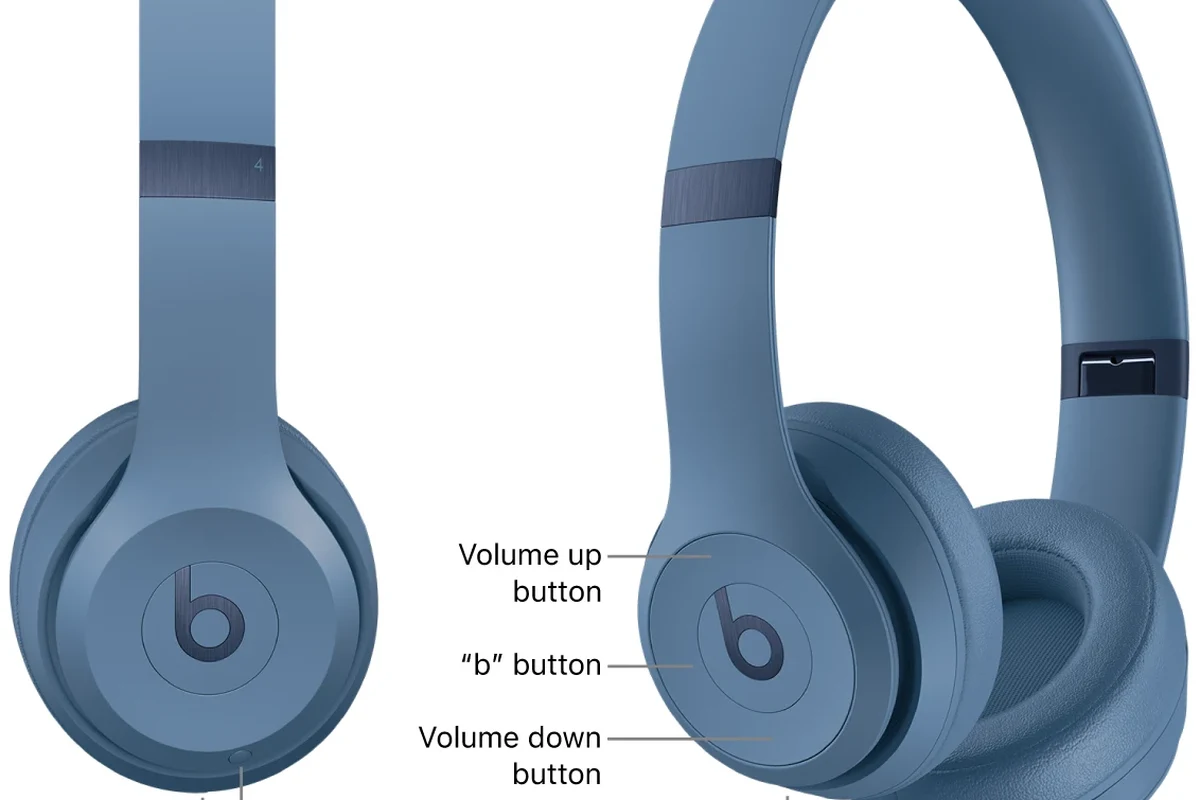
Before pressing anything, it helps to know that Beats headphones do not all power on the same way. Some models use a dedicated power button, while others rely on a multifunction button or a charging case for wake-up and pairing.
This matters because many people think their headphones are broken when they are actually just in pairing mode, low power mode, or still charging. If you are new to Bluetooth audio, it can also help to understand the basics of Bluetooth headphones so you know what the lights and sounds are telling you.
Beats model design can vary, so the power button location and hold time may differ slightly from one version to another.
Quick Power-On Methods for Different Beats Headphone Models
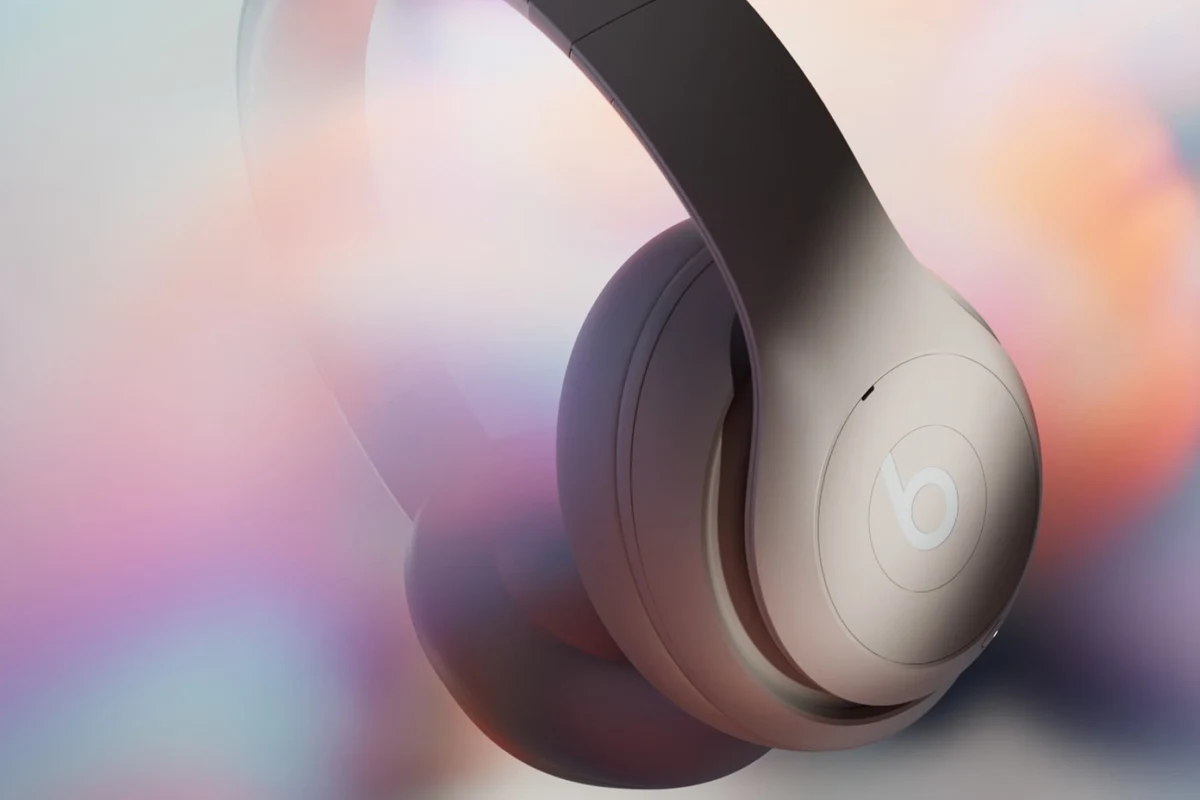
The fastest way to turn on Beats headphones is to match the method to the model you own. If you are unsure which version you have, check the earcups, headband controls, or the charging case before trying random button presses.
Beats Solo and Solo Pro: Using the Power Button Correctly
On Beats Solo-style headphones, the power control is usually easy to find on one of the earcups. Press and hold the power button until the LED indicator lights up, then release it once the headphones respond.
Solo Pro models may use a slightly different control layout, but the idea is the same: look for the main power or multifunction button and hold it long enough for the light or voice prompt to confirm startup.
Beats Studio and Studio Pro: Where the Power Control Is Located
Beats Studio headphones typically place the power button on an earcup rather than on the headband. If the headphones do not turn on right away, make sure you are pressing the actual power control and not the volume or noise control buttons.
With over-ear models, it is easy to miss the correct button because the controls can feel similar by touch. A careful press-and-hold is usually better than tapping the button repeatedly.
Beats Fit Pro, Powerbeats, and Powerbeats Pro: Charging Case vs. Headphone Power
True wireless models like Beats Fit Pro and Powerbeats Pro work differently from over-ear headphones. In many cases, opening the charging case or removing the earbuds helps wake them up, and the earbuds may power on automatically when they leave the case.
If you are using Powerbeats-style earbuds, remember that the case is part of the power routine. If the battery is low in either the earbuds or the case, they may not wake up the way you expect.
If your Beats seem unresponsive, place them on charge for 10 to 15 minutes before trying again. A short boost is often enough to wake a deeply drained battery.
Step-by-Step: How to Turn Beats Headphones On the Right Way
Once you know the model, the actual power-on process is straightforward. The key is to use a firm, steady press rather than a quick tap, especially if the battery is low or the device has been unused for a while.
Standard Power-On Process for Wireless Beats Headphones
Locate the main button on the earcup, headband, or earbuds, depending on the model.
Hold the button until the LED turns on or you hear a startup sound or voice cue.
After the light appears, release the button and look for Bluetooth pairing on your phone or computer.
What to Do if the LED Light Does Not Turn On
If the LED stays dark, do not assume the headphones are dead immediately. First, connect them to a charger and wait a few minutes, because a fully drained battery may need a short recovery period before any light appears.
Also check the charging cable, wall adapter, and port. A bad cable can make it look like the headphones will not power on when the real issue is that they are not charging at all.
How Long to Hold the Button Before Releasing
In most cases, holding the button for a few seconds is enough, but the exact timing can vary by model. If nothing happens, try a slightly longer hold rather than pressing rapidly several times.
That said, do not force the button or hold it excessively long if the headphones are already responding. Once the LED or startup sound appears, release the control and let the device finish booting.
Common Reasons Beats Headphones Will Not Turn On
When Beats headphones refuse to power up, the cause is often simpler than it seems. Battery problems, pairing confusion, or a stuck button are more common than major hardware failure.
Dead Battery or Deep Discharge After Long Storage
If you have not used your Beats in weeks or months, the battery may have dropped too low to wake immediately. This is especially common with wireless headphones that were stored without a charge.
Leave them connected to power for a while before troubleshooting further. If they start after charging, the issue was probably just deep discharge rather than a permanent failure.
Bluetooth Pairing Confusion Mistaken for a Power Problem
Sometimes the headphones are already on, but your phone or laptop is not connecting properly. That can make the device seem off even though it is actually powered and waiting to pair.
If this happens, check the Bluetooth menu on your source device and make sure the Beats are selected. If needed, review a guide on how to connect Bluetooth headphones so you can separate pairing issues from power issues.
Firmware Glitches, Dirty Ports, and Stuck Buttons
Occasionally, a software glitch can stop the headphones from waking normally. In other cases, dust in the charging port or debris around the button can interrupt charging or make the control feel unresponsive.
If the button feels jammed, avoid pressing harder and harder. Gentle cleaning and a normal reset are safer than repeated force, especially on compact wireless models.
Do not use sharp tools, excessive force, or liquid cleaners near buttons or charging ports. That can damage the headphones and make the problem worse.
Practical Examples: Turning On Beats in Real-World Situations
Real life is often messier than a quick setup guide. The examples below show how to handle the most common situations people run into with Beats headphones.
Using Beats Before a Workout or Commute
If you are heading out the door, turn the headphones on a minute early so you are not troubleshooting on the go. This gives your phone time to reconnect and helps you notice battery problems before you leave.
For workouts, many users prefer lightweight wireless models because they are easy to wake and quick to pair. If you use noise cancelling or transparency features, make sure the mode you want is active before you start moving.
Waking Up Headphones After Overnight Charging
After charging overnight, most Beats should power on normally. If they still do not respond, unplug them, wait a few seconds, and try again with a fresh button hold.
If you are using earbuds in a case, confirm that the case itself has power. A charged case with drained earbuds, or the reverse, can create confusing startup behavior.
Turning On Beats After a Reset or Device Switch
After resetting Beats or switching between a phone, tablet, and laptop, the headphones may need a fresh pairing step. In that situation, the power-on process may seem different because the device is looking for a new connection.
If you are moving between devices often, it may help to keep one primary device paired at a time. That can reduce confusion and make startup feel faster.
If you also use Apple devices, it is worth checking whether your current phone setup affects headset behavior, especially if you have read about phone headphones and how modern phones handle wireless audio accessories.
Expert Advice and Warning Signs You Should Not Ignore
Most power-on issues are fixable, but some warning signs point to a bigger battery or hardware problem. Paying attention early can save time and help you avoid unnecessary damage.
When a Charging Cable or Adapter May Be the Real Issue
If your Beats will not turn on after charging, test the cable and adapter with another device if possible. A damaged cable can prevent enough current from reaching the headphones, even if the battery and buttons are fine.
Also check the charging port for lint or debris. A poor connection can stop the battery from recovering and make the headphones seem completely dead.
Signs of Battery Wear That Can Affect Power-On Success
Older headphones may take longer to charge, lose power faster, or fail to wake consistently. Those are common signs that the battery is wearing out rather than a simple startup glitch.
If the headphones only work while plugged in, or shut off soon after powering on, the battery may no longer be holding a reliable charge.
When to Avoid Forced Button Presses or DIY Repairs
Do not keep forcing a button that feels stuck or unresponsive. Repeated hard presses can break internal parts, especially on compact earcup controls and true wireless earbuds.
If basic charging and reset steps do not help, it is usually better to contact support or a qualified repair service than to open the headphones yourself.
If your headphones power on but you notice distorted sound, battery swelling, overheating, or sudden shutdowns, stop using them and contact a professional audio repair specialist or the manufacturer.
Cost, Replacement, and Model Comparison: When Power Problems Become a Bigger Issue
Sometimes the question is not just how to turn Beats headphones on, but whether the power issue is worth fixing. The answer depends on the model, the age of the battery, and whether the headphones still meet your listening needs.
Basic Troubleshooting vs. Battery Replacement Costs
Simple fixes like charging, cleaning the port, or resetting the headphones cost little or nothing. Battery replacement or professional repair can cost more, and the value depends on the model and its overall condition.
If the headphones are otherwise comfortable and sound good to you, repair may make sense. If they are already outdated or unreliable, replacement can be the more practical choice.
How Newer Beats Models Improve Power Management
Newer Beats models generally make charging and startup easier to manage, though features and battery behavior can still vary. Better power handling often means fewer surprises after short storage periods and more predictable wake-up behavior.
If you are comparing models for daily use, look at battery life, charging convenience, and how quickly the headphones reconnect after being turned on. For readers comparing brands and use cases, our types of headphones explained guide can also help you decide whether over-ear, on-ear, or earbuds fit your routine best.
Final Recap: The Fastest Way to Turn Beats Headphones On Without Hassle
The fastest way to turn Beats headphones on is to find the correct control for your model, press and hold it until the LED or startup cue appears, and give the device a moment to connect. If nothing happens, charge the headphones briefly, check the cable and port, and make sure the issue is not actually Bluetooth pairing.
For most users, the answer to how to turn beats headphones on is a mix of the right button, a little patience, and basic battery awareness. Once you know your model, startup becomes quick and easy instead of confusing.
- Use the correct power control for your Beats model.
- Hold the button until the LED or startup cue appears.
- Charge first if the battery may be deeply drained.
- Check Bluetooth pairing if the headphones seem on but silent.
Frequently Asked Questions
Yes. Wireless Beats usually need a power button hold or a case wake-up step, while wired models do not rely on battery power. If your headphones are wireless, check the model controls before troubleshooting.
First, confirm the headphones are connected to the right Bluetooth device and volume is turned up. If needed, re-pair the headphones and check whether the source device is sending audio properly.
Beats are often chosen for strong bass and easy everyday listening, but sound balance can vary by model and personal preference. Clarity and soundstage also depend on fit, EQ settings, and the source device.
Look at battery life, comfort, fit, Bluetooth support, charging method, and whether you want noise cancelling or transparency mode. If you commute or travel often, quick pairing and reliable controls are also worth checking.
Check ear cushion material, clamping force, and overall weight, since those affect comfort over time. A good fit should feel secure without creating pressure points or ear fatigue.
Yes, EQ can help if you want less bass, more vocal clarity, or a more balanced sound. Small adjustments are usually better than large boosts, especially if you listen for long periods.