How to Connect TV to Wireless Headphones Easily

Use your TV’s built-in Bluetooth if it supports wireless audio and the sound stays in sync. If not, a wireless transmitter is usually the most reliable way to connect TV to wireless headphones.
If you want to watch late-night TV without disturbing anyone, learning wireless headphones setup basics can make a big difference. The good news is that most modern TVs offer at least one simple path to private listening, whether that means built-in Bluetooth, a transmitter, or a soundbar/receiver connection.
In this guide from the Top Headphone Reviews Editorial Team, we’ll walk through the easiest ways to connect your TV to wireless headphones, what to do if your TV is older, and how to avoid common issues like audio delay or pairing failures. We’ll also cover what to look for in headphones and transmitters so you can choose a setup that fits movies, sports, and gaming.
- Bluetooth first: Easiest option when your TV supports it well.
- Transmitters help: Better for older TVs and more stable audio.
- Watch for lag: Gaming and movies need low latency.
- Check outputs: Optical, AUX, RCA, and HDMI ARC matter.
How to Connect TV to Wireless Headphones: What Most Viewers Need in 2025
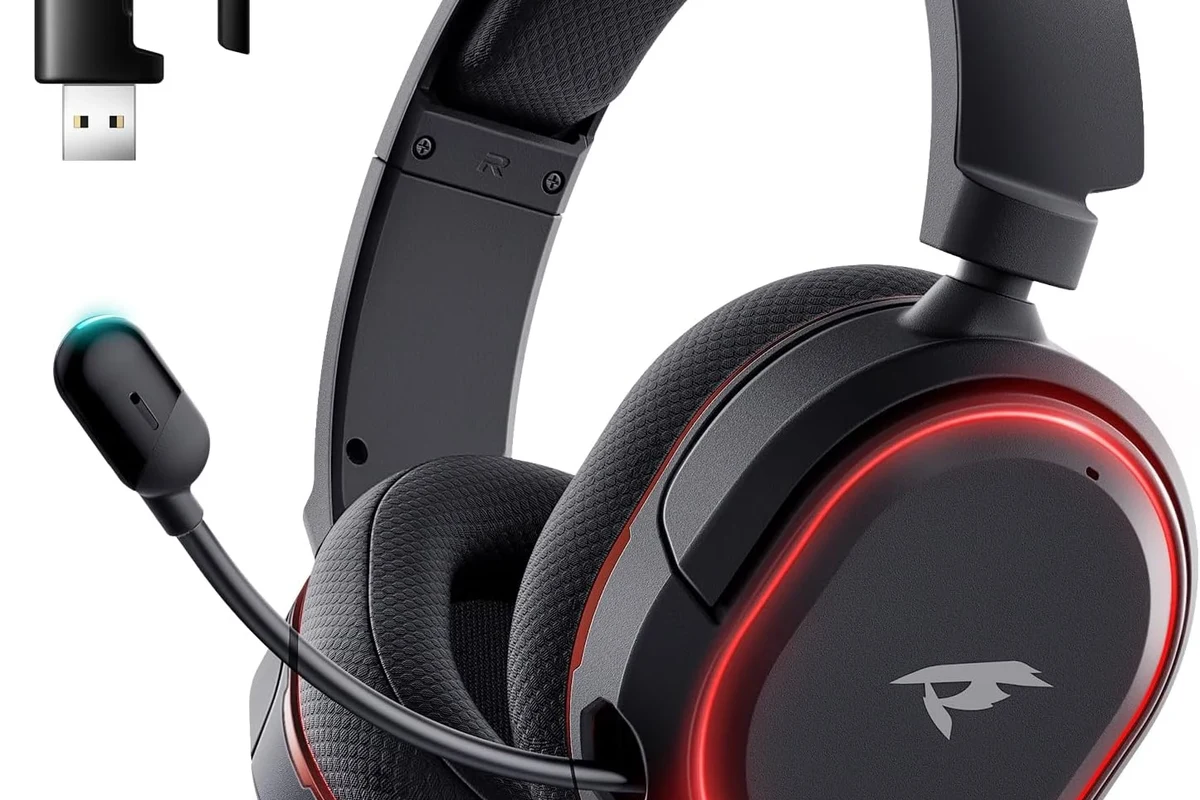
The simplest answer to how to connect tv to wireless headphones is to check whether your TV already supports Bluetooth audio. If it does, you can usually pair headphones directly through the TV settings without extra hardware.
If your TV does not support Bluetooth, don’t worry. A wireless transmitter plugged into the TV’s audio output can send sound to compatible headphones, and in many homes that is the more reliable option anyway.
For the smoothest setup, look at the TV’s audio output options first. The connection method is often determined by whether you have Bluetooth, optical audio, 3.5 mm, RCA, or HDMI ARC available.
One important detail: not all wireless headphone setups behave the same. Bluetooth is convenient, but some TVs add delay, and some headphones are better for movies or gaming than others. If you want a deeper look at wireless behavior across devices, our guide on Bluetooth headphones explained simply can help.
Listening at high volumes for long periods can cause hearing damage. Keep volume at 60% or below for extended sessions.
Best Wireless Headphone Connection Methods for TVs
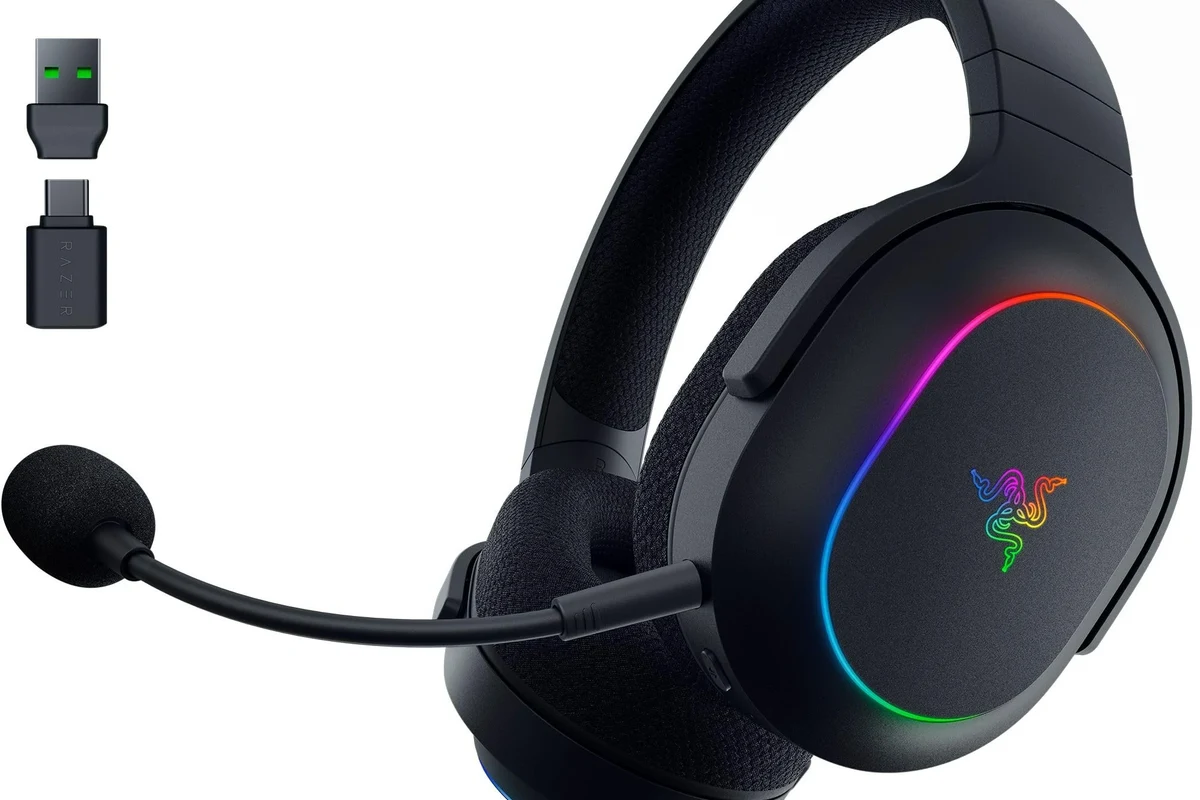
There are three common ways to connect a TV to wireless headphones. The best choice depends on your TV model, your headphones, and whether you care most about convenience, sound quality, or low latency.
Bluetooth Built Into the TV
Built-in Bluetooth is the easiest option because it avoids extra cables and accessories. You simply put your headphones into pairing mode, open the TV’s sound or Bluetooth menu, and connect.
This method works well for casual viewing, but performance can vary by TV brand and model. Some TVs support stable connections, while others may introduce lip-sync delay or limit volume control options.
TV Bluetooth menus are not always in the same place. On some models, audio output settings are under Sound, while others place Bluetooth under General, Connections, or Accessories.
Using a Wireless Headphone Transmitter
A wireless transmitter is one of the most dependable ways to send TV audio to headphones. It plugs into your TV’s audio output and broadcasts sound to your headphones, often with better flexibility than TV Bluetooth alone.
This is especially useful for older TVs or for viewers who want a dedicated private-listening setup. Some transmitters support low-latency codecs or RF-style connections, which can help reduce delay during dialogue-heavy shows or gaming.
Connecting Through a Soundbar or AV Receiver
If your TV is already connected to a soundbar or AV receiver, you may be able to route audio through that system instead. Some soundbars and receivers support headphone pairing, audio passthrough, or transmitter output options.
This can be a good middle-ground for home theater users, but compatibility varies. Always check whether the soundbar or receiver supports wireless headphone output, because not every model does.
Step-by-Step Setup for Different TV Types
The exact steps depend on your TV and audio gear, but the overall process is usually straightforward. Start with the TV’s audio menu, then move to transmitter pairing if Bluetooth is not available or does not work well enough.
Samsung, LG, Sony, and Roku TV Bluetooth Pairing
Most major smart TVs follow a similar Bluetooth pairing process. Turn on your headphones, put them in pairing mode, and open the TV’s Bluetooth or audio device menu to search for available devices.
Go to the audio or connection menu and look for Bluetooth audio output or wireless speaker settings.
Hold the pairing button on your headphones until the indicator light starts flashing.
Choose the headphone name from the list and confirm the connection.
Play a show or movie and check whether the dialogue matches the video and whether the volume is comfortable.
If you use Bluetooth headphones with other devices too, our guide on how to connect Bluetooth headphones may help you switch between devices more easily.
Older TVs Without Bluetooth: Adapter and Transmitter Setup
Older TVs often need a transmitter because they may not have native Bluetooth support. In that case, you connect the transmitter to the TV’s audio output and then pair your headphones to the transmitter instead of the TV.
- Whether your TV has optical, AUX, RCA, or HDMI ARC output
- Whether the transmitter supports your TV’s output type
- Whether your headphones can pair with the transmitter
- Whether the audio delay is acceptable for movies or gaming
Some older setups may need a small adapter if the TV only has RCA or optical output. That extra step is normal, and it often gives you a more stable connection than trying to rely on weak built-in wireless features.
Gaming TV Setup for Low-Latency Audio
For gaming, latency matters more than almost anything else. Even a small audio delay can make explosions, footsteps, and dialogue feel disconnected from the action.
When possible, choose a low-latency transmitter or a headphone system designed for gaming. Bluetooth can work, but not every Bluetooth connection is fast enough for competitive play or rhythm-based games.
Some gamers prefer dedicated TV headphones or RF systems because they can feel more responsive than standard Bluetooth in fast-paced games.
If you are comparing listening comfort and isolation for longer sessions, our article on how noise cancelling headphones work can also help you decide whether ANC is worth it for your room setup.
How to Fix Common TV-to-Headphone Connection Problems
Most problems are fixable with a few basic checks. The key is to identify whether the issue is pairing, audio delay, weak signal, or a compatibility mismatch.
Pairing Failures and Device Not Found Issues
If the TV cannot find your headphones, start by making sure the headphones are actually in pairing mode. Many models require you to hold the power or Bluetooth button long enough for the light to flash in a specific pattern.
Also remove old pairings if the headphones were already connected to another device. Some TVs struggle when a headset is still linked to a phone, tablet, or console nearby.
Why won’t my TV find my headphones?
Usually, the headphones are not in pairing mode, are already connected to another device, or the TV’s Bluetooth list needs a reset. Turning both devices off and on again often helps, but if the TV lacks strong Bluetooth support, a transmitter may be the better fix.
Audio Delay, Lip-Sync Problems, and Dropouts
Audio delay is one of the most common complaints with wireless TV listening. If voices lag behind the picture, check whether your TV has an audio delay or lip-sync adjustment in the sound menu.
Dropouts can happen when the headphones are too far away, the signal is blocked by walls or furniture, or other wireless devices are causing interference. Moving closer to the TV or transmitter can make a noticeable difference.
Not every Bluetooth TV setup can fully eliminate delay. If lip-sync matters a lot to you, a low-latency transmitter or dedicated TV headphone system may be a better match.
Volume, Range, and Interference Troubleshooting
If the sound is too quiet, check both the TV volume and the headphone volume. Some TVs control Bluetooth output separately, while others send a fixed signal that must be adjusted on the headphones themselves.
Range issues are also common. Wireless headphones work best when the transmitter and headphones have a clear path and minimal interference from routers, microwaves, or other wireless gear.
What to Look for in Wireless Headphones and TV Transmitters
Choosing the right gear matters just as much as the setup process. A good connection method can still sound poor if the headphones and transmitter are not matched well.
Latency, Range, Battery Life, and Codec Support
For TV use, latency should be near the top of your checklist. Lower delay usually means better lip-sync and a more natural viewing experience, especially for movies and gaming.
Range and battery life matter too. If you watch long shows or move around the room, you want headphones that can stay connected without constant recharging or signal drops.
Codec support can also affect performance, but results vary by brand, model, and TV compatibility. If you want a broader look at wireless tradeoffs, our guide on wired vs wireless headphones is a useful comparison point.
Price Comparison: Budget vs Mid-Range vs Premium Options
Prices can vary a lot depending on whether you buy basic Bluetooth headphones, a dedicated transmitter, or a premium TV headphone bundle. In general, budget setups are fine for casual viewing, while mid-range and premium options often offer better comfort, lower delay, and stronger connectivity.
Do not assume the most expensive option is always the best. If you only watch sitcoms or news, a simple Bluetooth pairing may be enough, but gamers and frequent movie viewers may benefit from a more specialized setup.
Expert Advice: Mistakes to Avoid When Connecting Wireless Headphones to a TV
The most common mistake is assuming every TV Bluetooth connection will work the same way. In reality, audio delay, volume behavior, and device compatibility can vary a lot from one model to another.
Why TV Bluetooth Alone Is Not Always the Best Choice
TV Bluetooth is convenient, but convenience is not the same as reliability. Some TVs support only basic Bluetooth audio, and that can mean slower sync, weaker range, or occasional disconnects.
If you care about stable movie watching or gaming, a transmitter often gives you more control. It can also make it easier to choose headphones based on comfort and sound rather than being limited to the TV’s built-in wireless behavior.
When to Choose RF, Bluetooth, or Dedicated TV Headphones
Bluetooth is best when you want simplicity and already own compatible headphones. RF can be better for longer range and lower delay, depending on the system, while dedicated TV headphones are often the easiest choice for older viewers or anyone who wants a plug-and-play experience.
If you have persistent hearing discomfort, tinnitus, or trouble understanding dialogue even at safe volumes, consult an audiologist. If your setup keeps failing despite correct pairing and cables, a professional audio specialist can help diagnose the TV output or transmitter issue.
For readers who want to understand headphone fit, comfort, and style choices more broadly, our types of headphones explained article can help you compare over-ear, on-ear, and in-ear options before buying.
Final Recap: The Easiest Way to Connect TV to Wireless Headphones
The easiest way to connect TV to wireless headphones is to use built-in Bluetooth if your TV supports it and the audio stays in sync. If the TV lacks Bluetooth or the delay is too annoying, a wireless transmitter is usually the next best choice.
For the best results, match the method to your viewing habits: Bluetooth for simplicity, transmitter for reliability, and low-latency gear for gaming. Once you know your TV’s outputs and your headphone compatibility, setup becomes much easier and far less frustrating.
Frequently Asked Questions
Bluetooth is simpler, but a transmitter is often more reliable for older TVs and lower delay. If lip-sync matters, a dedicated transmitter may be the better choice.
Check for a lip-sync or audio delay setting in the TV menu first. If the delay remains, try a low-latency transmitter or a different headphone connection method.
Yes, they can be helpful for reducing room noise during movies or late-night viewing. Comfort, latency, and battery life still matter, so results vary by model.
Over-ear headphones are often more comfortable for long sessions and may feel less fatiguing. In-ear models can be lighter and more portable, but fit and comfort depend on the person.
Look at latency, battery life, wireless range, and compatibility first. Sound quality, bass, and codec support also matter, but the best choice depends on your TV and how you watch.
Choose a light headset with soft ear cushions and a secure but not tight fit. For long listening, comfort and build quality matter as much as sound, and safe volume levels should always come first.