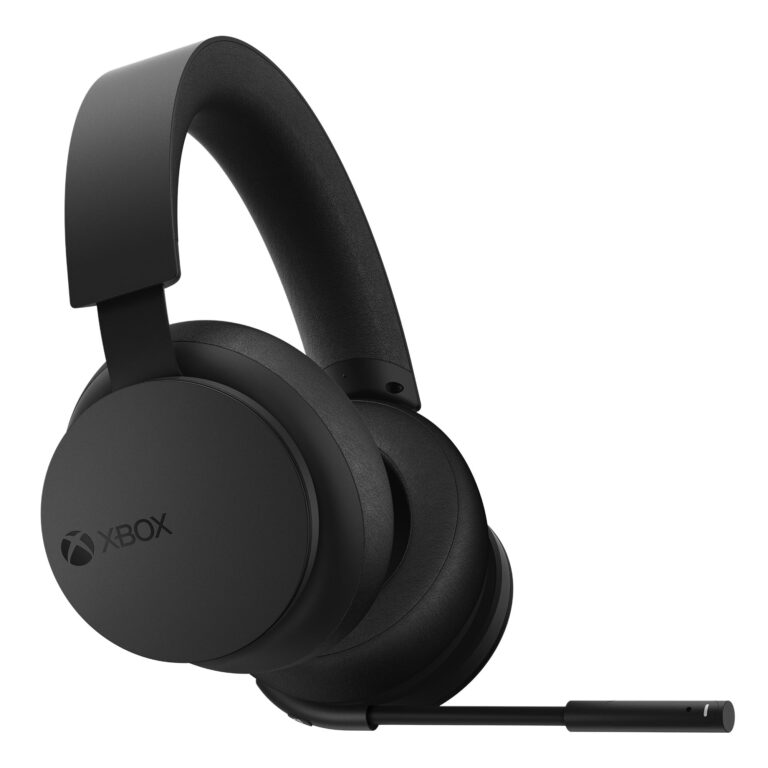
How Do I Connect Headphones to Xbox One Easily and Fast

Use the Xbox controller’s 3.5mm jack for wired headphones, or choose an Xbox-compatible wireless headset for cable-free audio. Standard Bluetooth headphones usually do not connect directly to Xbox One.
If you’re asking how do i connect headphones to xbox one, the fastest answer is usually simple: plug wired headphones into the controller, or use an Xbox-compatible wireless headset. Bluetooth headphones are the common exception, because most standard Bluetooth models do not pair directly with Xbox One.
- Fastest setup: Plug wired headphones into the controller.
- Best wireless choice: Use an Xbox-compatible wireless headset.
- Main limitation: Most Bluetooth headphones will not pair directly.
- Best troubleshooting step: Check adapters, updates, and audio settings.
How Do I Connect Headphones to Xbox One: What Works in 2026
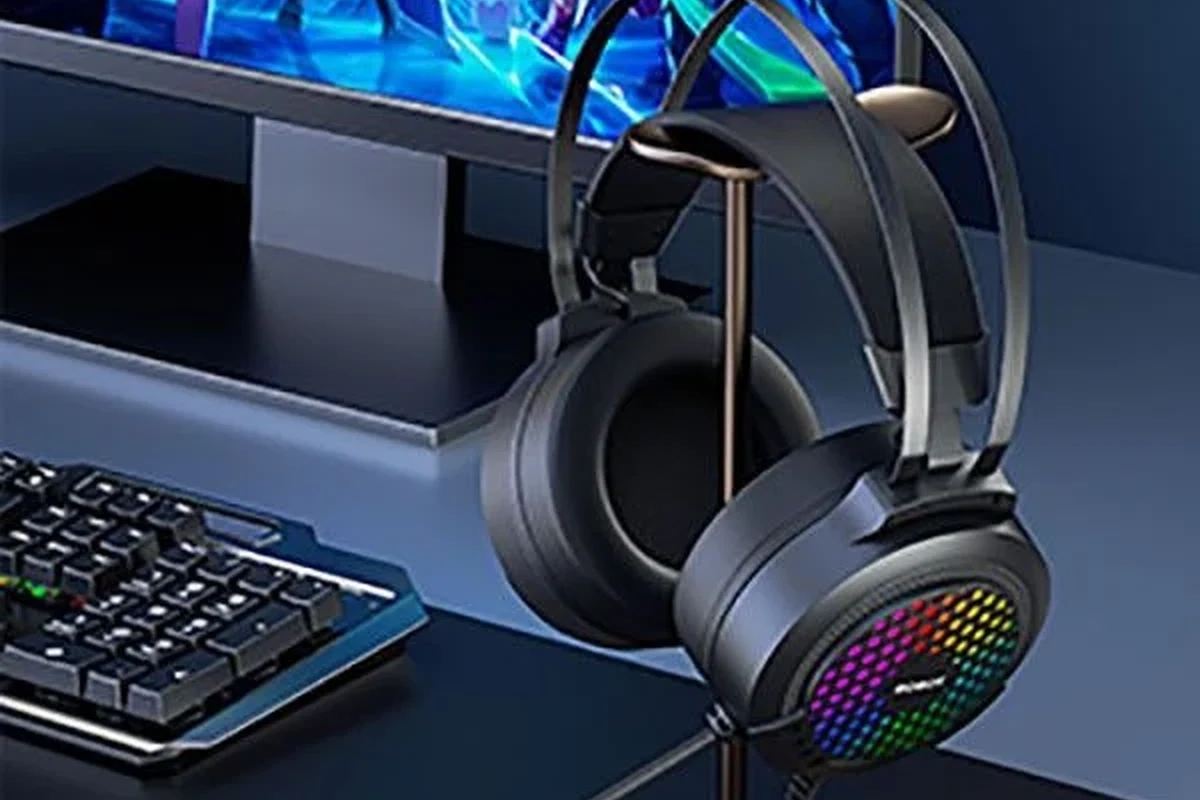
Xbox One audio still confuses a lot of players because the console supports some headphone types very well and ignores others. The result is that people buy a headset expecting an easy setup, then discover they need the right controller, adapter, or wireless standard.
Quick answer for wired, wireless, and headset users
For wired headphones, the easiest path is the 3.5mm jack on the Xbox controller. For wireless, the safest route is an Xbox Wireless headset or another model that explicitly supports Xbox One; standard Bluetooth headphones usually will not connect directly.
If your headset has a USB dongle, it may work for audio in some cases, but compatibility depends on the headset and how it is designed. That is why it helps to check the connection type before you buy anything.
Why Xbox One audio setup still confuses players
Part of the confusion comes from how “headphones” and “headsets” are used interchangeably. On Xbox One, the difference matters because some devices only support listening, while others also need mic access for chat.
Another issue is that controller revisions, adapters, and firmware updates can change what works. If you want more general background on wireless audio behavior, our guide on Bluetooth headphones explained simply can help make the basics easier to understand.
Check Your Xbox One Model and Headphone Type First
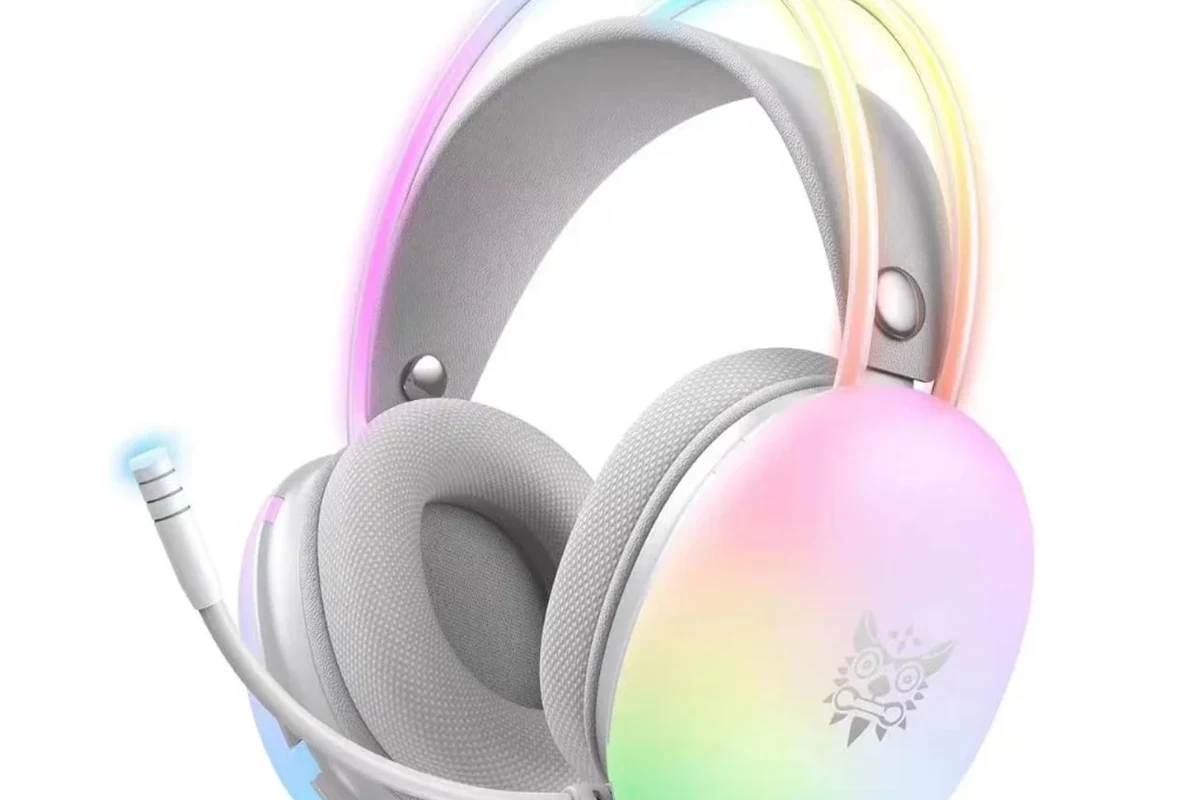
Before you connect anything, it helps to know exactly what you own. The console model matters less than the controller and headset type, but matching the right parts saves time and avoids guesswork.
Xbox One, Xbox One S, Xbox One X, and controller compatibility
Xbox One, Xbox One S, and Xbox One X all follow similar headphone logic for most users. The bigger compatibility question is usually your controller: newer Xbox One controllers often include a 3.5mm headset jack, while older ones may need an adapter.
If you are not sure which controller you have, look at the bottom edge. A built-in headphone port is the easiest sign that a wired headset should plug in directly.
3.5mm wired headphones vs USB headsets vs Bluetooth headphones
3.5mm wired headphones are usually the most reliable and easiest to set up. USB headsets can work, but support varies more, especially if the headset expects PC-style USB audio rather than console support.
Bluetooth headphones are the least predictable on Xbox One. Even if they pair with your phone, that does not mean the console will accept them the same way.
What “connect” really means on Xbox One in practice
On Xbox One, “connect” can mean a few different things: hearing game audio, using party chat, or both. Some devices are fine for sound but cannot handle voice chat well, and some need extra settings before the microphone is recognized.
If your headset works on another device but not on Xbox One, the problem is often compatibility rather than a broken headset.
How to Connect Wired Headphones to Xbox One Fast
Wired headphones are still the simplest option for many players because they avoid pairing problems and battery concerns. If your headset supports a 3.5mm plug, setup is usually quick.
Plugging into the Xbox One controller’s 3.5mm jack
Start by turning on the controller and inserting the headphone plug into the 3.5mm port. Once connected, the Xbox should route audio through the headset automatically, though you may still need to adjust volume and chat settings.
If sound does not appear right away, raise the headset volume, check mute switches, and make sure the controller battery is not too low. A loose plug can also cause one side of the audio to cut out.
Using a headset adapter for older controllers
Older Xbox One controllers may not have a built-in headphone jack. In that case, you can use a compatible headset adapter that connects to the controller and provides a place for your wired headset to plug in.
This is a practical fix if you already own a good pair of wired headphones and do not want to replace them. Just make sure the adapter is made for Xbox controller use, not a generic splitter that only works on phones or laptops.
Setting chat and game audio balance the right way
Once the headset is connected, check the chat mixer settings so voice chat does not drown out game sound. A balanced setup is especially useful in competitive games where footsteps, callouts, and effects all matter.
Some players prefer more chat volume, while others want the game louder. There is no single perfect setting, so adjust based on the game and your own hearing comfort.
Practical example: connecting basic earbuds for party chat
If you only want simple party chat, a basic pair of earbuds with a 3.5mm plug can be enough. Plug them into the controller, open party chat, and test whether your voice is picked up by the microphone if the earbuds include one.
This is the fastest low-cost setup for casual play. It is also a good example of why many players choose wired audio when they want fewer steps and fewer compatibility surprises.
How to Use Wireless Headphones with Xbox One Without Frustration
Wireless can be more comfortable and convenient, but Xbox One is pickier than many people expect. The key is choosing a wireless method that the console actually supports.
Xbox Wireless headsets and supported wireless audio options
Xbox Wireless headsets are designed to work with the console’s wireless system rather than standard Bluetooth. That usually makes pairing smoother and avoids the lag or compatibility issues that can happen with generic wireless audio gear.
Some headsets also support a wired backup mode, which is useful if the battery runs low. If you want convenience without constant cable management, this is often the most straightforward wireless path.
Pairing through the Xbox Wireless protocol
To pair a supported headset, put the headset into pairing mode and use the console’s wireless pairing process. The exact steps vary by model, so follow the headset manual carefully rather than assuming every device works the same way.
If pairing fails, move closer to the console, restart the headset, and try again. Firmware updates can also help, especially when a headset is newly released or the controller has not been updated in a while.
USB wireless dongles and what they can and cannot do
Some wireless headsets use a USB dongle instead of Bluetooth. These can be convenient, but they are not automatically guaranteed to work with Xbox One just because they are wireless.
Check the product description for Xbox compatibility, not just “wireless audio.” A dongle may work for sound but still have limitations with microphone support, chat, or console settings.
Why standard Bluetooth headphones usually do not work directly
Many players assume Bluetooth is universal, but Xbox One does not treat it like a phone or laptop. That is why a pair of everyday Bluetooth earbuds may connect instantly to your phone but fail on Xbox.
Do not buy a Bluetooth headset for Xbox One unless the product clearly says it supports Xbox-compatible wireless audio. Otherwise, you may end up with sound that never pairs correctly.
Best Audio Settings for Clear Game Sound and Voice Chat
Even when the headset is connected, settings can make the difference between muddy sound and clear audio. A few quick adjustments often improve both game immersion and chat quality.
Adjusting headset volume, mic monitoring, and chat mixer
Set the headset volume high enough to hear details, but not so high that voices become harsh or tiring. Mic monitoring can also help you hear your own voice, which makes it easier to avoid shouting during long sessions.
The chat mixer is useful when you play multiplayer games with a lot of action. If the game is too loud, shift more audio toward chat; if the chat is distracting, move it the other way.
Choosing stereo uncompressed vs other output settings
For many players, stereo uncompressed is a safe starting point because it keeps the signal simple and avoids unnecessary processing. That can be especially helpful if you want clean sound through wired headphones or basic gaming headsets.
Other output options may be useful depending on your headset and preferences, but they can also introduce confusion if you are trying to troubleshoot. When in doubt, start simple and only change one setting at a time.
Testing microphone input in party chat and game chat
After setup, join a party or game chat and ask someone to confirm that your microphone is working. If nobody can hear you, check mute buttons, controller connection, and headset placement before assuming the mic is broken.
Some headsets have a removable boom mic, while others use an inline microphone. The position and quality of the mic can affect how clearly your voice comes through.
If your voice sounds too quiet, move the mic closer to your mouth before raising the headset volume. That usually works better than maxing out every audio setting.
Common Mistakes When Connecting Headphones to Xbox One
Most connection problems come from a few repeat mistakes. Once you know them, troubleshooting gets much faster.
Assuming any Bluetooth headset will pair with the console
This is the most common mistake by far. A headset being Bluetooth does not automatically make it Xbox One compatible, and that misunderstanding wastes a lot of time and money.
If you already own a Bluetooth headset, check whether it can be used through a compatible dongle or wired backup mode before giving up on it.
Forgetting controller firmware updates
Controller updates matter more than many players realize. An outdated controller can create odd behavior, especially with newer headsets or accessories that expect current firmware support.
If your headphones are not detected properly, updating the controller is one of the first fixes worth trying. It is simple, free, and often overlooked.
Using the wrong port, adapter, or audio mode
Some headsets need a direct 3.5mm connection, while others need an adapter or USB support. Plugging into the wrong port can leave you with partial audio or no microphone input at all.
Likewise, the wrong audio mode can make a headset sound weak or overly processed. If the sound is off, check the output mode before assuming the headset itself is poor.
Ignoring low battery, mute switches, and cable damage
Wireless headsets can fail simply because the battery is low. Wired headsets can also seem broken if the cable is bent, frayed, or not fully seated in the jack.
Mute switches are another easy miss. A headset can be connected correctly and still appear dead if the mic is muted on the headset body or inline cable.
What to Buy in 2026: Budget vs Premium Headphone Options
If you are shopping for Xbox One use in 2026, the best choice depends on how often you play and how much convenience matters. You do not always need the most expensive headset to get good results.
Affordable wired choices for casual players
Budget wired headphones are often the smartest buy for casual gaming because they are easy to connect and usually dependable. If you mainly want voice chat and clear game sound, a simple 3.5mm headset can be enough.
For readers comparing general headphone categories, our types of headphones explained guide is a helpful place to start before buying.
Mid-range wireless headsets for better convenience
Mid-range wireless headsets are a good fit if you want fewer cables and more freedom of movement. They are especially appealing for players who sit farther from the screen or use their headset for long sessions.
Just remember that battery life, comfort, and Xbox compatibility may vary by brand and model, so read the product description carefully before checkout.
Premium Xbox-compatible models for competitive gaming
Premium models can offer better build quality, more comfortable ear cushions, and stronger microphone performance. Competitive players often care about consistent audio cues and a headset that stays comfortable during extended play.
For some users, a premium headset is worth it. For others, a good wired option plus the right settings will do the job just fine.
Price-to-performance comparison and when an adapter is enough
If you already own decent wired headphones, an adapter may be the most cost-effective solution. That keeps your spending low while still giving you working chat and game audio.
If you want more buying guidance, our best headphones under 100 roundup can help you compare value-focused options for gaming and everyday use.
Final Recap: The Fastest Way to Connect Headphones to Xbox One
The fastest method is usually wired through the controller’s 3.5mm jack. If you want wireless, choose an Xbox-compatible headset rather than assuming standard Bluetooth will work.
Best method by headphone type
Wired headphones: plug directly into the controller if there is a 3.5mm jack, or use a proper Xbox adapter for older controllers. Wireless headphones: choose Xbox Wireless or a clearly supported dongle-based headset.
Expert warning before you spend money on the wrong setup
Do not shop by “wireless” alone. Always check Xbox One compatibility, microphone support, and whether the headset needs a special adapter or firmware update.
If you have persistent sound imbalance, hearing discomfort, or trouble understanding speech even after setup, consider speaking with an audiologist or audio specialist.
Simple takeaway for getting audio working on the first try
Start with the simplest connection your headset supports, then adjust volume and chat settings after it is detected. That approach solves most Xbox One headphone problems without extra frustration.
- Wired 3.5mm headphones are the easiest Xbox One option.
- Xbox Wireless headsets are the safest wireless choice.
- Standard Bluetooth headphones usually do not connect directly.
- Check controller updates, adapters, and audio settings if sound fails.
Listening at high volumes for long periods can cause hearing damage. Keep volume at 60% or below for extended sessions.
Frequently Asked Questions
Wired headphones are usually easier and more reliable on Xbox One. Wireless can be more convenient, but only if the headset is Xbox-compatible.
Yes, if the headphones connect in a supported way. Noise cancelling affects outside noise, but you still need Xbox-compatible audio and microphone support.
Closed-back headphones are often better for gaming because they block more outside noise and keep sound focused. Open-back models can sound wider, but they leak sound and reduce isolation.
Look for comfort, connection type, microphone support, and a sound signature you like. Driver type, frequency response, bass, and clarity can matter, but real-world tuning is usually more important than numbers alone.
Start with compatibility, then compare comfort, mic quality, and cable or wireless design. A good budget headset should work cleanly with your controller and fit well for long sessions.
Check ear cushion material, weight, headband padding, and build quality. For long sessions, a lighter headset with soft cushions is often easier to wear.