Can You Rename Beats Headphones Easy Steps to Try

Yes, you can usually rename Beats headphones through Bluetooth settings on iPhone, iPad, or Mac, but Android and Windows may be less consistent. If the new name does not appear, reconnecting or resetting the headphones usually fixes it.
If you’re asking, “can you rename beats headphones,” the short answer is yes on some devices, but not in a universal way. In most cases, you can change the Bluetooth name that appears on your iPhone, iPad, or Mac, while Android and Windows may offer more limited control depending on the model and app support.
That means the name you see in Bluetooth menus is often editable, but the change may not sync everywhere automatically. If you want a cleaner device list or easier multi-device pairing, the steps below will help you do it the right way without breaking the connection.
- Apple is easiest: iPhone, iPad, and Mac usually offer the smoothest rename process.
- Sync is limited: The new name may not update on every device automatically.
- Reconnection helps: Forgetting and pairing again often refreshes the Bluetooth label.
- Reset if needed: A reset can clear stubborn pairing data and stuck names.
Can You Rename Beats Headphones? What’s Actually Possible in 2026
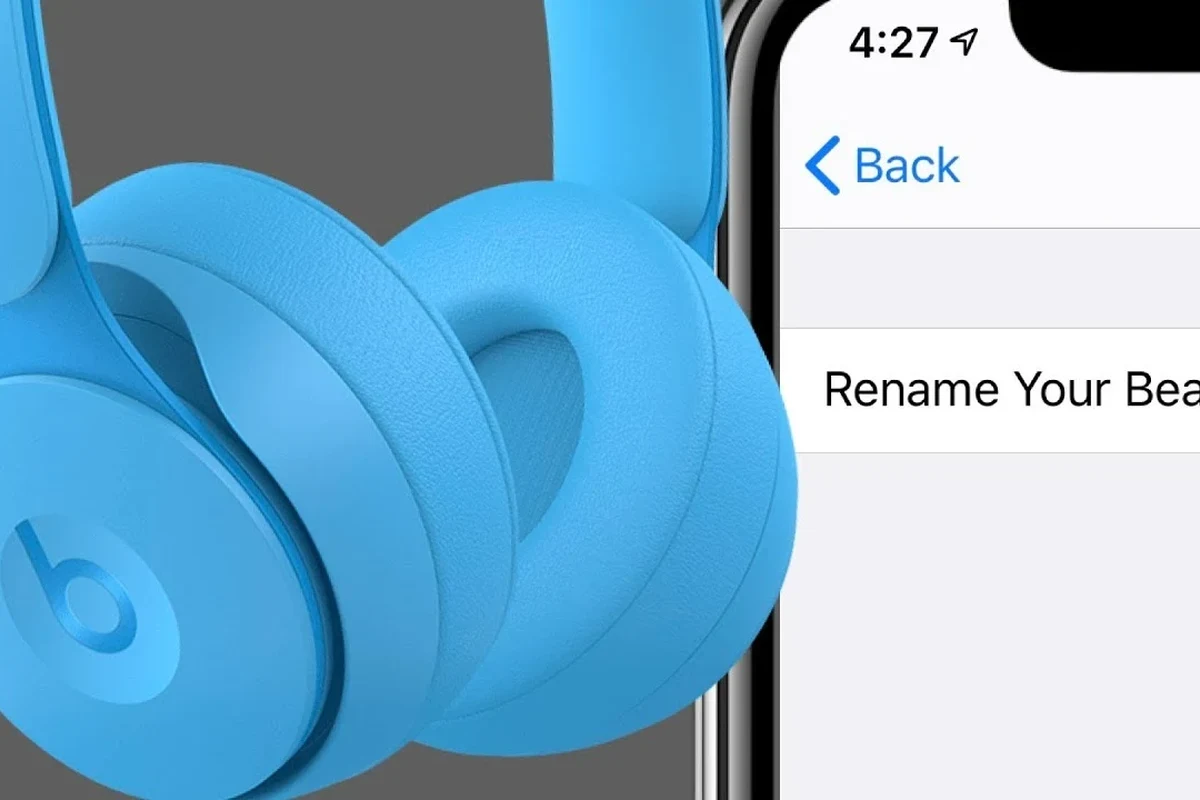
In 2026, the practical answer is still that Beats headphones can usually be renamed through the device they’re paired to, especially on Apple products. The new name is typically the Bluetooth label your phone, tablet, or computer displays, not a permanent hardware-level name stored everywhere at once.
That distinction matters because some users expect the rename to follow the headphones across every phone, laptop, and tablet. In reality, Bluetooth naming can behave differently depending on the operating system, the Beats model, and whether the headphones are currently connected or already saved in another device list.
Bluetooth names are often device-side labels, so a rename may look different on iPhone, Android, and Windows even when it’s the same pair of Beats headphones.
If you’re also trying to understand how Beats fit into the wider Apple ecosystem, it can help to read related pairing guides like how to connect Bluetooth headphones and how to reset Bluetooth headphones. Those steps often solve name and pairing issues faster than repeatedly editing the device label.
Why People Want to Rename Beats Headphones on iPhone, iPad, Android, and Mac
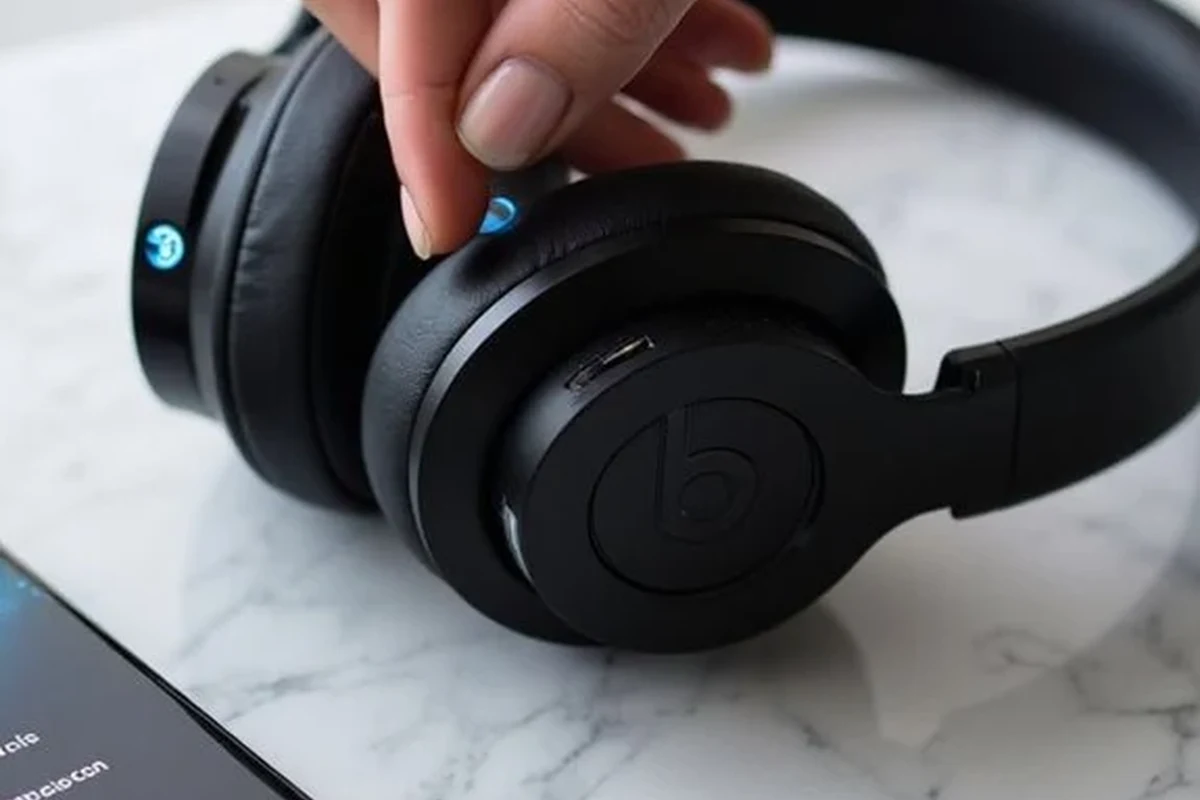
Most people rename Beats headphones for organization. If you own more than one Bluetooth accessory, a custom name makes it easier to tell your headphones apart from earbuds, speakers, or a family member’s devices.
It also helps when you switch between personal and work devices. A clear name can reduce pairing mistakes, especially if you use the same Beats pair on a phone, laptop, and tablet throughout the day.
Some readers also rename their headphones to make the Bluetooth list look cleaner on Mac or iPad. That matters more than it sounds, because a long list of saved devices can get confusing fast, particularly if you use wireless headphones, a gaming headset, and other audio gear regularly.
How to Rename Beats Headphones on Apple Devices Step by Step
Apple devices usually offer the simplest rename process for Beats. If your headphones are paired correctly and visible in Bluetooth settings, you can often change the displayed name in just a few taps or clicks.
Turn on your Beats and confirm they are actively paired with your iPhone, iPad, or Mac before trying to rename them.
Find the headphones in your Bluetooth list and open the information or settings page tied to that device.
Type the new name you want, then confirm the change and reconnect if needed.
Rename Beats in Bluetooth Settings on iPhone or iPad
On iPhone or iPad, the rename option is usually found inside Bluetooth settings after the headphones are connected. Tap the info icon next to the Beats device, look for the name field, and enter your preferred label.
After saving, the new name should appear in your Bluetooth list. If it doesn’t update right away, disconnect the headphones briefly and reconnect them so iOS can refresh the device entry.
If you use your Beats with multiple Apple devices, rename them on the device you pair with most often first. That usually becomes the cleanest version of the Bluetooth label.
Change the Name on Mac for a Cleaner Bluetooth List
On Mac, the process is similar but may be slightly more menu-driven depending on your macOS version. Open Bluetooth settings, locate your Beats headphones, and look for the rename or name field in the device details.
If you use your Mac for music, calls, or editing, a custom label can make it easier to select the right output device quickly. That’s especially helpful if you also use open-back headphones, speakers, or other Bluetooth audio gear and want a less cluttered list.
For more Mac-related headphone basics, our guide on wired headphones on MacBook can also help if you’re comparing Bluetooth convenience with a wired setup.
What to Do If Beats Won’t Show the New Name
Sometimes the rename works, but the old name keeps showing up in Bluetooth menus. That usually points to a cached connection, a stale pairing record, or a device that hasn’t fully refreshed yet.
Before assuming the rename failed, try reconnecting the headphones and checking the list again after a minute or two. Small Bluetooth delays are common, especially when the same headphones are paired to multiple devices.
Refresh Bluetooth Connections and Reconnect the Headphones
The easiest fix is to turn Bluetooth off and back on, then reconnect the Beats. If needed, forget the device on the phone or computer and pair it again from scratch.
This can force the system to load the updated name instead of the old one. It also helps clear minor pairing glitches that can happen after firmware updates, app changes, or switching between devices quickly.
Reset Beats Headphones When the Name Sticks or Reverts
If the name keeps reverting, a reset may be the best next step. A reset can clear stubborn pairing data and give you a cleaner starting point for renaming and reconnecting.
Be careful not to reset unless you need to, since it will remove saved connections and you’ll have to pair the headphones again. If your Beats are also acting up with audio dropouts, lag, or connection instability, a reset often fixes more than just the name issue.
If your Beats repeatedly fail to keep a new name, the issue may be a pairing or firmware problem rather than a simple naming bug.
Can You Rename Beats on Android or Windows? Device-Specific Limits
Yes, but the answer is less consistent than on Apple devices. Android and Windows may let you rename a Bluetooth accessory in some cases, but the available options depend heavily on the phone brand, operating system version, and how the Beats model is recognized by the system.
On Android, you may be able to edit the Bluetooth device name in the paired device menu. On Windows, the display name may be harder to change directly, and some users find that the system keeps its own label even after the headphones are renamed elsewhere.
That’s why many people rename Beats on their iPhone or Mac first, then check whether the name carries over to other devices. If you’re using a Windows PC, our guide on selecting headphones in Windows 11 can help you manage output devices more confidently, even when the Bluetooth label is stubborn.
Some Bluetooth accessories keep a device-side name, while others mostly rely on the operating system’s saved label. That’s why one rename can look “stuck” on another platform.
Common Mistakes When Trying to Rename Beats Headphones
The most common mistakes are simple, but they can make the process feel more confusing than it really is. Most rename problems come from expecting Bluetooth naming to work like a universal account setting.
Knowing what not to do can save time and reduce frustration, especially if you’re setting up Beats for commuting, calls, workouts, or casual listening across several devices.
Confusing the Bluetooth Device Name with the Product Model Name
Renaming your Beats changes the Bluetooth label, not the actual product model. So even if you call them “Office Beats” or “Gym Beats,” the headphones are still the same model underneath.
This matters because the product name, firmware support, and feature set do not change just because the Bluetooth label does. If you’re comparing models for sound quality or comfort, you still need to look at the actual Beats version and not the custom name.
Expecting the Name to Sync Across Every Device Automatically
A rename on one device does not always update everywhere else right away. Some phones and laptops store their own version of the Bluetooth label, which means you may need to refresh, reconnect, or rename the device on each platform separately.
That’s normal behavior, not necessarily a fault in the headphones. If the name looks different on Android, iPhone, and Mac, the headphones may still be working correctly.
Expert Advice: When a Rename Problem Signals a Bigger Pairing Issue
If you can’t rename Beats at all, or the device keeps disappearing from the Bluetooth list, the problem may be bigger than the name field. It could point to a pairing conflict, outdated software, a weak Bluetooth connection, or a device memory issue on the phone or computer.
At that point, it’s worth checking whether the headphones connect normally to another device. If they do, the issue is likely with the original phone or laptop rather than the Beats themselves.
If your Beats won’t stay connected, keep reappearing under the wrong name, or fail to pair after a reset, consider getting help from the device manufacturer or a qualified audio repair specialist. If you also notice sound imbalance, distortion, or hearing discomfort, consult an audiologist or professional audio specialist.
Listening at high volumes for long periods can cause hearing damage. Keep volume at 60% or below for extended sessions.
If you use headphones for long listening sessions, comfort and fit matter too. The best rename in the world won’t help if the ear cushions are worn out, the headset feels too heavy, or the Bluetooth connection keeps dropping during everyday use.
Final Recap: The Easiest Way to Rename Beats Headphones Without Hassle
So, can you rename Beats headphones? Yes, usually through Bluetooth settings on Apple devices, and sometimes on Android or Windows depending on the system. The easiest path is to rename them on the device where you use them most, then reconnect if the new label doesn’t appear right away.
If the name keeps reverting, refresh Bluetooth, forget and re-pair the headphones, or reset the Beats if needed. For most users, that’s enough to get a clean, readable Bluetooth name without affecting sound quality, battery life, or everyday performance.
- Rename Beats through Bluetooth settings on Apple devices for the easiest result.
- Android and Windows may support renaming, but behavior can vary by system.
- If the new name does not appear, reconnect or reset the headphones.
- A rename changes the Bluetooth label, not the actual product model.
Frequently Asked Questions
Not always. Wired headphones can avoid Bluetooth compression and latency, while wireless headphones offer more convenience and features like ANC. Sound quality depends on the model, tuning, and how you listen.
They often are if you travel on trains, buses, or planes. ANC helps reduce steady background noise, but comfort, battery life, and sound quality still matter.
Open-back headphones can feel more spacious and natural, but they leak sound and isolate less. Closed-back headphones block more outside noise and are usually better for shared spaces.
Driver tuning, frequency response, and fit all affect what you hear. Bass usually depends more on seal and tuning than on one spec alone, while soundstage often improves with open designs and careful tuning.
For gaming, look for low latency, comfort, and clear positioning. For commuting, prioritize wireless stability and noise cancelling, and for studio work, focus on accuracy, wired use, and reliable detail.
Check weight, clamp force, ear cushion material, and headband padding. Build quality, replaceable parts, and long-session comfort matter a lot if you wear headphones for hours.