How to Connect Headphones to Apple TV in Easy Steps

Open Apple TV’s Bluetooth settings, put your headphones in pairing mode, and select them from the list. If pairing fails, restart both devices, check battery levels, and make sure the headphones are not connected to another device.
If you want private audio on Apple TV, the good news is that connecting headphones is usually simple once you know where to look in the settings. In most setups, you can pair Bluetooth headphones or AirPods directly, then enjoy late-night viewing or gaming without disturbing anyone else.
- Fastest method: Pair Bluetooth headphones or AirPods directly in Apple TV settings.
- Best for gaming: Choose low-latency, stable wireless headphones when possible.
- Common fix: Reset the headphones if they do not appear in the Bluetooth list.
- Comfort matters: Over-ear models are often better for long movie nights.
How to Connect Headphones to Apple TV: What Works in 2026
For most Apple TV users in 2026, the easiest route is still wireless audio through Bluetooth. Apple TV supports pairing with many headphones, including AirPods and a wide range of third-party Bluetooth models, so you usually do not need extra hardware.
That said, the best method depends on your headphones and your TV setup. Some people want the fastest Apple-friendly pairing experience, while others care more about low latency for gaming, stronger noise isolation, or compatibility with older wired gear. If you are still deciding between Apple and non-Apple options, it can help to understand how Bluetooth headphones work before pairing them to your streaming box.
Why Apple TV Headphone Setup Matters for Late-Night Streaming and Gaming
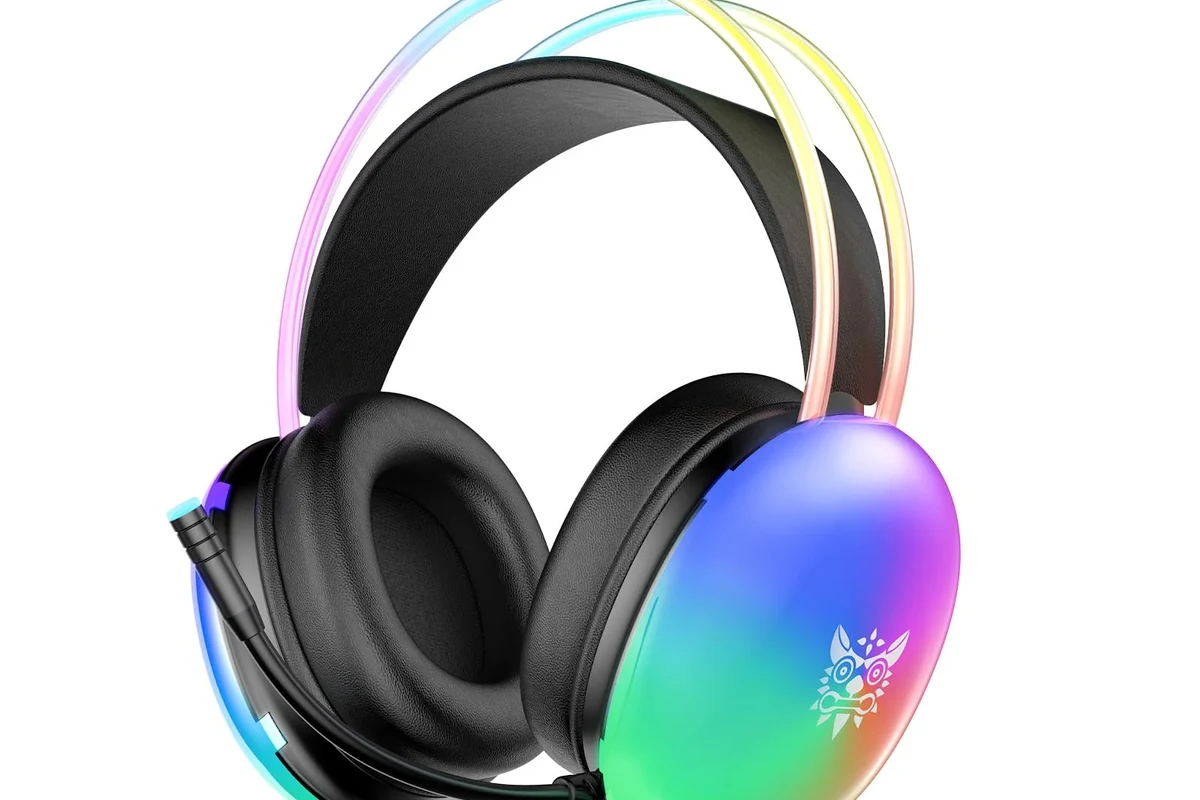
Headphones are more than a convenience on Apple TV. They let you watch movies quietly, keep dialogue clear in a noisy room, and play games without waking the whole house.
They also help when your TV speakers are weak or placed awkwardly. A good pair can improve clarity for voices, effects, and background music, which matters whether you are streaming a drama or gaming on a big screen.
Listening at high volumes for long periods can cause hearing damage. Keep volume at 60% or below for extended sessions.
Bluetooth Headphones vs. AirPods vs. TV-Side Solutions: Which Option Fits Your Setup?
There is no single best answer for every Apple TV owner. The right choice depends on whether you want easy pairing, the lowest delay, the best comfort, or the least expensive fix.
Using AirPods and other Apple headphones with Apple TV
AirPods are often the smoothest option for Apple TV because they fit naturally into the Apple ecosystem. If you already use them with an iPhone or iPad, pairing can feel quick and familiar.
Other Apple headphones can also work well, but the experience may vary by model and software version. The main benefit is convenience: you can usually switch between Apple devices without much hassle, which is helpful if you watch TV and then move back to your phone or tablet.
Connecting third-party Bluetooth headphones to Apple TV
Most wireless headphones from brands outside Apple can still connect if they support Bluetooth pairing. This is often the best choice if you already own a favorite gaming headset, noise-canceling model, or budget wireless pair.
For readers comparing headphone styles, the fit matters too. Over-ear models usually feel better for long movie nights, while in-ear earbuds are lighter and easier to store. If you want a broader overview of fit and style, see our guide to types of headphones explained.
When to use wired or TV-based audio alternatives
Apple TV itself does not typically make wired headphone use as straightforward as Bluetooth, so many people turn to adapters, the TV’s audio output, or a soundbar with a headphone-friendly setup. These options can be useful if your wireless connection is unstable or your headphones are older.
TV-based alternatives can also help when you want to keep audio delay as low as possible for gaming. That said, the exact result depends on your TV, adapter, and headphone model, so compatibility is worth checking before you buy anything extra.
Step-by-Step: How to Pair Headphones with Apple TV
Pairing is usually a short process, but the exact menu names can vary a bit depending on your Apple TV software version. The basic idea is always the same: open Bluetooth settings, put the headphones in pairing mode, and select them from the list.
If you plan to use headphones often, keep them charged and near the Apple TV during setup. A strong battery and short pairing distance can prevent avoidable connection issues.
Open the Bluetooth menu on Apple TV
Start from the Apple TV settings and find the Bluetooth or remote-and-device area where wireless accessories are managed. This is where Apple TV scans for nearby headphones and other Bluetooth devices.
If your headphones have connected to other devices recently, it may help to disconnect them there first. Many Bluetooth models only pair cleanly when they are not actively connected to a phone, tablet, or laptop.
Put your headphones in pairing mode
Next, switch your headphones into pairing mode using the button or touch control described by the manufacturer. Usually, a blinking light or voice prompt tells you the device is ready to be discovered.
For AirPods, opening the case and using the setup button is often enough. For third-party headphones, the process may differ slightly, so it is worth checking the manual if the device does not appear right away.
Select the device and confirm the connection
When your headphones appear on screen, select them and wait for Apple TV to confirm the connection. In many cases, you will hear a tone or see a status update once the link is active.
After pairing, test the audio with a show, movie, or game. If the sound is too low or out of sync, adjust volume first, then check the headphone settings and TV audio output if needed.
Some Bluetooth headphones remember multiple devices, but they may still reconnect to the last one used. If pairing seems inconsistent, removing the old connection can make Apple TV setup much easier.
How to Fix Common Apple TV Headphone Connection Problems
Even when the setup is simple, Bluetooth can still be a little picky. Most issues come from pairing conflicts, weak battery life, signal interference, or headphones that need to be reset.
Headphones not showing up in the Bluetooth list
If your headphones do not appear, first confirm they are in pairing mode and close enough to the Apple TV. Then check whether they are already linked to another device, because many headphones will not advertise themselves while connected elsewhere.
It can also help to restart the headphones and Apple TV, then try again. If the device still does not show up, a reset may be needed, especially if the headphones have a history of pairing problems. Our guide on how to reset Bluetooth headphones may help if you are stuck.
Audio lag, dropout, or low volume
Lag and dropouts are common complaints with any wireless setup, especially for gaming or fast action scenes. The distance between the headphones and Apple TV, plus interference from other wireless devices, can affect stability.
If the sound is delayed, try moving closer, reconnecting the headphones, or using a model known for lower latency. If volume is too low, check both the Apple TV volume controls and the headphone’s own level, since some devices manage sound separately.
Bluetooth performance can vary by brand, room layout, and even how crowded your wireless environment is. A strong connection in one room may feel weaker in another.
One earbud connects but sound is unstable
True wireless earbuds sometimes connect unevenly, especially if one earbud is low on battery or the case was not fully reset. In those cases, place both earbuds back in the case, close it, and start the pairing process again.
If the problem keeps happening, test the earbuds with another device. That helps you figure out whether the issue is with Apple TV, the earbuds, or the connection profile itself.
Best Headphone Features for Apple TV Users in 2026
When shopping for Apple TV use, the best headphones are not always the most expensive ones. Instead, focus on the features that improve comfort, clarity, and wireless stability in your actual viewing setup.
Low-latency Bluetooth and stable wireless range
Low-latency support matters most for gaming and lip-sync-sensitive content. If you notice a delay between the picture and the sound, the headphone connection may not be ideal for fast-paced use.
Stable wireless range is just as important. A headset that sounds great at the couch but cuts out when you stand up may be less practical than a slightly less flashy model with a stronger connection.
Multipoint, battery life, and comfort for long viewing sessions
Multipoint can be helpful if you jump between devices, though it is not essential for everyone. Battery life matters more for people who binge-watch or game for long stretches, because frequent charging gets annoying fast.
Comfort is another big factor. Soft ear cushions, moderate clamping force, and a lighter frame usually make long sessions easier, whether you prefer over-ear headphones or compact earbuds.
If you notice ringing, discomfort, or muffled hearing after long sessions, lower the volume and consider speaking with an audiologist. Persistent hearing changes should not be ignored.
Price comparison: budget picks vs. premium Apple-friendly models
Budget headphones can work well for casual streaming, especially if you mostly watch dialogue-heavy shows and want a simple wireless link. Premium models may offer better comfort, stronger noise cancellation, and a more polished Apple-friendly experience, but not every user needs those extras.
The best Apple TV headphone choice is often the one that balances comfort, connection stability, and acceptable latency.A good fit matters more than chasing the highest price tag.
Expert Advice: Mistakes to Avoid When Using Headphones with Apple TV
One common mistake is assuming every Bluetooth headset will behave the same way. In reality, pairing speed, delay, and stability can vary a lot by model, firmware, and room conditions.
Another mistake is ignoring comfort. A headset that feels fine for ten minutes may become annoying during a full movie or gaming session, especially if the ear pads are too firm or the earbuds do not fit securely.
It is also smart not to push the volume too high just because the room is quiet. Private listening can still be loud enough to strain your ears, so keep sessions comfortable and take breaks when needed.
- Headphones are in pairing mode
- Device is not connected elsewhere
- Battery is charged before setup
- Volume is balanced for safe listening
Final Recap: The Easiest Way to Enjoy Private Audio on Apple TV
For most people, the easiest way to connect headphones to Apple TV is to pair Bluetooth headphones or AirPods directly through the Apple TV settings. That gives you private listening with minimal extra gear and works well for most streaming needs.
If you run into lag, dropouts, or pairing problems, try resetting the headphones, reducing interference, or choosing a model better suited to low-latency use. For readers who want more general guidance on wireless setup, our article on how to connect Bluetooth headphones is a useful next step.
At the end of the day, the best setup is the one that fits your viewing habits, your budget, and your comfort level. Whether you use AirPods, third-party wireless headphones, or a TV-based workaround, Apple TV can deliver a solid private-audio experience when the connection is set up correctly.
Frequently Asked Questions
Wireless headphones are usually easier to use with Apple TV because Bluetooth pairing is straightforward. Wired setups can work in some cases, but they often need extra adapters or TV-side audio outputs.
Yes, noise-cancelling headphones can be a great choice for Apple TV because they help reduce background noise during movies or gaming. Sound quality and cancellation strength vary by model, so comfort and latency still matter.
Closed-back headphones are usually better for Apple TV because they isolate sound more effectively and keep audio private. Open-back models can sound spacious, but they leak sound and are less ideal for shared spaces.
Driver type, tuning, and clarity matter more than chasing a single spec number. For TV use, clear dialogue, controlled bass, and a balanced soundstage are often more useful than extreme bass or boosted treble.
Budget models can be enough for casual streaming, while premium headphones may offer better comfort, battery life, and wireless stability. The right price depends on how often you watch, whether you game, and how sensitive you are to lag or fit.
Look for lightweight construction, soft ear cushions, and a secure but gentle fit. Durable build quality and long battery life also help if you plan to wear them for movies, sports, or extended gaming sessions.