How to Connect Wireless Headphones for TV Easily

Use your TV’s built-in Bluetooth if it supports headphone audio well, or add a wireless transmitter if it doesn’t. For the best experience, check for audio delay, connection stability, and comfort before you buy.
If you want to watch TV without waking the house, learning how to connect wireless headphones for TV is one of the easiest upgrades you can make. The best method depends on your TV’s built-in Bluetooth, the type of headphones you own, and whether you care most about convenience, sound quality, or low delay.
In 2025, many smart TVs support Bluetooth audio, but not all of them do it well. Some viewers still need a transmitter or adapter for stable pairing, better range, or less audio lag. If you want a broader wireless setup guide, our connect Bluetooth headphones article is a helpful starting point, and our wired vs wireless headphones guide can help you compare your options first.
- Fastest setup: TV Bluetooth is easiest when audio pairing is supported.
- Most reliable fallback: A transmitter works when Bluetooth is missing or unstable.
- Best for gaming: Choose low-latency support to reduce lip-sync issues.
- Comfort matters: Over-ear designs often suit long TV sessions best.
How to Connect Wireless Headphones for TV: What Viewers Need to Know in 2025
Wireless TV listening is usually simple once you match the right connection method to your equipment. The main question is not just “will it connect?” but “will it sound good, stay in sync, and work every time you turn the TV on?”
For casual streaming, built-in Bluetooth may be enough. For gaming, sports, or shared living rooms, a dedicated transmitter or TV headphone adapter can be a better fit because it may offer more stable audio and lower delay.
TV Bluetooth features vary by brand, model, and software version. Always check your TV manual or audio settings before buying new headphones or an adapter.
Choose the Right Wireless Connection Method for Your TV
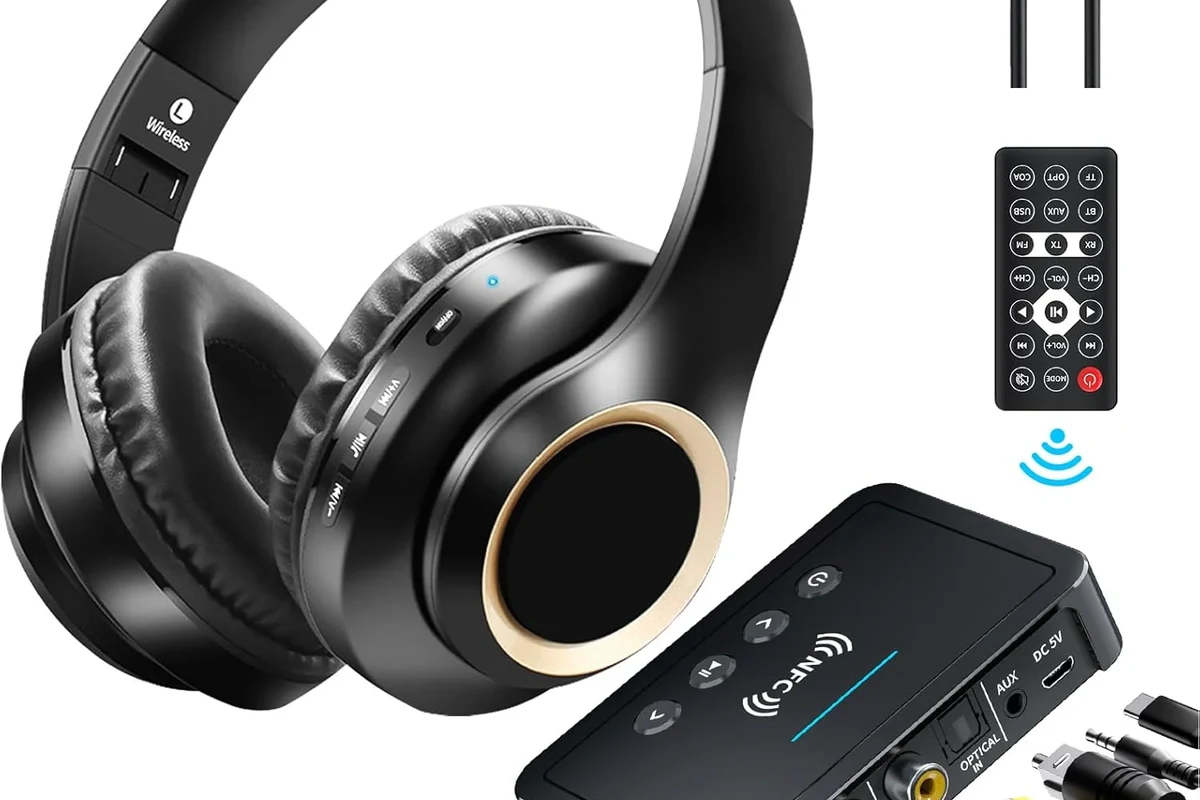
The easiest setup depends on what your TV already supports. Some TVs can pair headphones directly, while others need a transmitter connected through optical, AUX, or RCA ports.
Bluetooth TV pairing
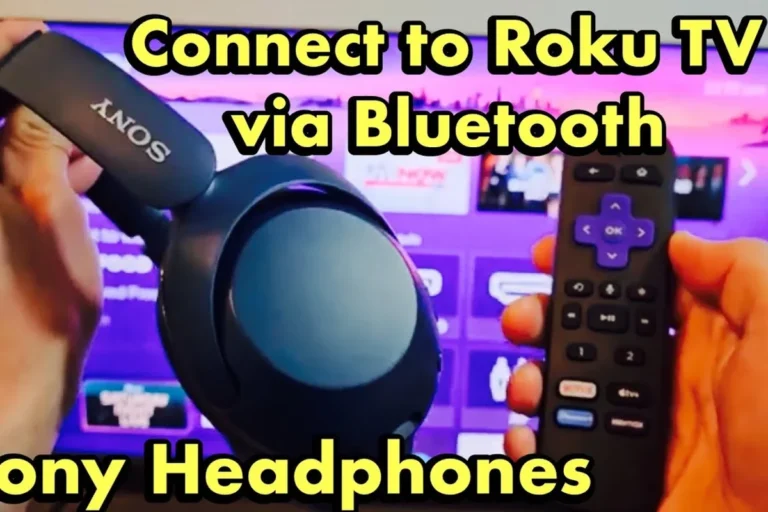
This is the simplest option if your TV has Bluetooth audio built in. You put the headphones in pairing mode, open the TV’s Bluetooth menu, and connect them like any other wireless device.
Bluetooth is best for convenience. However, some TVs only support Bluetooth for remotes or accessories, not audio output, so the menu may not show a headphone option at all.
Using a wireless transmitter or TV headphone adapter
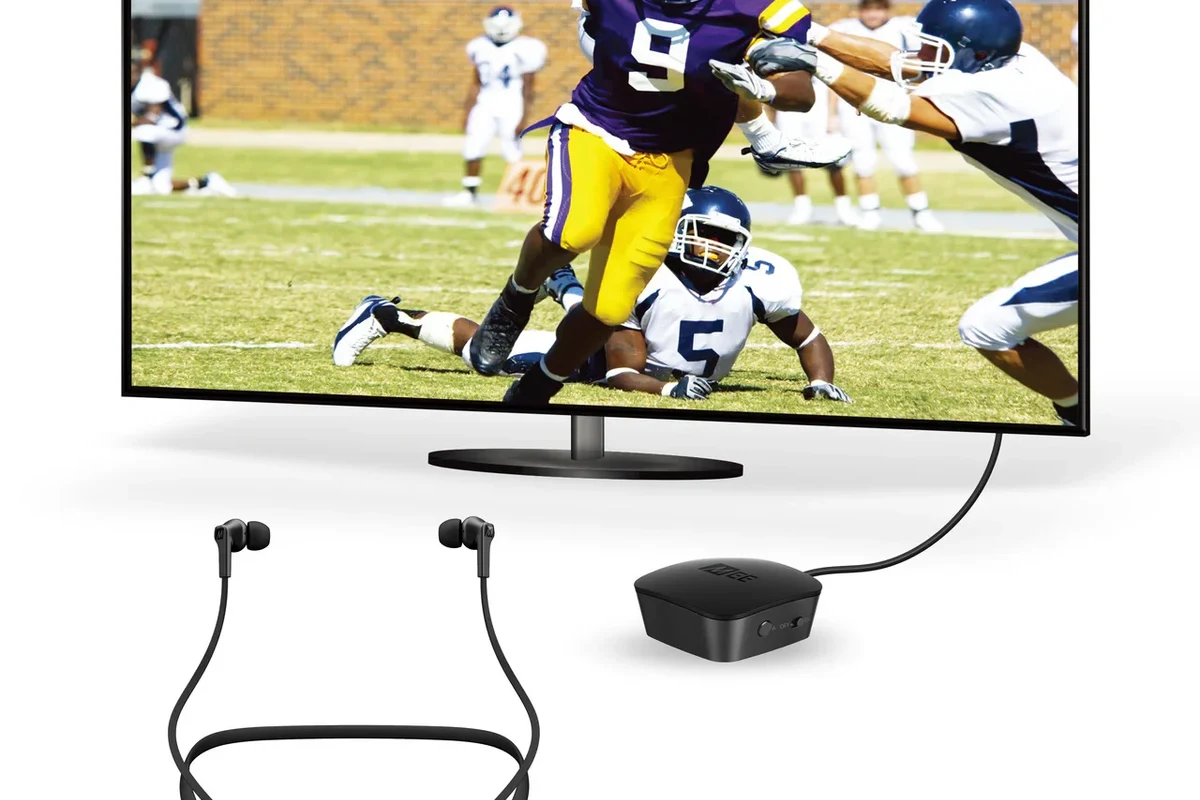
A transmitter plugs into the TV and sends audio to your headphones wirelessly. This is often the best choice when the TV has no Bluetooth, when you want better range, or when the built-in Bluetooth connection is unreliable.
Many transmitters connect through optical, 3.5 mm AUX, or RCA outputs. That makes them useful for older TVs, soundbar setups, and living room systems where the built-in wireless options are limited.
If your TV has optical out, that is often the cleanest transmitter connection for home use. If it does not, AUX or RCA can still work well depending on the model.
RF, infrared, and proprietary headphone systems
Some TV headphone bundles use RF or infrared instead of Bluetooth. These systems can be very easy for beginners because the headphones and base station are designed to work together out of the box.
RF systems often offer strong range and stable audio. Infrared systems usually need line of sight, so they are less flexible, but they can still be a good fit for one-room TV listening.
Step-by-Step: How to Connect Wireless Headphones for TV Easily
Once you know the connection type, setup is usually quick. The key is to power the devices correctly, choose the right TV audio output, and confirm that the headphones are actually receiving the signal.
Connecting directly through TV Bluetooth settings
Go to sound settings and look for Bluetooth audio, wireless audio, or headphone output. If the option is hidden, your TV may not support direct headphone pairing.
Press and hold the pairing button until the light flashes or you hear a pairing tone. The exact method depends on the headphone brand and model.
Choose the headphones from the list of available devices and wait for confirmation. Some TVs will automatically switch the audio output once pairing is complete.
If the sound still comes through the speakers, check whether the TV has a separate audio output setting. Some models let you send audio to both speakers and headphones, while others require you to switch manually.
Setting up a transmitter with optical, AUX, or RCA inputs
Connect the transmitter to the correct output port on the TV, such as optical, AUX, or RCA. Then connect power if the transmitter needs charging or USB power.
Choose the matching output in the TV sound menu if the TV does not switch automatically. Some TVs may need audio format changes, such as PCM, for compatibility.
Turn on the headphones and transmitter, then let them connect. Many transmitter kits pair automatically, but others need a pairing button press on both devices.
If you are using a transmitter for a gaming setup, low delay matters more than raw range. For that reason, many readers also compare headphone latency features before buying, especially if they plan to use the same headset for consoles and TV.
Pairing headphones and testing audio sync
After pairing, play a show with clear dialogue and watch for lip-sync issues. If voices sound slightly behind the picture, try a lower-latency transmitter or check whether your TV has an audio delay setting.
Listening at high volumes for long periods can cause hearing damage. Keep volume at 60% or below for extended sessions.
It also helps to test range. Walk a few steps away from the TV, then pause, turn your head, and see whether the signal stays steady. That quick check can reveal weak Bluetooth performance before you settle in for a movie night.
Best Use Cases: Streaming, Gaming, Late-Night Viewing, and Family TV
Wireless headphones are not just about silence. They can improve focus, help late-night viewers avoid disturbing others, and make dialogue easier to hear in noisy homes.
Watching movies without disturbing others
For streaming and movie nights, comfort and battery life often matter more than ultra-low latency. Over-ear headphones are popular here because they can feel easier to wear for long sessions and may block more outside noise than smaller styles.
A noise-cancelling model can also help reduce fan noise, air conditioner hum, or household sounds. If you want a deeper explanation of that feature, our noise cancelling headphones guide explains the basics in simple terms.
Low-latency setup for gaming and sports
Gaming and live sports are the hardest use cases because even a small delay can feel distracting. If you notice lag, a standard Bluetooth connection may not be the best choice unless the TV and headphones both support a low-latency mode.
For these users, a transmitter designed for low delay can be worth it. The goal is simple: keep footsteps, commentary, and on-screen action aligned as closely as possible.
Shared living spaces and hearing-friendly TV listening
Wireless headphones are also useful when one person wants quiet TV listening while others sleep or work nearby. They can make it easier to keep the TV volume lower overall while still hearing dialogue clearly.
If you already struggle to hear dialogue at normal TV volume, or if you have tinnitus or hearing loss concerns, consider speaking with an audiologist. They can help you choose a listening setup that is comfortable and safer for long sessions.
Common Problems When Connecting Wireless Headphones to TV
Most setup issues are not caused by the headphones alone. They usually come from TV compatibility, outdated audio settings, or a mismatch between the transmitter and the headphone type.
No Bluetooth option on the TV
If you cannot find Bluetooth audio in the menu, your TV may not support wireless headphones directly. In that case, a transmitter is the easiest fix because it adds wireless audio output without replacing the TV.
Before buying, check whether your TV has optical, AUX, or RCA output. That tells you which adapter style is most likely to work.
Audio delay or lip-sync issues
Delay is one of the most common complaints with TV Bluetooth. It can happen because the TV, headphones, and source app are all processing audio at different speeds.
Some TVs let you manually adjust audio delay, which can help reduce lip-sync problems even if the wireless connection itself is not perfect.
If the TV does not have a delay setting, a low-latency transmitter or a headphone system built for TV use may be a better match than standard Bluetooth earbuds.
Low volume, dropouts, or one-ear audio
Low volume can come from the TV output setting, the headphone volume, or the transmitter gain. If one ear is silent, the headphones may not be fully paired, or the audio cable may not be seated correctly.
- TV audio output is set correctly
- Headphones are fully charged
- Cables are firmly connected
- Transmitter and headphones are paired to each other
Dropouts are often caused by distance, interference, or weak Bluetooth support in the TV. If the signal cuts out often, moving the transmitter closer or switching to RF can improve stability.
Expert Advice: What to Avoid Before You Buy or Set Up
A lot of frustration can be avoided by checking compatibility first. The most common mistake is assuming that any wireless headphone will work well with any TV.
Why some TVs need a transmitter even if they support Bluetooth
Some TVs technically have Bluetooth, but only for remotes, keyboards, or limited audio profiles. Others support headphones but do not handle pairing smoothly or may reconnect inconsistently after the TV sleeps.
That is why a transmitter is sometimes the smarter purchase. It gives you a dedicated wireless audio path and can be easier to troubleshoot than built-in TV Bluetooth.
Latency warnings for standard Bluetooth headphones
Standard Bluetooth headphones can sound fine for music or podcasts, but TV dialogue and game action may reveal delay more clearly. This is especially noticeable when lips move before you hear the words.
If you care about sync, look for low-latency support or a TV-specific system rather than assuming any Bluetooth headset will feel instant.
Compatibility mistakes with smart TVs, soundbars, and consoles
Soundbars can change how the TV sends audio, and game consoles may output sound differently from streaming apps. If your headphones work with one source but not another, the issue may be the audio path rather than the headphones themselves.
Always check whether your TV sends sound through the same port when a soundbar is active. In some setups, you may need to choose between speaker output and headphone output, or use a splitter-style solution.
Wireless Headphone Options, Features, and Price Comparison
There is no single best setup for every viewer. Budget choices can be perfectly usable for casual TV watching, while premium systems may be worth it for frequent use, gaming, or large homes.
Budget vs premium headphones and transmitters
Budget headphones and transmitters can work well for simple movie nights, but they may have shorter range, weaker battery life, or less reliable syncing. Premium models often improve comfort, connection stability, and feature support, though results still vary by brand.
If you are choosing between a basic Bluetooth headset and a TV-focused bundle, think about how often you will use it. Occasional use may not justify a higher price, but daily viewing often benefits from better comfort and easier pairing.
Features that matter in 2025: aptX Low Latency, range, battery life
Useful features include low-latency support, strong wireless range, easy charging, and a comfortable fit for long sessions. Battery life matters more than many buyers expect because a dead headset is useless right when you want to relax.
Sound quality also matters, but TV use is often more about dialogue clarity than deep bass. If you want to compare styles, our types of headphones explained article can help you decide between over-ear, on-ear, and in-ear designs.
When a TV-specific headphone system is worth the extra cost
A TV-specific system can be worth it if you want simple setup, reliable range, and fewer sync headaches. These kits are especially appealing for older TVs, people with hearing concerns, and households that use the same headphones every day.
- Easy setup for TV use
- Often more stable than basic Bluetooth
- May include a base station or charging dock
- Can cost more than generic headphones
- May be less versatile for travel
- Brand-specific compatibility can limit upgrades
Final Recap: The Easiest Way to Get TV Audio Wirelessly
The easiest way to connect wireless headphones for TV is to use your TV’s built-in Bluetooth if it works well and stays in sync. If your TV lacks Bluetooth, has lag, or struggles with pairing, a transmitter or TV headphone adapter is usually the more dependable solution.
For most viewers, the best setup is the one that balances comfort, sound clarity, and reliability. Start with your TV’s audio options, check compatibility before you buy, and choose the connection method that matches how you actually watch TV.
- Use TV Bluetooth first if your model supports audio pairing well.
- Choose a transmitter if you need better range or lower delay.
- Test lip-sync and volume before settling in for long viewing sessions.
- Pick comfort and battery life based on how often you watch TV.
Frequently Asked Questions
Wireless headphones are more convenient for moving around and watching TV without cables. Wired headphones can still be better if you want the simplest connection and no battery worries.
Yes, noise cancelling headphones can help reduce background noise from fans, appliances, or other people in the room. They are especially useful for late-night viewing and clearer dialogue.
Closed-back headphones are usually better for TV because they block more outside noise and keep sound from leaking out. Open-back headphones can sound spacious, but they are less private and less ideal for shared spaces.
For TV, look for clear mids, comfortable fit, decent battery life, and low-latency wireless support if possible. Bass and soundstage matter too, but dialogue clarity is often the most important factor.
Start by checking whether your TV already has Bluetooth audio. If not, a basic transmitter plus a comfortable wireless headset is often the most affordable practical solution.
Look for low latency, a comfortable headband, soft ear cushions, and a battery that lasts through long sessions. A lighter design and durable build can also make a big difference over time.