How to Stop Sony Headphones from Stopping When I Talk

Turn off Sony’s Speak-to-Chat, then check auto pause, wear detection, and voice assistant settings in the Sony Headphones Connect app. If the problem keeps coming back, reset and re-pair the headphones before assuming they are faulty.
If your Sony headphones keep stopping when you talk, the most likely cause is a built-in awareness feature like Speak-to-Chat, auto pause, or wear detection. The good news is that this is usually a settings issue, not a broken headset, and it can often be fixed in a few minutes.
- Main fix: Disable Speak-to-Chat first.
- Next check: Review wear detection and auto pause.
- Common cause: Firmware updates can restore settings.
- Model matters: Earbuds and over-ear headphones behave differently.
Why Sony Headphones Stop Playing When You Start Talking

Sony builds several smart features into its wireless headphones and earbuds so they can react to your voice, movement, and listening environment. That is helpful in some situations, but it can also make music, podcasts, or calls pause the moment you speak.
How Sony’s Speak-to-Chat and Auto Pause Features Work
Speak-to-Chat is the most common reason Sony headphones stop when you talk. When enabled, the headphones detect your voice and automatically pause audio so you can have a conversation without removing them.
Some models also use wear detection or auto pause behavior. If the headphones think you took them off, shifted them, or interrupted the fit, playback may stop until the sensor detects that they are back in place.
These features can be useful for commuting or office use, but they are not ideal if you talk often while listening to music, gaming, or taking voice notes.
Why This Problem Is Common in 2026 Models and App-Connected Headphones
In newer Sony models, more features depend on the Sony Headphones Connect app and stored device settings. That means a feature can stay enabled even after a firmware update or app change, which makes the problem feel random.
It is also more common on Bluetooth headphones with voice detection, touch controls, and sensor-based playback. If you use multiple devices, the settings may behave differently depending on which phone, tablet, or laptop is currently connected.
How to Stop Sony Headphones from Stopping When I Talk

The fastest fix is usually to turn off the voice-triggered features in the Sony app. If that does not solve it, check wear detection, touch controls, and voice assistant settings one by one.
Turn Off Speak-to-Chat in the Sony Headphones Connect App
Open the Sony Headphones Connect app and look for Speak-to-Chat or a similar voice-detection option. Turn it off, then test your headphones by speaking normally while audio is playing.
If the setting appears off already, toggle it off and back on again, then save the changes. On some models, the feature can stay active after updates until you reapply the setting.
Launch the Headphones Connect app on the device paired to your Sony headphones.
Look for Speak-to-Chat, voice detection, or similar smart listening options.
Turn it off and confirm the change before testing playback again.
Disable Auto Pause and Wear Detection Settings
If your Sony model has wear detection, the headphones may pause when they think they have been removed. Check for settings related to auto pause, in-ear detection, or automatic playback control.
Try cleaning the sensors and reseating the headphones properly. A loose fit, hair covering the sensor, or an earbud positioned incorrectly can trigger unwanted pauses.
If an earbud or earcup keeps pausing, test it with the app features off first. That makes it easier to tell whether the problem is the sensor, the touch control, or the voice-detection feature.
Check Voice Assistant Triggers and Touch Controls
Some Sony headphones can launch a voice assistant or pause playback when you touch the earcup or tap the controls in a certain pattern. If the headphones stop when you speak near the mic, the assistant trigger may be part of the issue.
Look for voice assistant settings, touch control customization, and gesture controls in the app. If needed, disable the assistant shortcut temporarily and see whether the problem stops.
Listening at high volumes for long periods can cause hearing damage. Keep volume at 60% or below for extended sessions.
Step-by-Step Fixes for Popular Sony Headphone Models
Different Sony models use slightly different menus, but the basic fix is the same: turn off voice-triggered listening features and verify the headset fit. If you use more than one Sony device, repeat the setup on each model separately.
WH-1000XM5 and WH-1000XM4
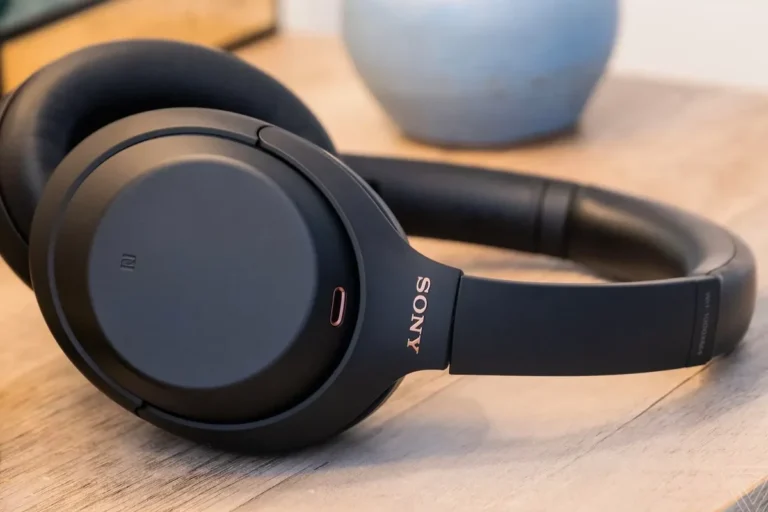
These over-ear models are especially known for smart ambient and voice-aware functions. In the app, check Speak-to-Chat first, then review wear detection, touch controls, and voice assistant options.
If the headphones still pause unexpectedly, disconnect them from all devices, forget the Bluetooth pairing, and pair them again. A fresh pairing can clear a setting conflict that keeps coming back after updates.
WF-1000XM5 and WF-1000XM4
Sony’s true wireless earbuds often rely on in-ear detection and sensor-based playback controls. Make sure each earbud is seated properly and that the ear tips fit well enough to keep the sensors stable.
For earbuds, a poor fit can look like a software issue. If one side pauses more often than the other, swap ear tips and test again before assuming the earbuds are defective.
Older Sony Headphones and Budget Models
Older Sony headphones may not use the same app layout, but they can still have voice-detection or auto pause behavior. Check the manual, app settings, or on-device button combinations for any smart listening mode.
Budget models may have fewer features, yet Bluetooth connection glitches can still cause unexpected pausing. If the headset does not offer detailed controls, resetting it may be the quickest fix.
On many wireless headphones, a small sensor or microphone change can affect playback behavior as much as a major software setting.
Common Mistakes That Make the Problem Keep Coming Back
Many people turn off one setting but miss another one that causes the same behavior. If Sony headphones keep stopping when you talk, check for hidden app defaults and device-specific profiles.
Leaving Speak-to-Chat Enabled After a Firmware Update
Firmware updates can restore or reshuffle settings, especially if you use the Sony app on more than one phone. After updating, always recheck voice-detection options even if you already disabled them once.
This is one of the most common reasons the problem returns. A setting that looked fixed yesterday may be active again after an update or re-pairing.
Using the Wrong App Profile or Device Pairing
If your headphones are paired to a phone, laptop, and tablet, the active settings may not match across devices. Make sure you are changing the profile for the device you actually use most often.
Also confirm you are using the correct Sony app account or headphone profile. A saved preset on one device may not carry over cleanly to another.
Confusing Ambient Sound Mode with Auto Pause
Ambient sound mode lets outside noise in, but it does not always pause playback. Users sometimes think the headphones are stopping because of ambient mode when the real issue is Speak-to-Chat or wear detection.
If audio pauses completely, that is usually a different feature from transparency-style listening. If you want a broader explanation of how these modes work, our guide on transparency mode headphones can help you compare the behavior.
Practical Examples: When the Headphones Stop at the Worst Time
This issue is especially annoying because it often happens during real-life tasks, not just casual listening. A quick sentence, a meeting comment, or a game chat can be enough to trigger a pause.
Calls, Meetings, and Online Classes
During calls or classes, Speak-to-Chat may interrupt audio right when you start responding. That can make it sound like your headphones are cutting out, even though they are doing exactly what the feature was designed to do.
If you use Sony headphones for work or school, disabling voice-triggered pause is usually the better choice. It gives you more predictable playback and fewer interruptions during conversations.
Streaming, Gaming, and Voice Notes
For streaming and gaming, even brief speech can trigger a pause if the microphone picks up your voice clearly. This is frustrating when you are talking to teammates or reacting to content while listening.
Voice notes can also expose the issue because the headphones may stop the moment you start speaking. If you create a lot of voice messages, turning off Speak-to-Chat is often the simplest fix.
What Happens When You Speak Briefly vs. Continuously
Some Sony headphones react to a short phrase almost instantly, while others need a few seconds of speech before they pause. That timing can vary by model, firmware, and mic sensitivity.
If only longer speech triggers the pause, the headphones may be set to a less sensitive mode rather than fully broken. If short speech triggers it every time, the voice-detection feature is likely still active.
Expert Advice: When Disabling the Feature Is the Best Choice
Smart features are convenient, but they are not always practical. If you regularly talk while listening, disabling the feature is usually better than fighting with it every day.
When Speak-to-Chat Is Useful and When It Becomes a Problem
Speak-to-Chat works well if you often need quick conversations without removing your headphones. It is less useful if you work in a noisy space, record voice notes, or chat while gaming.
If you mainly want steady playback, the feature can become more annoying than helpful. In that case, turning it off is the right tradeoff.
If you experience sudden audio cutouts, repeated sensor errors, or hearing-related discomfort, consider speaking with an audiologist or a qualified audio specialist. Persistent issues can sometimes point to fit problems, ear sensitivity, or a hardware fault.
Warning Signs of a Setting Conflict or Firmware Bug
If the headphones pause even after you disable Speak-to-Chat, you may be dealing with a setting conflict, outdated firmware, or a pairing issue. This is more likely if the problem affects only one device or only happens after an update.
Random pauses, inconsistent behavior, and settings that will not stay saved are all signs that something deeper may be wrong than just the voice feature.
When to Reset the Headphones or Reinstall the App
If the settings keep reverting, try a full headphone reset and then reinstall the Sony app. That can clear corrupted profiles or pairing data that a simple toggle will not fix.
Use this step if you have already checked the obvious settings and the problem still returns. It is often the cleanest way to rule out software confusion before assuming a hardware issue.
Cost, Alternatives, and Comparison With Other Headphone Brands
Fixing this issue usually costs nothing because it is mostly a settings adjustment. Still, it helps to know how Sony’s smart features compare with other brands before you decide whether to keep the headset.
Does Fixing This Issue Cost Anything?
No, not usually. Turning off Speak-to-Chat, changing wear detection, or resetting the headphones is typically free and only takes a few minutes.
If the headphones need service, repair costs may vary by model, warranty status, and region. For most users, though, the first fix should be software-based.
How Sony’s Auto-Aware Features Compare to Bose and Apple
Sony tends to offer strong automatic listening features, which many people like for convenience. Bose and Apple also use awareness-style controls, but the exact behavior depends on the model and software ecosystem.
If you want fewer interruptions, compare how easy it is to disable smart features before buying. For a broader background on wireless behavior and setup, our guide to Bluetooth headphones explained is a useful place to start.
When a Different Headphone Model May Be a Better Fit
If you hate automatic pausing, a simpler headset may suit you better than a feature-heavy one. Some wired headphones and basic Bluetooth models are easier to control because they rely on fewer sensors and app settings.
That does not mean Sony is a bad choice. It just means the best model depends on how often you talk while listening and how much automation you actually want.
Final Recap: The Fastest Way to Keep Sony Headphones Playing While You Talk
In most cases, the fix is simple: turn off Speak-to-Chat, check wear detection, and review voice assistant or touch control settings. If the issue continues, reset the headphones and re-pair them before assuming they are faulty.
Quick Summary of the Best Settings to Change
Start with the Sony Headphones Connect app and disable any voice-detection feature. Then check auto pause, wear detection, and touch controls, especially if you use over-ear models or true wireless earbuds.
Last Checks Before You Assume the Headphones Are Faulty
Test the headphones on one device at a time, confirm the fit, and make sure firmware and app settings match. If the headphones still stop when you talk after all of that, contact Sony support or a repair service for model-specific help.
Frequently Asked Questions
Sony headphones often stop because Speak-to-Chat, wear detection, or auto pause is enabled. These features are designed to pause audio when they detect your voice or movement.
Open the Sony Headphones Connect app and look for Speak-to-Chat or a similar voice-detection setting. Turn it off, save the change, and test playback again.
Wireless headphones are more likely to use app-based smart features like voice detection and wear sensors. Wired headphones usually have fewer automatic pause controls, so they tend to behave more simply.
Noise cancelling mainly changes how outside noise is reduced, not whether audio pauses. If playback stops when you talk, the cause is usually a separate smart feature rather than noise cancelling itself.
Comfort depends on fit, weight, clamp pressure, and ear cushion material more than the brand alone. Over-ear models are often better for long sessions, but the best choice varies by head shape and personal preference.
Check for app controls, wear detection, voice assistant features, and whether smart pauses can be disabled. If you want simpler behavior, compare wireless and wired models, plus how much customization each brand offers.