How to Turn Bose Headphones On Quickly and Easily

Turn Bose headphones on by pressing or holding the main power or Bluetooth button until you hear a voice prompt or see the indicator light. If they do not turn on, check the battery and charging connection first, then try a reset only if needed.
If you are trying to figure out how to turn Bose headphones on, the good news is that most Bose wireless models use a simple power or Bluetooth button. In many cases, a quick press is enough, but some models need a longer hold or a charge check first.
- Model matters: Bose power controls vary by headphone family.
- Watch the light: A status light usually confirms startup.
- Charge first: Low battery is the most common issue.
- Hold steady: A longer press often works better than tapping.
How to Turn Bose Headphones On: What This Guide Covers
This guide explains the fastest ways to power on common Bose headphones, what the lights and voice prompts should do, and what to check if your headphones seem unresponsive. It is written for everyday users who want a clear answer without digging through a manual.
Because Bose makes several wireless headphone families, the exact button location and startup behavior can vary by model. If you also want a broader refresher on wireless setup, our Bluetooth headphones connection guide can help once your headphones are powered on.
Model names, button placement, and startup prompts can differ slightly across Bose generations. If your headphones were purchased secondhand or have older firmware, behavior may not match every instruction exactly.
Quick Ways to Power On Bose Headphones by Model
The fastest way to turn Bose headphones on depends on the product family. Most Bose wireless headphones use either a dedicated power switch, a multi-function Bluetooth button, or an auto-on feature when unfolded or removed from a case.
Bose QuietComfort and QuietComfort Ultra headphones
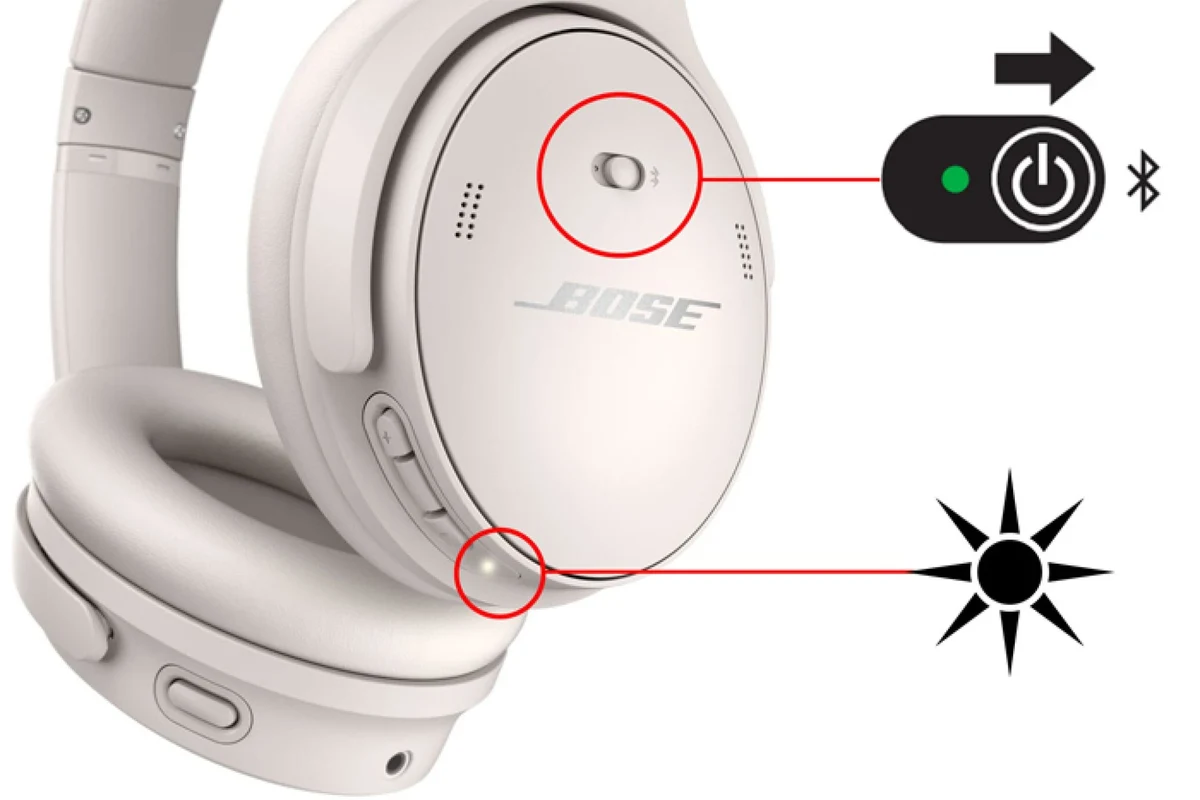
For many QuietComfort models, the power control is built into the Bluetooth button or a nearby slider. Press and hold it briefly until you hear the startup prompt or see the status light turn on.
If you are using a newer QuietComfort Ultra model, the headphones may power on with a short button press, then announce battery or connection status through voice prompts. If nothing happens, hold the button a little longer and check whether the battery needs charging first.
Bose Noise Cancelling Headphones 700
The Bose Noise Cancelling Headphones 700 are known for a very simple startup process. In most cases, you press and hold the power/Bluetooth button until the headphones wake up and the voice prompt confirms they are on.
If the headphones were folded or left idle for a while, give them a few seconds to respond. A brief delay does not always mean there is a problem.
Bose Sport, SoundLink, and other wireless Bose models
Sport and SoundLink-style Bose headphones may use a slightly different switch or button layout. Some models turn on with a dedicated power button, while others use a combined Bluetooth control that also handles pairing.
If your model has a case, remove the headphones and look for an indicator light first. For earbuds and true wireless Bose products, the charging case and battery level often determine whether they wake up immediately.
If you are unsure which Bose model you own, check the inside of the headband, earcup, or product box first. The model name makes it much easier to find the correct power-on method.
Step-by-Step: Turning Bose Headphones On the Right Way
Even though Bose headphones are usually easy to power on, the exact steps matter. A quick tap, a longer hold, or a low battery can change how the headphones respond.
Using the power or Bluetooth button
Look for the power switch or Bluetooth button on the earcup or inline control area. On many Bose models, this is the same button used for pairing.
Use a short press if the model supports one-touch startup. If nothing happens, hold the button for a few seconds until the light or voice prompt appears.
Listen for a voice prompt or watch for a status light. That is usually the clearest sign the headphones are fully on and ready to connect.
What the voice prompt or indicator light should do
On many Bose headphones, a voice prompt will say the battery level, connection status, or pairing mode. If you do not hear a prompt right away, look for a blinking or solid indicator light near the controls.
A light that never turns on can suggest a dead battery, an incomplete charge, or a control issue. If the headphones seem active but silent, they may already be on and simply not connected to a device yet.
Some wireless headphones can appear “off” when they are actually in a low-power sleep state. That is why a long button press is sometimes needed to fully wake them.
How long to hold the button if they do not turn on immediately
If a short press does nothing, hold the button for about 2 to 5 seconds before trying again. If the headphones still do not respond, give them a moment and repeat the process after checking the battery.
Do not keep pressing randomly for a long time. A steady hold is usually more effective than multiple quick taps, especially on Bose models that combine power and Bluetooth controls.
Why Your Bose Headphones May Not Turn On
If your Bose headphones are not powering on, the cause is often simple. Battery charge, charging contact, or a temporary software glitch is usually more likely than a major hardware failure.
Dead battery or poor charging connection
The most common reason Bose headphones will not turn on is a depleted battery. Even if they were charged recently, a loose cable, dirty charging port, or weak power source can prevent them from getting enough charge.
Check the cable, adapter, and port for debris or damage. If your headphones have been unused for a while, leave them connected to a reliable charger for a bit before trying again.
Auto-off settings and sleep mode confusion
Some Bose headphones power down automatically after inactivity to save battery. That can make it seem like they are not turning on when they are actually just sleeping or waiting for a button press.
If the headphones turn off quickly after use, the auto-off setting may be part of the design. This is normal on many wireless headphones and helps preserve battery life.
Firmware glitches or frozen controls
Like most Bluetooth audio gear, Bose headphones can occasionally freeze or become unresponsive. A temporary firmware issue can stop the button from behaving normally even when the battery is fine.
If the headphones were working earlier and suddenly stopped responding, a reset may help. If you are troubleshooting broader wireless issues, our guide to resetting Bluetooth headphones is a useful next step after basic charging checks.
Do not assume a silent headphone is broken right away. Many “dead” headphones are simply undercharged, asleep, or waiting for a proper reset sequence.
Common Mistakes People Make When Trying to Power On Bose Headphones
Most startup problems come from small user errors, not serious faults. The good news is that these mistakes are easy to fix once you know what to look for.
Pressing the wrong button or not holding it long enough
On Bose headphones, the power and Bluetooth controls can be easy to confuse. If you tap the wrong button or release it too soon, the headphones may never fully wake up.
Try one deliberate press-and-hold instead of repeated tapping. A calm, steady hold is usually the fastest way to tell whether the headphones are responding properly.
Assuming the headphones are broken when they are just uncharged
Low battery can mimic a hardware problem. If there is no light, no prompt, and no response, charge the headphones before deciding they are faulty.
This is especially common after travel, long storage, or heavy noise-cancelling use. Battery behavior can also vary by model and age.
Trying to pair before the headphones are actually powered on
Pairing and powering on are related, but they are not the same thing. If the headphones are off, your phone or laptop will not find them in Bluetooth settings.
Turn the headphones on first, then wait for the pairing prompt or visible light before opening your device settings. If you need a refresher on the basics of Bluetooth audio, the article on Bluetooth headphones explained simply is a helpful companion read.
Expert Advice: Safe Troubleshooting Before You Contact Support
Before contacting Bose support, work through the simplest checks first. That approach saves time and avoids unnecessary resets or service requests.
Check charging cable, case, and battery status first
Start with the charger, then the battery, then the case if your Bose product uses one. A different cable or outlet can quickly reveal whether the issue is power-related.
If your headphones use a charging case, make sure the case itself has power. Earbuds and compact wireless models often depend on the case more than users expect.
Perform a reset only when basic checks fail
A reset is useful, but it should come after you confirm the headphones are charged and the controls are not physically stuck. Resetting too early can make troubleshooting more confusing.
If basic power checks fail, a reset can clear a temporary software problem and restore normal startup behavior. Use the model-specific method from Bose support or a trusted guide before forcing repeated attempts.
Warning signs that indicate a hardware issue
If the headphones never show a light, never charge, or power off instantly after being charged, hardware damage may be involved. Physical impact, moisture exposure, or a worn battery can all cause this behavior.
At that point, support or repair may be the better option. If you notice ear pain, ringing, or other hearing concerns while testing headphones, follow safe listening guidelines and consult an audiologist if needed.
If your Bose headphones still will not power on after a full charge, a reset, and a cable check, contact Bose support or a qualified repair technician. If sound exposure has caused discomfort, tinnitus, or hearing changes, speak with an audiologist.
Bose Headphones Compared: Power-On Experience vs. Other Premium Brands
One reason many people like Bose is that the startup experience is generally simple and beginner-friendly. The controls are usually clear, and the voice prompts can make it easier to know what the headphones are doing.
Button design, startup speed, and ease of use
Compared with some premium competitors, Bose often keeps the power-on process straightforward. That can be a real advantage if you want headphones that are easy to grab, turn on, and use quickly during a commute or workday.
That said, button placement and startup speed can vary by model and generation. Some users prefer a dedicated power switch, while others like a combined Bluetooth button that reduces clutter.
How Bose compares on battery convenience and daily reliability
In everyday use, battery convenience matters as much as sound quality. A headphone that turns on reliably and gives clear prompts can feel more dependable than one with more complicated controls.
Bose tends to do well for people who want simple wireless listening, strong noise cancellation, and an easy routine. For readers comparing different headphone styles, our types of headphones explained guide can help you match the right design to your commute, gaming, or home listening setup.
Final Recap: The Fastest Way to Turn Bose Headphones On in 2026
The fastest way to turn Bose headphones on is usually to find the main power or Bluetooth button, press and hold it briefly, and wait for the voice prompt or indicator light. If nothing happens, check the battery and charging connection before trying a reset.
For most Bose wireless models, the process is simple once you know the button layout. A steady press, a full charge, and a quick status check will solve the issue for many users without any extra troubleshooting.
- Use the main power or Bluetooth button.
- Watch for a light or voice prompt.
- Check battery and charging first if nothing happens.
- Reset only after basic troubleshooting fails.
Frequently Asked Questions
Wireless headphones are more convenient for commuting, workouts, and casual listening. Wired headphones can still be better for simple plug-and-play use and avoiding battery concerns.
Noise cancelling can improve listening by reducing background noise, especially on planes or in offices. Sound quality still depends on the model, tuning, and how well the headphones fit.
Open-back headphones can sound more spacious, but they leak sound and block less noise. Closed-back headphones are usually better for travel, commuting, and private listening.
Look at battery life, comfort, Bluetooth version, microphone quality, and whether the fit suits your use case. If you care about sound, also compare driver type, tuning, and EQ support.
For commuting, prioritize noise cancelling and battery life. For gaming or studio work, focus on latency, comfort, and accurate sound instead of just bass.
Choose a lightweight model with soft ear cushions and a secure but gentle fit. If you feel pressure, heat, or pain, take breaks and adjust the fit before using them for long periods.