How Do You Use Bose Headphones A Simple Guide

Use Bose headphones by charging them, pairing them over Bluetooth, and learning the main controls for music, calls, and noise cancellation. The Bose app helps with updates, EQ, and customization, while safe listening habits keep long sessions comfortable.
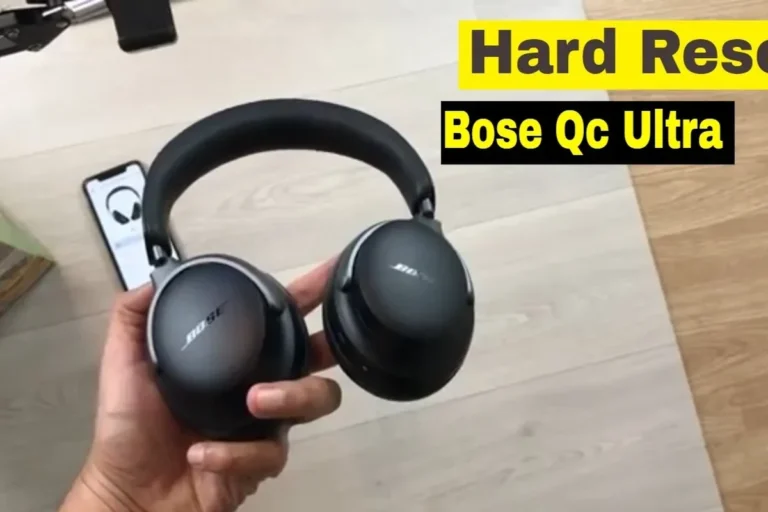
If you’re asking how do you use Bose headphones, the short answer is: charge them, pair them over Bluetooth, then use the app or onboard controls to manage sound, calls, and noise cancellation. The exact buttons and gestures vary a little by model, but the basic process is very similar across most Bose wireless headphones.
- Pairing: Put Bose headphones in Bluetooth mode and connect from your device settings.
- Controls: Learn the buttons, touch gestures, and voice prompts on your model.
- Noise control: Switch between noise cancelling and aware mode based on your surroundings.
- App use: Use the Bose app for updates, EQ, shortcuts, and troubleshooting.
How Do You Use Bose Headphones? Understanding the Basic Setup and Controls
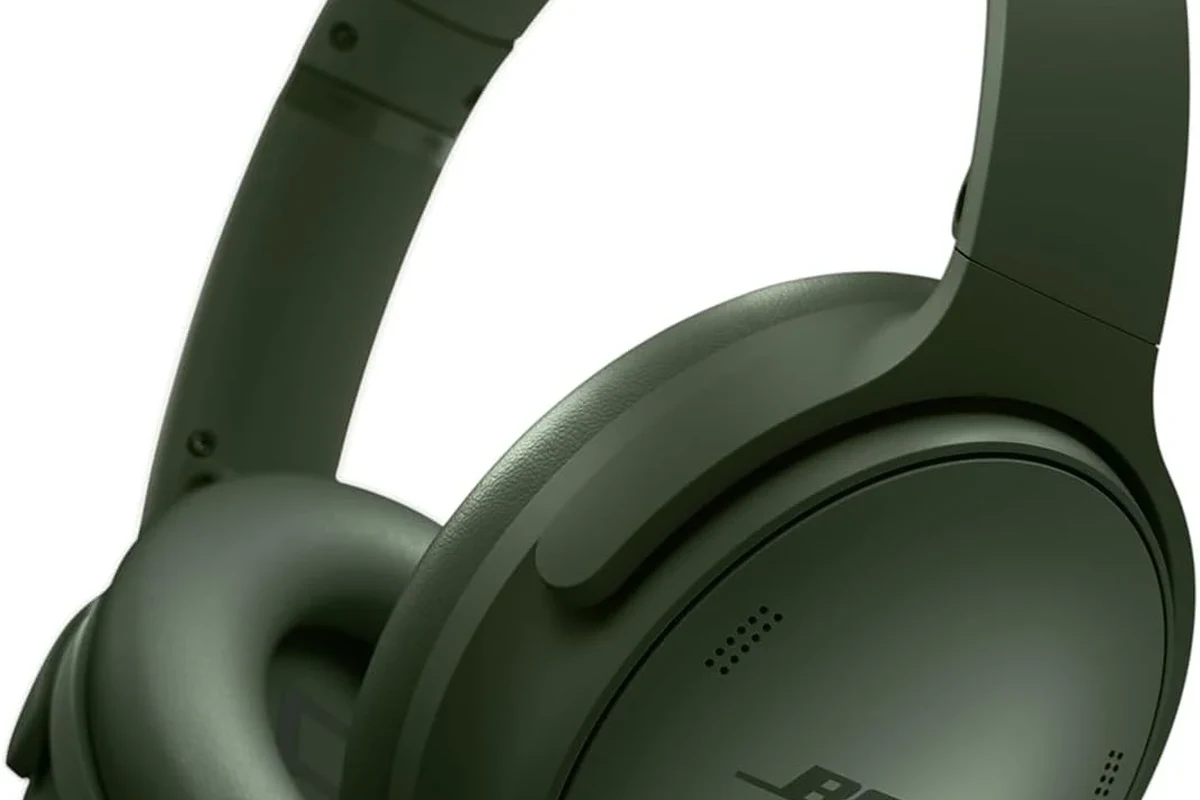
Most Bose headphones are designed to be simple once you know the core controls. Start by charging the headphones, turning them on, and checking whether they enter pairing mode automatically the first time.
After that, learn the main controls: power, Bluetooth, volume, playback, call handling, and noise control. On some models, these are physical buttons; on others, you may use touch gestures or a mix of both.
Before you do anything else, fully charge the headphones and keep your phone nearby. That makes first-time pairing faster and reduces confusion if the headset powers down during setup.
Control layouts can differ by Bose model, so it helps to check the quick-start guide or the Bose app if a button does not behave as expected.
First-Time Pairing: Connecting Bose Headphones to iPhone, Android, Windows, and Mac
Pairing Bose headphones is usually straightforward. Turn them on, put them into Bluetooth pairing mode, and then select them from your device’s Bluetooth menu.
For general Bluetooth setup help, it can also be useful to review a broader guide on how to connect Bluetooth headphones. If you are new to wireless audio, our explainer on Bluetooth headphones explained simply can also make the process easier to follow.
Using Bluetooth pairing mode the right way
To pair Bose headphones, press and hold the power or Bluetooth button until you hear a voice prompt or see a blinking light that indicates pairing mode. Then open Bluetooth settings on your phone, tablet, laptop, or desktop and select the Bose device name.
On iPhone and Android, pairing usually takes only a few taps. On Windows and Mac, you may need to open system Bluetooth settings, make sure Bluetooth is enabled, and wait a few seconds for the headphones to appear.
Power them on and listen for the startup prompt or look for the indicator light.
Hold the pairing control until the headphones announce they are ready to connect.
Choose the Bose headphones from your phone or computer’s Bluetooth list.
What to do if Bose headphones do not show up
If the headphones do not appear, turn Bluetooth off and on again on your device, then restart the headphones and try pairing one more time. It also helps to move away from other Bluetooth devices that may be causing interference.
If they still do not show up, make sure the headphones are not already connected to another device. A reset may help in some cases, and our guide on how to reset Bluetooth headphones can be useful if the connection seems stuck.
If your headphones keep failing to pair across multiple devices, the issue may be with the Bluetooth source, outdated firmware, or a reset that did not complete correctly.
Everyday Listening: Playing Music, Taking Calls, and Switching Devices
Once Bose headphones are paired, everyday use is mostly about playback and call control. You can usually play and pause music, skip tracks, answer calls, and adjust volume without reaching for your phone.
Many Bose models also support multipoint-style behavior or quick device switching, which is useful if you move between a laptop and a phone during the day. That convenience is one reason many people choose Bose for office and travel use.
Using touch controls, buttons, and voice prompts
Some Bose headphones use physical buttons for power, volume, and calls. Others rely more on touch controls, with taps or swipes for music and call actions.
Voice prompts can also help confirm battery level, pairing status, and connected devices. If your model supports voice feedback, pay attention to the prompts during setup because they often explain what the headphones are doing in real time.
Many wireless headphone problems are not actually “sound” issues at all. They are often control, pairing, or device-switching issues that can be fixed in a few seconds.
Practical examples for commuting, work, and workouts
For commuting, Bose headphones are often used with noise cancellation on and volume kept moderate so outside noise does not compete with the music. For work, many users prefer lower volume and quick access to microphone controls for calls and meetings.
For workouts, a secure fit matters more than advanced features. If you sweat heavily or move a lot, make sure the headphones stay stable and that the ear cushions or pads are comfortable for repeated use.
Can you use Bose headphones for calls and meetings?
Yes, most Bose wireless headphones support phone calls and video meetings through the built-in microphones. Call quality can vary by model, background noise, and how well the headphones fit.
How to Use Bose Noise Cancelling and Aware Mode for Better Sound
One of the biggest reasons people buy Bose headphones is noise control. Depending on the model, you can usually switch between noise cancelling, aware or transparency-style listening, and sometimes a more neutral listening mode.
If you want a deeper explanation of the technology, our guide to how noise cancelling headphones work is a helpful companion read. You can also compare the broader idea in what is noise cancelling headphones.
When to turn noise cancelling on or off
Use noise cancelling when you want to reduce steady background sounds like airplane engines, HVAC noise, or train rumble. Turn it off if you want a more natural sense of your surroundings or if you prefer to conserve battery.
Some listeners also notice pressure or an unusual feeling with strong noise cancelling. If that happens, lower the intensity, take breaks, or use a lighter listening mode.
Listening at high volumes for long periods can cause hearing damage. Keep volume at 60% or below for extended sessions.
Choosing the right mode for travel, office, and outdoor use
For travel, noise cancelling is usually the best choice because it helps reduce fatigue from constant low-frequency noise. In the office, aware mode can be useful if you need to hear coworkers or announcements without removing the headphones.
Outdoors, the best mode depends on your environment. If you are walking near traffic, aware mode can improve safety. If you are in a quieter park or backyard, you may prefer standard listening with or without noise cancellation.
Using the Bose App: Settings, Updates, and Customization Tips
The Bose app can make the headphones easier to use because it centralizes settings that would otherwise be harder to find. Depending on the model, you may be able to adjust sound, shortcuts, Bluetooth connections, and firmware updates from the app.
If you are comparing Bose’s app-based controls with other wireless options, it may help to read about wired vs wireless headphones and how wireless convenience changes everyday use.
Adjusting EQ, shortcuts, and firmware updates
EQ settings can help you tune the sound toward more bass, more clarity, or a more balanced profile. That said, EQ is personal, and the best setting depends on your hearing, music style, and how loud you listen.
Shortcuts are also useful. You may be able to assign a quick action to noise control, voice assistant access, or another feature you use often. Firmware updates can improve stability or fix bugs, so it is worth checking the app regularly.
Why the app matters for newer Bose models in 2026
For newer Bose models in 2026, the app matters because more of the user experience is software-driven than ever before. That means features like sound tuning, device management, and updates may be easier to control from the app than from the headphones alone.
It also means setup can feel more polished when everything is working properly, but more frustrating if you skip the app entirely. In practice, the app is often the fastest way to confirm settings, fix connection issues, and customize how the headphones behave day to day.
Common Mistakes People Make When Using Bose Headphones
Most Bose headphone problems come from simple mistakes, not defective hardware. The most common issues are low battery, pairing confusion, poor fit, and forgetting that the headphones may already be connected to another device.
When troubleshooting sound or connection issues, it can also help to understand related topics like why headphones sound muffled and how to fix muffled headphone sound.
Battery, charging, and pairing errors to avoid
Do not assume the headphones are broken just because they will not turn on. Low battery is one of the most common causes of failed pairing and weak performance, so charge them first.
Another common mistake is pairing them to the wrong device or leaving them connected to a laptop when you want them on a phone. If the headphones seem unresponsive, check whether another device is actively using the connection.
- Battery level before pairing
- Bluetooth is enabled on the source device
- Headphones are not connected elsewhere
- Firmware and app settings are current
Expert advice warning: how to prevent poor fit, weak sound, and accidental resets
Fit affects both comfort and sound. If the ear cups or earbuds do not sit correctly, you may hear weaker bass, less isolation, or a thinner overall presentation.
Be careful with reset steps, especially if you are pressing buttons randomly while troubleshooting. Accidental resets can remove saved connections and make the headphones seem more complicated than they really are.
If you have persistent ear discomfort, hearing imbalance, or tinnitus after listening, stop using the headphones and consult an audiologist or hearing professional.
Bose Headphones vs Other Premium Brands: What You Get for the Price
Bose is often chosen for ease of use, strong noise cancellation, and a polished everyday experience. That does not mean it is the only good option, but it does explain why many buyers return to the brand.
If you are comparing categories more broadly, our guide to types of headphones explained can help you understand whether over-ear, on-ear, or in-ear models fit your needs better.
How Bose usage differs from Sony, Apple, and Sennheiser
Compared with some Sony models, Bose often emphasizes simplicity and smooth noise control rather than deep customization. Compared with Apple, Bose may feel more cross-platform friendly for people who use Android, Windows, and Mac together.
Sennheiser often appeals to listeners who care more about sound tuning and audio character, while Bose tends to focus on comfort, noise management, and easy daily use. The best choice depends on whether you value sound signature, ecosystem convenience, or travel-friendly features most.
Cost, value, and which Bose features justify the premium
Bose headphones are usually priced as a premium product, so the value depends on whether you will actually use the features. Noise cancellation, comfort, app support, and reliable wireless control are the main reasons people justify the cost.
If you only need basic music playback, a less expensive model may be enough. But if you commute often, take many calls, or want a simple premium experience, Bose can make sense even when the price is higher.
- Easy to use for beginners
- Strong noise cancellation focus
- Good for travel and calls
- Premium pricing
- Features vary by model
- Some settings require the app
Final Recap: The Easiest Way to Use Bose Headphones Well
The easiest way to use Bose headphones is to charge them, pair them once through Bluetooth, and then learn the main controls in the Bose app or on the headset itself. After that, choose the listening mode that fits your environment and keep your volume at a safe level.
If you remember only one thing, make it this: Bose headphones work best when you set them up properly and use the right mode for the moment. That simple habit improves comfort, sound quality, and everyday convenience.
- Charge first, then pair through Bluetooth.
- Use the app for updates, EQ, and shortcuts.
- Switch noise control based on your surroundings.
- Check fit, battery, and device connections before troubleshooting.
Frequently Asked Questions
Most Bose models are designed for wireless use, so Bluetooth is the main way to listen. Wired use may be available on some models, but features can vary by model and cable type.
No, you can use them with noise cancelling on or off depending on your environment. Turn it on for travel or noisy places and off when you want a more natural feel or longer battery life.
Check fit, volume level, EQ settings, and whether the headphones are fully charged and updated. Sound quality can also vary by model, source device, and your personal hearing preference.
They are especially popular for commuting and everyday listening because of their comfort and noise control. For gaming or studio work, check latency, microphone behavior, and whether the sound profile matches your needs.
Over-ear models usually offer more comfort and better isolation, while on-ear and in-ear styles are more compact. The best choice depends on comfort, portability, and how long you plan to listen.
Many buyers pay for the easy setup, strong noise cancellation, and polished app support. Whether they are worth it depends on how often you use those features and how much premium comfort matters to you.