How to Connect Wireless Headphones to Xbox Series X Easily

The easiest way to connect wireless headphones to Xbox Series X is to use an Xbox-compatible wireless headset. Standard Bluetooth headphones usually need a TV workaround or adapter, and chat support may vary.
If you want to know how to connect wireless headphones to Xbox Series X, the short version is this: Xbox does not support standard Bluetooth headphones directly, so the easiest path is usually an Xbox Wireless headset or a compatible wireless adapter. You can also use your TV or monitor as a workaround for audio-only listening, but the best method depends on whether you need game chat, low latency, or simple private audio.
- Best method: Xbox Wireless headsets are usually the most reliable choice.
- Big limitation: The console does not support standard Bluetooth headphones directly.
- Workarounds: TV Bluetooth and adapters can work, but latency may increase.
- Chat support: Check microphone compatibility before you buy.
How to Connect Wireless Headphones to Xbox Series X: What Works in 2026
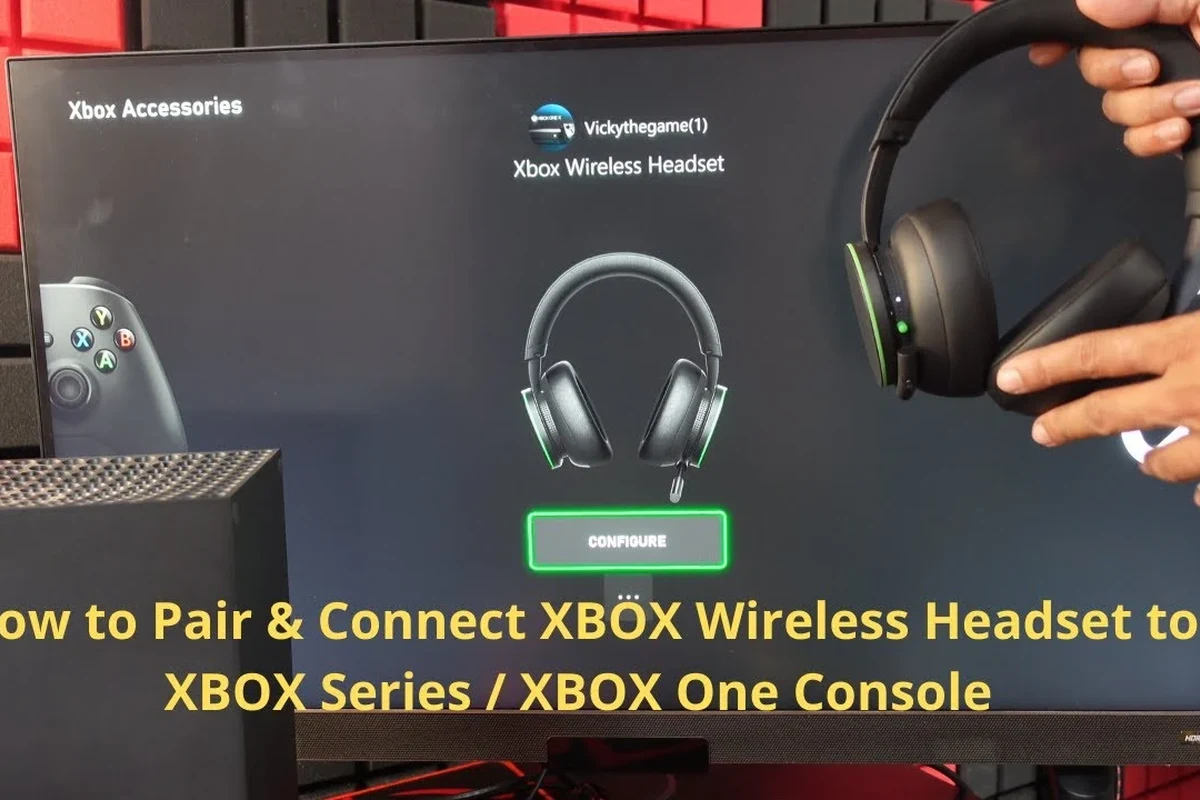
In 2026, the most reliable way to get wireless audio on Xbox Series X is still through Xbox Wireless accessories made for the console. That matters because the system is built differently from many other devices, and many readers are surprised that their normal Bluetooth headphones do not pair the way they expect.
If you are new to console audio, it helps to think in terms of compatibility first and sound quality second. A headset can sound great, but if it cannot connect properly to the console, it will not be a practical gaming choice.
Wireless audio support can vary by headset brand, TV model, and adapter type. Always check the product’s Xbox compatibility before buying.
Why Xbox Series X Wireless Audio Is Different from PlayStation, PC, and TVs
Xbox Series X does not include built-in Bluetooth audio for most headphones. That is the biggest difference compared with phones, laptops, and many TVs, where Bluetooth pairing is usually simple and direct.
Instead, Xbox leans on its own wireless ecosystem and supported accessories. That can be frustrating at first, but it often gives more stable gaming audio and better chat integration when you use the right headset.
For readers comparing platforms, this is one reason a headset that works easily on PC may still need extra steps on Xbox. If you want a broader explanation of wireless audio behavior, our guide on wired vs wireless headphones is a helpful place to start.
Best Ways to Connect Wireless Headphones to Xbox Series X
There are a few practical ways to connect wireless headphones to Xbox Series X, but they are not equally reliable. Your best option depends on whether you want full gaming features, simple audio output, or a workaround for headphones you already own.
Using Xbox Wireless Headsets and the Console Pair Button
The cleanest setup is an Xbox Wireless headset that supports direct pairing with the console. These headsets connect through the Xbox wireless system, so you usually do not need extra hardware.
This option is best if you want voice chat, game audio, and a setup that feels native to the console. For most players, it is the least annoying long-term solution.
Connecting via TV Bluetooth for Audio-Only Workarounds
If your TV supports Bluetooth audio output, you may be able to send Xbox sound to your headphones through the TV instead of the console. This can work well for casual listening, especially when you do not need microphone chat.
The trade-off is that TV Bluetooth can introduce delay, and not every television handles audio sync in the same way. For fast-paced shooters, that delay may be noticeable.
Many TVs support Bluetooth for video streaming apps, but gaming audio may still lag slightly because the sound has to travel through the TV first.
Using a Wireless USB Transmitter or Bluetooth Adapter
Another common workaround is a wireless USB transmitter or adapter that plugs into the console or another compatible device. Some adapters are designed to work with specific headsets, while others are more general-purpose.
This route can be useful if you already own a headset and want to avoid buying a whole new one. Still, adapter compatibility matters a lot, and cheaper models may add latency or reduce audio stability.
Not every Bluetooth adapter is a good fit for Xbox gaming. Some are audio-only, some do not support chat, and some add enough delay to hurt gameplay.
Pairing Through the Xbox App, Remote Play, or Companion Devices
Some players use the Xbox app, Remote Play, or a companion device to manage audio in a more flexible way. This is usually not the first choice for direct console headphone pairing, but it can help if you are already gaming on a phone, tablet, or PC alongside the console.
This method is more about convenience than pure audio performance. If your main goal is to hear the game privately on the console itself, the Xbox Wireless route is still usually better.
Step-by-Step Setup for the Most Reliable Connection Methods
The easiest setup is not always the cheapest one, but it is usually the one that causes the fewest problems later. If you want dependable gaming audio, start with the method that matches your headset’s actual compatibility.
Fast Pairing With an Xbox-Compatible Wireless Headset
Power on your Xbox-compatible wireless headset and make sure it has enough battery charge to complete pairing.
Use the Xbox Series X pairing button on the console, then put the headset into pairing mode according to its instructions.
After a few moments, the headset should connect and begin sending game audio. Test voice chat and volume before starting a match.
If the headset supports both Bluetooth and Xbox Wireless, use the Xbox Wireless mode for gaming and save Bluetooth for phones or tablets.
Setting Up Headphones Through a TV or Monitor Audio Output
Look for Bluetooth audio, a headphone jack, or an audio-out port that can feed your wireless transmitter or dock.
Use the TV’s Bluetooth settings if supported, or connect the adapter to the audio output if you are using a transmitter.
Check for lip-sync or gaming delay in the TV’s sound settings and lower processing features if audio feels late.
This is a useful workaround for private listening, especially if you already use your TV for gaming. It is less ideal if you rely on microphone chat or need fast response in competitive games.
Configuring Wireless Adapters for Low-Latency Gaming
Make sure the adapter is meant for Xbox use or for the exact headset model you own.
Insert the transmitter into the appropriate port and follow the pairing sequence for both the adapter and the headset.
Play a game with clear sound cues and check whether footsteps, menu sounds, and dialogue stay in sync.
- Adapter is compatible with Xbox or your headset model
- Latency is low enough for gaming
- Chat microphone support is included if you need it
Common Problems When Connecting Wireless Headphones to Xbox Series X
Most connection issues come from one of three things: unsupported wireless standards, audio delay, or missing chat features. The good news is that these problems are usually predictable once you know what to look for.
No Bluetooth Support on the Console Itself
This is the most common surprise for first-time buyers. If your headphones are standard Bluetooth-only, they generally will not connect directly to Xbox Series X the way they do to a phone or laptop.
That is why so many users search for workarounds after buying a new headset. Before you buy, always check whether the headset is Xbox Wireless compatible or needs an adapter.
Audio Delay, Dropouts, and Sync Issues
Delay is a bigger problem in gaming than in music or podcasts. Even a small lag can make dialogue feel off or make action games feel less responsive.
Dropouts can also happen if the wireless signal is weak, the adapter is low quality, or the TV is doing extra audio processing. If you are troubleshooting lag, our guide to Bluetooth headphone lag fix covers general ways to reduce delay on wireless devices.
Listening at high volumes for long periods can cause hearing damage. Keep volume at 60% or below for extended sessions.
Mic Not Working in Party Chat or Game Chat
Some wireless setups carry game audio but not microphone input. That is especially common with simple Bluetooth workarounds, which are often designed for listening rather than full gaming communication.
If chat matters to you, choose a headset or adapter that explicitly supports microphone input on Xbox. Otherwise, you may end up with great sound and no way to talk to your squad.
If you have ongoing hearing discomfort, tinnitus, or trouble understanding game audio even at normal volume, consult an audiologist or hearing professional.
What to Buy: Budget vs Premium Wireless Headphone Options for Xbox Series X
Budget and premium options both have a place, but they solve different problems. A lower-cost workaround may be fine for casual play, while a premium headset is more sensible if you want better comfort, chat support, and fewer connection headaches.
Cost Differences Between Xbox Wireless Headsets and Third-Party Adapters
Xbox Wireless headsets often cost more than basic Bluetooth headphones, but they also reduce the need for extra accessories. That can make them the better value if you want a simple all-in-one setup.
Third-party adapters may look cheaper at first, yet the total cost can rise once you factor in compatibility issues or the need for a separate microphone solution. For buyers on a tighter budget, it is worth comparing the full setup, not just the headset price.
When a Dedicated Gaming Headset Is Worth the Extra Price
A dedicated gaming headset is worth paying more for when you care about voice chat, low latency, and all-day comfort. It is also a smart choice if you play frequently and do not want to troubleshoot connection problems every week.
For many Xbox players, the extra cost is justified by convenience alone. If you are comparing headset styles more broadly, our overview of types of headphones explained can help you decide whether over-ear, on-ear, or in-ear designs fit your gaming habits best.
Expert Advice: Mistakes to Avoid Before You Buy or Pair
The biggest mistake is assuming all wireless headphones behave the same on Xbox. They do not, and that difference can affect everything from audio lag to chat quality.
Why “Bluetooth Only” Headphones Often Disappoint on Xbox
Bluetooth-only headphones often sound perfectly fine for music, but they are not always a good match for console gaming. The main issue is that Xbox Series X is not built for direct Bluetooth headphone pairing.
That means a headset can be excellent for travel or phone use and still be a poor choice for Xbox. If you want a broader primer on wireless behavior, see our guide to Bluetooth headphones explained simply.
Checking Compatibility for Chat, Spatial Audio, and Latency
Before you buy, check whether the headset supports game chat, voice chat, and the audio features you actually use. Spatial audio support, EQ options, and latency performance can vary by model and firmware.
Comfort matters too, especially for long sessions. Ear cushion material, headband pressure, and headset weight can make a big difference after an hour or two of play.
If you game for long stretches, prioritize comfort and stable connection over flashy extra features you may never use.
Final Recap: The Easiest Way to Get Wireless Audio on Xbox Series X
The easiest way to connect wireless headphones to Xbox Series X is usually to use an Xbox-compatible wireless headset. That gives you the most reliable pairing, the best chance of working chat support, and the fewest audio surprises.
If you already own Bluetooth headphones, a TV-based workaround or adapter can still work, but expect trade-offs in latency or microphone support. For most players, buying for Xbox compatibility first is the safest and least frustrating path.
- Xbox Wireless headsets are the simplest direct option.
- Standard Bluetooth headphones usually need a workaround.
- Check chat support, latency, and TV compatibility before buying.
Frequently Asked Questions
Usually no. Xbox Series X does not support standard Bluetooth headphone pairing directly, so most Bluetooth-only models need a workaround or adapter.
An Xbox-compatible wireless headset is usually the easiest and most reliable choice. It is more likely to support game audio, voice chat, and low-latency play.
They can, depending on the headset, adapter, and connection method. Sound quality, bass, and clarity may vary by brand, model, and how the audio is routed.
Over-ear headsets are often more comfortable for long sessions and may offer better mic options. Earbuds can be convenient, but fit, isolation, and chat support depend on the model.
Check Xbox compatibility, latency, microphone support, battery life, and comfort. If you care about sound tuning, also look at driver type, EQ options, and spatial audio support.
Look for lighter weight, soft ear cushions, and a headband that does not clamp too hard. Taking breaks and keeping volume at safe levels also helps reduce fatigue.