How to Connect Wireless Headphones to Roku TV Easily

The easiest way is to pair Bluetooth headphones directly if your Roku TV supports Bluetooth audio. If it does not, use the Roku mobile app for private listening or a compatible wireless headphone setup.
If you want to know how to connect wireless headphones to Roku TV, the easiest path depends on your Roku model and the type of headphones you own. Some Roku TVs support Bluetooth directly, while others work best through the Roku mobile app or a Roku-compatible transmitter.
- Check compatibility: Not every Roku TV supports direct Bluetooth headphone pairing.
- Use the app: Roku mobile private listening is the simplest fallback.
- Mind latency: Low-delay headphones are better for gaming and sports.
- Prioritize comfort: Over-ear models often work best for long movie nights.
How to Connect Wireless Headphones to Roku TV: What You Need to Know in 2025
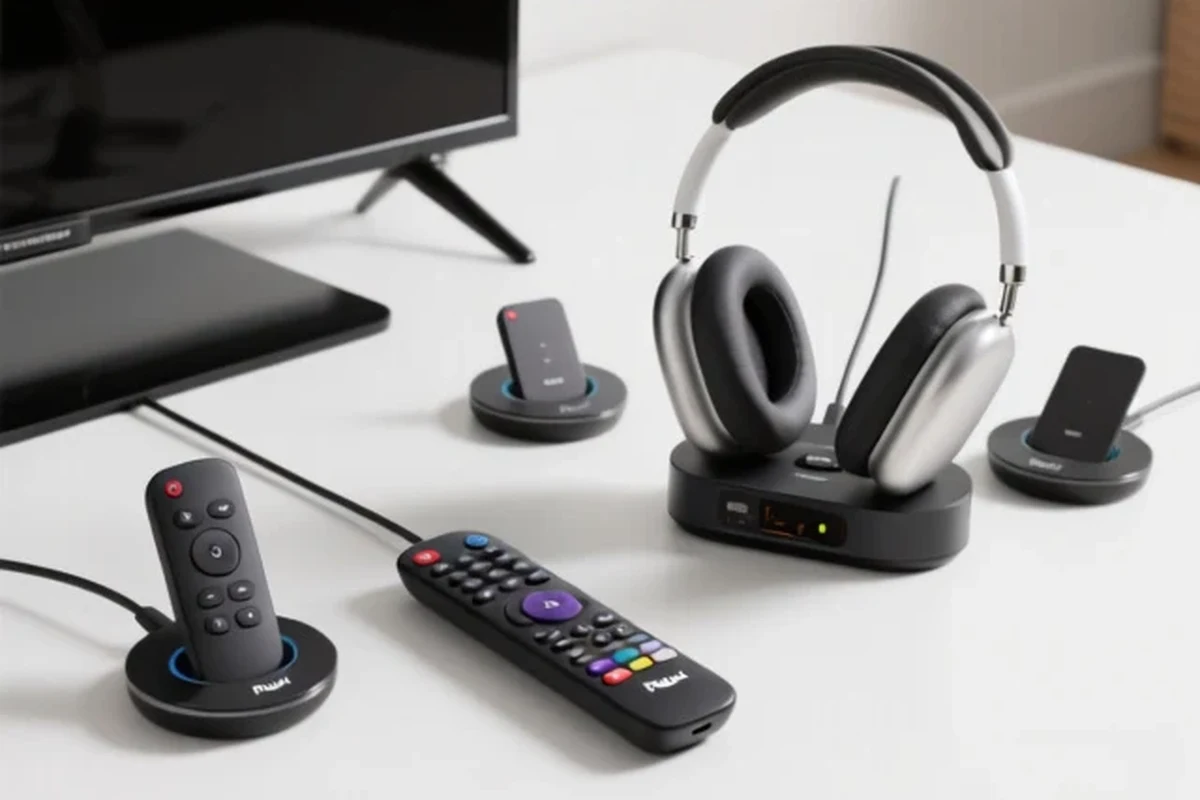
Roku TV audio is more flexible than many people expect, but it is not universal across every model. Before you start pairing, it helps to know whether your TV supports Bluetooth audio, whether private listening is available through the Roku app, or whether you need a separate wireless solution.
In practice, the “best” setup is the one that matches your TV, your headphones, and how you watch. If you mostly stream movies at night, comfort and low latency matter more. If you game, sync and delay become much more important. For a broader look at connection basics, our guide on how to connect Bluetooth headphones can also help if you are pairing to other devices too.
Roku TV support can vary by brand, model, and software version. Always check your TV’s audio settings before buying extra accessories.
Roku TV Audio Options Explained: Bluetooth, Roku Mobile App, and TV-Compatible Headphones
Roku TV users usually have three main audio paths: native Bluetooth, the Roku mobile app’s private listening feature, or a wireless headphone setup that connects through a transmitter or remote accessory. Each option has tradeoffs in convenience, latency, and compatibility.
When Bluetooth Works and When It Doesn’t on Roku TV
Bluetooth is the simplest option when your Roku TV supports it natively. In that case, you can pair wireless headphones directly in the TV’s settings without needing extra hardware.
However, not every Roku TV includes Bluetooth audio output. Some models support Bluetooth only for certain accessories, or they may rely on Wi-Fi-based private listening instead. That is why many users get stuck assuming all Roku TVs behave the same way when they do not.
If your Roku TV does not list Bluetooth audio in its settings, do not assume a random Bluetooth adapter will solve the problem. Unsupported workarounds can create lag, unstable audio, or no sound at all.
Using the Roku Mobile App for Private Listening
The Roku mobile app is often the easiest fallback for private listening. With the app installed on an iPhone or Android phone, you can route TV sound to your phone and listen through wired or wireless headphones connected to the phone.
This is especially useful if your TV lacks Bluetooth audio. It is also handy for late-night viewing because you can keep the TV speakers muted while still hearing dialogue clearly in your headphones.
If you use the Roku app for private listening, keep your phone close to the TV and your Wi-Fi signal strong. That helps reduce dropouts and audio sync issues.
Wired vs Wireless Alternatives for Roku TV Audio
Wireless headphones are convenient, but wired options still matter. A headphone jack on a Roku remote, TV, or connected device can sometimes deliver a more stable experience than Bluetooth, especially if you are sensitive to delay.
Wireless alternatives include RF headphones, Bluetooth headphones, and TV headphone kits with a dedicated transmitter. If you are comparing connection styles more broadly, our article on wired vs wireless headphones explains the everyday tradeoffs in comfort, flexibility, and sound stability.
Step-by-Step: How to Connect Wireless Headphones to Roku TV the Right Way
The exact steps depend on your setup, but the process is usually straightforward once you know which method your TV supports. Start by checking your Roku audio menu, then move to the app or external hardware if needed.
Pairing Bluetooth Headphones to a Roku TV with Built-In Support
If your Roku TV supports Bluetooth audio, put your headphones into pairing mode first. Then open the Roku TV settings menu, go to the audio or Bluetooth section, and search for available devices.
Follow your headphone brand’s pairing steps until the indicator light shows they are discoverable.
Look for Bluetooth or audio output settings on the TV menu, then start a device scan.
Choose your headphones from the list and wait for the pairing confirmation.
Once connected, test the volume and lip sync with a spoken scene. If the audio feels late, check whether your headphones have a low-latency mode or if your TV has a sync adjustment.
Setting Up Headphones Through the Roku App on iPhone and Android
If Bluetooth is not available on the TV, use the Roku app for private listening. Install the app, connect your phone to the same Wi-Fi network as the Roku TV, and open the remote or listening feature inside the app.
Then connect your wireless headphones to your phone in the normal way. The TV audio should route through the app, letting you listen privately without changing the TV hardware.
Private listening through a phone can be a useful workaround for Roku TVs that do not offer direct Bluetooth audio support.
Connecting via Roku Voice Remote with Headphone Jack or USB Transmitter
Some Roku setups use a voice remote with a headphone jack, while others may work with an accessory transmitter connected to the TV or streaming device. In these cases, the signal path is not always true Bluetooth, but it can still deliver wireless listening to compatible headphones.
This kind of setup can be helpful if you want a more stable connection than standard Bluetooth. It is also a practical choice for households where the TV is shared and private listening needs to be quick and simple.
Best Wireless Headphone Setups for Roku TV and How They Compare
Not every wireless headphone type is equally good for TV use. The best choice depends on whether you care most about ease of use, sound delay, battery life, or price.
Bluetooth Headphones vs RF Headphones for TV Watching
Bluetooth headphones are popular because they are easy to find and easy to use with phones, tablets, and TVs that support them. RF headphones use a dedicated transmitter and often provide a more stable range for TV viewing.
For casual streaming, Bluetooth is often enough. For bigger rooms, long viewing sessions, or users who want fewer dropouts, RF can be the more dependable option. If you want a deeper explanation of wireless audio basics, our guide to Bluetooth headphones explained simply is a useful companion read.
| Model | Best For | Price Range |
|---|---|---|
| Bluetooth headphones | Easy pairing and everyday streaming | Varies by brand |
| RF TV headphones | Stable TV listening and longer range | Varies by brand |
| App-based private listening | Roku TVs without Bluetooth audio | Usually no extra headphone cost |
Low-Latency Models for Movies, Sports, and Gaming
If you watch sports or play games, latency matters a lot. Even a small delay can make dialogue feel off or make action scenes look unsynced.
Look for low-latency Bluetooth support, a dedicated TV transmitter, or a setup that minimizes extra wireless steps. For gaming, a more direct connection is usually better than routing audio through multiple devices.
Are wireless headphones good for Roku TV gaming?
Yes, but only if latency is low enough for your game and TV setup. For fast action, choose a low-delay solution instead of a basic wireless connection that may drift out of sync.
Budget-Friendly vs Premium Picks: What You Get for the Price
Budget wireless headphones can work well for casual TV use, especially if you mostly watch dialogue-heavy shows. Premium models may offer better comfort, stronger battery life, improved noise cancellation, and more reliable wireless performance.
Still, a higher price does not automatically mean a better Roku experience. The right choice depends on comfort, battery life, audio delay, and how easy the headphones are to reconnect after each session.
Common Problems When Connecting Headphones to Roku TV
Most connection issues come down to pairing mode, Wi-Fi stability, software updates, or plain compatibility limits. The good news is that many of these problems are fixable without replacing your headphones.
Headphones Not Showing Up in Pairing Mode
If your headphones do not appear, make sure they are actually in pairing mode and not just powered on. Many models need a long press or a specific LED pattern before they become discoverable.
Also check whether another device is already connected to the headphones. Some headphones automatically reconnect to a phone or laptop, which can prevent the Roku TV from seeing them.
- Headphones are in pairing mode
- No other device is connected
- TV is scanning the correct audio menu
- Bluetooth support exists on the Roku model
Audio Delay, Dropouts, and Volume Sync Issues
Audio delay is one of the most common complaints with wireless TV listening. It can happen because of Bluetooth processing, weak signal strength, or interference from other devices.
Dropouts may improve if you move closer to the TV, reduce Wi-Fi congestion, or charge the headphones fully. If your headphones have an EQ or gaming mode, test those settings to see whether they improve sync or clarity.
Listening at high volumes for long periods can cause hearing damage. Keep volume at 60% or below for extended sessions.
Roku TV Model Limitations and Software Update Problems
Some Roku TVs simply do not support direct Bluetooth headphone pairing, even though they support other wireless features. In other cases, a software update may change the audio menu or temporarily affect pairing behavior.
If your setup suddenly stops working, restart the TV, update the Roku system software, and try pairing again. If the issue continues, your model may need a different listening method rather than another pairing attempt.
Expert Advice: Settings and Habits That Improve Private Listening
A few small habits can make Roku headphone listening sound cleaner and feel less frustrating. These are simple changes, but they often improve day-to-day use more than people expect.
Adjusting Roku Audio Modes for Clearer Sound
Check your Roku audio settings for sound modes, volume leveling, or dialogue enhancements if your TV offers them. These settings can help speech sound clearer in headphones, especially on shows with quiet dialogue and loud effects.
If your headphones include their own EQ, keep the changes modest. Too much bass boost can make voices harder to understand, while too much treble can make long sessions fatiguing.
For TV dialogue, a small midrange boost is often more useful than heavy bass. Start with subtle EQ changes and listen again before making bigger adjustments.
Managing Volume, Battery Life, and Multi-Device Interference
Wireless headphones can lose battery faster during long movie nights or gaming sessions, so charge them before you start. If your headphones and phone both connect to multiple devices, disable auto-switching when possible to avoid interruptions.
Keeping other Bluetooth devices away from the TV area can also help. Shared living rooms often have several active signals, and that can affect pairing reliability more than people realize.
If you notice persistent ringing, muffled hearing, or discomfort after headphone use, consult an audiologist or hearing professional. Safe listening habits matter as much as sound quality.
Warning: Avoiding Cheap Adapters and Unsupported Workarounds
It is tempting to buy the cheapest adapter and hope it solves everything, but that can create more problems than it fixes. Unsupported converters may add lag, reduce audio quality, or fail to work with your Roku TV at all.
Choose a solution that clearly matches your TV’s output and your headphone type. If you are unsure, a known-compatible app-based method or a purpose-built TV headphone system is usually safer than guessing.
- Simple private listening
- Flexible for movies and late-night TV
- Many setup options depending on the Roku model
- Bluetooth support is not universal
- Audio delay can happen
- Some workarounds require extra hardware
Final Recap: The Easiest Way to Use Wireless Headphones with Roku TV
The easiest way to connect wireless headphones to Roku TV is to use the method your model already supports, starting with built-in Bluetooth if available. If your TV does not support direct pairing, the Roku mobile app is usually the simplest alternative for private listening.
For the best experience, choose headphones that match your use case: low-latency models for gaming, comfortable over-ear designs for movies, and stable wireless setups for long sessions. When in doubt, prioritize compatibility, comfort, and clear dialogue over flashy features.
- Check whether your Roku TV supports Bluetooth audio first.
- Use the Roku mobile app if direct pairing is not available.
- Choose low-latency headphones for gaming and sports.
- Keep volume moderate for safer long listening sessions.
Frequently Asked Questions
Wireless headphones are more convenient, but wired headphones can be more stable and avoid audio delay. The better choice depends on your Roku TV model and how sensitive you are to lag.
Yes, noise-cancelling headphones can work very well for TV watching because they help reduce background noise. They are especially useful in shared living rooms or when you want to keep the volume lower.
Closed-back headphones are usually better for Roku TV because they block more outside noise and keep sound from leaking out. Open-back models can sound spacious, but they are less private and less ideal for shared spaces.
For TV use, focus on clear mids, comfortable fit, low latency, and stable wireless performance more than numbers alone. Driver type, frequency response, and EQ support can all affect how dialogue, bass, and detail sound.
Look for reliable pairing, decent battery life, comfortable ear pads, and low-latency support if possible. Budget models can be good for casual viewing, but compatibility is more important than extra features.
Choose lightweight headphones with soft ear cushions and an adjustable headband. Taking breaks, keeping volume moderate, and avoiding overly tight clamping pressure can also help during long sessions.