How to Update Bose Headphones Step by Step Guide

Update Bose headphones through the Bose Music app first, since that is the easiest and most reliable method for most users. If the app fails, use Bose’s computer-based update option and make sure the battery, Wi-Fi, and Bluetooth connection stay stable.
If you want to know how to update Bose headphones, the safest path is usually through the Bose Music app, with a computer-based update as a backup when the app fails. Firmware updates can improve stability, fix Bluetooth issues, and sometimes refine features like noise cancellation or voice prompts.
- Best method: Use the Bose Music app for most updates.
- Backup option: Try the computer updater if the app fails.
- Main risks: Low battery, weak Wi-Fi, and interruptions.
- Free to update: Firmware updates are usually included at no cost.
How to Update Bose Headphones: What This Guide Covers and Why Firmware Matters

Updating Bose headphones is one of the easiest ways to keep them working smoothly over time. Like most modern wireless audio gear, Bose models can receive firmware updates that help with connectivity, app support, and general performance.
These updates do not usually change the core sound signature in a dramatic way, but they can improve reliability, reduce bugs, and make the headphones easier to use with your phone or tablet. If you also use other wireless gear, you may find our guide on Bluetooth headphones explained simply helpful for understanding how wireless updates and pairing work together.
Before You Start: Supported Bose Models, App Requirements, and What You Need
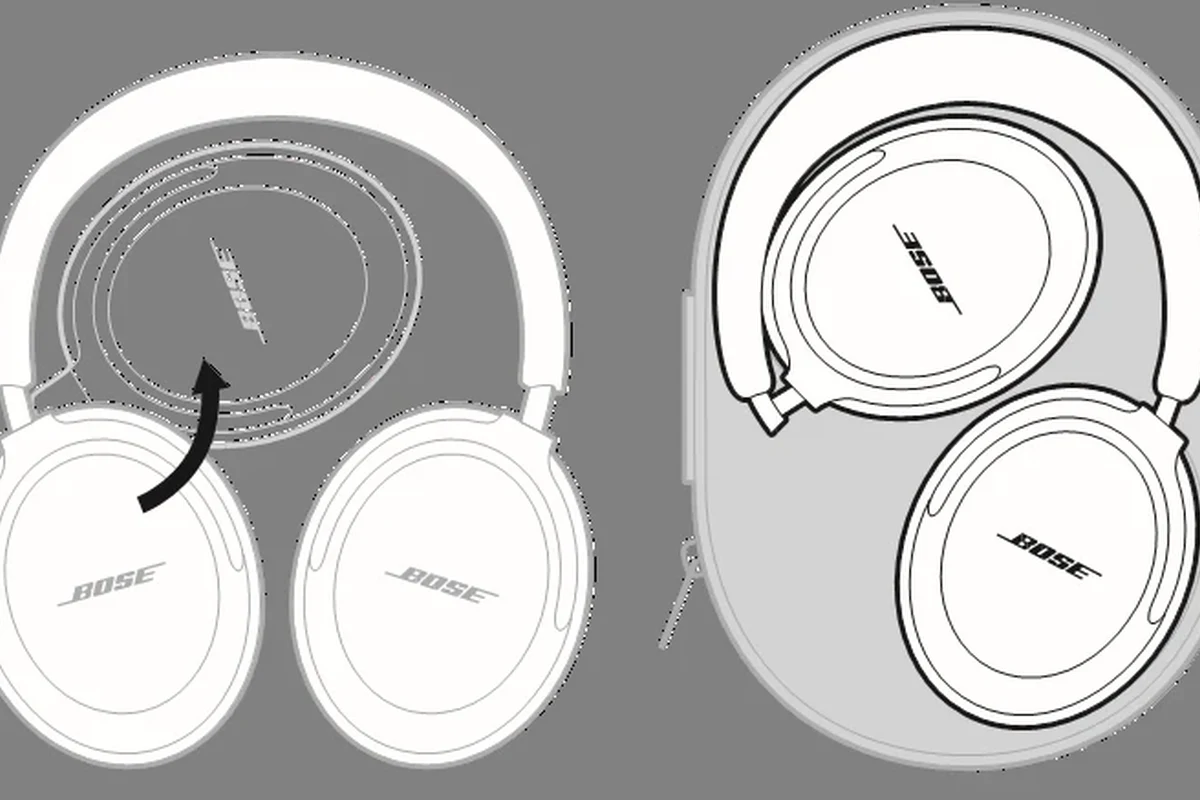
Before starting an update, make sure your Bose model supports app-based firmware updates and that your device is ready. Most update problems happen because the app is outdated, the battery is too low, or the internet connection is unstable.
Compatible Bose headphones and earbuds for 2026
In 2026, many current Bose wireless headphones and earbuds still use the Bose Music app for firmware management. Compatibility can vary by model and region, so it is always best to confirm support in the app or on Bose’s official product page for your exact device.
As a general rule, most newer Bose wireless headphones and earbuds are designed to update through the Bose app or a browser-based desktop updater. Older models may use a different support page or a separate update flow.
Required devices, Bose Music app, and internet connection
To update successfully, you typically need a phone or tablet, the Bose Music app, Bluetooth enabled, and a stable internet connection. A charged battery is important too, because the update process should not be interrupted.
Note
App names and update steps can change slightly by Bose model and software version, so follow the prompts shown on your screen.
How long a Bose firmware update usually takes
Most firmware updates take a few minutes, but the total time can vary depending on your model, internet speed, and whether the app needs to download a larger file first. If the headphones have not been updated in a while, the process may take longer than expected.
Key audio insight: most Bose updates are simple, but patience matters more than speed.A stable connection is usually more important than a fast one.
Step-by-Step: How to Update Bose Headphones Using the Bose Music App
For most users, the Bose Music app is the easiest update method. It keeps the process guided and reduces the chance of choosing the wrong file or update path.
Connecting your headphones to a phone or tablet
Turn on your Bose headphones and connect them to your phone or tablet through Bluetooth. If they are already paired, open the Bose Music app and confirm that the headphones appear in the device list.
If they do not show up right away, keep the headphones close to the phone, make sure Bluetooth is enabled, and check that the app has the permissions it needs to find nearby devices. If you need a refresher on pairing basics, see our guide on how to connect Bluetooth headphones.
Checking for available firmware updates
Open the Bose Music app and look for your headphones in the main device screen. In many cases, the app will automatically notify you if an update is available.
If no prompt appears, check the settings or product information section inside the app. Some updates are pushed quietly in the background and only appear when the app is fully connected and synced.
Firmware updates can sometimes fix small Bluetooth glitches without changing the way your headphones look or feel.
Installing the update safely without interruptions
Once the update starts, leave the headphones powered on and nearby. Do not close the app, move too far from the phone, or switch off Bluetooth unless the instructions specifically tell you to do so.
Keep the battery charged and avoid using the headphones heavily during installation. If the app asks you to wait, let it finish even if the progress bar seems slow. Interrupting firmware installation is one of the easiest ways to trigger an error.
Do not turn the headphones off or force-close the app during a firmware update. That can leave the update incomplete and cause pairing or startup problems.
Alternative Update Methods: Updating Bose Headphones on a Computer
If the app method is not working, Bose may also offer a computer-based update option for certain models. This is useful when a phone cannot complete the process or when the app keeps failing at the same step.
When the app method is not working
Try the computer method if the Bose Music app cannot detect your headphones, repeatedly stops downloading, or refuses to begin the update. This is also a good fallback if your phone storage is low or the app version is outdated.
Computer updates can be especially helpful for users who prefer a more direct connection and want to avoid wireless interruptions during installation.
Using a desktop browser and USB cable for manual updates
For supported models, Bose may provide a browser-based updater that runs on a desktop computer. In many cases, you connect the headphones with a USB cable, open the update page, and follow the on-screen instructions.
Use the exact cable recommended for your model and make sure the computer stays awake during the process. If the browser asks for permissions or device access, allow them so the updater can detect the headphones properly.
When a computer update is faster or more reliable
A computer update can be more reliable if your phone is unstable, your Bluetooth connection keeps dropping, or your mobile battery is too low. It may also be faster if the desktop has a stronger internet connection than your phone.
Audio Tip
If you are updating while troubleshooting sound problems, start with the app method first. Use the computer method when the app cannot finish the job or the headphones are not being recognized.
Common Update Problems and How to Fix Them
Most Bose update issues are simple connection or power problems rather than serious hardware failures. Before assuming something is wrong with the headphones, work through the basics carefully.
Update stuck, failed, or won’t start
If the update freezes, wait a few minutes before tapping anything. Some updates appear stalled while the file is still installing in the background.
If nothing changes, restart the app, reconnect the headphones, and try again with a stronger Wi-Fi signal. You can also power-cycle the headphones and phone, then relaunch the update process from the beginning.
Headphones not showing in the app
If the headphones do not appear in Bose Music, confirm that Bluetooth is on and that the headphones are in pairing mode if needed. Move closer to the phone and remove other nearby Bluetooth devices that may be causing confusion.
Also check whether the app needs an update itself. An outdated app can fail to recognize newer firmware or may not display the device correctly.
Bluetooth disconnects, battery issues, and reset steps
Frequent disconnects can interrupt an update, especially if the battery is low or the phone is switching between networks. Charge the headphones first and keep them near the phone or computer during the process.
If problems continue, a reset may help. If you need a separate walkthrough, our guide on how to reset Bluetooth headphones can help you clear common pairing issues before trying the update again.
Listening at high volumes for long periods can cause hearing damage. Keep volume at 60% or below for extended sessions.
Expert Advice: Mistakes to Avoid During a Bose Headphones Update
A careful update is usually a successful update. The biggest mistakes are often small ones, like using a weak battery, ignoring app updates, or assuming the process is done too early.
Why low battery and unstable Wi-Fi cause update errors
Firmware files need a stable connection to download and verify correctly. If your Wi-Fi keeps dropping, the update may pause, restart, or fail without finishing.
Low battery is just as risky because the headphones can shut off mid-installation. That can leave you stuck repeating the process or troubleshooting a device that no longer behaves normally.
Why you should not interrupt the firmware installation
Once the update begins, let it run until the app confirms completion. Avoid switching apps, disconnecting Bluetooth, or putting the headphones away too soon.
Even if the progress bar looks frozen, the update may still be working in the background. Patience is usually safer than restarting too quickly.
How to avoid outdated app versions and device compatibility issues
Before updating, make sure the Bose Music app is current on your phone or tablet. Older app versions may not support the latest firmware workflow or may display errors that look like headphone problems.
If your Bose headphones still fail to update after a reset, different device, and stable connection, contact Bose support or an audio specialist. If you notice unusual hearing discomfort, tinnitus, or ear pain while using headphones, speak with an audiologist.
Does Updating Bose Headphones Cost Anything? App vs. Service Comparison
In most cases, Bose firmware updates are free. You are usually only paying for your internet connection and the device you already own.
Free firmware updates and what is included
Firmware updates through the Bose Music app or official Bose update tools are generally included at no extra charge. These updates are meant to maintain and improve the product you already purchased.
That means you should not expect a separate software fee just to keep your headphones current. If a model supports updates, the firmware itself is normally part of Bose’s standard support process.
- Firmware updates are usually free through Bose’s official tools.
- App updates are the easiest option for most users.
- Computer updates help when the app fails or Bluetooth is unstable.
- Battery, Wi-Fi, and patience are the biggest success factors.
When repair, replacement, or support may add cost
Costs can appear if the headphones have a hardware problem, a damaged charging port, or a cable issue that prevents updating. In those cases, repair or replacement may be separate from the firmware itself.
Support costs can also vary depending on warranty status, model age, and region. If your update problem turns out to be a physical fault, Bose support may recommend a service path rather than another software attempt.
Final Recap: The Fastest Way to Keep Bose Headphones Updated in 2026
The fastest way to update Bose headphones in 2026 is still the Bose Music app, as long as your battery is charged and your connection is stable. If the app fails, switch to the computer method instead of repeatedly forcing the same error.
For most users, the best approach is simple: keep the app updated, use official Bose tools, and avoid interrupting the install. That combination gives you the smoothest path to better stability, fewer Bluetooth problems, and a more reliable listening experience.
Frequently Asked Questions
Not always, but checking occasionally is smart. Updates can fix bugs, improve Bluetooth stability, and keep the headphones compatible with the Bose app.
Some models support a computer-based update tool through a browser and USB cable. If your app is not working, that can be a useful backup.
Common causes include low battery, weak Wi-Fi, an outdated app, or a bad Bluetooth connection. Restarting the devices and trying again often helps.
Usually they improve stability more than sound tuning. Some updates may refine noise cancellation or playback behavior, but results can vary by model.
Look at comfort, weight, ear cushion material, battery life, and the type of fit. Personal comfort matters as much as sound quality for long use.
Wireless models are more convenient for travel and everyday use, while wired options can be simpler for some setups. For gaming, check latency, compatibility, and whether the model supports low-lag use.