How to Connect Headphones to Fire TV Easily and Fast

The easiest way to connect headphones to Fire TV is usually through Fire TV’s Bluetooth settings. If Bluetooth is unstable, use your TV’s headphone jack or audio output as a backup.
Connecting headphones to Fire TV is usually simple, but the best method depends on your TV setup, your headphones, and how much audio delay you can tolerate. For most viewers, Bluetooth is the fastest option, while wired TV audio and the Fire TV app can be useful backups when you want a more stable connection.
- Fastest method: Pair Bluetooth headphones directly in Fire TV settings.
- Best fallback: Use the TV’s headphone jack or audio output if available.
- Common issue: Bluetooth lag can affect movies and gaming.
- Best value: Start with built-in pairing before buying adapters.
- Safety tip: Keep long listening sessions at moderate volume.
How to Connect Headphones to Fire TV: What You Need to Know First
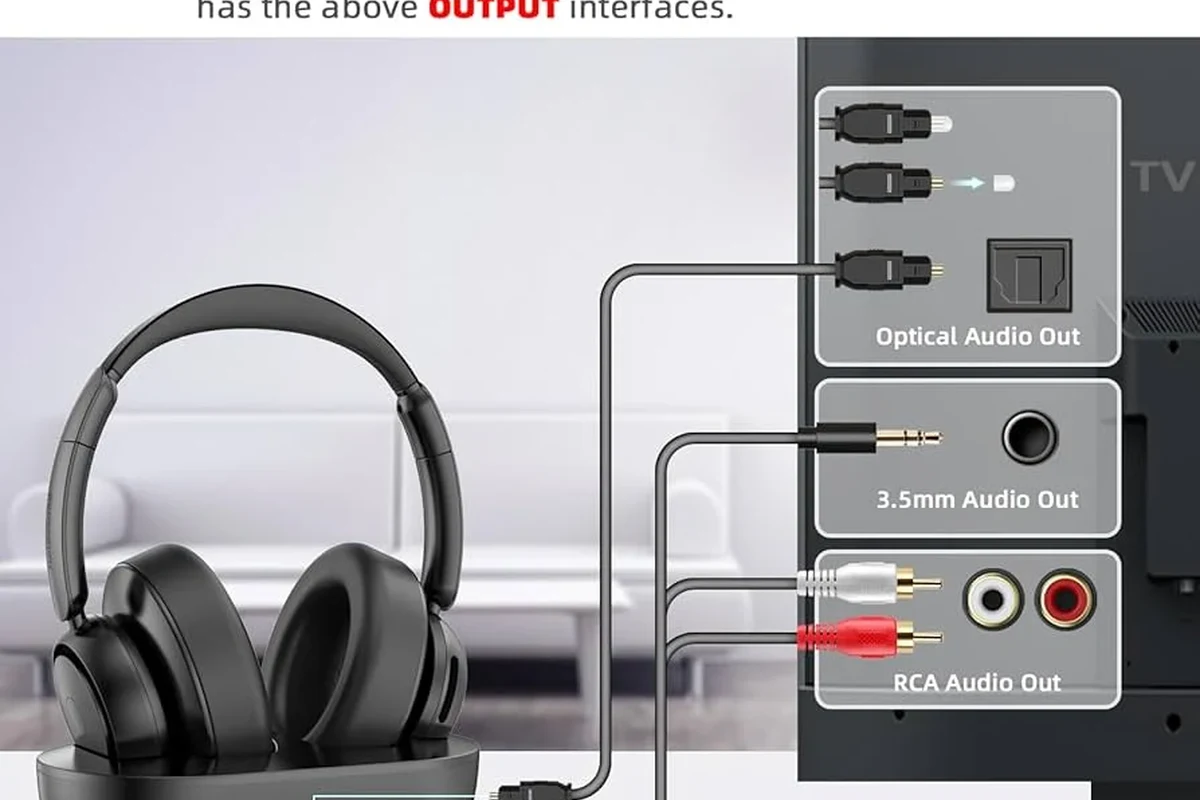
Before you pair anything, it helps to know that Fire TV can work with several audio paths. Some are built into the Fire TV device itself, while others depend on your television, soundbar, or adapter.
If you want a broader look at wireless audio basics, our guide on Bluetooth headphones explained simply can help you understand why pairing behavior varies from one model to another.
Why viewers want private listening on Fire TV in 2026
Private listening is popular because it keeps the room quiet while letting you watch late at night, in shared spaces, or without disturbing family members. It is also helpful if you prefer clearer dialogue at lower overall volume.
For many people, headphones can make streaming easier to enjoy, especially when the TV speakers are weak or the room has a lot of background noise. That said, comfort matters too, because long viewing sessions are much easier with lightweight headphones and soft ear cushions.
Supported headphone types: Bluetooth, wired, and TV-based options
Fire TV users usually have three main choices: Bluetooth headphones paired directly to Fire TV, wired headphones connected through the TV or an adapter, and audio routed through the Fire TV app or another device. Each method has trade-offs in convenience, latency, and sound quality.
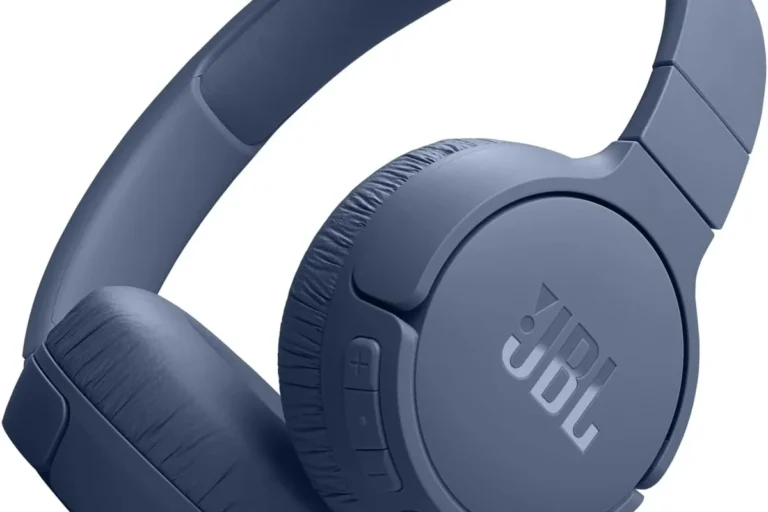
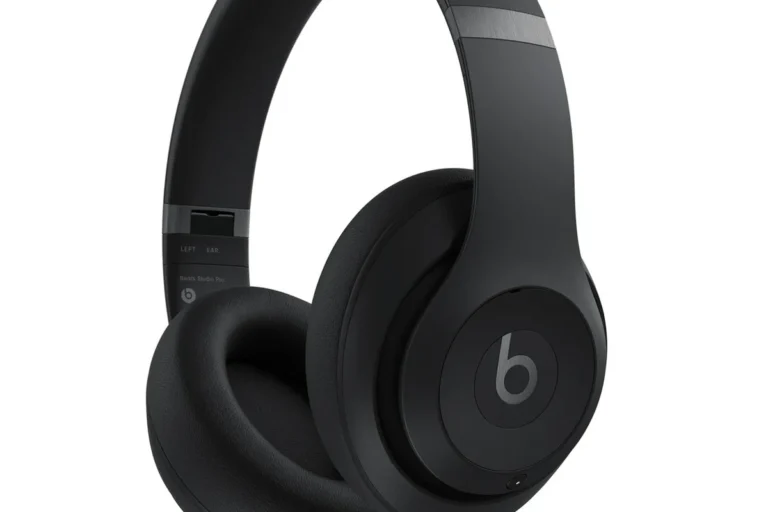
Bluetooth is the cleanest setup for most people, but wired listening can be more stable if your TV supports a headphone jack or audio-out port. If you are still deciding between styles, our types of headphones explained guide can help you compare over-ear, on-ear, earbuds, and other options for TV use.
Compatibility can vary by Fire TV model, TV brand, and headphone brand. If your setup uses a soundbar or external receiver, audio routing may behave differently than expected.
Fastest Ways to Pair Headphones with Fire TV
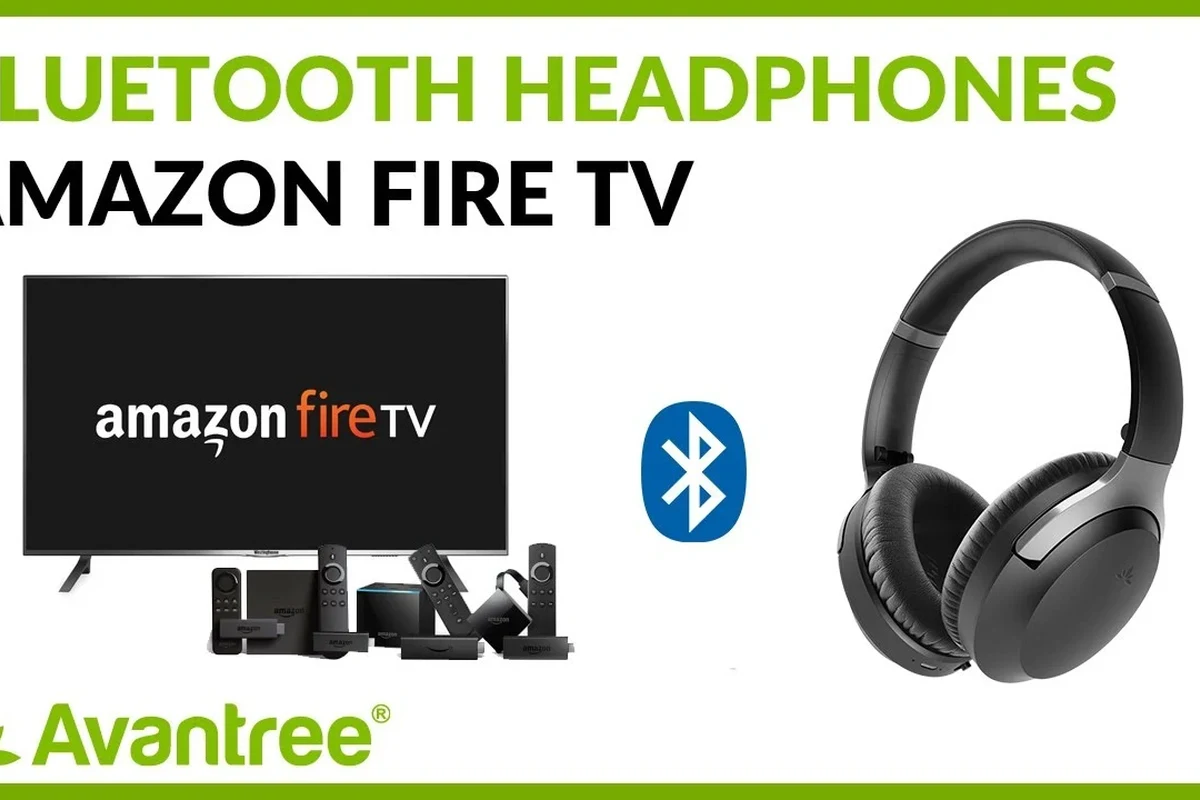
If your goal is speed, start with Fire TV’s built-in Bluetooth menu. That is the most direct way to connect wireless headphones without extra hardware.
Using Fire TV Bluetooth settings for quick pairing
Open Fire TV settings, go to controllers and Bluetooth devices, and search for nearby headphones. Once your headphones appear, select them and wait for the pairing confirmation.
This method is best when your headphones are already in pairing mode and close to the TV. If you need a refresher on pairing basics, our article on how to connect Bluetooth headphones covers the general process in a simple way.
Connecting through the Fire TV app and mobile device audio
Some viewers use the Fire TV mobile app or a phone-based audio route when they want a workaround for a tricky setup. This can be useful when the TV or streaming device is hard to reach, or when direct Bluetooth pairing is unreliable.
Still, this is usually less straightforward than pairing directly through Fire TV. It may also add extra steps and can vary depending on your phone, app version, and network setup.
When to use your TV’s headphone jack or Bluetooth output instead
Use the TV’s headphone jack or TV Bluetooth output when Fire TV itself does not support your preferred audio path, or when the TV handles sound more cleanly. This is especially helpful if you already use the TV’s audio settings for other devices.
Wired output is often the simplest backup for budget setups, while TV Bluetooth can be convenient if your television already manages all audio devices well. If you are comparing wired and wireless listening, the right choice often comes down to convenience versus latency.
If your headphones connect but sound feels delayed, check whether your TV or headphones offer a low-latency mode before buying extra accessories.
Step-by-Step Guide to Connecting Bluetooth Headphones to Fire TV
Direct Bluetooth pairing is the method most Fire TV owners should try first. It is quick, it avoids cables, and it works well for casual TV watching when the connection is stable.
Put your headphones in pairing mode
Turn on your headphones and activate pairing mode according to the manufacturer’s instructions. Usually, this means holding the power button or a Bluetooth button until the indicator light flashes.
Keep the headphones close to the Fire TV device or television during setup. If they are too far away, the TV may not detect them right away.
Open Fire TV settings and find controllers and Bluetooth devices
From the Fire TV home screen, open Settings, then go to Controllers and Bluetooth Devices. Choose Other Bluetooth Devices or the closest matching menu item on your version of Fire TV.
The exact wording can vary slightly by device, but the path is usually easy to find once you are in the Bluetooth menu. If your remote menus look different after an update, that is normal.
Select your headphones and confirm the connection
When your headphones appear in the list, select them and wait for the pairing confirmation. In many cases, Fire TV will remember the headphones and reconnect automatically later.
If the connection fails, try turning Bluetooth off and back on, then repeat the pairing process. A reset may also help if the headphones are already linked to another device.
Test volume, latency, and audio sync after pairing
After pairing, play a movie or show with clear dialogue and check whether the sound matches the picture. If the voices lag behind the lips, you may be dealing with Bluetooth delay rather than a broken connection.
Also test volume levels, because some headphone models sound quieter on TV than they do on phones or laptops. For long sessions, keep the volume at a safe level and use comfort-focused headphones if you plan to watch for hours.
Listening at high volumes for long periods can cause hearing damage. Keep volume at 60% or below for extended sessions.
Best Headphone Setup Options for Different Fire TV Users
The best Fire TV headphone setup depends on whether you care most about movie sound, gaming delay, budget, or premium features. There is no single best choice for everyone.
Best for movies and binge-watching: low-latency wireless headphones
For movies and TV series, low-latency wireless headphones are often the most enjoyable choice because they reduce the chance of lip-sync mismatch. They are also more comfortable than wired setups for many viewers.
Look for headphones that are known for stable Bluetooth performance and easy pairing. Features like ANC can be useful in noisy homes, though the best fit still depends on your listening environment.
Best for gaming: headphones with minimal audio delay
If you use Fire TV for cloud gaming, casual gaming apps, or streaming game content, audio delay matters more than it does for regular shows. Even a small lag can make action scenes or gameplay feel off.
In this case, prioritize low-latency wireless models or a wired setup through the TV if your display supports it. If you want to understand why delay happens, our guide to Bluetooth headphone lag fix is a useful companion read.
Best budget option: wired headphones through the TV or adapter
Wired headphones are often the most affordable route if your TV has a headphone jack or if you already own a compatible adapter. They also avoid Bluetooth pairing problems and battery charging concerns.
The downside is that cables can limit movement, and some newer TVs no longer include a dedicated headphone port. In that case, you may need an adapter, which adds a little cost and setup time.
Best premium option: Bluetooth headphones with multipoint and ANC
Premium Bluetooth headphones can be a great fit if you switch between Fire TV, phone, and tablet often. Multipoint support makes that easier, and ANC can help block household noise during late-night viewing.
These models usually cost more, but they can be worth it if you value convenience and comfort. Sound quality may also feel more refined, though personal preference matters more than marketing claims.
Common Problems When Connecting Headphones to Fire TV
Most Fire TV headphone problems are fixable, and many come down to pairing conflicts, weak Bluetooth signals, or outdated software. A few simple checks usually solve the issue.
Headphones not showing up during pairing
If your headphones do not appear, make sure they are actually in pairing mode and not just powered on. Also check whether they are still connected to a phone, laptop, or another TV nearby.
Restarting both the Fire TV device and the headphones can help. Moving other Bluetooth accessories farther away may also improve detection.
No sound or audio cutting out after connection
No sound after pairing can happen when the Fire TV audio output is still set to the TV speakers or another device. Check the audio output menu and confirm that the headphones are the active output.
Audio dropouts can be caused by distance, interference, or a weak battery in the headphones. If the problem continues, try re-pairing the device or testing another pair of headphones.
Bluetooth lag and lip-sync issues
Bluetooth lag is one of the most common complaints when using headphones with TV streaming. Some delay is normal, but it should not be extreme enough to ruin dialogue.
Try moving closer to the TV, reducing interference, or using a lower-latency headphone model. If your TV offers audio delay settings, those can sometimes help too.
Volume too low or one ear not working
Low volume may be caused by the headphone’s own volume setting, the Fire TV volume control, or the TV’s audio output level. Check all three before assuming the headphones are faulty.
If one ear is silent, test the headphones on another device to see whether the problem is with the headphones or the Fire TV setup. A damaged cable, dirty connector, or audio balance setting can also cause uneven sound.
If you regularly notice ringing, pressure, or discomfort after headphone use, consult an audiologist. Persistent issues can point to hearing sensitivity, volume habits, or a fit problem that is worth addressing early.
Expert Advice: Mistakes to Avoid When Using Headphones with Fire TV
A few common mistakes can make Fire TV headphone setups feel more frustrating than they should be. Avoiding them can save time and improve audio reliability.
Why outdated Fire TV software can cause pairing issues
Old Fire TV software can create Bluetooth bugs, menu problems, or device recognition issues. If pairing keeps failing, check for updates before trying more complicated fixes.
Software updates can also improve stability with newer headphones, so keeping the system current is a smart first step. This is one of the easiest ways to prevent avoidable connection trouble.
Why some TVs, soundbars, and remotes interfere with Bluetooth audio
Bluetooth interference can come from nearby soundbars, wireless controllers, gamepads, or even other household devices. In some setups, the TV and Fire TV may both try to manage audio output at the same time.
If you have a soundbar connected, test whether it changes the behavior of your headphones. Sometimes the simplest fix is switching audio routing or temporarily disconnecting another device during setup.
Warning about cheap adapters and unsupported wireless transmitters
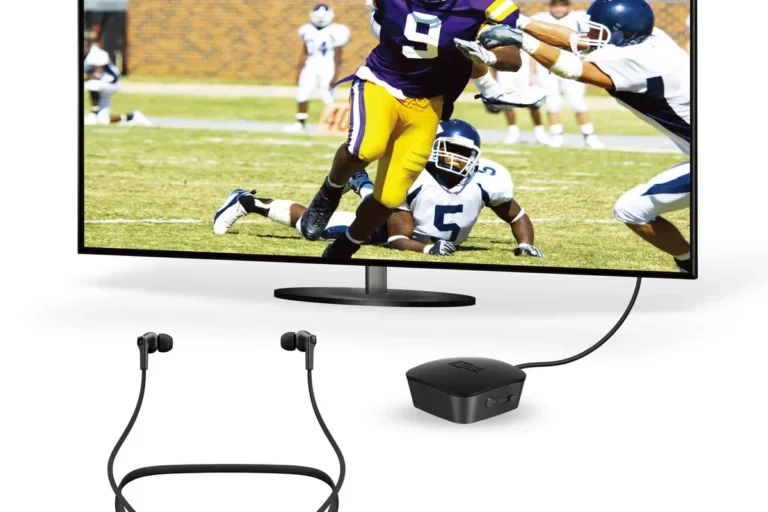
Cheap adapters may work at first but can introduce noise, delay, or unreliable pairing. Unsupported transmitters can also create confusing audio behavior if they are not designed for your TV or Fire TV setup.
It is usually better to buy a trusted adapter only if you truly need one. Otherwise, direct Bluetooth pairing or a simple wired connection is often the cleaner solution.
Not every adapter or transmitter works well with every TV. Check compatibility carefully before buying, especially if your setup includes ARC, eARC, or a soundbar.
Cost and Value: Which Headphone Connection Method Makes the Most Sense?
When choosing how to connect headphones to Fire TV, think about the total value of the setup, not just the upfront price. Convenience, audio quality, and reliability all matter.
Free Bluetooth pairing vs. paid adapters and accessories
Bluetooth pairing is often the best value because it costs nothing extra if your headphones already support it. Paid adapters can help in special cases, but they are not always necessary.
If your TV lacks a headphone jack or has weak Bluetooth performance, an adapter may be worth it. Otherwise, free built-in pairing is usually the simplest and most practical starting point.
When it is worth upgrading to low-latency or premium headphones
Upgrade when you watch a lot of movies, care about lip-sync, or want a more comfortable fit for long sessions. Premium headphones can also be worth it if you switch between multiple devices often.
For casual viewing, though, a basic Bluetooth pair may be enough. The best upgrade is the one that solves a real problem instead of adding features you will rarely use.
Comparing convenience, sound quality, and setup complexity
Bluetooth wins on convenience, wired wins on simplicity and stability, and premium headphones win on comfort and features. The right answer depends on whether you value quick setup or the most consistent audio path.
If you want the least hassle, start with direct Bluetooth pairing. If you want the most dependable sound, especially for long-term TV watching, wired through the TV can still be a very smart choice.
Final Recap: The Easiest Way to Connect Headphones to Fire TV
For most people, the easiest way to connect headphones to Fire TV is direct Bluetooth pairing through the Fire TV settings menu. It is fast, built in, and usually the cleanest private-listening option.
Quick summary of the best method for most users
Start with Bluetooth if your headphones support it, then fall back to your TV’s headphone jack or audio output if pairing is unstable. If you game or notice delay, prioritize low-latency headphones or wired listening.
Final tips for smoother, private listening on Fire TV
Keep your Fire TV updated, place headphones close during pairing, and check for interference if the connection drops. For comfort and hearing safety, choose a fit that feels good and keep listening levels moderate during long sessions.
Frequently Asked Questions
Wireless headphones are more convenient, while wired headphones usually give a more stable connection. If you want less delay, wired can be the safer choice for TV and gaming.
Yes, noise cancelling headphones can work very well for Fire TV, especially in noisy homes. They help reduce background sound, but comfort and latency still matter.
Closed-back headphones are usually better for Fire TV because they block more outside noise and keep sound private. Open-back models can sound spacious, but they leak sound and are less ideal for shared rooms.
Look at connection type, latency, comfort, and battery life before focusing on specs like drivers or frequency response. For TV use, clarity and low delay often matter more than big bass claims.
Pick headphones with low latency, a comfortable fit, and clear dialogue or positional audio. If delay bothers you, wired or low-latency wireless models are usually the better fit.
Check ear cushion material, clamping force, weight, and build quality for long viewing sessions. A comfortable fit matters more than flashy features if you watch for hours at a time.