How to Connect Bluetooth Headphones to Samsung TV Easily

Open the Samsung TV sound settings, put your headphones in pairing mode, and select them from the Bluetooth audio list. If your TV does not support direct Bluetooth audio, use a Bluetooth transmitter connected to the TV’s audio output.
If you want private TV listening without disturbing anyone else, learning how to connect bluetooth headphones to samsung tv is usually straightforward on newer models. The exact steps depend on your TV’s Bluetooth support, your headphone type, and whether you need a transmitter workaround for older sets.
- Check support first: Not every Samsung TV has native Bluetooth headphone audio.
- Pair from sound settings: Use the TV’s Bluetooth speaker or sound output menu.
- Use a transmitter if needed: Older TVs often need an external Bluetooth adapter.
- Watch for latency: Low-delay support matters most for gaming and lip-sync.
How to Connect Bluetooth Headphones to Samsung TV: What You Need to Know First
Before you start pairing, it helps to know that not every Samsung TV handles Bluetooth audio the same way. Some models support headphones directly in the settings menu, while others only support Bluetooth remotes, keyboards, or sound devices in limited ways.
In practice, the easiest setup is a Samsung TV with built-in Bluetooth audio and a pair of headphones already in pairing mode. If your TV is older or the Bluetooth menu is missing, you may need a transmitter that plugs into the TV’s audio output.
Audio Tip
For the smoothest first-time pairing, keep your headphones close to the TV and disconnect them from phones, tablets, or laptops before you begin.
Which Samsung TV Models Support Bluetooth Headphones?
Many newer Samsung smart TVs support Bluetooth headphones, but support can vary by model year and software version. If you are unsure, check the TV’s sound settings or user manual before buying new headphones for TV use.
Samsung’s Bluetooth implementation can also differ by region and by series, so the menu path may not look identical on every set. That is why it is worth confirming compatibility before troubleshooting a pairing problem that may simply be a model limitation.
How to check Bluetooth compatibility in your TV settings
Open the Samsung TV settings menu and look for Sound, Sound Output, or Bluetooth Speaker List. If you see a Bluetooth audio or headphone option, your TV likely supports direct pairing.
You can also check the TV manual, the model page, or the on-screen help section. If the TV only lists Bluetooth for remotes or accessories, it may not support headphone audio directly.
- Sound output options in the TV menu
- Bluetooth audio or speaker list availability
- TV model year and user manual
- Whether the TV supports headphone pairing specifically
Older Samsung TVs and when you may need a workaround
Older Samsung TVs often do not include native Bluetooth audio support. In that case, the TV may still work with wireless headphones if you add an external Bluetooth transmitter.
This is a common fix for people who want to keep using an older TV instead of replacing it. It is also helpful if you want a more stable connection than a built-in menu that only supports certain devices.
Step-by-Step: How to Pair Bluetooth Headphones with a Samsung TV
The pairing process is usually simple once both devices are ready. The key is to put the headphones into pairing mode first, then open the Samsung TV’s Bluetooth audio menu and select the headset when it appears.
If you are comparing different headphone styles for TV use, our guide on how to connect Bluetooth headphones covers the general pairing process across devices, while this article focuses on Samsung TV-specific steps.
Using the Samsung TV Bluetooth menu
Press and hold the Bluetooth or power button until the indicator light flashes or you hear a pairing prompt. If you are not sure how, check the headphone manual.
On the Samsung TV remote, go to Settings, then Sound, and look for Sound Output or Bluetooth Speaker List.
Choose the headphone name when it appears on screen, then confirm pairing if the TV asks for approval.
Play a movie, show, or game and make sure sound is coming through the headphones instead of the TV speakers.
Note
Menu names can vary slightly depending on your Samsung TV model, software version, and region. If you do not see the exact option listed above, look for a similar sound output or Bluetooth audio setting.
Pairing wireless earbuds, over-ear headphones, and gaming headsets
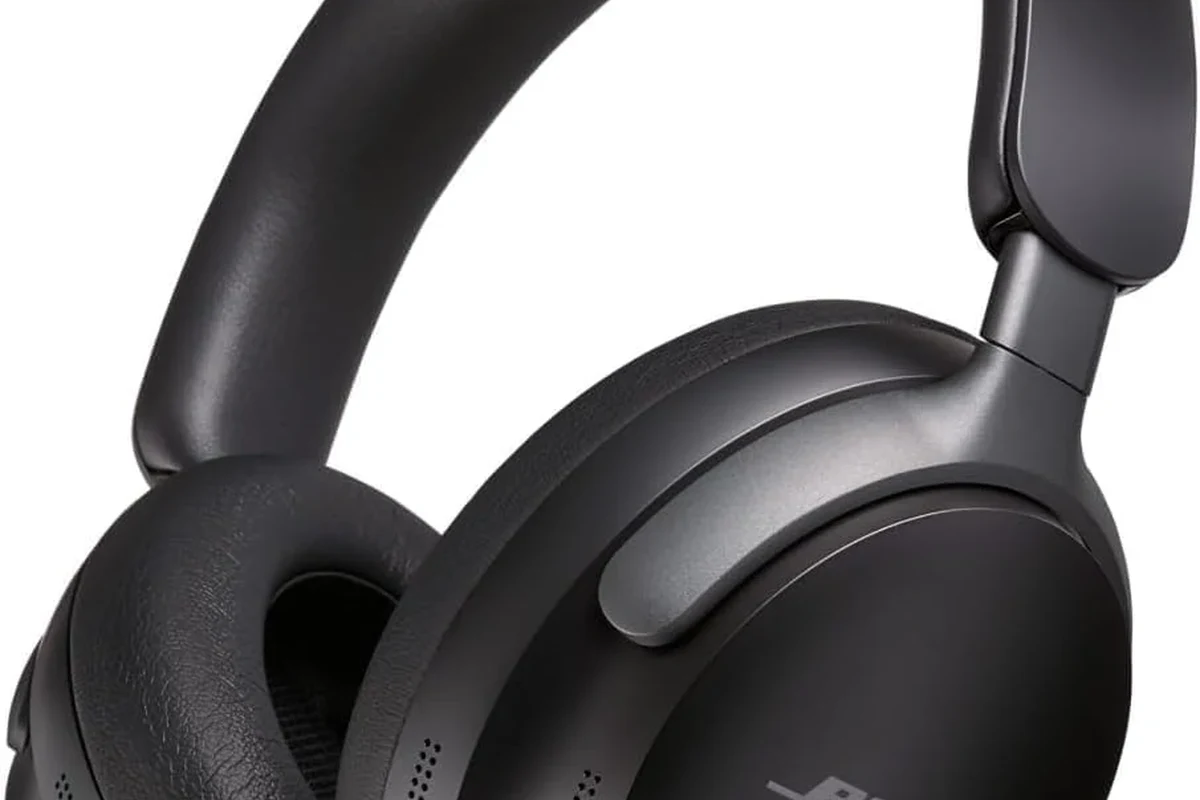
Wireless earbuds are usually the easiest to pair because they often enter pairing mode quickly and reconnect automatically. Over-ear headphones can be more comfortable for long TV sessions, especially if you watch movies or sports for hours.
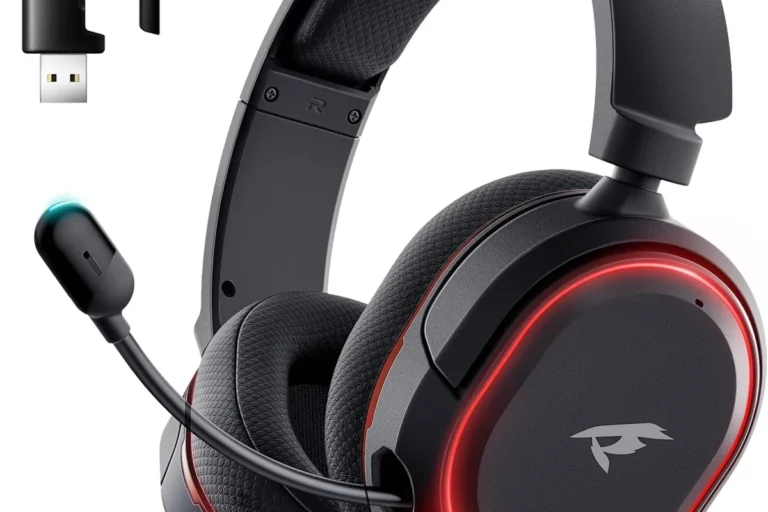
Gaming headsets can also work well with Samsung TVs, but some are optimized for low-latency gaming on consoles or PCs rather than televisions. If you use a headset with a USB dongle, check whether the TV supports that type of connection before assuming it will work.
Closed-back over-ear headphones often feel better for TV listening in shared rooms because they block more outside noise and leak less sound.
What to Do If Your Samsung TV Does Not Detect Your Headphones
If your Samsung TV cannot find your headphones, the issue is usually simple: the headphones are not in pairing mode, another device is already connected, or the TV’s Bluetooth audio feature is unavailable. Start with the basics before assuming the headset is defective.
It can also help to move closer to the TV, since pairing is sometimes more reliable at short range. If you want to understand Bluetooth behavior in more detail, our article on Bluetooth headphones explained simply breaks down how wireless connections work in everyday use.
Common pairing mistakes that block connection
A very common mistake is leaving the headphones connected to a phone, laptop, or tablet. If that happens, the TV may not detect them because the headphones are already busy with another device.
Another issue is using the wrong mode. Some headphones have a power-on mode and a separate pairing mode, and only pairing mode makes the headset visible to the TV.
If the TV sees other Bluetooth devices but not your headphones, the headset may need to be reset or removed from its previous paired devices list before trying again.
Resetting devices and re-entering pairing mode
If pairing still fails, turn both devices off and back on, then try again. Many headphones also benefit from a reset if they have been paired with several devices over time.
For a more detailed reset process, see our guide on how to reset Bluetooth headphones. A reset can clear old connections and make a stubborn headset easier for the TV to find.
Best Workarounds for Samsung TVs Without Native Bluetooth Audio
If your Samsung TV does not support direct Bluetooth headphone audio, the most reliable fix is usually a Bluetooth transmitter. This small device receives audio from the TV and sends it to your headphones wirelessly.
That solution is especially useful if you want to keep using an older TV, or if the built-in Bluetooth menu is limited. It can also improve compatibility with a wider range of headphones than the TV supports on its own.
Using a Bluetooth transmitter for TV audio
A Bluetooth transmitter plugs into the TV’s audio output and broadcasts sound to your headphones. Depending on the transmitter, you may use optical audio, AUX, or sometimes USB power for the device itself.
This setup is common for people who want a simple wireless upgrade without replacing the TV. It is also a good option for families who want private listening at night.
Comparing optical, AUX, and USB transmitter setups
Optical connections are often preferred for TVs because they are stable and designed for audio output. AUX is simpler on some older sets, while USB is usually used for power rather than carrying the audio signal.
If you are choosing between wired and wireless audio paths, our comparison of Bluetooth vs wired headphones sound quality is a useful reference. In general, wired paths can be more consistent, while Bluetooth adds convenience and mobility.
| Model | Best For | Price Range |
|---|---|---|
| Bluetooth transmitter with optical input | Most Samsung TVs with optical out | Varies |
| Bluetooth transmitter with AUX input | Older TVs with headphone jack or line out | Varies |
| USB-powered transmitter | Compact setups and easy power | Varies by brand |
How to Fix Audio Delay, Dropouts, and Low Volume Issues
Once your headphones are connected, the next challenge is often sound quality rather than pairing. Audio delay, dropouts, and low volume can make TV watching frustrating even when the connection technically works.
These issues usually depend on headphone codec support, TV processing, distance, and interference from other wireless devices. The good news is that many problems can be reduced with the right settings or hardware.
Understanding latency with movies and gaming
Latency is the delay between what you see on screen and what you hear in your headphones. For movies, a small delay may be tolerable, but for gaming it can be much more noticeable.
If you play games on a Samsung TV, choose headphones or transmitters that are known for lower delay when possible. Even a good-sounding headset can feel off if the audio does not stay in sync with the action.
Expert advice: when aptX Low Latency or LE Audio matters
Some headphones and transmitters support lower-latency Bluetooth options such as aptX Low Latency or newer LE Audio features, but support depends on both devices. If only one side supports the feature, you may not get the full benefit.
If you have persistent lip-sync problems, frequent dropouts, or hearing concerns, consider an audiologist for volume-related issues or a professional audio specialist for transmitter and codec troubleshooting.
Protect Your Hearing
Listening at high volumes for long periods can cause hearing damage. Keep volume at 60% or below for extended sessions.
Choosing the Right Bluetooth Headphones for Samsung TV Viewing
The best TV headphones are not always the most expensive ones. For Samsung TV use, comfort, battery life, stable connection, and clear dialogue often matter more than flashy features.
Over-ear headphones are often the safest all-around choice for long viewing, while earbuds are more compact and convenient. If you are comparing styles, our general guide to types of headphones explained can help you narrow down the fit that matches your room and listening habits.
Features that improve comfort, range, and lip-sync performance
Look for soft ear cushions, a light headband, and a fit that does not pinch during long sessions. If you watch TV from a couch at a distance, reliable wireless range is also important.
For sound quality, strong dialogue clarity is often more useful than exaggerated bass. A mild EQ boost in the midrange can help voices stand out in movies and shows, especially if background effects are too heavy.
- Comfort for long sessions
- Wireless range in your room
- Dialogue clarity and midrange balance
- Low-latency support if you game
Price vs. performance: budget, midrange, and premium options
Budget headphones can work well for casual TV watching if the fit and connection are reliable. Midrange models often offer a better balance of comfort, battery life, and sound quality for everyday use.
Premium models may add stronger noise cancellation, better materials, and more refined sound, but those extras are not always necessary for TV listening. The right choice depends on your room, your hearing preferences, and whether you also want the headphones for travel or gaming.
- Samsung TVs with Bluetooth audio can pair directly from the Sound menu.
- Older TVs may need a Bluetooth transmitter for wireless headphones.
- Low latency and comfort matter most for movies and gaming.
- Choose headphones based on fit, clarity, and stable range, not just brand name.
Final Recap: The Easiest Way to Enjoy Private TV Listening on Samsung TVs
The easiest way to connect Bluetooth headphones to a Samsung TV is to use the TV’s Bluetooth audio menu, put the headphones in pairing mode, and select them from the sound output list. If your model does not support direct pairing, a Bluetooth transmitter is usually the best workaround.
For most people, the best TV headphone setup is one that stays comfortable, keeps voices clear, and avoids noticeable delay. If you choose the right model and connection method, Samsung TV listening can be private, simple, and much more enjoyable.
Frequently Asked Questions
Wireless headphones are more convenient and keep you untethered from the couch. Wired headphones can be simpler and may avoid Bluetooth delay, but they depend on your TV’s audio outputs.
Yes, noise cancelling headphones can help reduce background sounds like fans or household noise. They are especially useful in shared spaces, but comfort and dialogue clarity still matter more than brand features.
Closed-back headphones are usually better for TV because they block more outside noise and leak less sound. Open-back headphones can sound spacious, but they are less practical in a living room or shared home.
Over-ear headphones are usually the most comfortable for long sessions because they spread pressure over a larger area. In-ear earbuds are compact, while on-ear models can feel lighter but may become uncomfortable over time.
Check battery life, comfort, Bluetooth version, latency support, and whether the headphones stay stable across room distance. If you care about sound quality, look for clear mids and balanced bass rather than boosted low end only.
Try adjusting the TV volume, headphone volume, and any EQ settings to improve dialogue clarity. If the sound still feels delayed or uneven, a lower-latency transmitter or better-supported Bluetooth codec may help.