Does Apple Headphones Work on PC A Complete Guide

Yes, Apple headphones usually work on a PC for listening, and many models also work for calls and microphone use. The experience is best with wired EarPods or simple Bluetooth pairing, but some Apple-only features may not work on Windows.
If you are wondering does apple headphones work on pc, the short answer is yes in most cases. Apple headphones can work on a Windows PC for listening, and many models also support calls and microphone use, but some Apple-only features will not carry over.
- Compatibility: Most Apple headphones work on PC for basic audio.
- Best connection: Wired EarPods are usually the simplest option.
- Wireless use: AirPods and Beats can pair over Bluetooth.
- Limitations: Some Apple features do not transfer well to Windows.
Does Apple Headphones Work on PC? Understanding the Real Compatibility
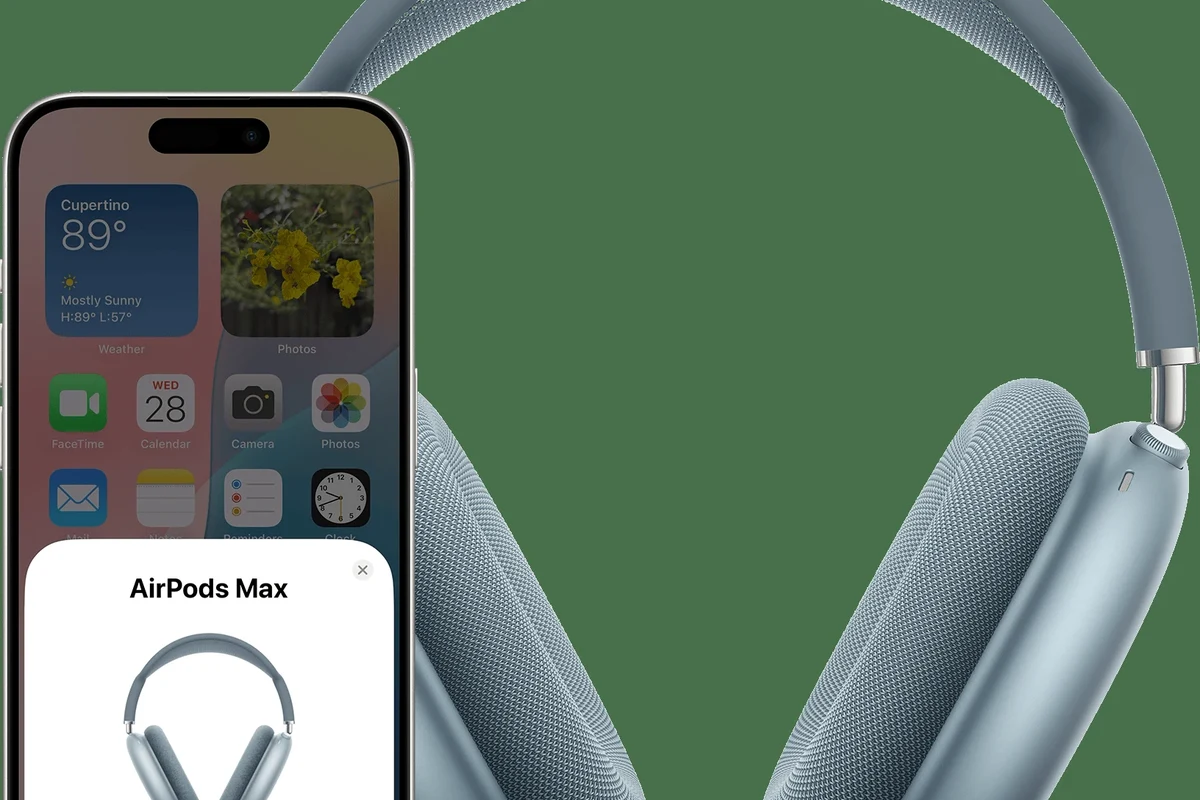
Apple headphones are generally compatible with PCs, but the experience depends on which model you have and how you connect it. A simple wired setup is usually the easiest, while wireless models need Bluetooth support and may have a few extra limitations.
For most people, the real question is not whether they connect at all, but how well they work for music, meetings, gaming, and everyday use. That is where the differences between EarPods, AirPods, and Beats start to matter.
What “Apple headphones” usually means in 2025: EarPods, AirPods, and Beats
When people say Apple headphones, they usually mean one of three things: wired EarPods, AirPods, or Beats headphones and earbuds. Each one connects a little differently on PC, and each one has different strengths.
EarPods are the easiest to understand because they are wired. AirPods and most Beats models are wireless and rely on Bluetooth, which makes them convenient but sometimes less predictable on Windows.
Why PC users search this question before buying or connecting
Many PC users ask this before buying because they already own Apple headphones and want to reuse them. Others are trying to avoid buying a second headset for work calls, school, or casual gaming.
It is also a common question because Apple products are often associated with the Apple ecosystem, so people assume they may not work well outside it. In reality, basic audio support is usually fine, but advanced features can be limited on Windows.
How Apple Headphones Connect to a PC: Wired vs Wireless Setup

The connection method matters more than the brand name. Wired Apple headphones usually work like standard headphones, while wireless models depend on your PC’s Bluetooth hardware and Windows settings.
Using a 3.5mm jack with EarPods and older Apple headphones
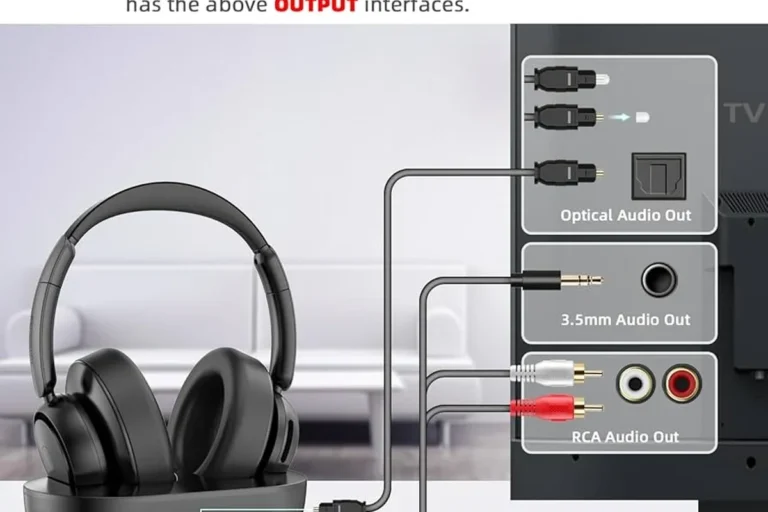
Many wired Apple EarPods can plug directly into a PC’s 3.5mm headphone jack if your computer has one. In that case, they should work for audio output right away, and the microphone may also work if the plug and port support headset audio.
Some desktop PCs separate headphone and mic ports, so you may need a splitter or the correct combo jack. If the sound is weak or the mic does not appear, check the port type before assuming the headphones are broken.
Wired compatibility depends on the exact EarPods version, the PC port, and whether your device supports headset mic input through the same jack.
Pairing AirPods or Beats over Bluetooth on Windows PCs
AirPods and many Beats models can connect to a Windows PC over Bluetooth just like other wireless headphones. Once paired, they usually work for music, video, and calls without much trouble.
If you want a deeper explanation of wireless setup basics, our guide to how to connect Bluetooth headphones is a useful place to start. For general wireless behavior, it also helps to understand Bluetooth headphones explained simply.
USB-C and Lightning adapters: when they help and when they do not
Adapters can help in some situations, but they do not solve every compatibility issue. A USB-C or Lightning adapter may be useful for charging or for certain dongle-based audio setups, but it will not magically add Apple-only features to Windows.
If your goal is simple playback, adapters may not be necessary at all. If your goal is using a specific Apple accessory with a PC, always check whether the adapter supports audio, data, or only charging.
Will Apple Headphones Work on PC for Audio, Calls, and Mic Use?
In most cases, yes. Apple headphones can usually handle music, videos, and even voice calls on a Windows PC, but microphone quality and app behavior can vary by model and software.
Listening to music, videos, and games: what works right away
For basic listening, Apple headphones are often plug-and-play on PC. Wired EarPods are especially straightforward, and AirPods or Beats usually work once Bluetooth pairing is complete.
This makes them fine for YouTube, streaming, casual gaming, and background music. If the sound seems off, it is often a Windows output setting rather than a headphone problem.
Microphone support on Windows: what to expect from EarPods and AirPods
Mic support can be hit or miss depending on the model and the app. Wired EarPods may work well if your PC recognizes the headset mic properly, while AirPods often switch to a lower-quality microphone mode during calls.
That does not mean they are unusable. It just means the mic experience on Windows may not be as smooth as it is on an iPhone or Mac.
Why call quality can differ in Zoom, Teams, Discord, and browser apps
Call quality depends on the app, Bluetooth profile, and your PC’s audio settings. Some apps handle wireless headsets better than others, and browser-based meetings can behave differently from desktop apps.
If you run into crackling, low mic volume, or a muffled voice, the issue may be the software route rather than the headphones themselves. For sound issues that seem unclear, our guide on why headphones sound muffled can help you narrow down the cause.
Listening at high volumes for long periods can cause hearing damage. Keep volume at 60% or below for extended sessions.
Step-by-Step: How to Get the Best Results on a Windows PC
You do not need special software for most Apple headphones on PC, but a few setup steps can make the experience much better. The goal is to make sure Windows is sending audio to the right device and using the correct microphone.
Quick setup for wired Apple EarPods on a desktop or laptop
Start by plugging the EarPods into the correct audio jack. If your laptop has a combo headphone/mic port, the headphones may work immediately; if not, you may need a splitter or a USB audio adapter.
Then open Windows sound settings and confirm both the output and input devices. If the mic does not show up, try another port or test the headphones on a different device to rule out a hardware mismatch.
Use the correct 3.5mm jack or adapter for your PC.
Choose the headphones as output, and choose the mic if it appears.
How to pair AirPods with Windows 10 and Windows 11
Open Bluetooth settings on your PC, put your AirPods into pairing mode, and select them from the available devices list. Once paired, they should appear as an audio device in Windows.
If you need more detail on choosing the right output device after pairing, our article on select headphones in Windows 11 may help. If you are using the newer interface, the guide to select headphones in Windows 11 2 covers the same basic idea in a practical way.
How to switch input and output devices in sound settings
After connecting, always check both playback and recording settings. Windows may choose the wrong output device, especially if you have speakers, a monitor, and headphones connected at the same time.
In meetings, the input device matters just as much as the output. If the wrong microphone is selected, your voice may be quiet, distorted, or not heard at all.
If your AirPods sound fine for music but not for calls, check whether the app is using the headset mic or your laptop’s built-in microphone.
Common Problems and Mistakes When Using Apple Headphones on PC
Most issues are simple setup problems, not major compatibility failures. Still, wireless latency, wrong device selection, and feature limitations can make Apple headphones feel less polished on Windows than on Apple devices.
Bluetooth lag, dropouts, and unstable connections
Bluetooth headphones can sometimes lag, disconnect, or stutter if the signal is weak or the PC’s Bluetooth adapter is not very strong. This is more noticeable in gaming, video editing, and fast-paced content.
If you want a broader explanation of wireless delay, our Bluetooth headphone lag fix guide is a good reference. In some cases, a wired connection will simply be more stable than Bluetooth.
Mic not detected, wrong audio profile, or low volume issues
One common mistake is assuming the headphones are faulty when Windows has actually selected the wrong profile. With Bluetooth headsets, Windows may switch between a high-quality listening mode and a lower-quality call mode.
Low volume can also come from app settings, system volume, or headset profile behavior. If the sound seems dull, check whether you are in a call mode before adjusting the headphones themselves.
Forgetting that some Apple features do not transfer to PC
Many users expect full Apple ecosystem behavior on Windows, but that is not realistic. Features like automatic switching between devices, Siri integration, and some spatial audio experiences may be limited or unavailable.
If you are comparing different headphone types, our article on types of headphones explained can help you decide whether a wireless earbud, over-ear headset, or wired option fits your PC use better.
Expert Advice: Features That Work, Features That Don’t, and What to Avoid
The best way to think about Apple headphones on PC is this: they are usually good for core audio, but not always ideal for every advanced feature. That makes them convenient for some users and frustrating for others.
Warning about expecting full Apple ecosystem features on Windows
Windows does not provide the same seamless Apple ecosystem experience you get on iPhone, iPad, or Mac. Even when the headphones connect properly, the software integration is usually more basic.
That is why it is better to buy them for the sound and comfort you like, not for Apple-exclusive convenience on a PC.
Why automatic device switching, Siri, and spatial audio may be limited
Automatic device switching is one of the Apple features people miss most on Windows. Siri also does not function the same way, and spatial audio support may depend on the app, device, and content format.
If those features matter a lot to you, a PC-focused headset may be the better choice. If you mainly want simple playback and occasional calls, Apple headphones can still be perfectly usable.
If you have recurring hearing discomfort, tinnitus, or trouble understanding speech at normal volume, speak with an audiologist. For connection problems that persist across multiple devices, a professional PC or audio specialist can help rule out hardware issues.
Best settings and accessories for a smoother PC experience
A stable Bluetooth adapter, a USB audio dongle, or a simple headset splitter can improve your setup more than a software tweak. Good accessories often solve the practical problems that make Apple headphones feel awkward on PC.
For better sound shaping, you can also experiment with EQ. Our guide to best EQ settings for headphones can help if you want a little more clarity, bass control, or vocal focus.
Apple Headphones vs PC Headsets: Cost, Value, and Better Alternatives
Whether Apple headphones are a good value on PC depends on what you already own and how you plan to use them. If you already have them, the value is often excellent. If you are buying new specifically for PC, a dedicated headset may be smarter.
When Apple headphones are the cheaper option for PC use
If you already own EarPods, AirPods, or Beats, using them on PC can save money right away. That makes sense for students, remote workers, and casual users who just need a functional headset.
In that case, the cheapest solution is often the best one. You may not need to buy anything else unless you want better mic quality or more stable gaming performance.
When a dedicated PC headset gives better mic quality and comfort
A PC headset is often better if you spend hours in meetings, stream, or play multiplayer games. These headsets are usually designed with clearer voice pickup, longer wear comfort, and easier Windows compatibility.
They also tend to avoid some of the Bluetooth profile issues that wireless earbuds can run into. That can make them less glamorous, but more reliable.
Comparing wired EarPods, AirPods, and budget USB headsets
Wired EarPods are simple and inexpensive if you already have them, but they depend on the right port and may not always deliver the best mic experience. AirPods are convenient and portable, but Windows support is not as seamless as on Apple devices.
Budget USB headsets can be a strong middle ground because they often work more consistently on PC. If you are comparing wired and wireless sound behavior more broadly, our guide on wired vs wireless headphones is worth reading.
Final Recap: Should You Use Apple Headphones on a PC in 2025?
Yes, Apple headphones do work on PC in many everyday situations. The best results usually come from wired EarPods for simple plug-and-play use or AirPods and Beats for casual Bluetooth listening and calls.
Best use cases for casual listening, work calls, and light gaming
Apple headphones are a good fit for music, videos, online classes, and basic work meetings. They can also work for light gaming, especially if you are not sensitive to Bluetooth delay.
If your main priority is convenience and you already own the headphones, they are often a practical choice.
Clear takeaway on whether Apple headphones are worth it for PC users
If you want easy audio and already have Apple headphones, using them on PC makes sense. If you want the best mic quality, the most stable connection, or full-feature support, a PC-focused headset may be the better long-term choice.
So, does apple headphones work on pc? Yes, but the experience is best when you match the model to the job and keep your expectations realistic.
Frequently Asked Questions
Not always. Wired headphones usually give more stable audio, while wireless headphones offer convenience and freedom of movement.
Yes, they can help reduce distractions from fans or office noise. Comfort and pressure level matter if you wear them for long sessions.
Closed-back headphones are usually better for privacy and blocking outside noise. Open-back models can sound more spacious but leak sound more easily.
Look at comfort, mic quality, connection type, and latency first. Sound tuning and positional clarity also matter depending on the game.
Check the headband clamp, ear cushion material, and overall weight. Taking breaks also helps reduce pressure and fatigue.
The best budget choice depends on whether you want wired simplicity or wireless convenience. A good budget headset should balance sound, comfort, and microphone quality.