Do Apple Headphones Work on PC Easy Compatibility Guide

Yes, Apple headphones work on most PCs for basic listening, and many also work for calls or meetings. The exact experience depends on whether you are using wired EarPods, AirPods over Bluetooth, or a USB-C adapter.
Yes, Apple headphones can work on a PC in many cases, but the exact result depends on which Apple headphones you have and how your computer connects to them. Some features transfer cleanly to Windows, while others stay locked to Apple devices.
If you want the short version: wired EarPods are usually the easiest, AirPods work well over Bluetooth, and newer Apple accessories may need the right port or adapter. For more background on device types, see our guide to types of headphones explained and our breakdown of wired vs wireless headphones.
- Wired is easiest: 3.5mm EarPods usually work best on Windows.
- Bluetooth is convenient: AirPods connect well, but some Apple features do not transfer.
- Mic quality varies: Call and meeting performance depends on the model and Windows settings.
- Adapters matter: The wrong port or cable can cause no sound or no mic.
Do Apple Headphones Work on PC? What Most Users Want to Know First
The most common question is not whether Apple headphones can connect to a PC, but whether they will work normally once connected. In most cases, the answer is yes for basic listening and often yes for calling, but not always for every button or software feature.
Windows can usually handle standard audio devices without much trouble. That means music, video, and meeting audio often work right away, even if you lose Apple-only extras like automatic device switching or Siri-style voice features.
Compatibility also depends on the PC itself. A desktop with weak Bluetooth, a laptop with a loose audio jack, or an older Windows driver can make a good headset seem worse than it really is.
Which Apple Headphones Are We Talking About: EarPods, AirPods, and Beats
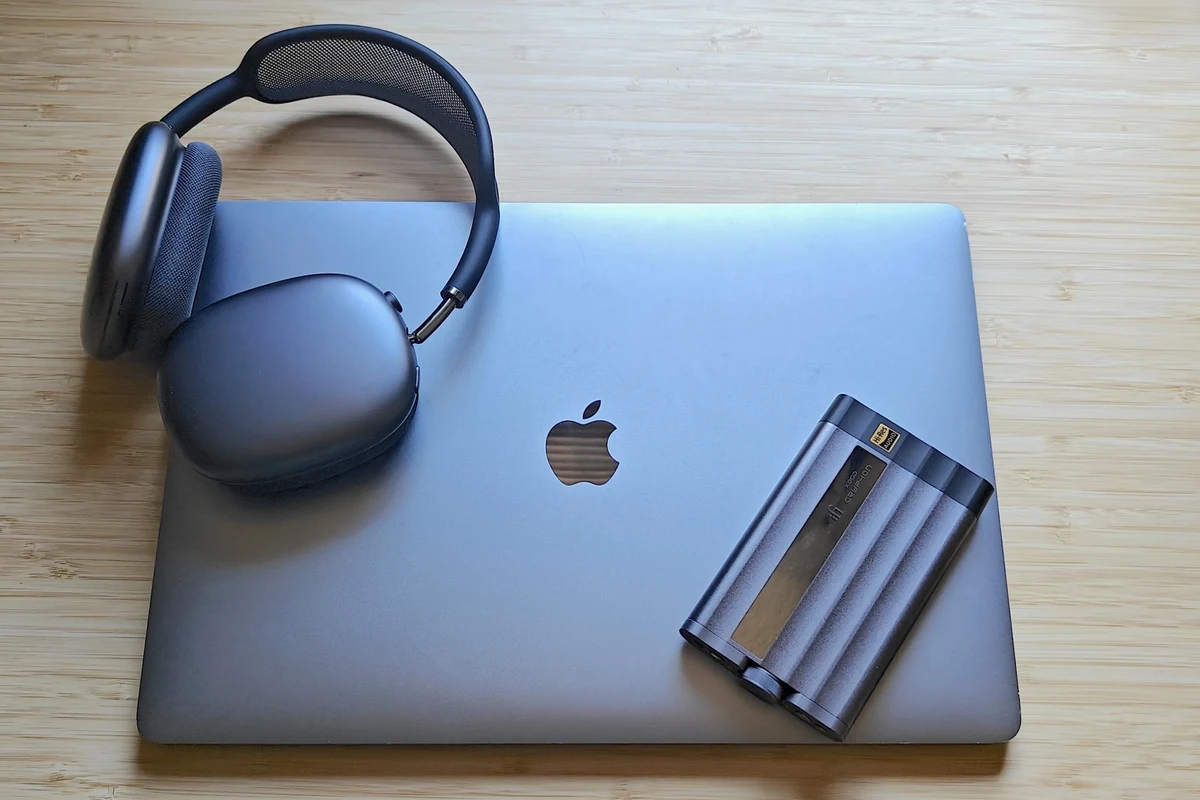
“Apple headphones” can mean a few different products, and they do not all behave the same way on a PC. The experience changes a lot between wired EarPods, AirPods, and Beats models.
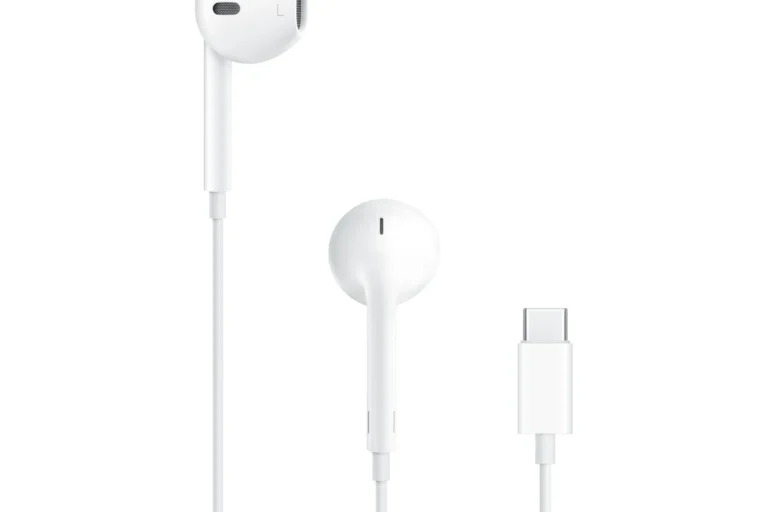
Wired EarPods are the simplest option because they act like normal headphones. AirPods are wireless Bluetooth earbuds, so they depend on the quality of your PC’s Bluetooth connection. Beats products vary by model, but many behave like standard Bluetooth headphones or headsets.
Compatibility can vary by exact model, connector type, and Windows version. If you are unsure, check the plug or wireless method first before assuming a full match.
For readers comparing Apple-style earbuds with other categories, it can also help to understand how earbuds differ from larger over-ear models. Our guide to headphones vs earphones explains those differences in a simple way.
How Apple Headphones Connect to a PC: Wired, Bluetooth, and USB-C Options
There are three main ways Apple headphones connect to a PC: a 3.5mm wired connection, Bluetooth, or a USB-C/adapter path. Each one has different strengths and limitations.
The good news is that Windows supports all three connection styles in some form. The catch is that the setup quality depends on the correct port, the correct adapter, and the correct Windows audio settings.
Wired 3.5mm EarPods on Windows PCs and Laptops
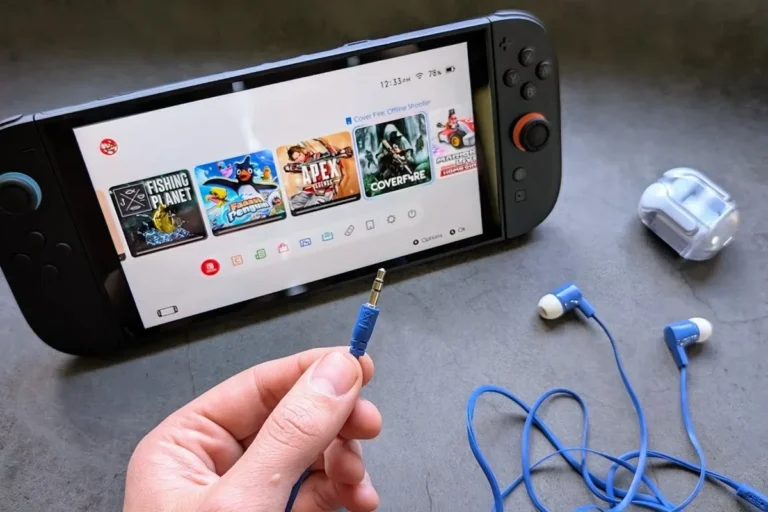
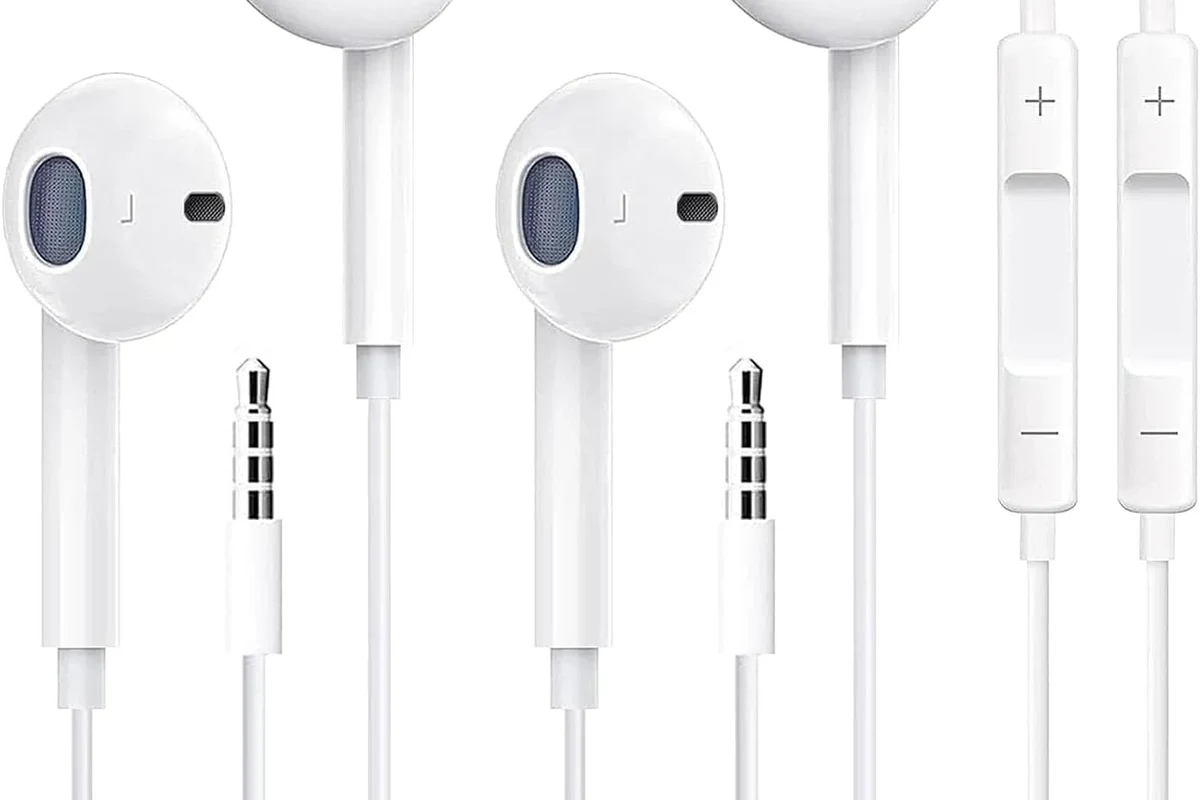
Standard EarPods with a 3.5mm plug are usually the easiest Apple headphones to use on a PC. If your laptop or desktop has a headphone jack, you can often plug them in and start listening right away.
Some EarPods also include an inline microphone. That mic may work on many Windows systems, but if your computer uses a separate headphone and mic jack, you may need a splitter or combo-port support for full functionality.
If your wired Apple headphones play sound but the mic does not work, check whether your PC uses a single combo headset jack or separate audio and microphone ports.
Wired use is also the most stable option for latency. If you want less delay for video playback or casual gaming, a cable is usually more reliable than Bluetooth.
AirPods and Other Apple Wireless Headphones via Bluetooth
AirPods can work on Windows PCs through Bluetooth just like other wireless earbuds. Once paired, they usually show up as an audio output device, and in many cases as a microphone option too.
That said, AirPods tend to feel less seamless on Windows than on an iPhone or Mac. You may not get automatic ear detection, easy battery pop-ups, or the same smooth device switching you see in Apple’s ecosystem.
Bluetooth headphones can show different device modes for stereo audio and microphone use. On Windows, switching modes can sometimes change sound quality or call behavior.
If you want a deeper look at the wireless side of things, our article on Bluetooth headphones explained covers the basics of pairing and wireless audio behavior.
USB-C and Adapter Considerations for Newer Apple Accessories
Some newer Apple accessories use USB-C or rely on adapters to connect. In those cases, the exact result depends on whether the accessory is designed for audio input, charging, or both.
USB-C is not automatically better for sound on Windows. The port must support the right audio function, and the accessory must be built to use it properly. A simple charging cable may not carry audio at all.
Do not assume every USB-C cable or adapter supports headphone audio. Some only charge the device, and some may limit mic or control functions.
If a USB-C accessory seems unresponsive, the issue may be the adapter rather than the headphones. In that case, checking the Windows sound input/output menu is a smart first step.
Sound, Mic, and Controls: What Works on PC and What Does Not
Once Apple headphones are connected, the next question is how much of the experience actually carries over. Basic sound is usually fine, but microphones and controls can be more hit-or-miss.
This is where expectations matter. Apple headphones on PC often work well enough for everyday use, but they are not always the best choice if you want every feature to behave exactly as it does on Apple devices.
Audio Playback Quality on Windows
For music, streaming, and video, Apple headphones usually sound close to what most users expect. The actual sound quality depends more on the headphone model, fit, and Windows settings than on the brand name alone.
Bluetooth models may sound different depending on codec support, signal strength, and whether the headset is in stereo mode or headset mode. Wired models are usually simpler and more predictable.
If your audio sounds dull or muffled, the problem may not be the headphones themselves. Windows output selection, EQ settings, and even a loose jack can affect the result. Our guide on why headphones sound muffled can help you narrow that down.
Microphone Performance for Calls, Meetings, and Gaming
Apple headphone microphones can work on PC, but performance varies. For everyday calls and meetings, they are often good enough, but they may not sound as clean as a dedicated PC headset or external mic.
Bluetooth mics can also sound more compressed than wired mics because Windows may switch the headset into a lower-bandwidth communication mode. That tradeoff is common with many wireless earbuds, not just Apple products.
If you rely on voice quality for work, streaming, or gaming, consider testing the mic in Windows Sound settings before committing to the headset. If speech sounds thin, distorted, or keeps cutting out, a dedicated headset or audio specialist may be a better fit.
Volume, Play/Pause, and Siri-Style Controls on PC
Basic media controls may work, but not always in the same way they do on Apple devices. Play, pause, and call answer functions can sometimes respond, while volume and voice-assistant features may be limited or inconsistent.
Siri-style voice integration is generally not a Windows feature, so do not expect the same hands-free experience. On PC, the safest assumption is that audio playback matters most and extra smart features are optional.
Listening at high volumes for long periods can cause hearing damage. Keep volume at 60% or below for extended sessions.
Step-by-Step Setup Guide for Apple Headphones on a Windows Computer
Setting up Apple headphones on Windows is usually straightforward, but a few small details can save you time. The process is different for Bluetooth earbuds and wired headphones.
If Windows does not detect the headphones right away, the fix is often in the sound menu, Bluetooth settings, or the adapter you are using.
Pairing AirPods in Windows 11 or Windows 10
Turn on Bluetooth on your PC and make sure the headphones are in pairing mode.
Select the AirPods or other Apple wireless headphones from the available device list.
Set the headphones as the default sound output in Windows so audio routes to them automatically.
If Windows does not switch audio correctly, our guide on how to select headphones in Windows 11 can help you confirm the right output device.
For more pairing help, you may also find our article on how to connect Bluetooth headphones useful, especially if your PC has trouble discovering wireless earbuds.
Troubleshooting Wired Headphones with No Sound or Loose Jacks
- Confirm the plug is fully inserted.
- Test the headphones in another device.
- Check whether your PC uses a combo jack or separate ports.
- Inspect the cable for wear or bending near the connector.
If the headphones work in one device but not another, the issue may be the port rather than the headphones. A loose jack, dust in the port, or a bad adapter can all interrupt sound.
When in doubt, reselect the audio output in Windows and test again. If the sound still fails, the problem may be hardware-related.
Fixing Bluetooth Lag, Disconnects, and Mic Detection Issues
Bluetooth lag is one of the most common complaints with wireless headphones on PC. It can happen because of weak signal strength, driver issues, or interference from other wireless devices.
If the connection drops often, move closer to the PC, remove extra Bluetooth pairings, and update your Windows Bluetooth driver if possible. Small changes in placement can make a noticeable difference.
Mic detection issues are also common when Windows selects the wrong input device. If your voice is not coming through, open the sound settings and manually choose the headset microphone instead of the laptop mic.
For more troubleshooting ideas, our article on Bluetooth headphone lag fix covers practical ways to reduce delay and instability.
Common Mistakes People Make When Using Apple Headphones with PC
Most problems come from expectations, not from the headphones being “bad.” Apple headphones often work on PC, but users sometimes expect Apple-only features to appear automatically.
Knowing the common mistakes can save you time and help you decide whether to keep using them or switch to a PC-focused headset.
Assuming Full Apple Ecosystem Features Will Transfer to Windows
AirPods and other Apple accessories are designed to feel especially smooth with Apple devices. On Windows, some of that polish disappears, including automatic switching, certain battery indicators, and quick system integration.
That does not mean the headphones are incompatible. It simply means the PC experience is usually more basic.
Using the Wrong Adapter or Audio Port
A lot of “it does not work” problems come down to the wrong connector. A headset plug may need a combo jack, a splitter, or a proper USB-C audio adapter to function correctly.
Before replacing the headphones, check the port type on your computer. The right adapter can solve what looks like a major compatibility issue.
Ignoring Bluetooth Driver and Windows Sound Settings
Many users pair the headphones and stop there, but Windows still needs the right output and input devices selected. If the wrong device is active, you may hear nothing or use the laptop microphone by mistake.
Bluetooth drivers also matter more than people think. If your PC has older wireless hardware, the connection may be less stable than it should be.
Expert Advice: When Apple Headphones Are a Good PC Choice and When They Are Not
Apple headphones can be a perfectly sensible PC choice if you already own them. They are convenient, familiar, and often good enough for daily listening.
Still, they are not always the most practical option for every type of user. The right answer depends on how you use your computer.
Best Use Cases for Office Work, Streaming, and Casual Listening
For office work, online classes, streaming, and podcasts, Apple headphones often do the job well. If your priority is simple sound and a lightweight setup, they are easy to live with.
They are also a good temporary solution if you already have them and do not want to buy another headset. Casual users usually care more about convenience than advanced controls.
Why Gamers and Power Users May Want a Different Headset
Gamers often care about low latency, clear chat audio, and a strong microphone. Apple headphones can work, but they are not always the strongest choice for those needs, especially over Bluetooth.
Power users may also want better Windows integration, more reliable call controls, or a headset with a dedicated USB dongle. Those features are more common in PC-first models.
Cost and Value Comparison Versus PC-First Headphones in 2025
If you already own Apple headphones, using them on PC can save money. That is often the best value move, especially for light everyday use.
If you are buying new specifically for a Windows computer, compare them with PC-focused options before deciding. A headset built for Windows may offer better mic behavior, easier setup, and fewer surprises.
For shoppers comparing sound profiles, our article on best EQ settings for headphone can help you improve clarity and bass without buying new gear immediately.
Final Recap: The Short Answer on Apple Headphones and PC Compatibility
So, do Apple headphones work on PC? Yes, most of them do for basic audio, and many also work for microphone use. The main limitations are usually around Apple-only features, Bluetooth stability, and adapter compatibility.
If you want simple listening on Windows, Apple headphones are often fine. If you need the most reliable mic, the lowest latency, or the smoothest PC integration, a headset designed for Windows may be the better long-term choice.
- Wired EarPods are usually the easiest Apple headphones to use on PC.
- AirPods work over Bluetooth, but some Apple features will not carry over.
- Mic quality, latency, and controls can vary by model and Windows setup.
- Checking ports, adapters, and sound settings solves many common issues.
Frequently Asked Questions
Wired is usually simpler and more stable, while Bluetooth gives you more convenience. If you want the least delay, wired is often the safer choice on PC.
The mic can work on Windows, but quality may be lower than on Apple devices or a dedicated PC headset. Bluetooth headset mode can also reduce audio quality during calls.
They can work for casual gaming, but they are not always ideal for low latency or chat clarity. PC-first gaming headsets usually offer better mic and connection stability.
Check the selected output device, Windows sound settings, cable fit, and any EQ changes. A loose jack or Bluetooth mode change can also affect sound quality.
Most basic audio use does not require special drivers. If Bluetooth pairing or microphone detection fails, updating Windows and your Bluetooth driver can help.
Closed-back and in-ear models are better for privacy and noise blocking, while open-back headphones can feel more spacious but leak sound. Your room, comfort needs, and use case should guide the choice.