How to Pair Wireless Headphones to Xbox One Easily

Most wireless headphones do not pair directly with Xbox One unless they support Xbox Wireless. If you have standard Bluetooth headphones, use a transmitter or TV Bluetooth audio as a workaround.
If you’re trying to figure out how to pair wireless headphones to Xbox One, the short answer is that most Bluetooth headphones will not connect directly. Xbox One works best with Xbox Wireless headsets, a controller-based adapter, or a TV/transmitter workaround.
- Direct pairing: Xbox Wireless headsets are the easiest native option.
- Bluetooth limits: Standard Bluetooth headphones usually need a workaround.
- Latency: Low-latency audio matters most for competitive games.
- Setup check: Confirm ports, power, and adapter compatibility first.
- Best value: Casual players may prefer a transmitter; frequent players may want Xbox Wireless.
How to Pair Wireless Headphones to Xbox One: What Works and What Doesn’t in 2026
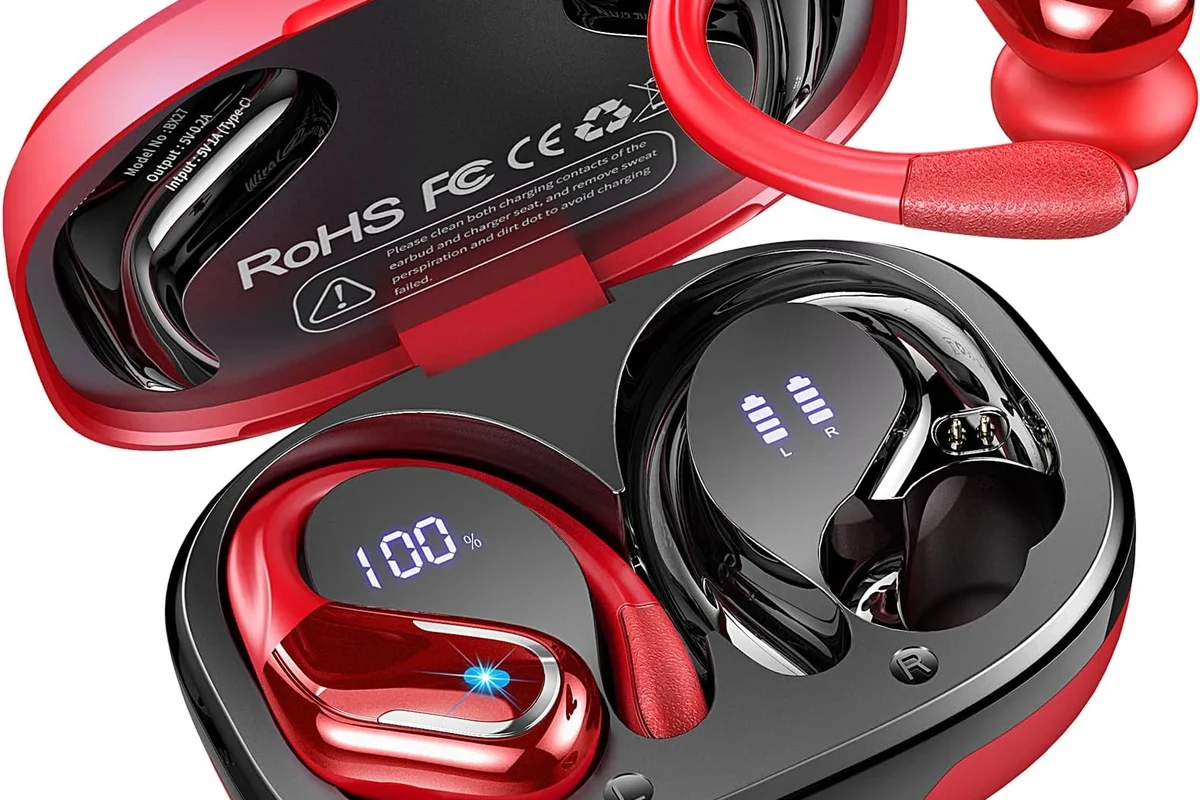
Xbox One is still a popular gaming console, but its wireless audio support is more limited than many people expect. That is why pairing regular wireless headphones can feel confusing the first time you try it.
The key is knowing which connection method your headset actually uses. If you choose the wrong one, you may get no sound, delayed sound, or chat audio that never works properly.
Xbox One Audio Basics: Why Most Wireless Headphones Won’t Connect Directly
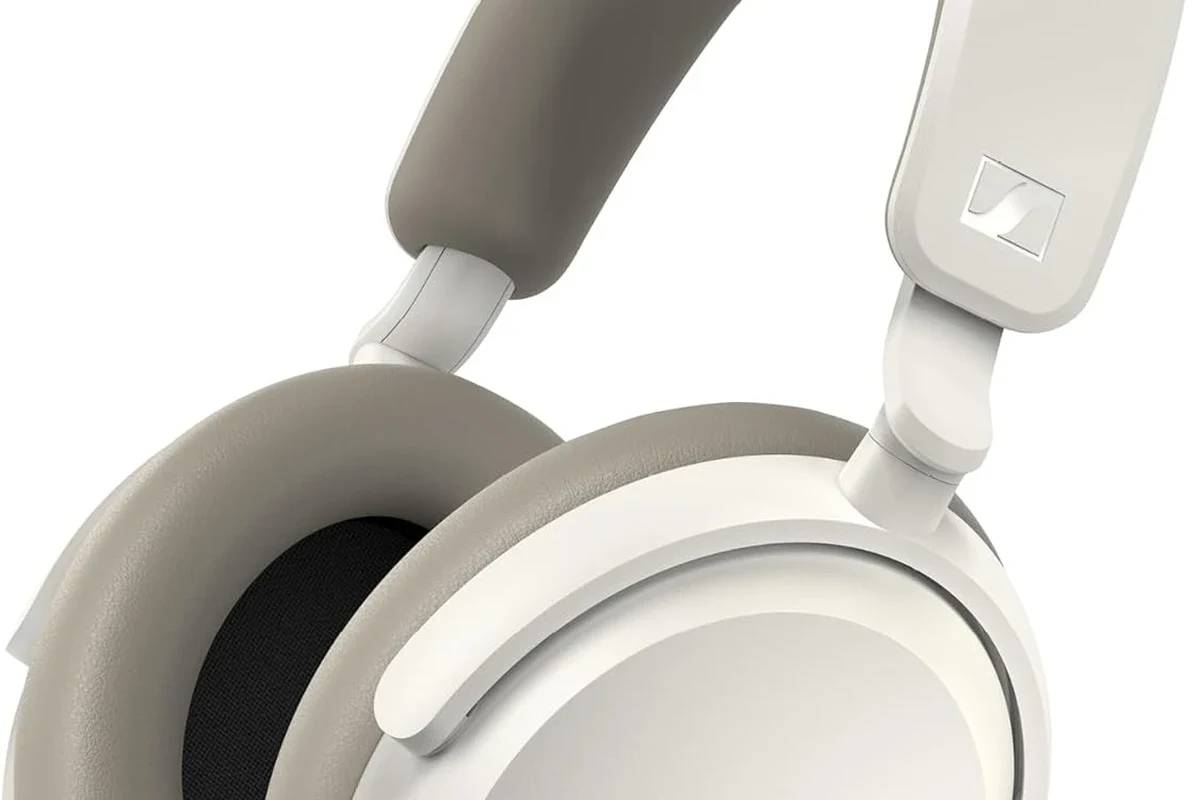
Xbox One does not treat wireless audio the same way a phone, laptop, or tablet does. Most people assume “wireless” means Bluetooth, but on Xbox that is usually not the case.
Bluetooth limitations on Xbox One consoles
Standard Bluetooth headphones are generally not supported for direct audio on Xbox One. That means the console usually will not show your everyday Bluetooth headset as a normal pairing option.
This is one of the biggest reasons users think their headset is broken when the real issue is compatibility. If your headphones were made for phones, tablets, or laptops, they may still need a different wireless path for Xbox gaming.
Which wireless audio connections the Xbox One actually supports
Xbox One is designed to work with wireless headphones explained through Xbox Wireless, not standard Bluetooth. Some headsets use Microsoft’s Xbox Wireless connection, while others rely on a transmitter plugged into the console, controller, or TV.
In practice, that means your options are more limited, but still workable. The best method depends on whether you care most about game audio, chat audio, low latency, or convenience.
Best Ways to Use Wireless Headphones with Xbox One
There are a few reliable ways to get wireless audio on Xbox One, but not all of them are equally smooth. Some are better for competitive gaming, while others are easier for casual play or TV use.
Using an Xbox Wireless headset for direct pairing
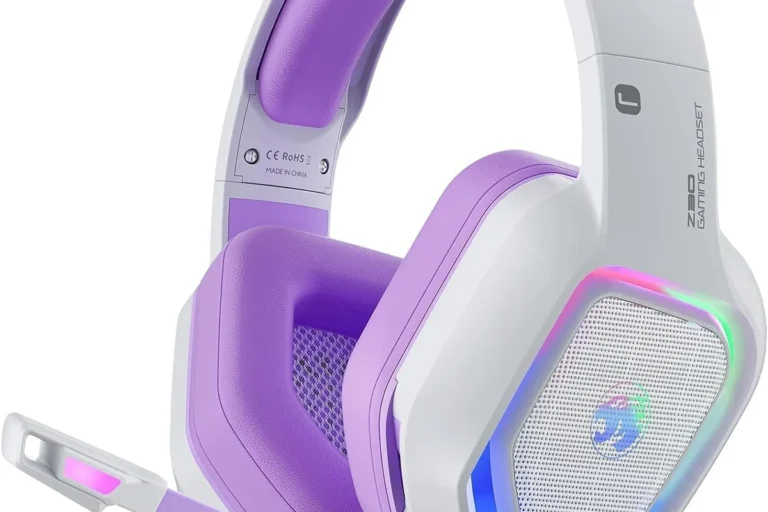
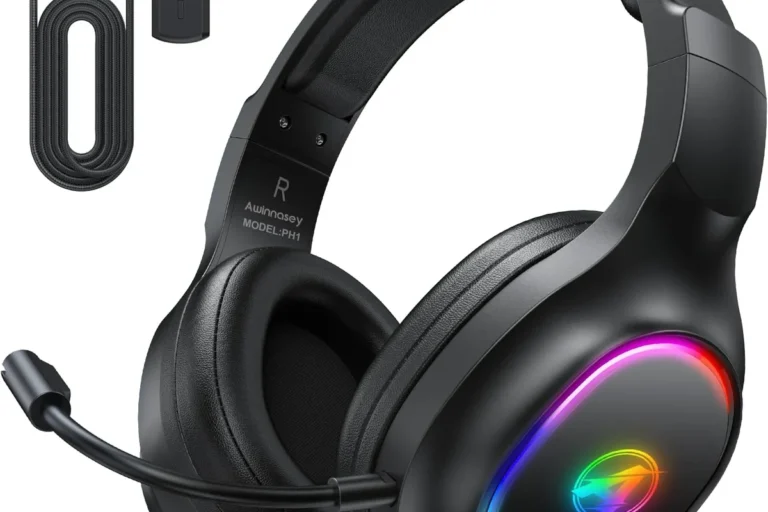
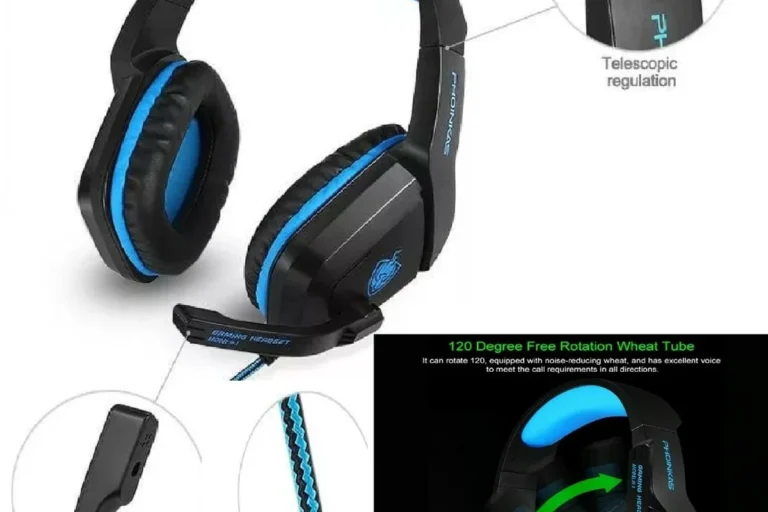
The cleanest option is an Xbox Wireless headset that is made to connect directly to the console. This avoids the need for extra dongles or TV workarounds and usually gives the most straightforward setup.
For players who want simple game and chat audio in one package, this is often the most dependable route. It is also the least confusing for beginners because the headset is designed for the platform.
Connecting through the controller with a 3.5mm adapter or audio transmitter
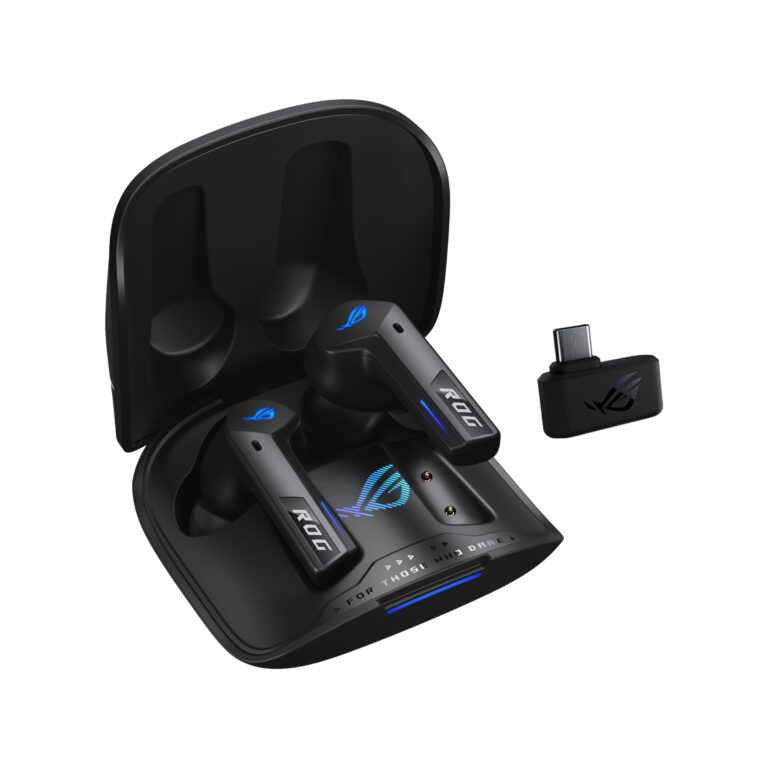
If your headset does not support Xbox Wireless, you may still be able to use a transmitter or adapter connected to the controller or console. This is common for people using Bluetooth transmitters, especially when they want to reuse an existing headset.
Keep in mind that results can vary depending on the adapter, the headset, and how the audio is routed. If you want a broader look at the tradeoffs, our guide on wired vs wireless headphones can help you decide whether convenience or simplicity matters more for your setup.
Pairing via TV, monitor, or soundbar Bluetooth as an alternative route
Another workaround is to connect your wireless headphones to your TV, monitor, or soundbar instead of the Xbox itself. This can be useful if your display already supports Bluetooth audio output.
This method is easy in theory, but it may introduce audio delay. For single-player games or casual TV viewing, that may be acceptable, but fast-paced games can feel off if the sound lags behind the action.
Step-by-Step: How to Set Up Each Compatible Connection Method
The steps below focus on the most common setups that actually work in real homes. Your exact menus and button names may vary slightly by headset, TV, or adapter brand.
Direct pairing with Xbox Wireless headsets
Make sure both devices have power and the headset is charged enough to enter pairing mode.
Use the headset’s pairing button or switch according to the manufacturer’s instructions.
Press the console’s pairing button, then wait for the headset and console to connect.
Confirm that game sound and microphone input are both working before you start a match.
If your headset supports Xbox Wireless properly, this should be the most seamless setup. If not, the headset may be Bluetooth-only or may need a separate transmitter.
Using a Bluetooth transmitter with optical or 3.5mm output
A Bluetooth transmitter can be a practical workaround if you want to use regular wireless headphones. These devices usually plug into an optical output, USB port, or 3.5mm audio jack depending on the model and your TV or console setup.
Compatible audio output
Wireless headphones
- Whether the transmitter supports low-latency audio
- Whether your TV or console has the right output port
- Whether your headphones can pair with the transmitter
This method is often better for people who already own good Bluetooth headphones and do not want to buy a new headset. Still, audio delay can happen, so it is worth checking latency support before buying.
Connecting through a TV’s Bluetooth audio settings
If your TV supports Bluetooth audio, you may be able to connect your headphones there and let the TV handle the sound. This can be a simple solution for watching games, menus, and streaming apps.
Open the TV’s sound or Bluetooth menu, put the headphones into pairing mode, and select them from the available device list. Once connected, test the volume and make sure the sound stays in sync with the screen.
TV Bluetooth support varies a lot by model, and some sets add noticeable delay. That makes this method more suitable for casual play than for competitive gaming.
Common Mistakes That Stop Wireless Headphones from Working on Xbox One
Most setup problems come from a few avoidable mistakes. Once you know what to look for, troubleshooting becomes much easier.
Confusing Bluetooth headphones with Xbox Wireless headphones
This is the most common issue by far. A headset can be wireless and still not support Xbox One directly.
If the product box only says Bluetooth, it may not pair the way you expect. Look specifically for Xbox Wireless support, a transmitter, or another supported connection path.
Ignoring audio latency and sync issues
Even when wireless headphones connect successfully, the sound may arrive a little late. That delay can be minor for movies, but it is much more noticeable in games.
Fast shooters, rhythm games, and racing titles are the most sensitive to latency. If timing matters to you, low-latency support should be near the top of your checklist.
Using the wrong port, adapter, or power source
Some transmitters need a specific output, such as optical audio or USB power, and not every Xbox One setup has the same ports available. A wrong connection can leave you with no sound or weak sound.
Before buying anything, check the ports on your console, TV, or monitor. That small step can save a lot of frustration later.
Listening at high volumes for long periods can cause hearing damage. Keep volume at 60% or below for extended sessions.
Expert Advice: Choosing the Right Headphones for Gaming, Chat, and Low Latency
The best wireless headset for Xbox One is not always the most expensive one. It is the one that fits your gaming habits, voice chat needs, comfort preferences, and budget.
Why low-latency matters for shooters, racing, and competitive play
Low latency matters because game audio should match what you see on screen. If footsteps, gunfire, or engine sounds arrive late, your timing and reaction speed can suffer.
For competitive players, this is usually more important than extra bass or flashy features. If you mostly play story games, a little delay may be less noticeable.
Mic quality, comfort, and battery life considerations
Voice chat quality can matter as much as sound quality in multiplayer games. A headset with a clear microphone and comfortable ear pads is usually a better long-term choice than one with only strong bass.
Battery life also matters for long sessions, but actual runtime may vary by volume level, lighting features, and how often you use chat. If comfort is a priority, look for a fit that does not clamp too hard and ear cushions that suit your skin and heat tolerance.
If you experience ringing, discomfort, or trouble hearing speech after gaming sessions, consider lowering volume and speaking with an audiologist or hearing professional.
When a wired headset is still the smarter choice
Wireless is convenient, but wired headsets still win for simplicity, lower latency, and fewer compatibility headaches. If you do not want to deal with pairing steps or transmitter settings, a wired option may be the better fit.
That is especially true for budget gamers or anyone who mainly wants reliable voice chat without extra accessories. Sometimes the easiest solution is also the most dependable.
Price Comparison: Budget Transmitters vs Premium Xbox Wireless Headsets
Prices can vary a lot by brand, feature set, and sales timing. Rather than chasing the cheapest option, it helps to think about how often you play and what kind of audio quality you expect.
Typical cost ranges in 2026
Budget transmitters are usually the lower-cost entry point because they let you reuse headphones you already own. Premium Xbox Wireless headsets generally cost more because they are built for direct console compatibility and easier setup.
If you want a broader buying baseline for audio gear, our roundup of best headphones under 100 can be a useful starting point when comparing value-focused models.
Value comparison for casual gamers vs frequent players
Casual gamers may get the best value from a TV Bluetooth workaround or a budget transmitter, especially if they already own decent headphones. Frequent players often benefit more from a headset made for Xbox Wireless because it reduces setup friction every time they turn the console on.
If you play nightly, that convenience can be worth paying for. If you only game occasionally, a lower-cost setup may be perfectly fine.
Regular Bluetooth headphones may still work through a transmitter or TV, but direct pairing is not the norm.
Final Recap: The Easiest Way to Get Wireless Audio on Xbox One
If you want the simplest answer to how to pair wireless headphones to Xbox One, start by checking whether your headset supports Xbox Wireless. That is the most direct and least frustrating option for most users.
If your headphones are standard Bluetooth, plan on using a transmitter or TV audio route instead of expecting direct console pairing. For the best experience, match the connection method to your gaming style, latency needs, and budget.
- Xbox One usually does not pair directly with standard Bluetooth headphones.
- Xbox Wireless headsets are the easiest direct option.
- Bluetooth transmitters and TV audio settings can work, but latency may vary.
- For competitive gaming, low-latency audio matters a lot.
Frequently Asked Questions
Not always. Wired headsets usually offer simpler setup and less latency, while wireless models win on convenience.
They can be useful for blocking room noise, but sound quality and microphone support matter more for gaming. Check whether the headset supports chat and low-latency audio.
Over-ear headsets are usually the most comfortable for long gaming sessions. In-ear options can be portable, but they may not be as comfortable for extended play.
Look at latency support, microphone quality, comfort, and connection type before chasing driver size or frequency response alone. EQ can help fine-tune bass and clarity later.
Use your console, TV, or headset EQ settings if available. Small adjustments often improve voice clarity without making bass muddy.
Check Xbox Wireless support, Bluetooth compatibility, battery life, comfort, and whether you need a microphone. Also confirm that the headset fits your gaming style and budget.