Can You Pair Bluetooth Headphones to PS5 Easily

No, PS5 usually does not support direct pairing with standard Bluetooth headphones. You can still use them with a USB adapter, TV Bluetooth output, or a PS5-compatible wireless headset.
Yes, but not usually in the simple “pair and play” way most people expect. On PS5, standard Bluetooth headphones are often blocked or limited, so the easiest solution is usually a workaround such as a USB Bluetooth adapter, TV audio routing, or a PS5-compatible wireless headset.
- Direct pairing: Usually blocked on PS5 for standard Bluetooth headphones.
- Best workaround: Use a USB Bluetooth adapter or gaming transmitter.
- Lowest lag: Dedicated PS5 wireless headsets are often more reliable.
- Chat support: Check mic compatibility before buying any adapter.
Can You Pair Bluetooth Headphones to PS5? The Short Answer and What It Really Means in 2025
If you’re asking whether you can connect regular Bluetooth headphones directly to a PS5, the short answer is usually no. Sony’s console does not offer the same open Bluetooth audio support that you may be used to on a phone, laptop, or tablet.
That does not mean Bluetooth audio is impossible on PS5. It means you typically need an adapter, a TV with Bluetooth output, or a headset designed to work with the console through a wireless transmitter.
For many gamers, this is confusing because the PS5 can connect to controllers, accessories, and certain devices through wireless tech. But audio headphones are a different story, and the console’s built-in restrictions are the main reason pairing often fails.
Why PS5 Bluetooth Audio Is Limited: Sony’s Built-In Restrictions Explained
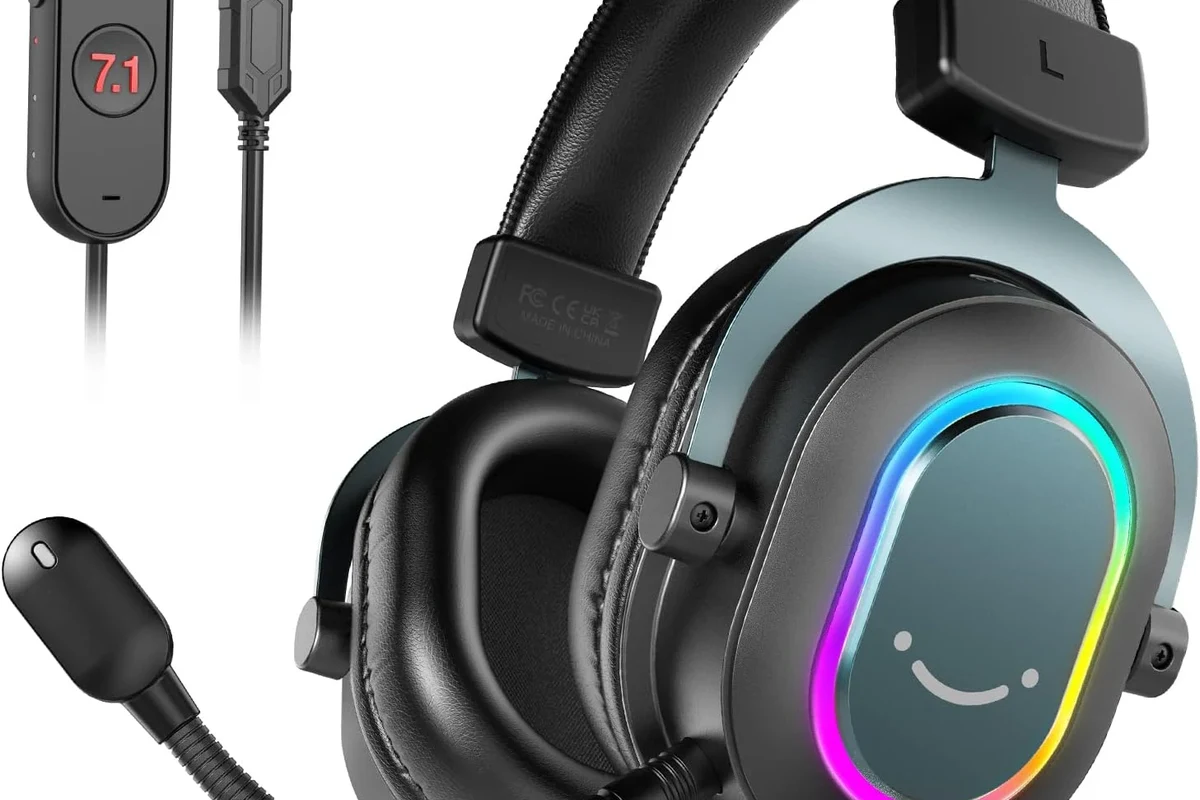
Sony limits direct Bluetooth audio support on the PS5 largely to reduce latency, avoid interference, and keep gameplay audio stable. That matters a lot in gaming, where even a small delay can make dialogue, footsteps, or gunfire feel out of sync.
This is also why some devices that work fine on a phone may not behave the same way on a PS5. The console is built for reliable game audio first, not for universal Bluetooth compatibility.
What the console supports natively
Out of the box, the PS5 is designed to work best with wired headsets, officially compatible wireless gaming headsets, and certain USB audio devices. In practice, that means the console prefers accessories that are built for lower-latency gaming use.
If you use a headset with a dedicated USB dongle or wireless transmitter, the PS5 usually handles it much more smoothly than a generic Bluetooth pairing attempt. That is one reason many gaming headsets still ship with a USB receiver instead of relying on standard Bluetooth alone.
Why most standard Bluetooth headphones do not connect directly
Most regular Bluetooth headphones use a connection method that the PS5 does not fully support for audio. Even if the console detects the device, it may refuse the pairing, connect without sound, or only work in a limited way.
Another issue is latency. Bluetooth headphones can introduce a noticeable delay, and that delay is especially distracting in fast-paced games. If you want to understand the broader tradeoff, our guide on Bluetooth vs wired headphones sound quality explains why wired still wins for consistency in many gaming setups.
Compatibility can vary by headphone model, adapter, TV, and firmware version. A setup that works for one user may not work exactly the same way for another.
Best Ways to Use Bluetooth Headphones with PS5 Without Frustration
If your goal is simply to hear game audio wirelessly, there are a few practical ways to do it. Some are easier, some sound better, and some are more reliable for chat and multiplayer.
The best option depends on whether you care most about convenience, audio delay, microphone use, or overall stability.
Bluetooth USB dongles and adapters
A USB Bluetooth adapter is one of the most common workarounds. You plug the adapter into the PS5, pair your headphones to the adapter, and route audio through that connection instead of the console’s built-in Bluetooth system.
This can be a simple solution, but performance varies a lot. Cheap adapters may add delay, cut out, or fail to support mic input properly, so it is worth checking compatibility before buying.
TV Bluetooth audio as a workaround
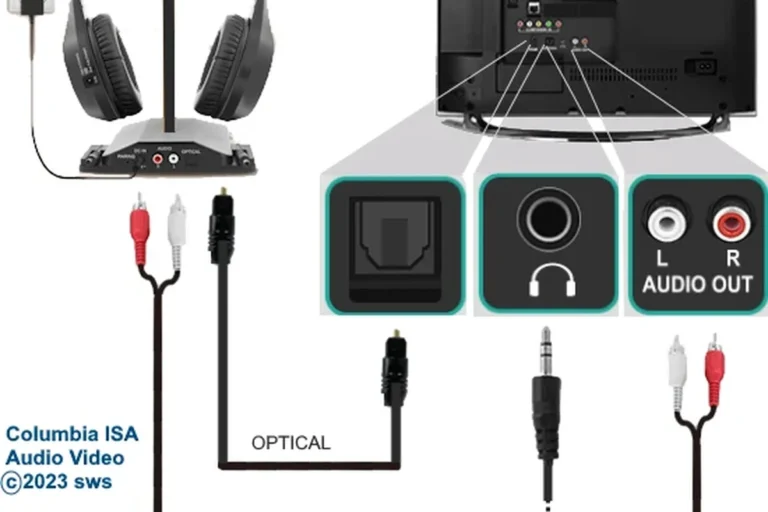
If your TV supports Bluetooth audio output, you may be able to connect your headphones to the TV instead of the PS5. In that setup, the console sends video and audio to the TV, and the TV relays sound to the headphones.
This is often the easiest method for casual play, especially for single-player games. The downside is that some TVs introduce extra delay, so the experience can be hit or miss depending on the TV’s audio processing.
Using a dual-purpose gaming headset with a wireless transmitter
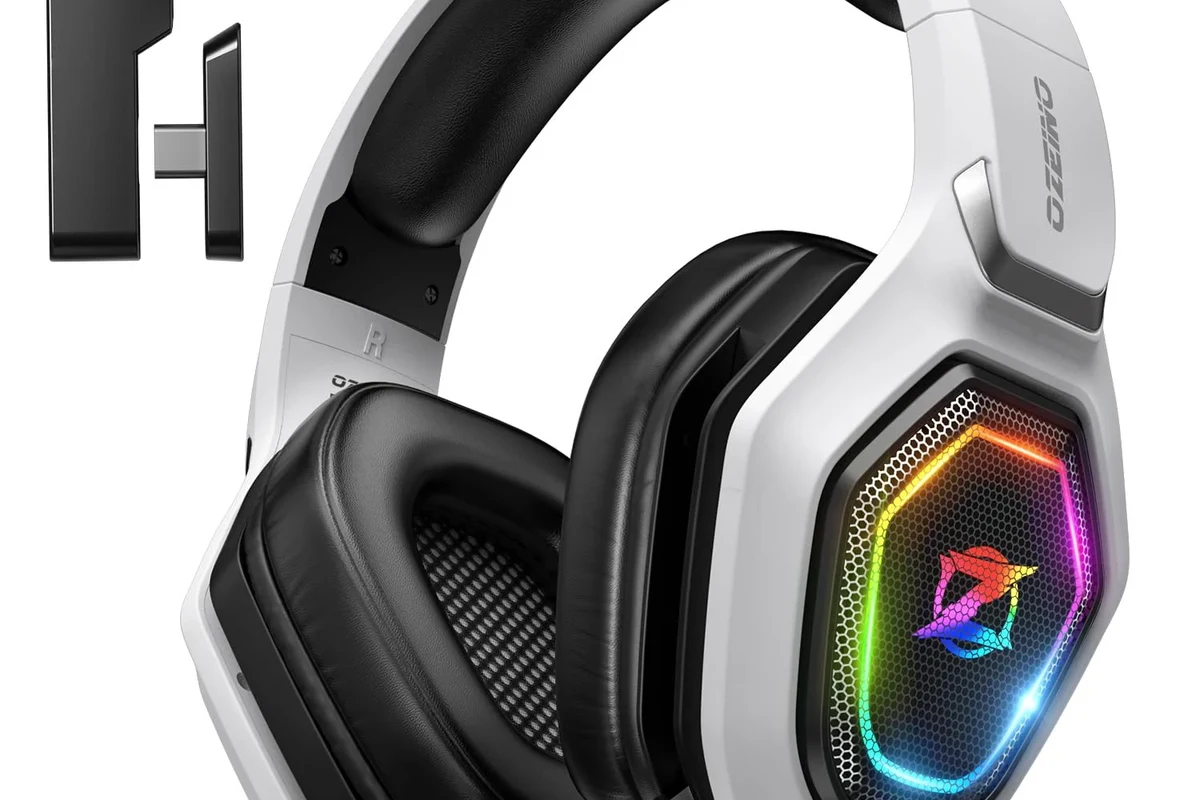
Many PS5-friendly headsets use a USB wireless transmitter rather than standard Bluetooth alone. These headsets are usually the most dependable option if you want low lag and a microphone that works properly in chat.
They may also offer Bluetooth as a secondary feature, which is useful for switching between console gaming and phone use. If you want a broader explanation of how wireless audio works, our article on Bluetooth headphones explained simply breaks down the basics in plain language.
If you want the least hassle, look for a headset with a USB wireless dongle instead of relying on a generic Bluetooth pairing method.
Step-by-Step: How to Connect Bluetooth Headphones to PS5 Using Workarounds
There is no single universal method that works for every Bluetooth headphone, but these workarounds cover the most common setups. The key is to match the method to your gear and expectations.
Before you start, make sure your headphones are charged, updated if possible, and not already connected to another device.
Pairing with a USB Bluetooth adapter
Insert the USB Bluetooth dongle into the PS5’s USB port and wait for it to power on.
Use the headphone’s pairing button or power button method, depending on the model.
Follow the adapter’s instructions until the headphones and dongle are linked.
After pairing, test game audio in a quiet menu first. If the sound is delayed or unstable, try a different USB port or move closer to the console to reduce interference.
Connecting through a TV or sound system
Start by enabling Bluetooth audio on your TV or sound system, if that feature is supported. Then pair the headphones directly to the TV instead of the PS5.
Once connected, launch a game and check whether the audio stays in sync with the picture. If the delay is too noticeable, you may need to disable extra TV sound processing or switch to another method.
Reducing lag and improving audio stability
To improve performance, keep the headphones and transmitter close together, avoid crowded wireless environments, and reduce the number of walls or objects between devices. Wireless stability is often better when the signal path is short and clean.
If your headphones support both Bluetooth and a low-latency wireless mode, use the gaming mode for PS5 whenever possible. For more on fixing delay issues, see our guide to Bluetooth headphone lag fix.
Some adapters and TVs may handle audio-only playback well but fail with microphone chat, voice prompts, or game chat features. Always check the full feature set, not just sound output.
Common Problems Gamers Run Into When Trying to Pair Bluetooth Headphones to PS5
Most pairing problems fall into one of three categories: delay, chat limitations, or connection instability. Knowing which issue you are dealing with makes troubleshooting much easier.
Audio delay and lip-sync issues
Bluetooth delay is the most common frustration. In action games, the sound may arrive slightly after the image, which can make gameplay feel less responsive.
For story games, the delay may be less annoying, but lip-sync problems can still stand out during cutscenes. This is why many gamers prefer a dedicated wireless headset over a generic Bluetooth setup.
Mic compatibility and chat limitations
Even if your headphones produce audio, the microphone may not work correctly through every adapter or TV. Some setups only support listening, not voice chat.
That can be a deal-breaker for multiplayer games, party chat, or stream-friendly setups. If voice input matters, check whether the adapter or headset explicitly supports microphone passthrough.
Connection drops, interference, and pairing failures
Wireless dropouts can happen when there are too many nearby signals, low battery, outdated firmware, or simply weak hardware. Some cheaper adapters also struggle to maintain a stable link over time.
If pairing keeps failing, reset the headphones, re-enter pairing mode, and try a different USB port or location. For general device recovery tips, our guide on how to reset Bluetooth headphones may help if your headset is stuck or refusing to connect.
Expert Advice: When Bluetooth Is the Wrong Choice for PS5 Gaming
Bluetooth is fine for casual listening, but it is not always the best choice for gaming. If you play competitive titles, care about chat clarity, or want the most reliable setup, a PS5-compatible wireless headset is usually the smarter buy.
Why low-latency wireless matters for competitive play
In fast games, lower latency can make audio feel more precise and responsive. Footsteps, reload sounds, and directional cues are easier to trust when the headset is built for gaming rather than general music listening.
That does not mean Bluetooth is unusable. It just means competitive players often notice its weaknesses faster than casual players do.
Warning signs that an adapter is too cheap or unreliable
Be cautious if an adapter makes bold claims without clear PS5 compatibility details, microphone support, or return options. Very cheap devices may work briefly and then become frustrating to use.
Also watch for vague product listings that do not explain latency, codec support, or headset compatibility. A small price saving is rarely worth unstable audio during a long gaming session.
If you have ongoing hearing fatigue, ringing after gaming, or trouble understanding dialogue even at moderate volume, consider speaking with an audiologist. Personal hearing needs and safe listening habits can vary a lot from one person to another.
Bluetooth Headphones vs PS5-Compatible Wireless Headsets: Price and Performance Comparison
When people ask can you pair bluetooth headphones to ps5, they often want to know whether a workaround is cheaper than buying a gaming headset. The answer depends on how much quality and convenience matter to you.
Adapters can be inexpensive, but the overall experience may be less polished. Dedicated gaming headsets usually cost more, but they are designed to avoid the most common PS5 audio headaches.
Budget adapters vs dedicated gaming headsets
Budget adapters are appealing because they let you reuse headphones you already own. That can save money upfront, especially if you only play occasionally.
Dedicated gaming headsets, on the other hand, are usually better for chat, stability, and lower delay. They are also easier for beginners because the setup is usually more straightforward.
What you gain by paying more in 2025
In 2025, paying more often gets you a more reliable wireless transmitter, better mic support, and fewer compatibility surprises. You may also get better comfort, stronger battery life, and more consistent audio tuning for games.
If you are still deciding between headset styles, our general guide to types of headphones explained can help you compare over-ear, on-ear, and in-ear options before you buy.
Final Verdict: The Easiest Way to Use Bluetooth Headphones on PS5 Today
If you want a simple answer, the PS5 does not usually let you pair standard Bluetooth headphones directly the way a phone does. The easiest path is a USB Bluetooth adapter, a Bluetooth-capable TV, or a wireless gaming headset made for console use.
For most players, the best balance of sound quality, low lag, and chat support comes from a PS5-compatible wireless headset rather than a generic Bluetooth workaround. If you only need casual listening, an adapter can be fine, but if you game often, the more reliable solution usually pays off.
- PS5 usually blocks direct standard Bluetooth headphone pairing.
- USB adapters, TV Bluetooth, and gaming headsets are the main workarounds.
- Low-latency wireless is better for chat, action games, and stability.
Listening at high volumes for long periods can cause hearing damage. Keep volume at 60% or below for extended sessions.
Frequently Asked Questions
Wireless headsets are more convenient, but wired headphones usually offer more consistent audio and no pairing issues. For competitive play, wired or low-latency wireless is often the safer choice.
Over-ear headsets are usually the most comfortable for long gaming sessions and often sound fuller. In-ear options are more portable, but comfort and mic quality can vary by model.
Driver type and tuning shape how clear dialogue, footsteps, and bass-heavy effects sound. A balanced sound profile often works best for gaming, while strong bass can sometimes hide detail.
Check connection type, mic support, latency, battery life, comfort, and whether the headset is officially compatible with consoles. If you use Bluetooth, also look for low-latency support or a USB transmitter.
Noise cancelling can help block room noise and improve immersion, especially in shared spaces. Just make sure the headset still sounds natural and remains comfortable during long sessions.
Look for padded ear cushions, a light headband, and a fit that does not clamp too tightly. If you feel pressure, heat, or discomfort, take breaks and adjust the fit before extended play.