How Do I Connect My Bluetooth Headphones to My TV Easily

Use your TV’s built-in Bluetooth menu first, then try a streaming device or console if available. If your TV has no Bluetooth, a Bluetooth transmitter is the easiest fix.
If you’re asking how do i connect my bluetooth headphones to my tv, the simplest path is usually your TV’s built-in Bluetooth menu. If your TV does not have Bluetooth, you can still listen wirelessly by using a Bluetooth transmitter, streaming device, or console accessory.
- Built-in Bluetooth: Best first choice for most smart TVs.
- No Bluetooth: Use a transmitter with the right TV output.
- Low lag: Important for movies, sports, and gaming.
- Common fixes: Re-pair, reset, and reduce interference.
Why Bluetooth Headphones Are a Smart TV Audio Upgrade in 2025
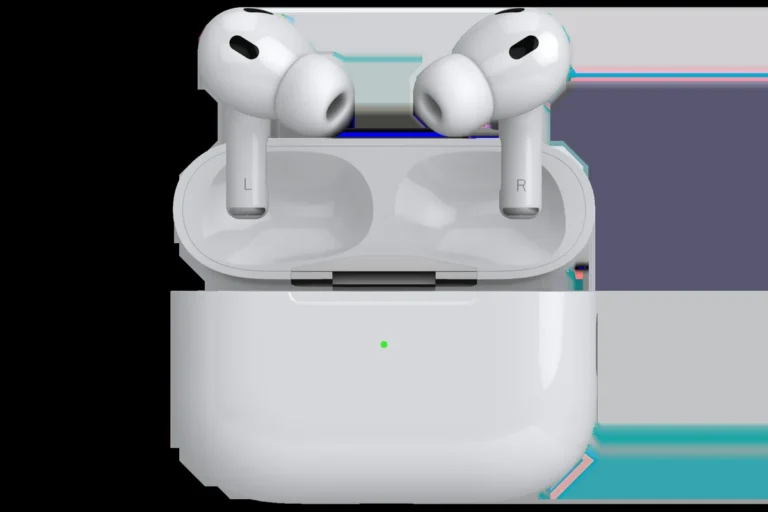
Bluetooth headphones remain one of the easiest ways to make TV audio more personal. They let you watch late at night, reduce noise for other people in the room, and keep dialogue close without turning the volume way up.
For many Top Headphone Reviews readers, the appeal is simple: less clutter, more privacy, and a more flexible listening setup. If you already use Bluetooth headphones for phones or laptops, moving them to the TV can feel like a natural upgrade.
What viewers want from wireless TV listening
Most viewers want clear speech, easy pairing, and low delay. That matters a lot for movies, sports, and gaming, where even a small audio lag can make lip sync feel off.
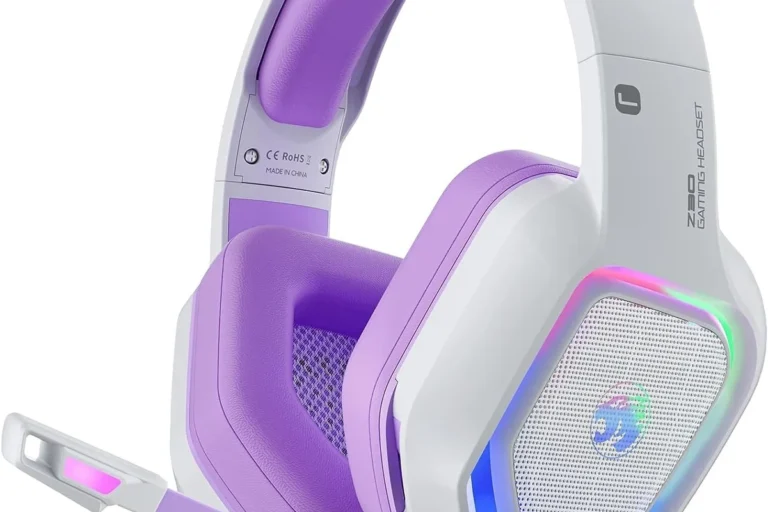
Comfort also matters because TV sessions are often long. Over-ear models may feel better for extended viewing, while lighter earbuds can work well for casual use if they fit securely.
When Bluetooth is better than soundbars or wired headphones
Bluetooth is often the better choice when you want private listening without running a cable across the room. It is also useful when your TV is mounted far from where you sit.
Wired headphones can still deliver a simple and reliable connection, and a soundbar can fill a room with bigger sound. But for one-person listening, Bluetooth is usually the most convenient option.
How Do I Connect My Bluetooth Headphones to My TV: The Fastest Methods
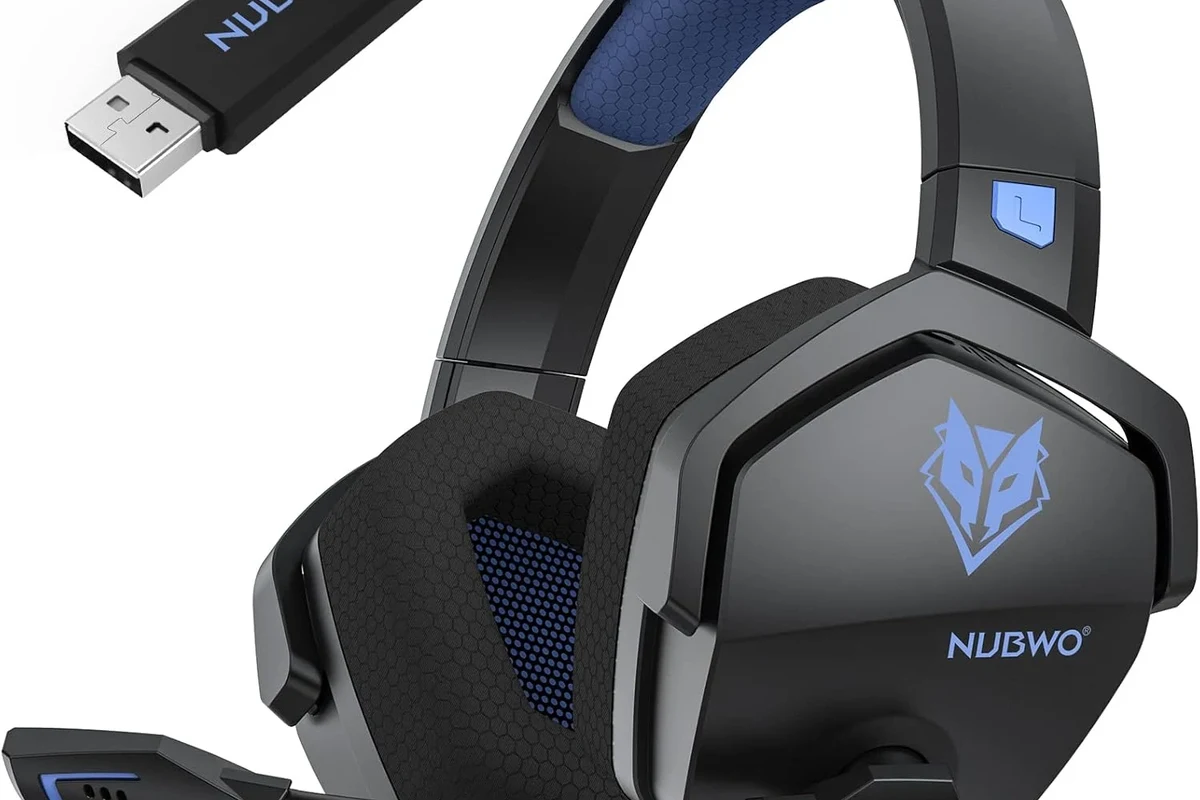
There are three common ways to connect. The right method depends on whether your TV already has Bluetooth, whether you use a streaming device or game console, and whether you need an adapter.
Using the TV’s built-in Bluetooth menu
This is the easiest method when available. Open your TV’s sound or connections menu, put the headphones into pairing mode, and select them from the list of nearby devices.
On many smart TVs, you may need to choose “Audio Output,” “Sound Output,” or “Bluetooth Speaker List” before the TV will search correctly. If the headphones do not appear, move them closer and make sure they are not already connected to another device.
Turn off Bluetooth on nearby phones, tablets, or laptops during pairing. That reduces the chance that your headphones reconnect to the wrong device instead of the TV.
Pairing through a streaming device, console, or remote accessory
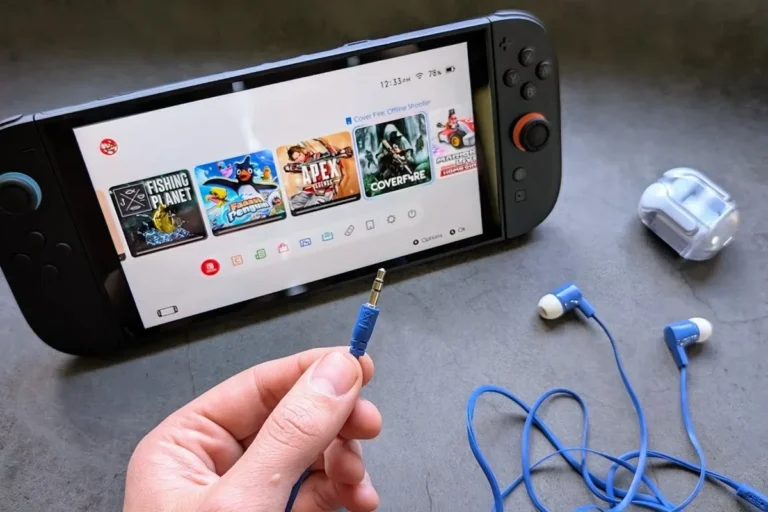
Some TVs do not support headphone pairing directly, but the device connected to the TV may. A streaming box, gaming console, or smart remote accessory can sometimes handle the Bluetooth connection instead.
This can be especially helpful if you already use a console for gaming or streaming apps. It may also make switching between TV speakers and headphones easier, depending on the device menu.
Connecting with a Bluetooth transmitter if your TV has no Bluetooth
If your TV lacks Bluetooth, a transmitter is usually the most practical fix. These adapters plug into the TV’s audio output and send sound to your headphones wirelessly.
For readers comparing setup options, this is often the most reliable path. It can also be a good way to improve compatibility if your TV’s built-in Bluetooth is limited or unstable.
Step-by-Step Pairing Guide for Common TV Brands
Menu names vary by brand, but the basic process is similar. You are usually looking for sound settings, Bluetooth settings, or an accessibility/audio output menu.
Samsung, LG, Sony, TCL, and Hisense connection paths
On Samsung TVs, Bluetooth options are often found under sound output or speaker settings. LG TVs commonly place the option in sound or device connection menus, while Sony TVs may list it under settings, network, or accessories.
TCL and Hisense models often keep Bluetooth controls inside system settings, sound output, or remote/accessory menus. If you are unsure, use the TV search function if available or consult the model’s support page.
What to look for in your TV’s sound or accessibility settings
Look for terms like “Bluetooth audio,” “speaker list,” “headphones,” “audio output,” or “wireless devices.” Some TVs hide headphone support inside accessibility settings, especially if the feature is designed for private listening.
If your TV has a “TV speaker + Bluetooth” option, that may let you keep the room audio on while also using headphones. In some cases, though, only one output can be active at a time.
How to confirm successful pairing and audio output
Once paired, play something with clear dialogue and check whether the sound comes through the headphones. If the TV still plays audio through its speakers, go back to the output menu and switch the source manually.
You can also raise and lower the headphone volume independently on some TVs. If the sound is too quiet or distorted, check both the TV volume and the headphone volume before assuming the connection failed.
Some TVs remember paired headphones, but not all of them reconnect automatically after a power cycle. If the connection disappears, you may need to select the headphones again from the sound menu.
What to Do If Your TV Doesn’t Support Bluetooth Headphones
Do not assume your TV is incompatible just because it has no built-in Bluetooth menu. A small adapter can often solve the problem without replacing the TV.
Choosing a 3.5mm, optical, or USB Bluetooth transmitter
The best transmitter depends on your TV’s available ports. A 3.5mm transmitter is simple if your TV has a headphone jack, while an optical transmitter can work well with many modern TVs that include digital audio out.
USB transmitters are less universal for TV audio, but some TVs support them for power or specific audio use cases. Before buying, check the TV manual so you do not end up with an adapter that cannot receive audio properly.
Pros and cons of low-latency adapters for movies and gaming
Low-latency transmitters are worth considering if you care about lip sync or game response time. They are especially useful for action movies, sports, and console gaming.
The tradeoff is that both the transmitter and the headphones may need to support compatible low-latency behavior to get the best result. If either side is limited, you may still notice a slight delay.
Typical price ranges and what features are worth paying for
Prices vary a lot by brand, connection type, and latency features. In general, it is worth paying for stable pairing, good range, and a transmitter that matches your TV’s output ports.
For most buyers, the most useful extras are dual-device support, easy re-pairing, and low-latency mode. Fancy features matter less than reliable audio if your main goal is simple TV listening.
Common Problems That Stop Bluetooth Headphones from Connecting
Most connection issues are caused by pairing mode, distance, interference, or a setting on the TV rather than a broken headset. A few quick checks usually solve the problem.
TV won’t detect the headphones
Make sure the headphones are in pairing mode and not just powered on. Many models need a long press or a specific LED pattern before they become discoverable.
If the TV still cannot find them, restart both devices and try again with the headphones close to the TV. Also check whether the headphones are already paired to a phone or console nearby.
Audio delay, lip-sync issues, and stuttering sound
Delay is one of the most common Bluetooth complaints. It can happen because the TV, headphones, and transmission method are not using the same latency profile.
If the sound stutters, move closer to the TV and remove nearby wireless interference. For persistent lip-sync issues, a low-latency transmitter may be a better fix than changing headphones.
Only one earbud connects or the sound cuts out
True wireless earbuds can sometimes connect unevenly if they are not reset properly. Put both earbuds back in the case, reconnect them to each other if needed, and then pair again with the TV.
Cutouts can also happen if the battery is low or the signal is weak. If the problem happens often, try a different location or a more stable transmitter setup.
How distance, interference, and old firmware affect pairing
Bluetooth works best at short to moderate distances with a clear path. Walls, cabinets, and other wireless devices can weaken the connection.
Old TV firmware or outdated headphone firmware can also cause pairing trouble. If your model supports updates, installing them may improve stability and compatibility.
Not every Bluetooth headphone supports every TV equally well. If your setup keeps dropping connection or produces constant lag, the issue may be compatibility rather than a simple pairing mistake.
Expert Advice: Best Settings for Better TV Listening
A few small settings changes can make wireless TV audio feel much better. These tweaks are especially useful if you watch a lot of dialogue-heavy content or play games.
Using low-latency codecs when available
If your TV, transmitter, and headphones support low-latency codecs or gaming modes, enable them. This can reduce the delay between what you see and what you hear.
Not every device supports the same codec, so check the manuals rather than assuming a feature is active. If you are comparing wireless listening options, our guide on Bluetooth vs wired headphones sound quality can help explain the tradeoffs.
Adjusting TV audio output and volume leveling
Set the TV to output audio only to the headphones if you want private listening. If you prefer a shared setup, look for a mode that lets the TV speakers and headphones work together.
Volume leveling or night mode can also make dialogue easier to hear without sudden loud effects. That can be especially helpful for late-night viewing and quieter rooms.
Keeping the headphones charged and firmware updated
Low battery can cause weak pairing, random disconnects, or uneven sound. Keep the headphones charged before long movie sessions or gaming nights.
If the manufacturer offers firmware updates, apply them when possible. Updates may improve pairing behavior, stability, or compatibility with newer TVs and transmitters.
Listening at high volumes for long periods can cause hearing damage. Keep volume at 60% or below for extended sessions.
Warning signs that your setup may need a dedicated transmitter
If your TV’s built-in Bluetooth is slow, unstable, or missing entirely, a dedicated transmitter is usually the cleaner solution. This is also true if you want a more dependable connection for gaming.
If you keep resetting devices and the problem returns, stop fighting the built-in menu and upgrade the audio path instead. A good transmitter often saves time and frustration.
If you notice persistent sound imbalance, ringing, or difficulty hearing dialogue even at moderate volume, consider speaking with an audiologist. A hearing check can help you choose safer listening habits and better audio settings.
Best Use Cases for Bluetooth Headphones with TV Audio
Bluetooth headphones are not just for convenience. They can improve comfort, reduce noise, and make TV listening more flexible in everyday situations.
Late-night viewing without disturbing others
This is one of the biggest reasons people ask how do i connect my bluetooth headphones to my tv. Private listening lets you watch when others are sleeping or working nearby.
It also keeps explosions, sports commentary, and game audio from carrying through the whole home. That makes headphones a practical choice for shared spaces.
Gaming with a console or smart TV app
For gaming, low latency matters more than almost anything else. If your setup introduces lag, the experience can feel disconnected even when the sound quality is good.
That is why many gamers prefer either a transmitter with gaming support or a headset designed for both TV and console use. If you already use Bluetooth for devices, our guide on how to connect Bluetooth headphones can help with the general pairing process too.
Watching sports, movies, and dialogue-heavy shows
Bluetooth headphones can make speech easier to follow, especially when TV speakers sound thin or echoey. They also help when you want to hear commentary clearly without increasing the overall room volume.
For movies and sports, comfort and stable connection matter more than flashy features. A balanced headphone tuning and a secure fit usually matter most for long sessions.
Accessibility and hearing support benefits
Wireless headphones can help viewers who need clearer dialogue or more controlled volume. They may also be useful for people who prefer listening closer to the ears rather than relying on room speakers.
If hearing is a concern, safe volume habits are still important. For ongoing hearing difficulty, an audiologist can help you decide whether headphones, TV settings, or assistive listening gear would be most appropriate.
Final Recap: The Easiest Way to Connect Bluetooth Headphones to Your TV
In most cases, the easiest answer to how do i connect my bluetooth headphones to my tv is to use the TV’s built-in Bluetooth menu first. If that fails, try a connected streaming device or console, and then move to a Bluetooth transmitter if your TV does not support audio pairing directly.
Quick summary of the best connection method by TV type
Smart TVs with Bluetooth usually work best through the built-in sound settings. Older TVs or models without Bluetooth usually need a transmitter through the headphone jack, optical output, or another supported audio port.
If you want a broader headphone setup refresher, the article on how to reset Bluetooth headphones can help when pairing gets stuck.
Key takeaways for reliable, low-lag wireless listening
Keep the headphones close during pairing, check the TV’s sound output settings, and update firmware when possible. For movies and gaming, low-latency support is worth prioritizing if you want tighter lip sync.
Most importantly, choose the method that fits your TV’s ports and your listening habits. The best setup is the one that stays connected, sounds clear, and feels comfortable for long viewing sessions.
Frequently Asked Questions
Wired headphones can be more consistent, but wireless headphones are more convenient for TV use. Sound quality depends on the TV, headphones, and connection method.
Yes, noise cancelling headphones can help reduce background noise and make dialogue easier to hear. They are especially useful in shared homes or noisy rooms.
Over-ear headphones are usually best for long viewing because they are often more comfortable. In-ear models can work well if you want a lighter fit, but comfort is personal.
Look at Bluetooth stability, latency support, battery life, and comfort first. Driver type, tuning, and frequency response can also affect bass, clarity, and dialogue quality.
Budget options can work well for casual viewing, while premium models may offer better comfort and lower latency. The right price depends on your TV, use case, and sound preferences.
Check ear cushion material, headband padding, weight, and build quality for long sessions. A comfortable fit matters more than extra features if you watch TV for hours.