How Do I Connect Wireless Headphones to TV Easily

Use your TV’s built-in Bluetooth if it has it, or add a Bluetooth transmitter if it doesn’t. For the least delay and best comfort, choose a setup that matches your TV outputs and your listening needs.
If you’re asking how do i connect wireless headphones to tv, the short answer is that it usually comes down to your TV’s audio output and whether it supports Bluetooth. In many homes, the easiest path is direct pairing, but older TVs often need a Bluetooth transmitter or adapter.
This guide from the Top Headphone Reviews Editorial Team walks through the main connection methods, common problems, and the best setup choices for movies, gaming, and late-night viewing. If you also want a broader look at wireless audio basics, our guide to connect Bluetooth headphones can help with pairing steps that are similar across many devices.
- Check outputs first: Bluetooth, optical, 3.5mm, or RCA determine your options.
- Direct pairing is easiest: Built-in Bluetooth is the simplest setup.
- Transmitters expand compatibility: They help older TVs work with wireless headphones.
- Latency matters: Low-delay gear is better for gaming and lip-sync.
- Comfort counts: Choose a fit that works for long TV sessions.
How Do I Connect Wireless Headphones to TV: What You Need to Know First
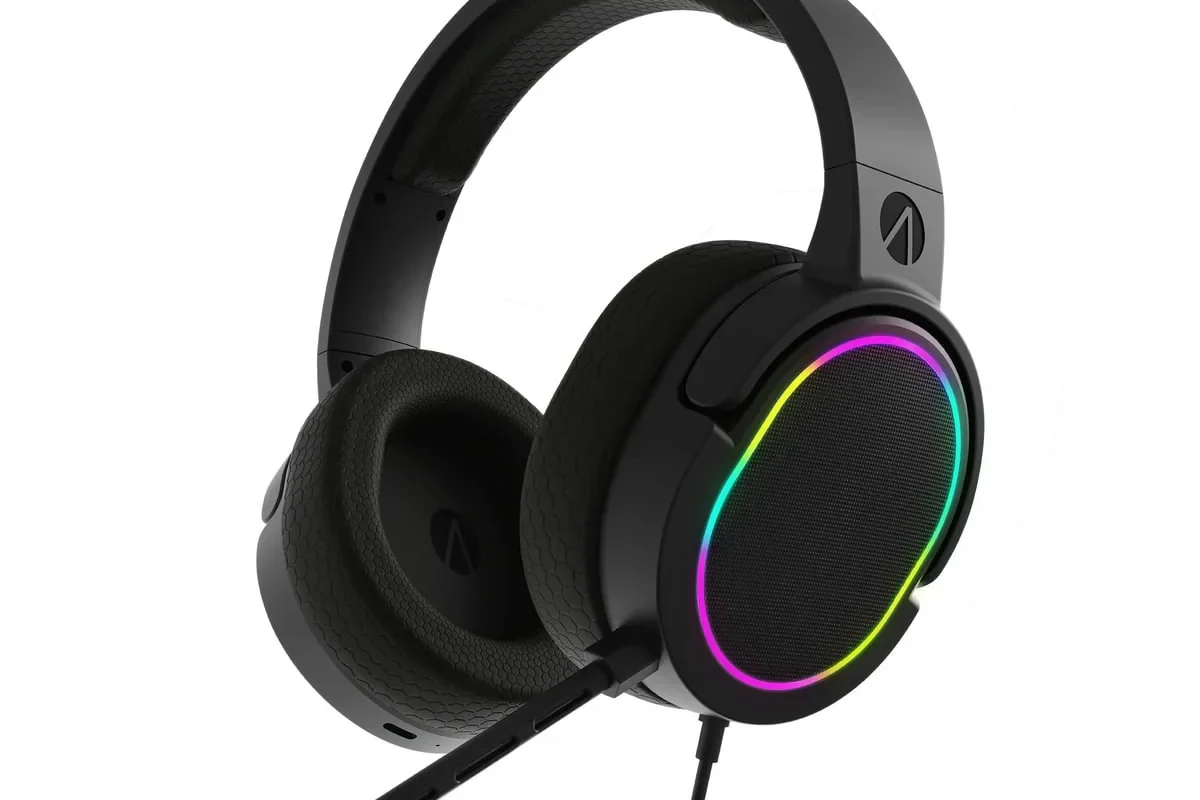
Before you pair anything, check whether your TV can send audio wirelessly on its own. Some TVs support Bluetooth audio directly, while others only offer wired outputs such as optical, 3.5mm, or RCA.
The right method depends on your TV model, your headphones, and how sensitive you are to audio delay. For example, movie watchers may care more about lip-sync, while gamers usually want the lowest possible latency.
Wireless headphones can work well with TVs, but the “best” method is not always the simplest one. Compatibility, latency, and volume control can vary by brand and model.
Check Your TV’s Audio Output Options Before Pairing
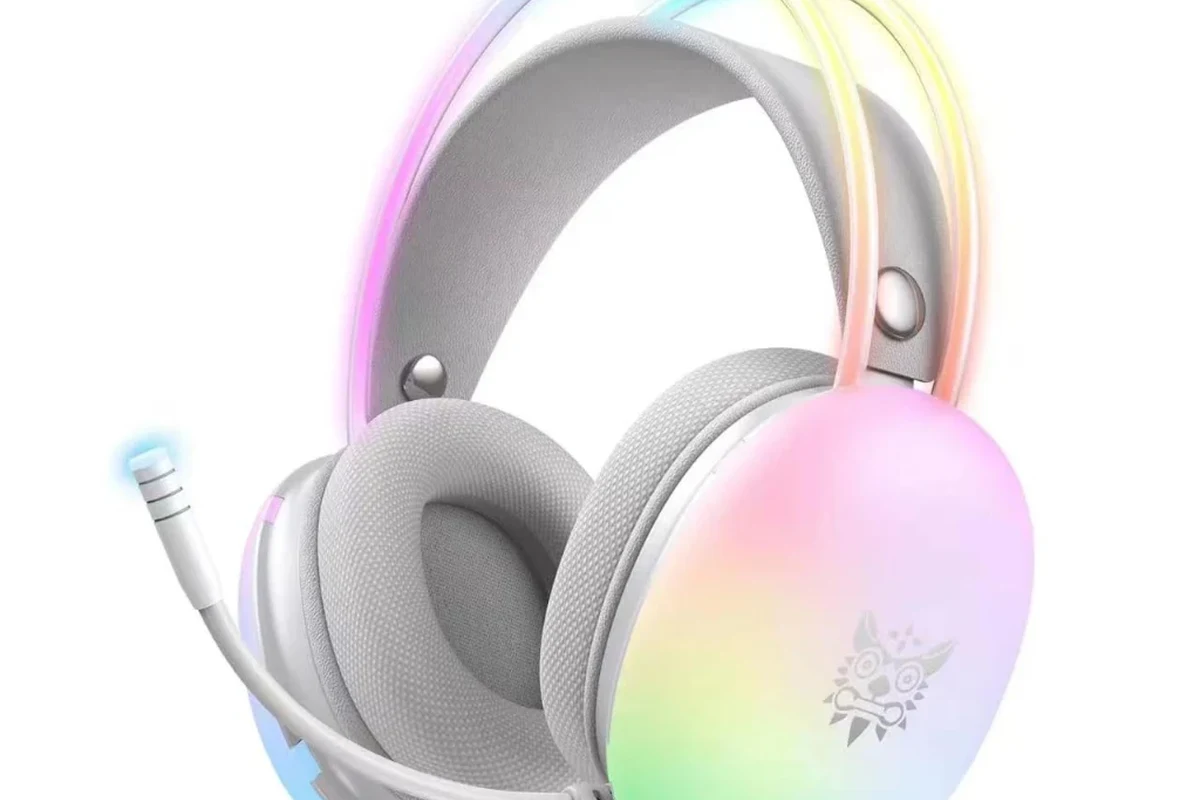
The fastest way to avoid frustration is to inspect your TV’s audio menu and ports first. That tells you whether you can pair directly or need extra hardware.
Bluetooth-enabled TVs
If your TV has Bluetooth audio output, you can often pair headphones from the settings menu. This is the cleanest setup because you do not need extra cables or adapters.
Still, Bluetooth support does not guarantee a perfect experience. Some TVs only support certain Bluetooth devices, and some add a delay that is noticeable during dialogue or gaming.
TVs with optical, 3.5mm, or RCA outputs
Many older and mid-range televisions do not send audio through Bluetooth, but they do have physical outputs. Optical audio is especially common on home theater-friendly TVs, while 3.5mm and RCA are more common on older sets.
These outputs are useful because they let you add a Bluetooth transmitter or wireless headphone base station. That gives you a wireless listening setup without replacing the TV.
- Look for Bluetooth in the sound or audio settings
- Check for optical, 3.5mm, or RCA ports on the TV
- Confirm whether the TV mutes built-in speakers when headphones connect
When your TV has no built-in wireless support
If your TV has no Bluetooth audio, you are not stuck. A Bluetooth transmitter can convert the TV’s audio output into a wireless signal for your headphones.
This is often the best option for older televisions, budget TVs, and gaming setups that need more control over audio routing. For readers comparing wireless and wired listening more broadly, our wired vs wireless headphones guide explains the trade-offs in sound, convenience, and latency.
Best Ways to Connect Wireless Headphones to a TV in 2025
There are three main ways to connect wireless headphones to a TV: direct Bluetooth pairing, using a transmitter, or routing audio through another device. Each one has strengths depending on your setup.
Direct Bluetooth pairing
This is the easiest method when your TV supports Bluetooth audio output. You open the TV’s Bluetooth menu, put the headphones in pairing mode, and connect them like you would with a phone.
The upside is simplicity. The downside is that audio delay may be noticeable, especially with fast-moving games or when you are sensitive to lip-sync mismatch.
Using a Bluetooth transmitter for non-Bluetooth TVs
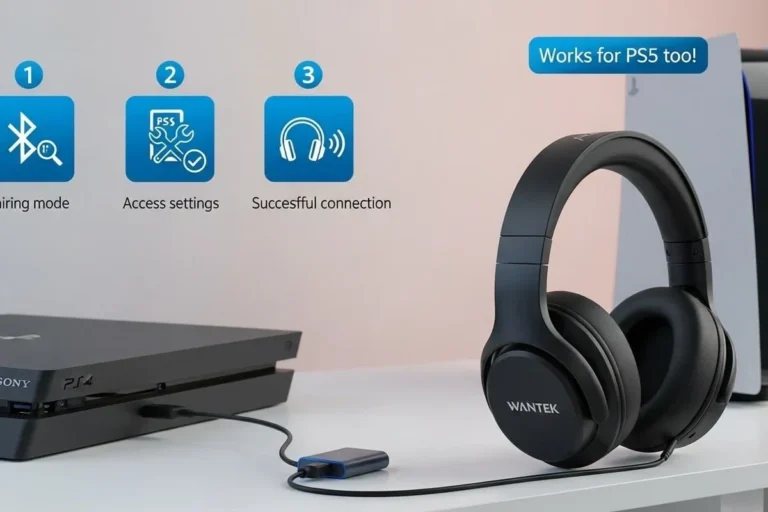
A Bluetooth transmitter plugs into your TV’s optical, 3.5mm, or RCA output and sends sound to your headphones wirelessly. This is the most flexible solution for older TVs and many living room setups.
When shopping, look for transmitter compatibility with your TV output and headphone type. If you want a better chance at smoother audio for movies or gaming, features like low-latency support can matter, though real-world performance still depends on the whole chain.
If your TV has optical out, that is often the cleanest connection for a transmitter because it avoids some of the noise and interference issues that can happen with analog outputs.
Pairing through a streaming device, soundbar, or console
Sometimes the easiest route is not the TV itself but the device connected to it. Some streaming boxes, soundbars, and gaming consoles offer their own Bluetooth or audio output options.
This can be useful if your TV’s Bluetooth menu is limited or if you want to keep audio handling inside your game console. For console players, it is worth checking the audio settings carefully because some systems route sound differently from one app or game to another.
Step-by-Step Setup for the Most Common TV and Headphone Combinations
The setup process changes a little depending on the brand and connection type. The good news is that the basic logic stays the same: enable pairing, choose the right output, and test the sound.
Samsung, LG, Sony, and Roku TV Bluetooth setup
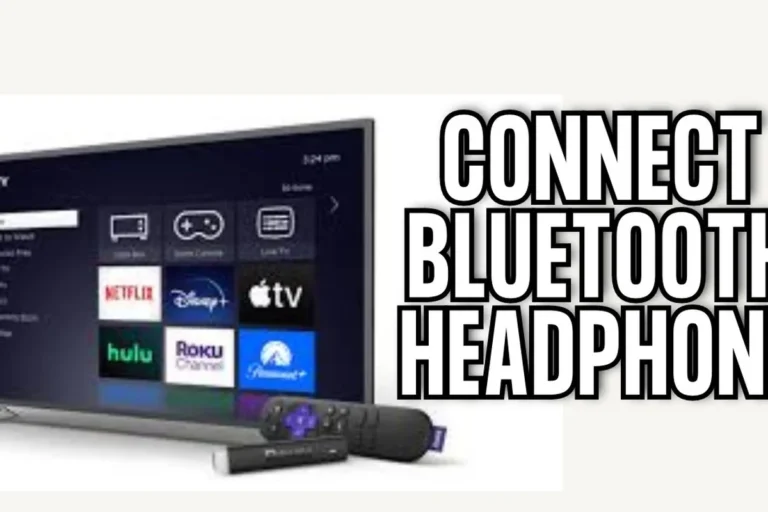
On many modern smart TVs, the Bluetooth audio option is found in the sound or device connection menu. Put your headphones into pairing mode, select them on the TV, and wait for confirmation.
If the TV gives you a choice between speakers and headphones, test both. Some models switch automatically, while others require you to manually choose the output each time.
Go to sound, audio, or connected devices and look for Bluetooth audio or headphone output.
Hold the pairing button until the indicator light flashes, then wait for the TV to detect them.
Play a show or menu sound, then adjust both the TV and headphone volume for a comfortable level.
Connecting over optical audio with a transmitter
For TVs with optical output, the process is usually straightforward. Connect the optical cable from the TV to the transmitter, power the transmitter, and pair your headphones to it.
This method is popular because it works with many non-Bluetooth TVs and can be more stable than analog connections. If you already use headphones for other devices, you may also find our guide to selecting headphones in Windows 11 useful for understanding how audio output choices affect what you hear.
Some TVs only support Bluetooth for remotes or accessories, not for headphones. That is why checking the exact audio menu matters before you buy anything extra.
Using 3.5mm or RCA adapters for older televisions
Older TVs may offer a headphone jack or RCA audio outputs instead of optical. In that case, you can use a transmitter designed for analog input or a simple adapter if needed.
Analog connections are convenient, but they may introduce more noise or lower audio quality than optical in some setups. If your headphones are part of a larger TV room or gaming zone, a cleaner signal path is usually worth the extra step.
Not every adapter works the same way. Check whether your TV output is fixed or variable volume, because that affects how loud your headphones will be and whether you can control sound from the TV remote.
Common Problems When Connecting Wireless Headphones to TV
Even when the connection works, a few common issues can still get in the way. Most of them are fixable with a small change in settings or hardware.
No sound, failed pairing, or dropped connection
If you get no sound, first confirm the headphones are actually connected to the TV and not to another device nearby. If pairing fails, remove the old connection and try again from scratch.
Dropped connections can happen when the TV and headphones are too far apart or when the signal is blocked by walls, cabinets, or other electronics. Resetting the headphones or transmitter can also help when the device list gets messy.
Audio delay and lip-sync issues
Bluetooth delay is one of the biggest complaints with TV headphones. If voices do not match the picture, the issue may be the TV, the transmitter, or the headphones themselves.
Some TVs include an audio delay or lip-sync setting that can help. If not, a low-latency transmitter or a different connection type may give you a better result.
If you have persistent lip-sync issues, or if you are using headphones for long gaming sessions and notice strain, consider speaking with an audiologist or a professional audio specialist. They can help you balance comfort, clarity, and safe listening habits.
Volume control and one-ear audio mistakes
Sometimes the TV volume and headphone volume both affect the final sound level, which can confuse first-time users. Start low and raise the volume gradually to avoid sudden loud playback.
Another common mistake is thinking one ear is broken when the TV is actually set to a mono or accessibility mode. Check the audio balance, accessibility settings, and headphone fit before assuming the headphones are faulty.
Listening at high volumes for long periods can cause hearing damage. Keep volume at 60% or below for extended sessions.
Expert Advice: How to Avoid Latency, Compatibility, and Range Issues
The best wireless TV setup is not just about connection. It is also about choosing the right wireless standard, the right headphones, and the right room layout.
Why aptX Low Latency and Bluetooth version matter
Bluetooth version alone does not guarantee perfect sound, but it can affect stability and efficiency. Low-latency codecs such as aptX Low Latency, when supported by both devices, can reduce the delay between picture and sound.
That said, codec support varies a lot by TV, transmitter, and headphone model. Always check the full compatibility list instead of assuming every Bluetooth device will behave the same way.
When to choose RF headphones over Bluetooth
RF headphones use a dedicated wireless base station rather than Bluetooth. They are often a strong choice for TV listening when you want long range and a more stable connection in one room.
They are less universal than Bluetooth, but they can be excellent for users who mainly watch TV in one place and want fewer pairing headaches. Bluetooth is more flexible across devices, while RF can feel more purpose-built for living room listening.
What to watch for in shared living rooms and gaming setups
In a shared room, the simplest setup is not always the best one. You may need to think about whether the TV speakers should stay on, whether the headphones can switch quickly, and whether multiple people are using different audio sources.
For gaming, latency and comfort matter more than almost anything else. If you play for long periods, look for lightweight headphones, soft ear cushions, and a connection method that keeps delay to a minimum.
Cost Comparison: Built-In Bluetooth vs Bluetooth Transmitters vs Dedicated Wireless Headphones
Costs can vary widely, so it helps to think in terms of setup type rather than exact price. The right option depends on whether you already own headphones, whether your TV has Bluetooth, and how much audio delay you can tolerate.
Budget-friendly setup options under $50
Budget setups usually involve a basic Bluetooth transmitter or a simple analog adapter for an older TV. This can be a practical way to add wireless listening without replacing your existing headphones.
These options are attractive for casual viewing, but they may have more limitations in range, latency, or build quality. If you are buying on a tight budget, focus on compatibility first and extras second.
Mid-range and premium solutions for better sound and less delay
Mid-range and premium setups often include better transmitters, stronger headphone build quality, and more reliable wireless performance. These can be worth it if you watch TV every day or use headphones for both TV and gaming.
Dedicated wireless TV headphones may also offer a more comfortable fit for long sessions, especially if you prefer over-ear designs. For readers comparing comfort and form factor, our broader headphone guides on types of headphones explained can help you choose between over-ear, on-ear, and in-ear styles.
- Better long-session comfort
- Often more stable for TV use
- Can reduce setup frustration
- Costs more than basic adapters
- Compatibility still matters
- Not every premium feature helps every user
Final Recap: The Easiest Way to Connect Wireless Headphones to TV
The easiest answer to how do i connect wireless headphones to tv is to use built-in Bluetooth if your TV supports it. If it does not, a Bluetooth transmitter is usually the most practical upgrade because it works with many older and newer TVs.
For the best experience, match the connection method to your needs: direct Bluetooth for convenience, optical plus transmitter for flexibility, and RF or low-latency options when lip-sync matters most. If you are still choosing headphones for TV, gaming, or shared-room use, prioritize comfort, stable wireless performance, and easy volume control over flashy features.
- Check whether your TV supports Bluetooth audio first.
- Use a transmitter if your TV only has wired outputs.
- Low-latency support helps reduce lip-sync issues.
- Comfort and fit matter for long TV and gaming sessions.
Frequently Asked Questions
Wireless headphones are more convenient for moving around the room, but wired headphones can offer simpler setup and no Bluetooth delay. The better choice depends on your TV, your comfort needs, and whether latency matters to you.
Yes, noise cancelling headphones can work very well for TV because they help reduce background noise. They are especially useful in shared living rooms, but sound quality and comfort still depend on the model.
Over-ear headphones are often the most comfortable for long TV sessions, while on-ear models are lighter and in-ear options are more compact. Fit and personal comfort matter more than any single style for most people.
Look at wireless stability, latency support, comfort, and the headphone’s tuning rather than focusing on one spec alone. Bass, clarity, and soundstage can vary by model, and EQ settings may help fine-tune the sound.
Budget setups can work well if you already have headphones and only need a transmitter, while mid-range and premium options usually improve comfort and reliability. Prices vary by brand and features, so match the budget to how often you will use them.
Check ear cushion material, headband padding, weight, and overall build quality if you plan to watch for long sessions. A comfortable fit and sturdy hinges or earcups often matter more than extra features.