How to Add Bose Headphones to Laptop Easily and Fast

To add Bose headphones to a laptop, usually turn on Bluetooth, put the headphones in pairing mode, and connect them from Windows or macOS settings. If Bluetooth is unreliable or your laptop lacks the right support, a 3.5 mm cable or adapter is the fastest backup.
If you want to know how to add Bose headphones to laptop quickly, the easiest path is usually Bluetooth pairing. If your model or laptop setup is older, a wired cable or adapter can be the faster and more reliable option.
- Fastest method: Bluetooth is usually the easiest setup on modern laptops.
- Best backup: Wired audio works well when pairing fails or latency matters.
- Common fix: Update drivers and remove old pairings if the headphones do not appear.
- Mac and Windows: Both can connect Bose headphones in a few simple steps.
How to Add Bose Headphones to a Laptop: What Readers Want to Do in 2026
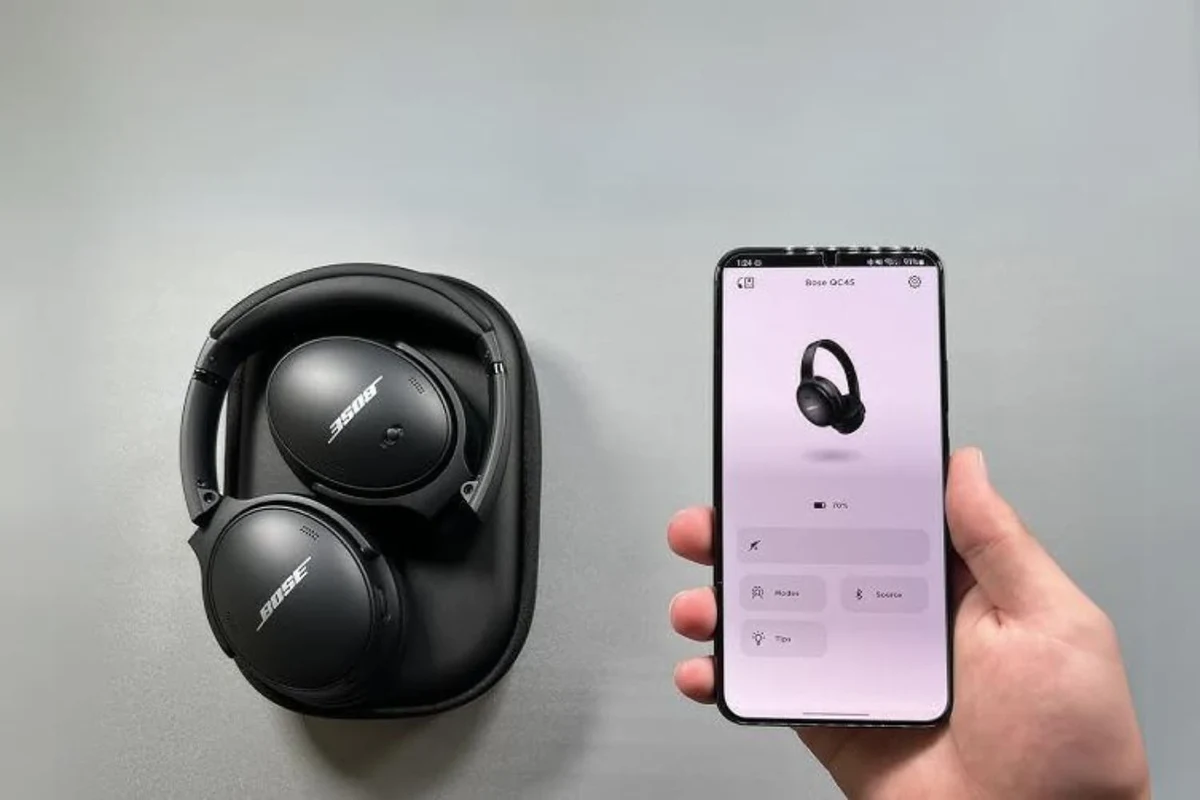
Most readers are not looking for a complicated setup guide. They want their Bose headphones connected, the sound working, and the laptop ready for calls, music, or video in just a few minutes.
That is why this guide focuses on the two main connection methods: Bluetooth for wireless convenience and cable-based connections for simple plug-and-play use. If you are new to laptop audio setup, it also helps to understand how Bluetooth headphones connect in general before you start.
Bluetooth pairing vs. wired connection: choosing the right setup first
Bluetooth is the most common choice for modern Bose headphones because it keeps your desk clean and lets you move around freely. It is a strong option for everyday listening, meetings, and casual work.
Wired connection is still useful when you want lower latency, a more stable signal, or fewer pairing issues. If you are gaming, editing video, or dealing with a laptop that has weak Bluetooth support, a cable may be the better choice.
Who this guide is for: Windows, Mac, USB-C, and older Bose models
This guide is for Windows 11, Windows 10, and MacBook users, plus anyone working with USB-C-only laptops or older Bose models. The exact steps may vary slightly by model and operating system, but the process is usually straightforward.
If your Bose headphones are older or your laptop is missing a headphone jack, you may need an adapter. That is normal in 2026, especially on thinner laptops and some premium wireless headphones.
Before You Start: Check Your Bose Headphones and Laptop Compatibility
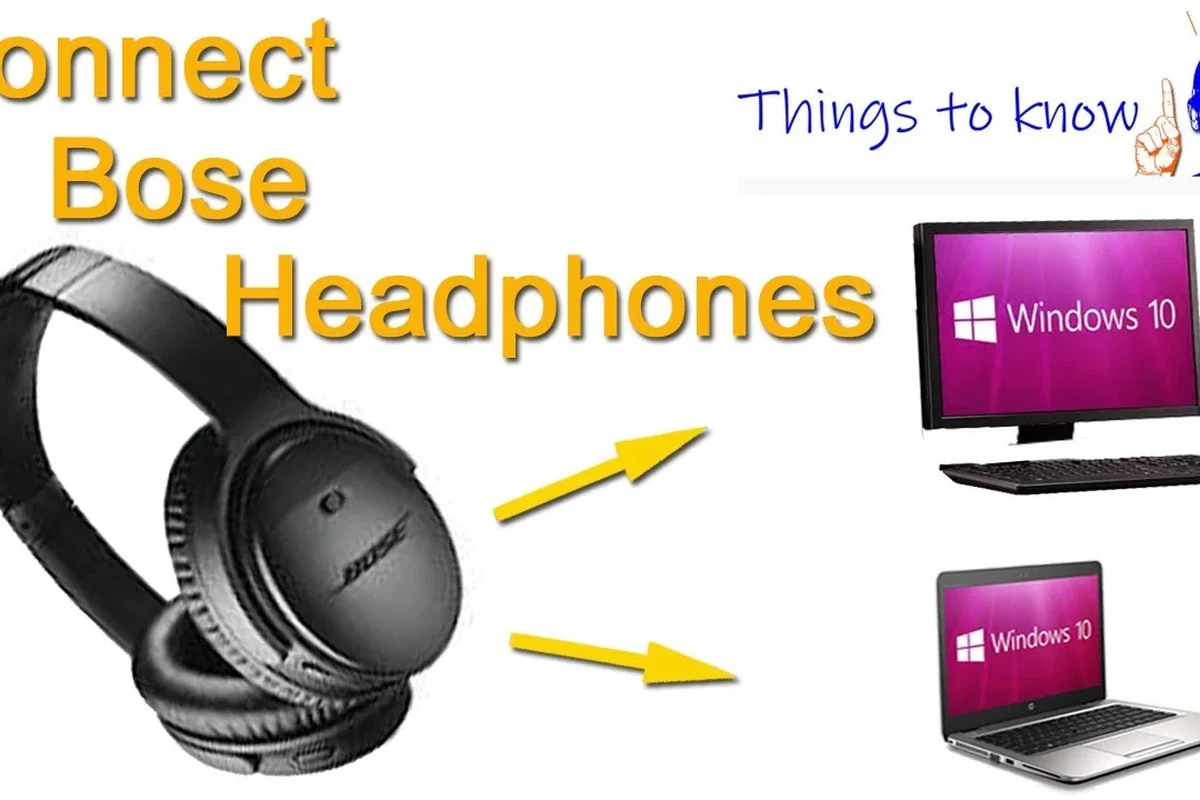
Before pairing anything, it is worth checking what connection type your Bose headphones support and what ports or wireless features your laptop has. A quick compatibility check can save you from common setup problems later.
Supported Bose models and connection types
Many Bose over-ear and on-ear models support Bluetooth, and several also support a wired 3.5 mm connection. Some newer Bose headphones may also work with USB-C charging, but charging is not the same as audio input, so do not assume the same cable handles both.
In practical terms, most Bose headphones can be added to a laptop wirelessly if the laptop supports Bluetooth. If you are using an older Bose model, check whether it supports multipoint pairing, wired fallback, or a removable audio cable.
What your laptop needs: Bluetooth version, audio jack, or USB-C adapter
For Bluetooth, your laptop needs a working Bluetooth radio and drivers that are up to date. For wired listening, you need either a 3.5 mm headphone jack or an adapter that matches your laptop’s port.
Some USB-C laptops require a USB-C to 3.5 mm audio adapter or a USB audio dongle. If you are unsure, check your laptop’s port labels or manual before buying accessories.
Quick prep steps: charging, power cycling, and updating drivers
Start with a charged pair of headphones. Low battery can cause pairing delays, dropouts, or a connection that seems to work but behaves unreliably.
It also helps to power-cycle both devices. Turn the headphones off and back on, restart the laptop if needed, and update Bluetooth or audio drivers when Windows or macOS suggests it.
Bluetooth performance can vary by laptop brand, operating system version, and nearby wireless interference. If one method fails, the other connection type may still work fine.
How to Add Bose Headphones to a Laptop via Bluetooth
Bluetooth is usually the fastest way to add Bose headphones to a laptop because it does not require extra cables. Once the headphones are paired, they should reconnect automatically in many cases.
Put Bose headphones into pairing mode correctly
Pairing mode is the step that most users miss. On many Bose headphones, you usually press and hold the power or Bluetooth button until the indicator light or voice prompt signals pairing mode.
If the headphones were already connected to another device, disconnect them first. Bose headphones can remember past devices, so a phone or tablet nearby may try to reconnect before your laptop does.
Make sure the battery has enough charge and the headphones are powered up before pairing.
Hold the pairing control until the light flashes or you hear the pairing prompt.
Stay within a few feet while the first connection is being made.
Connect on Windows 11 and Windows 10 step by step
On Windows, open Bluetooth settings and make sure Bluetooth is turned on. Then choose “Add device” or “Add Bluetooth or other device,” and wait for your Bose headphones to appear.
Once the headphones show up, click them and follow the on-screen prompts. After pairing, go to sound settings and confirm Bose is selected as the output device. If you want a deeper Windows-specific walkthrough, our guide on selecting headphones in Windows 11 can help with the final audio output step.
Connect on MacBook and macOS step by step
On a MacBook, open System Settings, then Bluetooth, and turn Bluetooth on if it is not already active. Put your Bose headphones into pairing mode and wait for them to appear in the device list.
Click Connect, then check the sound output menu to make sure the Mac is sending audio to the headphones. If you also use wired audio on Apple laptops, our article on wired headphones on MacBook explains how the jack and adapter options differ.
Practical example: pairing Bose QuietComfort and Bose Ultra models
With modern Bose QuietComfort or Bose Ultra-style headphones, the process is usually similar: power on, enter pairing mode, add the device from the laptop’s Bluetooth menu, and confirm the sound output.
If you have trouble, remove the old pairing from both the laptop and the headphones, then start again from scratch. That simple reset often fixes devices that seem “stuck” on a previous connection.
Many Bluetooth issues are not caused by the headphones themselves. The laptop’s Bluetooth driver, nearby devices, or saved pairings are often the real source of the problem.
How to Connect Bose Headphones to a Laptop with a Cable or Adapter
Wired audio is still one of the simplest ways to add Bose headphones to a laptop, especially if you want a direct connection without pairing steps. It can be a good fallback when Bluetooth is acting up.
Using a 3.5 mm audio cable for a fast wired connection
If your Bose headphones include a 3.5 mm cable and your laptop has a headphone jack, just plug both ends in and start playback. In many cases, the laptop will switch audio output automatically.
Wired mode is a reliable option for long work sessions, travel, and older laptops. It also helps preserve battery life because the headphones do not need to maintain a wireless link.
Using USB-C or USB-A adapters when the laptop has no headphone jack
If your laptop has no analog jack, a USB-C audio adapter or USB-A dongle may solve the problem. Choose an adapter that supports audio output and is compatible with your operating system.
Be careful not to confuse charging cables with audio adapters. Some cables only charge the headphones and do not carry sound.
When wired is better than Bluetooth for latency, calls, or battery saving
Wired is often better for low-latency tasks like gaming or video editing. It can also help when you are on a call and do not want Bluetooth dropouts or unexpected reconnections.
If your battery is low, wired use can be the most practical choice. It is also useful in crowded wireless environments where Bluetooth interference is more likely.
Listening at high volumes for long periods can cause hearing damage. Keep volume at 60% or below for extended sessions.
Fixing Common Problems When Adding Bose Headphones to a Laptop
Even when the setup is simple, a few common issues can block the connection. Most of them are easy to fix without special tools or advanced technical knowledge.
Headphones not showing up in Bluetooth settings
If the Bose headphones do not appear, confirm that pairing mode is active and that no other device is already connected. Move the headphones closer to the laptop and try again after turning Bluetooth off and back on.
On Windows, it can also help to remove old Bluetooth entries and refresh the device list. If the laptop’s Bluetooth hardware is disabled or the driver is outdated, the headphones may never appear properly.
Connected but no sound, low volume, or audio cutting out
If the laptop says the headphones are connected but you hear nothing, check the sound output device first. Make sure Bose is selected in the audio menu and that the volume is not muted.
For cutting out or low volume, move away from other wireless devices, avoid thick walls, and keep the laptop and headphones within a reasonable range. If the issue continues, a driver update or a clean re-pair may help.
Microphone issues during Zoom, Teams, or Discord calls
Call apps sometimes choose the wrong input device, especially after Bluetooth reconnects. Open the app’s audio settings and manually select the Bose microphone or the laptop mic you actually want to use.
Some users also prefer using the laptop microphone while keeping Bose headphones as the output device. That can improve speech clarity if the headset mic sounds compressed or too quiet in a given app.
How to remove old pairings and reset Bose Bluetooth memory
If Bose headphones keep connecting to the wrong device, remove them from the laptop’s Bluetooth list and clear them from other devices too. Then put the headphones back into pairing mode and reconnect fresh.
Some Bose models also allow a Bluetooth memory reset or device list clear through button combinations or the companion app. Check your model instructions before trying a full reset.
If you keep getting dropouts, distorted audio, or one-sided sound after basic troubleshooting, it may be worth checking with Bose support, your laptop manufacturer, or an audiologist if the problem seems related to hearing rather than hardware.
Expert Advice: Mistakes to Avoid When Pairing Bose Headphones
A good pairing experience is usually about avoiding a few common mistakes. Most issues are not serious, but they can waste time if you do not know what to check first.
Why outdated Bluetooth drivers cause connection failures
Outdated Bluetooth drivers can stop a laptop from seeing Bose headphones or can make a stable connection impossible. This is especially common after operating system updates or on older laptops.
If Bluetooth pairing keeps failing, update the driver from the laptop maker’s support page or through the operating system’s update tools. That simple step often fixes problems that look like headphone faults.
Why users should avoid pairing in crowded wireless environments without checking interference
Offices, dorm rooms, and coffee shops can be crowded with Wi-Fi and Bluetooth signals. That interference can make pairing slower or make audio stutter after connection.
If possible, do the first pairing in a quieter location. Once the headphones are saved, they usually reconnect more easily later.
When to update Bose firmware through the Bose app or desktop tools
Firmware updates can improve stability, fix bugs, and sometimes improve compatibility with laptops and phones. If Bose offers an app or desktop update tool for your model, it is worth checking occasionally.
Do not update firmware in the middle of a critical meeting or when the battery is low. A stable power source and a calm setup make the process less risky.
Cost, Accessories, and Best Value Options for a Better Bose Laptop Setup
You do not always need to spend money to connect Bose headphones to a laptop. But the right accessory can make the setup easier if your laptop lacks the ports you need.
Free connection methods vs. paid accessories like dongles and adapters
Bluetooth is free if your laptop already supports it. Wired audio is also free if you already own the right cable and your laptop has a headphone jack.
Paid accessories become useful when the laptop is missing a port or when you want a more dependable audio path. The best choice depends on your laptop design and how often you move between devices.
Comparing Bluetooth convenience to wired reliability
Bluetooth is the more convenient everyday option because it removes cables and works well for most casual use. Wired is usually more reliable when you care about consistency, latency, or battery saving.
If you use your laptop for both work and entertainment, many Bose owners keep both options available. That gives you flexibility when wireless is crowded or when a cable is simply easier.
Recommended accessory types for travel, office work, and gaming
For travel, a compact 3.5 mm cable and a small USB-C adapter can be the most practical additions. For office work, a stable Bluetooth connection and a spare charging cable are often enough.
For gaming or editing, look for an adapter or cable setup that keeps latency low and audio stable. If you want more background on headphone categories and fit styles, our types of headphones explained guide can help you compare over-ear, on-ear, and in-ear options.
Final Recap: The Fastest Way to Add Bose Headphones to a Laptop
The fastest way to add Bose headphones to a laptop is usually Bluetooth pairing on a compatible Windows or Mac system. If Bluetooth is unreliable or unavailable, a wired cable or adapter is the simplest backup plan.
Best method by user type: casual listening, work calls, or low-latency use
For casual listening, Bluetooth is usually the easiest and most comfortable option. For work calls, Bluetooth still works well, but it helps to confirm the correct microphone and output settings.
For gaming, editing, or anything where timing matters, wired connection is often the better choice. It reduces lag and removes many of the wireless variables that can interrupt audio.
Key takeaways for a smooth Bose laptop connection in 2026
Check compatibility first, pair the headphones in the correct mode, and confirm the laptop is sending audio to Bose. If something goes wrong, remove old pairings, update drivers, and try a wired fallback before assuming the headphones are broken.
With the right setup, Bose headphones can be one of the easiest audio devices to use on a laptop. The best method is the one that matches your laptop, your Bose model, and the way you actually listen.
Frequently Asked Questions
Wireless is more convenient for everyday use, while wired is often better for low latency and stable audio. The best choice depends on your laptop, your Bose model, and whether you are listening, calling, or gaming.
Yes, Bose noise cancelling headphones usually work well for laptop music, meetings, and travel. Noise cancelling can help reduce background sound, but performance may vary by model and environment.
Open-back headphones can sound more spacious, but they leak sound and block less noise. Closed-back headphones isolate better, so they are usually the more practical choice for laptops, offices, and calls.
Yes, but they are only part of the picture. Driver design, tuning, and frequency response all affect bass, clarity, and soundstage, so EQ preferences and real-world comfort matter too.
For commuting, look for noise cancelling and comfort. For gaming, low latency and a stable connection matter more, while studio-style work usually benefits from clear mids, accurate sound, and wired reliability.
Check ear cushion material, headband padding, weight, and build quality before buying. For long listening sessions, comfort often matters more than small sound differences.