How to Use Bluetooth Headphones on PS5 Easily

You can use Bluetooth headphones on PS5 with a USB Bluetooth adapter, a TV Bluetooth output, or a low-latency wireless transmitter. For the best gaming experience, check latency and microphone support before you buy.
If you want to know how Bluetooth headphones work on PS5, the short version is this: the console does not support standard Bluetooth audio the way a phone or laptop does. You can still use Bluetooth headphones with a few workarounds, but the best method depends on whether you care most about sound quality, microphone chat, or low latency.
For most players, the easiest path is a USB Bluetooth adapter, a TV with Bluetooth audio output, or a dedicated wireless transmitter. Each option has trade-offs, so it helps to know what PS5 allows before you buy anything.
- PS5 limit: Standard Bluetooth audio is not natively supported like on a phone.
- Best workaround: A low-latency USB adapter or transmitter is usually the most practical fix.
- Main risk: Lag can hurt fast games and cheap dongles can be unreliable.
- Mic check: Voice chat often works poorly with regular Bluetooth headphones.
- Best alternative: A PS5-ready wireless headset is often the easiest no-fuss option.
How to Use Bluetooth Headphones on PS5: What Works in 2025 and What Doesn’t
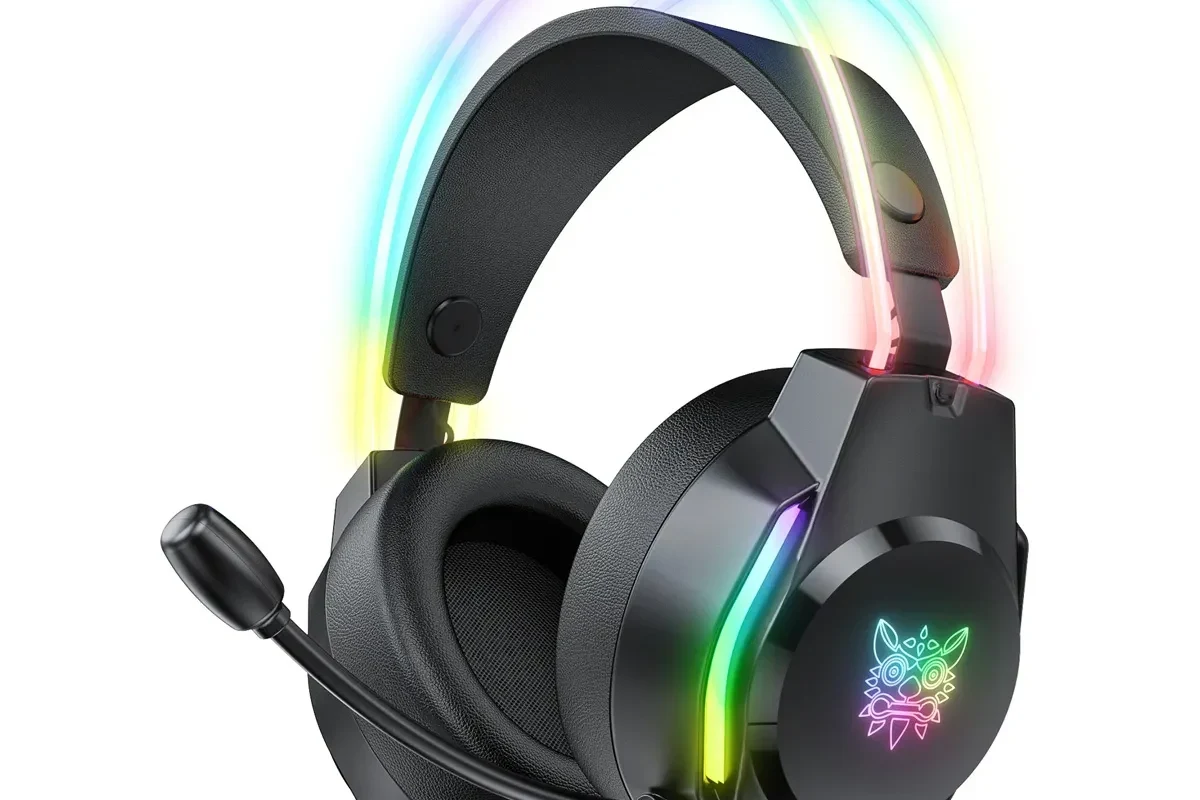
In 2025, PS5 still does not offer full native support for standard Bluetooth headphones. That means you usually cannot pair regular Bluetooth earbuds or over-ear headphones directly from the PS5 settings menu and expect them to work like a phone.
Instead, most people use one of three routes: a USB Bluetooth adapter, audio routed through a TV or monitor, or a headset/transmitter made for gaming. These methods can work well, but the experience varies a lot by hardware.
Not every Bluetooth device will connect cleanly to PS5. Cheap adapters, unsupported codecs, and weak wireless signals can cause lag, dropouts, or no sound at all.
Why PS5 Bluetooth Audio Is Limited: Understanding Sony’s Compatibility Rules
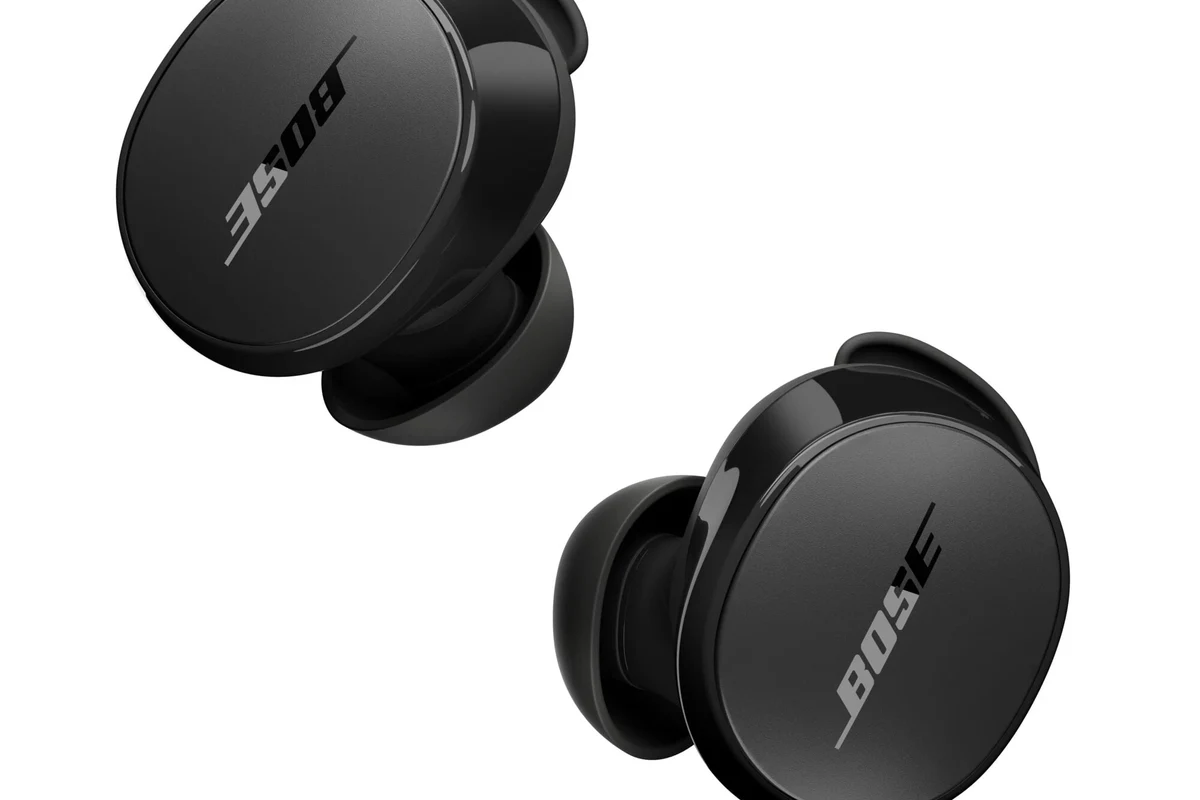
Sony limits Bluetooth audio on PS5 mainly to reduce interference and latency. Game audio is more sensitive to delay than music or video streaming, so standard Bluetooth can create a noticeable gap between what you see and what you hear.
The PS5 is designed to work best with licensed wireless headsets, USB dongles, or wired audio. That is why many Bluetooth headphones need an extra device in the middle instead of a direct pairing.
Bluetooth headphones are not all the same. Codec support, antenna quality, and headset design can affect connection stability and audio delay.
Best Ways to Connect Bluetooth Headphones to PS5
There is no single “best” method for everyone. If you want the simplest setup, a USB Bluetooth adapter is usually the most direct option. If your TV already handles Bluetooth audio well, you may not need an extra device.
For gamers who want better responsiveness, a low-latency wireless transmitter or a gaming headset dongle is often the safer choice. If you want a broader overview of wireless audio behavior, our guide on Bluetooth vs wired headphones sound quality explains why wired connections still win for speed and consistency.
Using a USB Bluetooth adapter for direct wireless audio
A USB Bluetooth adapter plugs into the PS5 and acts as a bridge between the console and your headphones. This is one of the most common solutions because it keeps the setup simple and portable.
The downside is that not all adapters behave the same. Some are audio-only, some support better latency handling, and some may not work well with the PS5’s USB power or audio routing.
Connecting through a TV, monitor, or soundbar with Bluetooth passthrough
If your TV or monitor supports Bluetooth audio output, you may be able to send PS5 sound through the display and then to your headphones. This can be convenient because you are using hardware you already own.
The big catch is latency. Many TVs add processing delay, and that delay can be more noticeable in games than in movies or shows.
Pairing via a compatible headset dongle or wireless transmitter
Some gaming headsets and wireless transmitters use their own USB dongle rather than standard Bluetooth pairing. These often provide better gaming performance because they are built for low-latency audio.
If your goal is smooth gameplay and reliable voice chat, this route is often more dependable than trying to force a general-purpose Bluetooth connection.
Step-by-Step Setup Guide for Each Method
Before you start, check your headphone battery, your PS5 USB ports, and whether your TV or monitor has audio output settings. It also helps to review the basics of connecting Bluetooth headphones in general, since the same pairing logic can apply to adapters and transmitters.
How to pair a USB Bluetooth adapter with PS5
Insert the USB Bluetooth adapter into an open PS5 USB port. Wait for any indicator light or pairing mode signal from the adapter.
Turn on pairing mode on your headphones or earbuds. The exact button combo varies by brand and model.
Let the adapter and headphones discover each other. If pairing fails, disconnect and try again after a full reset of both devices.
Go to PS5 sound settings and confirm that the adapter is selected as the output device if needed.
How to route audio through a TV’s Bluetooth output
Find the Bluetooth or sound output section in your TV settings. Some TVs hide this under advanced audio options.
Put your headphones into pairing mode and connect them to the TV, not the PS5.
Launch a game and check whether footsteps, dialogue, and button sounds feel in sync with the screen.
How to use a wireless transmitter with low-latency mode
Use the transmitter’s recommended input method, usually USB or 3.5 mm audio, depending on the model.
If the transmitter offers a gaming or low-delay mode, turn it on before pairing your headphones.
Connect your headphones, then test both gameplay and voice chat to confirm the signal is stable.
Latency, Mic Support, and Audio Quality: What Gamers Should Expect
Bluetooth audio on PS5 can sound fine for casual play, but latency is the main issue. Even a small delay may feel distracting in fast games, especially when sound cues are part of your reaction time.
Audio quality also depends on the codec and transmitter path. If you are comparing wireless options, it helps to understand the trade-offs covered in our guide to Bluetooth headphone lag.
How lag affects competitive games like Call of Duty and Fortnite
In fast shooters, even a slight audio delay can make gunfire, reloads, and footsteps feel disconnected from the action. That can be annoying in casual play and a real disadvantage in competitive matches.
If you mainly play single-player games, the delay may be easier to ignore. But for multiplayer shooters, low-latency gear is usually worth the extra cost.
Why microphone chat often fails with standard Bluetooth headphones
Many Bluetooth headphones use separate audio profiles for listening and microphone use, and those profiles do not always play nicely with consoles. The result can be weak mic quality, no mic support, or audio that switches into a lower-quality mode during chat.
If voice chat matters, look for a headset or transmitter that clearly supports microphone input on PS5. Standard Bluetooth earbuds often work better for listening than for talking.
If you rely on voice chat for ranked play, team coordination, or accessibility needs, choose a setup with confirmed mic support. If you have ongoing hearing discomfort, tinnitus, or sound sensitivity, consult an audiologist for safe listening guidance.
Common Mistakes When Using Bluetooth Headphones on PS5
Most connection problems come from buying the wrong accessory or expecting phone-style Bluetooth behavior from a game console. A little research before purchase can save a lot of frustration later.
Buying unsupported adapters or cheap dongles
Very cheap adapters may connect inconsistently or fail to support the audio profile you need. Some also introduce extra lag, which defeats the point of going wireless for gaming.
Look for products that clearly mention console audio compatibility and low-latency use, rather than vague “universal Bluetooth” claims.
Ignoring latency, codec, and power limitations
Bluetooth headphones may support different codecs, but that does not guarantee a smooth PS5 experience. Power draw, range, and USB stability can all affect how well the setup works.
If your audio cuts out or feels delayed, the issue may be the adapter path rather than the headphones themselves.
Assuming built-in TV Bluetooth is automatically gaming-friendly
TV Bluetooth can be convenient, but convenience does not always mean performance. Some TVs add enough processing delay to make gaming sound out of sync.
That is why many players prefer a dedicated transmitter or gaming headset dongle instead of relying on the television alone.
Wireless audio that sounds “fine” for music can still feel delayed in games, because your brain notices timing errors much more quickly during gameplay.
Expert Advice: The Best Budget and Premium Alternatives for PS5 Wireless Audio
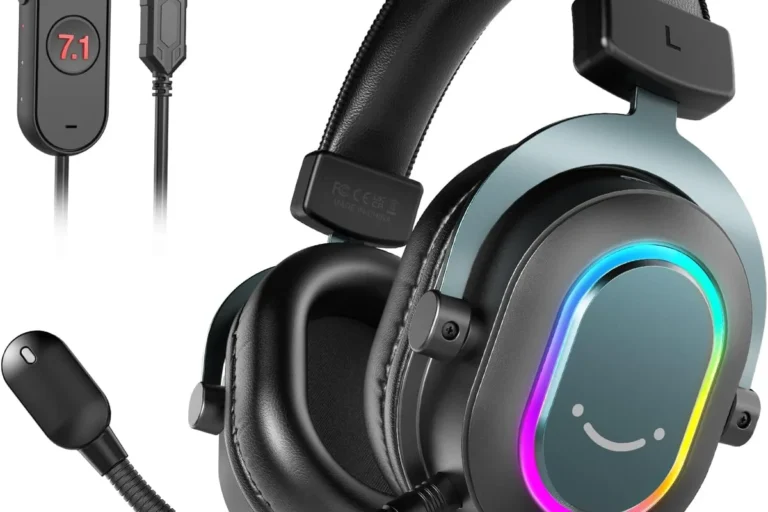
If you do not want to troubleshoot adapters, the simplest alternative is often a dedicated PS5-compatible wireless headset. These are usually easier to set up and more predictable for chat and latency.
For buyers who already own good Bluetooth headphones, a transmitter can still make sense if you want to reuse them instead of buying a new headset. For more context on wireless buying decisions, see our guide on types of headphones explained.
When a Bluetooth adapter makes sense versus a dedicated PS5 headset
A Bluetooth adapter makes sense if you already own headphones you like and only need a workable gaming setup. It is a practical budget move, especially for casual play.
A dedicated PS5 headset makes more sense if you want less guesswork, better mic support, and lower latency out of the box. That is often the better long-term choice for frequent gamers.
Price and performance comparison: budget, mid-range, and premium options
| Option | Best For | Typical Trade-Off |
|---|---|---|
| Budget USB Bluetooth adapter | Casual gaming and reusing existing headphones | More latency and compatibility risk |
| Mid-range wireless transmitter | Better stability and lower delay | Extra device and setup steps |
| Premium PS5 wireless headset | Best all-around gaming convenience | Higher cost, but usually easier to use |
Final Recap: The Easiest Way to Use Bluetooth Headphones on PS5 Without Frustration
The easiest way to use Bluetooth headphones on PS5 is usually a USB Bluetooth adapter or a low-latency wireless transmitter, not direct console pairing. If your TV has solid Bluetooth audio output, that can work too, but latency may be more noticeable.
For most gamers, the best choice comes down to what matters most: convenience, mic support, or responsiveness. If you want fewer headaches and better gaming performance, a PS5-ready wireless headset is often the simplest solution.
- PS5 does not fully support standard Bluetooth audio natively.
- USB adapters, TV passthrough, and wireless transmitters are the main workarounds.
- Latency and mic support are the biggest things to check before buying.
- Dedicated PS5 wireless headsets are usually the easiest long-term option.
Listening at high volumes for long periods can cause hearing damage. Keep volume at 60% or below for extended sessions.
Frequently Asked Questions
Wired headphones usually offer the lowest latency and the most reliable connection. Wireless headphones are more convenient, but performance depends on the headset or adapter.
Yes, noise cancelling headphones can work well for blocking background noise during gaming. Just remember that ANC does not fix Bluetooth lag or microphone compatibility issues.
Closed-back headphones are usually better for PS5 because they isolate sound and reduce leakage. Open-back models can sound wider, but they let in more outside noise and are less private.
For PS5, focus on latency, mic support, comfort, and connection method before driver type or frequency response. EQ can help fine-tune bass, clarity, and dialogue depending on the game.
Look for a light design, soft ear cushions, and a secure but not tight fit. Build quality and padding materials matter a lot if you play for several hours at a time.
Check PS5 compatibility, latency support, microphone support, battery life, and whether the headset uses a dongle or standard Bluetooth. It also helps to compare comfort and return policies before you buy.