How to Skip Songs on JBL Headphones Fast and Easy

Use the JBL headphone buttons first, since many models skip tracks with a double-press, tap, or swipe. If your model does not support that, skip songs from your phone, laptop, tablet, or voice assistant instead.
If you want to know how to skip songs on JBL headphones, the answer is usually simple: use the built-in media controls on the headset, or use the connected phone, tablet, or laptop if the model does not support track buttons. The exact method depends on the JBL model, whether it is wired or wireless, and how your device handles Bluetooth media commands.
- Button timing matters: Many JBL models use double-press or hold gestures.
- Source device backup: Phone and laptop media controls usually work even when headset buttons do not.
- Model differences: Not every JBL headphone supports track skipping on the headset.
- Bluetooth fixes help: Re-pairing and resetting often restore media controls.
How to Skip Songs on JBL Headphones: What This Guide Covers in 2026

JBL makes a wide range of headphones and earbuds, so there is no single control layout that applies to every model. Some units let you skip tracks from the earcup buttons, while others rely more on your phone, voice assistant, or the JBL app.
This guide walks through the most common ways to skip songs on JBL headphones in 2026. It also explains what to do when the buttons seem unresponsive, which is especially helpful if you switch between an iPhone, Android phone, laptop, or tablet.
If your JBL headphones work for play and pause but not track skipping, check the button timing first. Many models use a double-press or press-and-hold pattern rather than a single tap.
Which JBL Headphones Support Track Skipping?

Track skipping is common on many wireless JBL headphones, but it is not guaranteed on every model. The feature depends on the control design, Bluetooth profile support, and sometimes the source device’s media settings.
JBL models with on-ear controls
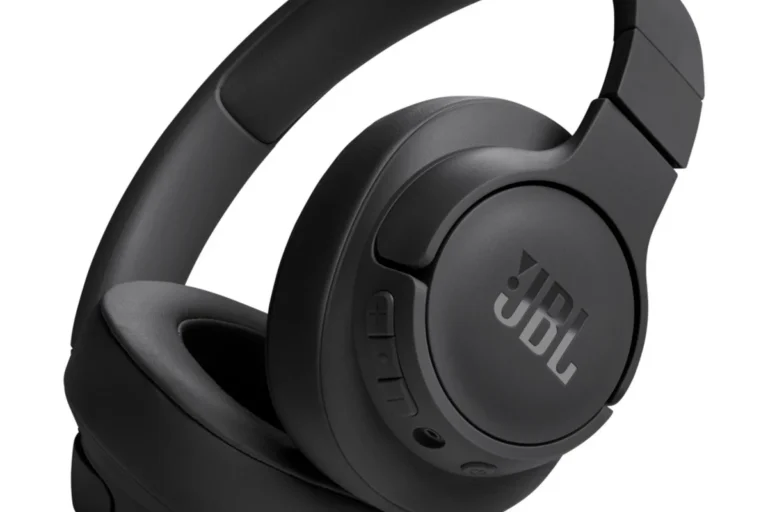
Many over-ear and on-ear JBL headphones include physical buttons on one earcup. These buttons may handle volume, playback, calls, and track navigation all in the same cluster.
On some models, a dedicated forward or backward button skips songs. On others, the same buttons do different jobs depending on whether you tap once, tap twice, or hold them down.
JBL models that rely on app or voice assistant control
Some JBL headphones place less emphasis on physical track buttons and more on phone-based control. In those cases, the JBL Headphones app, Siri, Google Assistant, or Alexa may be the easiest way to move to the next song.
This is especially useful when the earcup controls are already assigned to volume, ANC, or ambient sound functions. If you use a model with fewer buttons, the app can help you understand what each control does.
Wired vs. wireless JBL headphones: what changes
Wireless JBL headphones are much more likely to support skip controls directly on the headset. Wired models can still work with media controls if the inline remote or cable supports them, but that depends on the cable and the device you are using.
If you are using a wired connection through a headphone jack or adapter, the phone or laptop may take over more of the media control duties. For more device compatibility context, see our guides on wired headphones on MacBook and how to connect Bluetooth headphones.
Button behavior can vary by model, firmware, and source device. If one JBL headset skips tracks with a double-press, another may use a long press or not support track skipping at all.
How to Skip Songs on JBL Headphones Using the Built-In Buttons
The fastest way to skip songs on JBL headphones is usually through the headset’s own buttons. Start by identifying whether your model has a dedicated next-track button, or whether playback controls are shared with volume or call buttons.
Single-press, double-press, and press-and-hold actions
JBL control layouts often use one of three patterns. A single press may pause or play, a double press may skip forward, and a press-and-hold may fast-forward, activate voice assistant features, or change noise settings.
Because the same button can do different things across models, the safest approach is to test one action at a time while music is playing. If a quick tap pauses the track, try a double tap next; if that does nothing, check for a forward-arrow marking or consult the quick-start guide.
Look for the main control on the earcup or inline remote. It is often the center button or the one closest to the front of the headset.
While a song is playing, press the button twice quickly. On many JBL models, this sends the track to the next song.
If double-pressing does not work, press and hold the same button briefly to see whether the model uses a different skip command.
Step-by-step examples for common JBL button layouts
On some JBL over-ear headphones, the volume up button may also function as the next-track button when pressed twice. On other models, the center button handles play and pause, while a separate plus or minus button changes tracks.
If your headset has a touch panel, the gesture may be a swipe forward instead of a button press. The important thing is to match the control style to the model rather than assuming all JBL headphones work the same way.
How to tell if your model uses volume buttons for track control
Look closely at the button icons. If the volume button has a plus sign and a small arrow, or if the manual mentions “long press” or “double tap,” there is a good chance that track control is built into the volume keys.
If the buttons only change volume and never affect playback, your model may not support skip controls on the headset itself. In that case, use the connected device’s media controls instead.
Bluetooth headphones often pass media commands through to the source device, so the phone or laptop may decide how skip, pause, and play behave.
How to Skip Songs on JBL Headphones with Bluetooth Devices
Even if the headphone buttons are limited, your connected device can usually skip tracks without any trouble. This is one reason wireless JBL models are so convenient for commuting, workouts, and desk use.
Using your phone’s media controls on iPhone and Android
On iPhone, open the Now Playing screen and tap the next-track button. On Android, use the media card in the notification shade, lock screen, or music app itself.
If your JBL headphones are connected properly, the phone’s playback should respond instantly. If it does not, disconnect and reconnect the headphones, then try again.
For readers who use Apple devices with audio accessories often, our guide on what the headphone icon means on iPhone may help clarify when the phone is actually routing audio to your headset.
Skipping tracks from a laptop, tablet, or smartwatch
Most laptops and tablets let you skip songs from the media player, browser tab, or system playback widget. Smartwatches may also offer next-track and previous-track controls when the phone and headphones are connected correctly.
If you use a Windows laptop, it can help to know how your system handles output devices. Our guide on selecting headphones in Windows 11 is useful when the wrong output device is selected.
When the source device controls override the headphones
Sometimes the phone or laptop takes priority over the headphone buttons. That means the headset may only send a basic play/pause command, while skipping songs must happen on the source device.
This is normal and not necessarily a fault. Different apps, operating systems, and Bluetooth implementations can change which controls are available through the headphones.
Using the JBL App, Voice Assistants, and Touch Controls
When physical buttons are not enough, the JBL app and voice assistants can fill the gap. These options are especially handy if you want hands-free control while exercising, cooking, or working at a desk.
When the JBL Headphones app can help and when it cannot
The JBL Headphones app is most useful for checking settings, updating firmware, and understanding control assignments. It can help you confirm whether your model supports custom button behavior or touch gestures.
However, the app cannot always replace missing hardware features. If your model was designed without track skipping on the headset, the app may explain the controls but not add a feature that is not built in.
Skipping songs with Siri, Google Assistant, or Alexa
Voice assistants can be a good backup when button controls are awkward or limited. You may be able to say “next song,” “skip track,” or “play the next track,” depending on your phone and music app.
Voice control depends on your device settings, language, microphone access, and app permissions. If the assistant does not respond, check those settings before assuming the headphones are broken.
Voice commands are convenient, but they are not always faster than a button press. They can also be less reliable in noisy environments such as trains, gyms, or busy streets.
Touch-sensitive controls on newer JBL models
Some newer JBL headphones and earbuds use touch-sensitive surfaces instead of physical buttons. In that case, track skipping may be a swipe or tap gesture rather than a button press.
Touch controls can feel smooth once you learn them, but they are also easier to trigger by accident. If your model supports both app settings and touch gestures, check the control guide carefully before assuming the gesture is broken.
Common Mistakes When Trying to Skip Songs on JBL Headphones
Most skip-control problems come from setup confusion rather than a defective product. Before you assume the headset is faulty, check the control pattern, Bluetooth connection, and source device settings.
Confusing volume buttons with track buttons
One of the most common mistakes is assuming the volume buttons always skip tracks. On some JBL models they do, but on others they only change volume and nothing else.
If the buttons feel right but the song does not change, look for a different button combination or check the manual. The layout may be more model-specific than expected.
Holding the button too long or pressing too slowly
Track skipping often depends on timing. A slow double-press may register as two separate taps, while a long hold may launch a different function entirely.
Try pressing firmly and quickly, then wait a second before trying again. This is especially important on headphones that combine music controls with call controls or ANC features.
Bluetooth pairing issues that block media controls
If your headphones are connected for audio but skip commands do not work, the Bluetooth link may be incomplete or unstable. Re-pairing the device often fixes basic media-control problems.
Low battery, outdated firmware, or interference from other wireless devices can also cause strange control behavior. If you want a deeper reset path, our Bluetooth headphones reset guide covers the general process.
Expert Tips, Troubleshooting, and Value Considerations
When skip controls fail, it is worth troubleshooting before replacing the headphones. A few small checks can save you from buying a new model unnecessarily.
How to fix unresponsive skip controls without replacing the headphones
Start by disconnecting the headphones, turning Bluetooth off and on, and pairing them again. Then test the controls in a different app, because some media apps handle Bluetooth commands better than others.
If the controls still do not respond, check for firmware updates in the JBL app and reboot the source device. If the headset works with one phone but not another, the issue is probably device compatibility rather than a hardware failure.
If you experience repeated connection drops, distorted playback, or hearing discomfort, consult a qualified audiologist or audio specialist. Persistent audio problems can sometimes be related to hearing health, not just headphone settings.
When a budget JBL model may lack the feature you need
Budget-friendly JBL headphones can be a good value, but they may keep controls simple. If you want one-button skipping, ANC, app support, and better customization, you may need to move up to a more fully featured model.
This is where buying for your use case matters. A commuter may prioritize easy track skipping and stable Bluetooth, while a casual listener may be fine using the phone screen for playback control.
Feature comparison: basic JBL headphones vs. pricier models with better controls
Basic JBL headphones usually focus on core playback and comfort. More expensive models may add richer control options, better app integration, and more intuitive button layouts, though exact features vary by model.
Here is a simple way to think about the trade-off:
| Model | Best For | Price Range |
|---|---|---|
| Basic JBL wireless headphones | Simple listening and casual use | Varies |
| Midrange JBL headphones | Better controls and app support | Varies by model |
| Feature-rich JBL headphones | Frequent track skipping, ANC, and customization | Varies by brand |
If you are comparing options before buying, think about comfort, battery life, and button layout as much as sound quality. For a broader buying perspective, our general guide on types of headphones explained can help you match the design to your daily routine.
Final Recap: The Fastest Way to Skip Songs on JBL Headphones
The quickest way to skip songs on JBL headphones is usually a double-press, tap, or swipe on the headset itself, but the exact action depends on the model. If the headphones do not support track skipping directly, use your phone, tablet, laptop, or voice assistant instead.
When in doubt, check the button layout, test the controls while music is playing, and reconnect the Bluetooth device if commands stop working. That simple approach solves most track-skipping problems without any special tools or advanced setup.
Listening at high volumes for long periods can cause hearing damage. Keep volume at 60% or below for extended sessions.
- Use the headset buttons first, especially double-press or swipe controls.
- If that fails, skip tracks from your phone, tablet, laptop, or voice assistant.
- Button behavior varies by JBL model, firmware, and source device.
- Re-pairing Bluetooth and checking the JBL app often fixes control issues.
Frequently Asked Questions
Yes, wireless JBL headphones are more likely to support track skipping directly on the headset. Wired models may rely on an inline remote or the connected device for playback control.
Over-ear models are often the most comfortable for long sessions because they spread pressure over a larger area. Fit, weight, and ear cushion materials matter too, so comfort can vary by model and personal preference.
Driver type can affect sound, but tuning matters just as much as size or spec sheets. If you want stronger bass or clearer vocals, check reviews and EQ options instead of focusing on one number.
For commuting, look at battery life, noise cancellation, and easy controls. For gaming, check latency, microphone quality, and whether the headset supports your device correctly.
Many budget models are fine for casual daily use, but build quality, hinge strength, and cushion wear can vary. If you plan to use them heavily, compare materials and warranty coverage before buying.
Try the JBL app EQ settings or your phone’s built-in equalizer first. Small EQ changes can improve clarity or bass, but results depend on the model and your listening preference.