What Does the Headphone Icon Mean on iPhone Explained

The headphone icon on iPhone means the phone thinks audio is being sent to headphones or another external output instead of the speaker. If it stays on after you unplug everything, it usually points to a dirty port, a Bluetooth routing issue, moisture, or a software glitch.
If you’re seeing the headphone icon on iPhone, it usually means your phone thinks audio is being routed to headphones, earbuds, or another external output instead of the built-in speaker. In many cases that’s normal, but if the icon stays on after you disconnect everything, it can point to a connection, cleaning, or software issue.
- Normal use: The icon appears when headphones or audio accessories are connected.
- Stuck icon: Often caused by debris, moisture, or iOS glitches.
- Safe fixes: Restart, clean carefully, and test another cable or adapter.
- Hardware clue: Repeated failure can mean a damaged port or liquid issue.
What Does the Headphone Icon Mean on iPhone? A Quick Answer for 2026 Users
The headphone icon is your iPhone’s way of saying, “I’m sending sound somewhere else.” That “somewhere else” may be wired headphones, AirPods, a Lightning or USB-C audio accessory, or a connected adapter that the phone still detects.
For most users, the icon appears at the right time and disappears when the accessory is removed. The problem starts when the iPhone gets stuck in headphone mode and stops playing audio through the speaker.
- The icon means iPhone is routing audio away from the speaker.
- It can be caused by headphones, Bluetooth confusion, debris, moisture, or a software glitch.
- If it stays on after unplugging, safe cleaning and basic resets are the first fixes to try.
Why the Headphone Icon Appears on iPhone: The Most Common Triggers
There are a few common reasons the headphone icon appears, and not all of them mean something is broken. The key is figuring out whether the iPhone is correctly detecting an accessory or mistakenly “remembering” one that is no longer connected.
Plugged-in accessories and wired headphones
The simplest cause is an actual wired connection. If you use Lightning, USB-C, or 3.5mm headphones with an adapter, the iPhone will usually switch to headphone mode automatically.
This is also common with dongles, DACs, and some gaming headsets. If the accessory is still connected, the icon is behaving normally.
Bluetooth audio connections that can confuse the system
Bluetooth accessories do not always show the same icon behavior as wired headphones, but they can still confuse audio routing. If your iPhone is connected to wireless earbuds, a car stereo, or a speaker, sound may move away from the phone speaker even when the visual indicator seems unexpected.
If you’re troubleshooting wireless audio, it may help to review our guide on how to connect Bluetooth headphones or our article on how to reset Bluetooth headphones. Connection issues can sometimes look like a headphone problem when they are really a pairing problem.
Water, debris, or port detection issues
Dust, lint, pocket debris, or moisture in the port can make the iPhone think something is plugged in. Even a small amount of residue can interfere with detection, especially if the device was recently exposed to rain, sweat, or a spill.
Port detection varies by iPhone model and accessory type. A clean port can still misread a connection if liquid or residue is present.
Software glitches after updates or restarts
Sometimes the headphone icon appears because iOS briefly misreads the audio route after an update, restart, or accessory change. In those cases, the phone may be “stuck” in a temporary state rather than dealing with a physical fault.
This is why many fixes start with a simple restart before moving on to cleaning or repair.
How the Headphone Mode Affects Sound, Calls, and Media Playback
When headphone mode is active, iPhone changes where audio goes. That can affect speaker playback, call routing, alarms, and even how apps behave when you press play.
Why audio may stop coming from the speaker
The most obvious effect is that the built-in speaker may go silent. If the iPhone believes headphones are connected, it sends music, videos, and app sounds to that output instead.
That is why users sometimes think the speaker has failed. In reality, the phone is just sending sound to the wrong place.
How call audio routing changes when the icon is active
Phone calls may also route through the headphone path, which can make the earpiece or accessory handle the audio instead of speakerphone. If you try to answer a call and hear nothing from the loudspeaker, the headphone icon may be the reason.
This can be especially confusing with Bluetooth headsets, because the call may connect successfully while audio is still going to the paired device.
What happens with alarms, videos, and voice memos
Alarms usually still ring, but the volume and output path can feel different depending on the app and accessory. Videos may play silently through the speaker if the route is stuck, and voice memos may seem normal during playback but not during recording.
If you use your iPhone for creator work, gaming, or calls, this routing issue can be frustrating. It is one reason many readers compare Bluetooth vs wired headphones sound quality before deciding which setup is more reliable for daily use.
Practical Examples: When the Headphone Icon Is Normal vs. a Problem
The same icon can mean very different things depending on the situation. A quick context check usually tells you whether to relax or start troubleshooting.
Using AirPods, USB-C, Lightning, or 3.5mm adapters
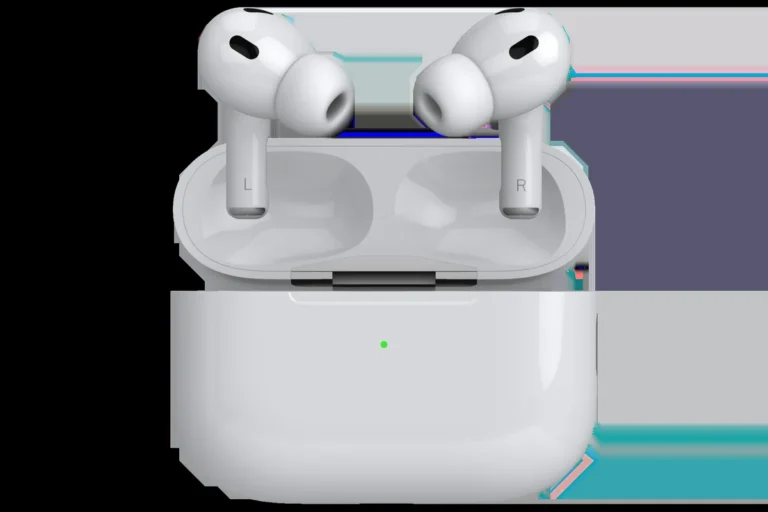
If you are actively using AirPods or a wired accessory, the icon is usually normal. The iPhone is simply confirming that audio is being routed away from the built-in speaker.
With adapters, the phone may detect the accessory even if the fit is loose or the cable is partially inserted. That can make the icon appear and disappear as the contact changes.
Icon appears after unplugging headphones
This is one of the most common complaints. You remove the headphones, but the iPhone still acts like they are connected.
That usually points to a dirty port, a stuck adapter, a temporary iOS glitch, or a damaged connector. If the problem happens right after unplugging, the phone may need a simple reset or a careful cleaning.
Icon stays on with no headphones connected
If no accessory is attached and the icon still remains, the issue is more likely to be a detection error. In that case, the iPhone may think the port is occupied even though it is empty.
That is the point where safe troubleshooting matters most, because forcing a fix can make the problem worse.
How to Remove the Headphone Icon on iPhone Safely
Start with the least risky fix first. Most stuck headphone icon problems can be improved without opening the phone or using aggressive tools.
Disconnect and reconnect audio accessories correctly
Unplug the accessory fully, then reconnect it firmly once to see whether the iPhone detects the change properly. If you are using Bluetooth earbuds or a speaker, disconnect them from Control Center or Settings and test again.
Disconnect wired headphones, adapters, and Bluetooth devices so the iPhone can recheck its audio route.
Play music, a video, or a ringtone to see whether sound returns to the built-in speaker.
Clean the port without damaging the device
If debris is the likely cause, clean the port carefully. Use a soft, dry, non-metal tool and avoid pushing anything deep inside the connector.
Compressed air, sharp objects, and liquid cleaners can damage the port or spread residue further inside. If you want a broader maintenance routine, our guide on how to clean headphones also covers the importance of gentle care for audio gear and connectors.
Never force a pin, toothpick, or metal object into the iPhone port. A small mistake can damage the connector or worsen detection problems.
Restart, update iOS, and reset audio settings
A restart can clear a temporary routing bug. If that does not help, check for iOS updates, because software fixes often address odd accessory behavior and audio glitches.
If the icon remains stuck, try disconnecting Bluetooth devices, toggling airplane mode briefly, and testing audio again. These steps can help the phone rebuild its audio path without a full repair.
When to try a different cable, adapter, or pair of headphones
Sometimes the accessory is the real issue. A worn cable, loose adapter, or low-quality third-party dongle can cause the iPhone to misread the connection.
If possible, test with an Apple-certified or known-compatible accessory. That helps you separate a phone problem from an accessory problem.
If the icon appears only with one adapter or cable, the accessory is often the first suspect—not the iPhone speaker.
Common Mistakes People Make When Troubleshooting the Headphone Icon
People often make the problem worse by rushing. A careful approach usually saves time, money, and unnecessary repairs.
Forcing objects into the port
This is the biggest mistake. It may seem like a quick fix, but it can bend contacts, push debris deeper, or damage the port permanently.
Assuming the speaker is broken too quickly
A silent speaker is not always a dead speaker. Many times, the iPhone is simply sending audio to a phantom headphone route.
Before you assume hardware failure, test with multiple sounds, apps, and accessories. If you are also hearing muffled output, our article on how to fix muffled headphone sound may help you rule out related audio issues.
Ignoring moisture exposure or recent drops
If the phone was dropped, exposed to sweat, or near water, do not ignore it. Liquid-related issues can trigger false headphone detection even when the port looks fine.
Let the device dry naturally and avoid charging or inserting accessories until you are confident the port is dry.
Using low-quality third-party adapters
Cheap adapters can work inconsistently and may trigger strange routing behavior. Some are also more likely to loosen over time or fail to communicate cleanly with iPhone.
That does not mean every third-party product is bad, but quality does matter more when audio detection is involved.
Listening at high volumes for long periods can cause hearing damage. Keep volume at 60% or below for extended sessions.
Expert Advice: When the Headphone Icon Signals a Hardware Issue
If the icon keeps returning after safe troubleshooting, the issue may be hardware-related. At that point, it is less about a quick fix and more about identifying whether the port or internal audio path needs service.
Signs of a damaged port or liquid-related fault
Warning signs include a stuck icon that returns after every restart, intermittent sound when the cable moves, or visible corrosion or residue in the port. If the phone was recently exposed to moisture, liquid damage becomes a stronger possibility.
Repeated accessory failures can also hint at a worn port rather than a bad headphone pair.
When software fixes are no longer enough
If cleaning, restarting, and testing different accessories do not help, software is probably not the only factor. At that stage, the phone may need a professional inspection to check the connector, logic board, or audio routing hardware.
If the headphone icon appears after liquid exposure, repeated drops, or ongoing audio failure, consult a qualified repair professional or Apple support before trying more aggressive fixes.
Repair vs. replacement: what to consider in 2026
In 2026, the right choice depends on the iPhone’s age, repair cost, and overall condition. A newer device with a simple port issue may be worth repairing, while an older phone with multiple faults may be better replaced.
If you care most about audio reliability, also consider how often you use wired accessories, gaming headsets, or adapters. A device that supports your everyday setup without constant troubleshooting is usually the better long-term value.
Some audio issues that look like a headphone problem are actually routing problems, especially when Bluetooth earbuds or adapters are involved.
Final Recap: What the Headphone Icon Means and What to Do Next
So, what does the headphone icon mean on iPhone? In simple terms, it means your iPhone believes audio should go to a headphone-style output instead of the built-in speaker.
If that is happening because you are actually using headphones, everything is normal. If the icon is stuck, start with a restart, check for debris or moisture, test another accessory, and avoid forcing anything into the port.
Most cases are fixable without panic, but repeated icon issues, liquid exposure, or failed audio tests can point to a hardware problem that needs professional attention.
Frequently Asked Questions
Wireless headphones are more convenient, while wired headphones can offer a more direct connection and avoid battery concerns. The better choice depends on your listening habits, latency needs, and whether you prefer simplicity or mobility.
Over-ear models often give the most spacious feel, while in-ear models can sound very detailed when they fit well. Comfort, seal, and tuning matter just as much as the headphone type itself.
Look at comfort, build quality, connection type, battery life for wireless models, and whether the headphones match your main use case. Specs like driver type and frequency response can help, but they do not guarantee better sound on their own.
Start with small EQ changes instead of extreme boosts, because too much adjustment can make sound muddy or harsh. If you want a deeper guide, use EQ to match your headphones to your taste and listening environment.
Check weight, ear cushion material, clamping force, and how the headband feels after extended use. Comfort varies by head shape and ear size, so a good fit matters as much as sound quality.
If sound is muffled, intermittent, or only works on one side, try cleaning the headphones and cable connections first. If the issue continues across multiple devices, the problem may be wear, a damaged cable, or a failing driver.