Can JBL Headphones Connect to PS5 A Simple Guide

Yes, JBL headphones can connect to PS5, but wired or USB wireless setups work much better than direct Bluetooth. If you want the easiest experience, use the DualSense controller jack or a compatible USB adapter.
If you’re wondering can JBL headphones connect to PS5, the short answer is yes, but not every JBL model works the same way. Some JBL headphones connect easily with a wired cable or a USB adapter, while many Bluetooth-only models need a workaround because the PS5 does not support standard Bluetooth audio the way phones do.
That means the best setup depends on which JBL model you own and whether you care more about convenience, microphone support, or low latency. In this guide from Bluetooth headphones explained simply, we’ll break down the easiest ways to use JBL headphones on PS5 without guessing or wasting time.
- Best method: Wired 3.5mm audio is the simplest PS5 setup.
- Wireless option: USB dongles usually work better than Bluetooth.
- Chat support: Mic performance depends on the JBL model and adapter.
- Common issue: PS5 Bluetooth audio often needs a workaround.
Can JBL Headphones Connect to PS5? What Gamers Need to Know in 2026
Yes, JBL headphones can connect to PS5 in several ways, but the connection method matters more than the brand name. The PS5 works very well with wired headphones and many USB wireless headsets, but it is far less friendly to direct Bluetooth audio connections.
For most gamers, the real question is not “Can it connect?” but “Will it connect in a way that feels good for gaming?” That means checking audio delay, mic support, and whether your JBL model is built for console use or everyday listening.
How PS5 Supports JBL Headphones: Wired, Wireless, and Bluetooth Basics
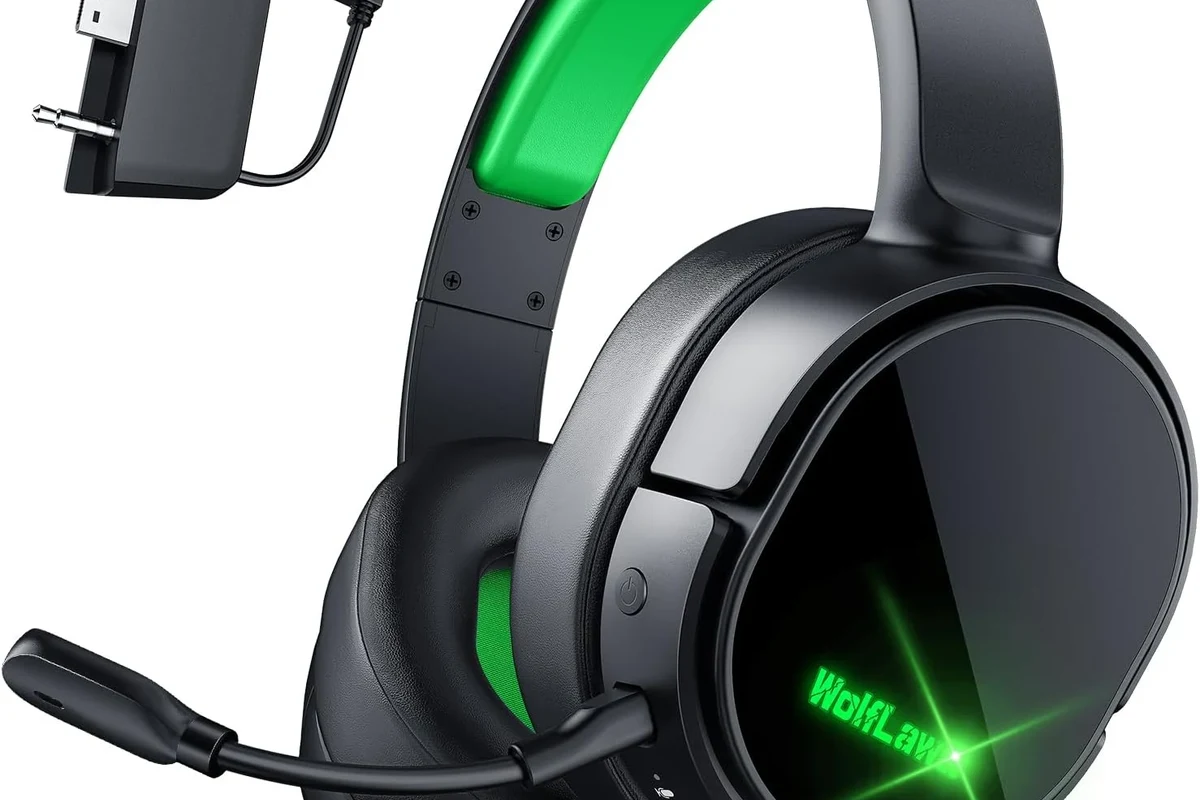
The PS5 has solid headphone support, but it is designed around low-latency gaming audio rather than phone-style Bluetooth pairing. In practice, that means wired JBL headphones usually work right away, while wireless JBL headphones often need a USB transmitter or another device in the middle.
If you already use JBL for music, movies, or commuting, the console may still work well with them. You just need to match the connection type to the headset type. For readers who want a broader compatibility overview, our guide on how to connect Bluetooth headphones explains the general pairing basics that also help with console setups.
Why most JBL Bluetooth headphones need a workaround on PS5
Most JBL Bluetooth headphones do not connect directly to PS5 for game audio because the console does not natively support standard Bluetooth audio output in the same simple way a phone or laptop does. That limitation is common across many headphone brands, not just JBL.
So if you try to pair a JBL Bluetooth model directly and nothing happens, that is usually normal. The fix is often a wired connection, a USB wireless adapter, or routing audio through a TV or monitor that supports headphone output.
Compatibility can vary by JBL model, PS5 firmware updates, and the adapter you use. Always check the headset’s connection type before buying an accessory.
Which JBL models are easiest to use with the console
The easiest JBL models for PS5 are usually the ones with a 3.5mm audio cable or a USB wireless dongle made for gaming or multi-device use. JBL over-ear headphones with a wired backup tend to be the least frustrating option.
Bluetooth-only JBL headphones can still be useful, but they usually require extra hardware. If you want a simple console setup, prioritize models that can switch to wired mode or work with a USB transmitter.
Best Ways to Use JBL Headphones on PS5 Without Frustration
There are three practical ways to use JBL headphones on PS5: wired through the controller, wireless through a USB dongle, or indirectly through a TV, monitor, or adapter. The best option depends on whether you want the lowest delay, the cleanest setup, or the most flexibility.
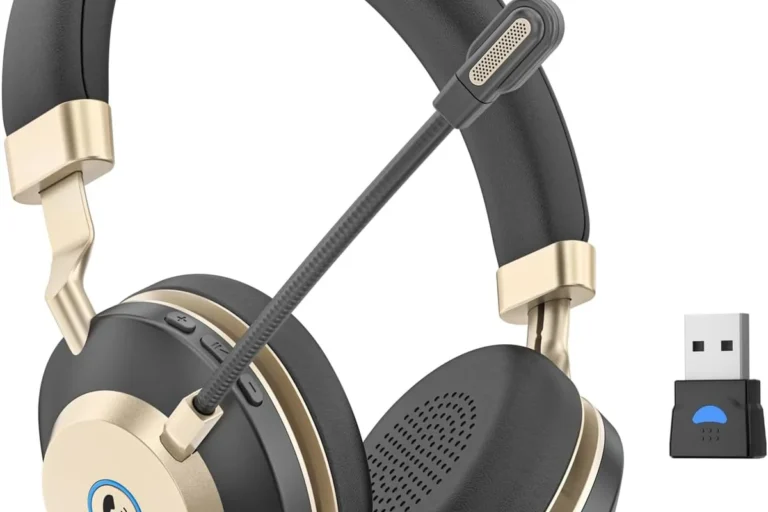
USB dongle connection for JBL wireless headphones
If your JBL headphones come with a USB wireless adapter, that is often the most convenient way to use them on PS5. The console usually recognizes compatible USB audio devices more easily than standard Bluetooth headphones.
This method is popular because it tends to offer better latency than Bluetooth and keeps your setup wireless. Still, adapter compatibility matters, so not every third-party dongle will work the same way.
3.5mm wired connection through the DualSense controller
For most JBL headphones, the simplest setup is a direct wired connection to the DualSense controller. If your headset has a 3.5mm cable, plug it into the controller and the PS5 will usually route game audio there automatically.
This is the most reliable option for beginners because it avoids pairing problems, battery worries, and most audio delay. It is also the easiest path if you want quick party chat support without extra accessories.
Wired headset connections often feel more responsive in games because they avoid the small delay that can happen with wireless audio systems.
Using a TV, monitor, or external adapter as a bridge
Another option is to connect your JBL headphones to a TV, monitor, or external audio adapter instead of the PS5 directly. This can work well if your display has a headphone jack or supports Bluetooth audio output.
That said, this setup is not always ideal for competitive gaming. Some TVs and monitors add delay, and microphone support may be limited or unavailable depending on the device.
Step-by-Step Setup Guide for JBL Headphones on PS5
The setup process is usually simple once you know which connection type you are using. The key is to match the headset, cable, or adapter to the PS5 audio settings before you start playing.
Connecting JBL wired headphones to the controller
Insert the 3.5mm audio plug into the DualSense controller’s headphone jack.
Use the PS5 quick menu and controller controls to set a comfortable listening level.
Open a party chat or game chat test to confirm the mic is working if your JBL model includes one.
Pairing JBL wireless models with a compatible USB adapter
Plug the USB wireless dongle into one of the PS5’s USB ports.
Turn on your JBL headphones and place them in pairing mode if required.
Look for the adapter or headset indicator light to confirm the link is active.
Checking audio output and mic settings on PS5
After connecting, open the PS5 sound settings and confirm that output is set to the correct device. If you are using a headset with a microphone, also check the input device and microphone level.
If the sound is coming from the TV instead of the headphones, the output device likely needs to be changed manually. This is a common setup mistake and usually takes only a few seconds to fix.
- Output device is set to headset or USB audio
- Mic input is enabled if your JBL model has one
- Controller volume is not turned down too low
- Game chat and party chat are routed correctly
What Works Best: Sound Quality, Mic Performance, and Latency
JBL headphones can sound very good for PS5 gaming, especially for players who enjoy strong bass and clear everyday listening. But gaming performance is not just about sound quality; latency and microphone behavior matter just as much.
Gaming audio response for shooters, RPGs, and party chat
For shooters, low latency is the biggest priority because footsteps, reloads, and callouts need to stay in sync with the action. Wired JBL headphones usually do best here, while USB wireless setups are often the next best choice.
For RPGs and story games, a little extra delay is less noticeable, so comfort and sound signature may matter more. JBL’s generally lively tuning can make cinematic games feel punchy and immersive, though personal preference will always play a role.
Microphone clarity for JBL headset models with built-in mics
If your JBL model includes a microphone, clarity can be good enough for party chat and casual multiplayer. However, microphone performance varies a lot from one headset to another, especially between consumer headphones and true gaming headsets.
Some JBL headphones are built more for music than voice chat, so the mic may not be the strongest part of the package. If chat quality matters a lot, look for a model known to support calls or gaming conversations well.
Latency issues with Bluetooth and why they matter in 2026
Bluetooth latency is still the main reason many JBL headphones are not ideal for direct PS5 use. Even if the audio works through a workaround, small delays can make gameplay feel less precise.
In 2026, that still matters for competitive players and anyone sensitive to lip-sync or timing issues. If you want the smoothest experience, wired audio or a low-latency USB solution is usually the safer choice.
Not all adapters support microphone audio, and some may only send sound to the headphones. Check both playback and chat support before relying on a new dongle.
Common Mistakes When Trying to Connect JBL Headphones to PS5
Most connection problems come from assumptions, not broken hardware. If your JBL headphones are not working, the issue is often the connection method, the adapter, or a PS5 setting rather than the headset itself.
Assuming every JBL Bluetooth headset works natively
This is the most common mistake. A JBL headset may work great with a phone, tablet, or laptop, but that does not mean it will pair directly with PS5 for audio output.
Always check whether the headset is Bluetooth-only, wired-capable, or designed to work with a USB transmitter. That one detail usually determines how easy setup will be.
Using unsupported dongles or outdated adapters
Not every USB adapter is a good match for PS5. Some are made for PCs only, some need special drivers, and some may not support the audio profile your JBL headphones need.
If an adapter is old or generic, it may connect inconsistently or fail to pass microphone audio. Choosing a compatible device from the start saves a lot of frustration.
Ignoring PS5 audio settings and controller volume controls
Even when the hardware is correct, the PS5 can still send audio to the wrong place if the settings are not adjusted. The controller volume slider and system output settings are easy to overlook.
If your JBL headphones seem too quiet, check the PS5 audio menu before assuming the headset is weak. Many “bad sound” problems are really just simple setup issues.
Expert Advice: When JBL Is a Smart Buy for PS5 and When It Is Not
JBL can be a smart choice for PS5 if you already like the brand’s sound and want a headset that also works for music, travel, and everyday use. The value is especially good when you want one pair of headphones for multiple devices.
Best use cases for casual gaming, couch play, and budget setups
JBL headphones make the most sense for casual gaming, single-player titles, and couch play where convenience matters more than tournament-level responsiveness. They are also a practical option if you want to avoid buying a separate gaming headset.
If you mainly play at home and want simple audio from the DualSense controller, a wired JBL model is often the easiest win. For budget-minded buyers, that can be a very sensible setup.
When to consider a PS5-focused gaming headset instead
If you play competitive shooters, use voice chat often, or want the smoothest console integration, a PS5-focused gaming headset may be the better fit. Those models are usually built with low latency, mic monitoring, and console compatibility in mind.
That does not mean JBL is a bad choice. It just means the best headset is the one that matches your gaming habits, not the one with the biggest brand name.
Price and value comparison: JBL headphones vs gaming headsets
Price and value can vary widely by model, so it is better to compare features than chase a specific number. JBL headphones often offer strong everyday sound and decent comfort, while gaming headsets may offer better chat tools and easier console support.
If you want one headset for both gaming and general listening, JBL can be a very reasonable buy. If you want the most friction-free PS5 experience, a dedicated gaming headset may be worth the extra cost.
Final Verdict: The Easiest Way to Get JBL Headphones Working on PS5
So, can JBL headphones connect to PS5? Yes, but the easiest path is usually a wired 3.5mm connection or a compatible USB wireless adapter. Direct Bluetooth is the least reliable option and often requires a workaround.
If you want the simplest setup, start with the controller jack. If you want wireless convenience, make sure your JBL model and adapter are actually PS5-friendly before you buy or pair anything.
- Wired JBL headphones are the easiest PS5 option.
- USB wireless adapters usually work better than direct Bluetooth.
- Mic support and latency depend on the model and connection method.
- Check PS5 audio settings before troubleshooting the headset.
Frequently Asked Questions
Usually yes, if they use a compatible USB wireless adapter. That setup often gives lower delay and more reliable audio than direct Bluetooth.
For most players, yes. Wired connections are simple, stable, and usually have less latency than wireless options.
Closed-back headphones are usually better for gaming because they block more outside noise and keep sound from leaking. Open-back models can sound wider, but they are less private and less isolating.
Look for balanced reviews, driver type, and EQ flexibility rather than only marketing claims. Bass-heavy tuning can be fun for games, but clear mids and dialogue matter for chat and story scenes.
Check connection type, mic support, comfort, weight, and whether the headset can work wired if needed. Also confirm PS5 compatibility if you plan to use a USB adapter.
Choose lightweight headphones with soft ear cushions and a secure but gentle clamp. Take breaks, keep volume reasonable, and consult an audiologist if you notice discomfort or hearing concerns.