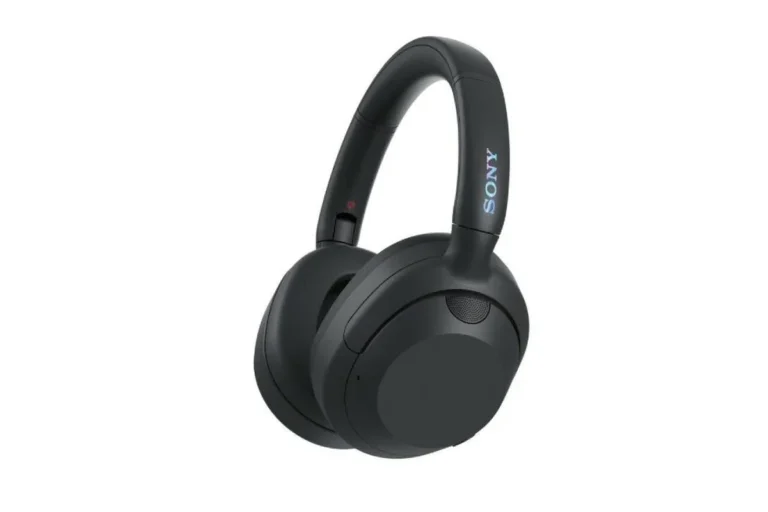
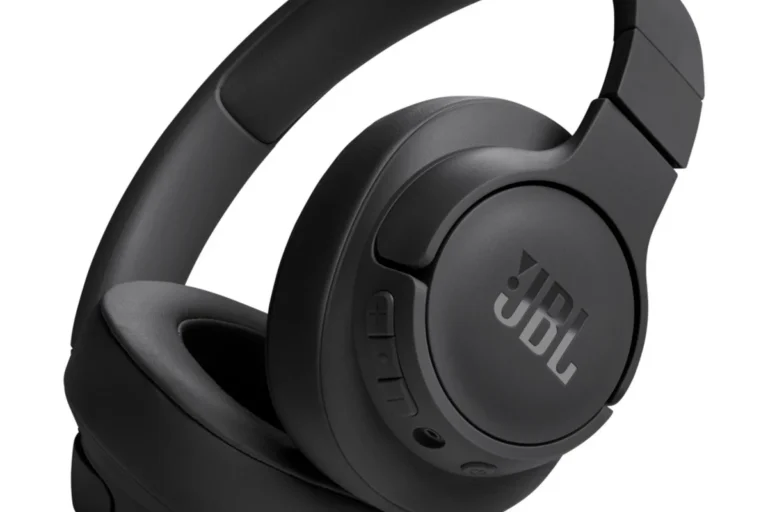
How to Use Bluetooth Headphones with TV Easily

Use your TV’s built-in Bluetooth if it supports audio output, or add a Bluetooth transmitter if it does not. For the best results, choose low-latency gear, keep volume at a safe level, and test for lip-sync before long viewing sessions.
If you want to watch TV privately without disturbing anyone, learning how to use Bluetooth headphones with TV is one of the easiest upgrades you can make. The exact method depends on whether your TV has built-in Bluetooth, needs a transmitter, or works better through a soundbar or streaming device.
- Direct pairing: Best for newer smart TVs with audio Bluetooth.
- Transmitter fix: Most reliable workaround for older TVs.
- Latency matters: Low delay is important for movies and gaming.
- Comfort counts: Over-ear headphones often suit long sessions best.
- Safety first: Keep listening volume moderate for extended use.
How to Use Bluetooth Headphones with TV: What Viewers Want to Solve in 2025
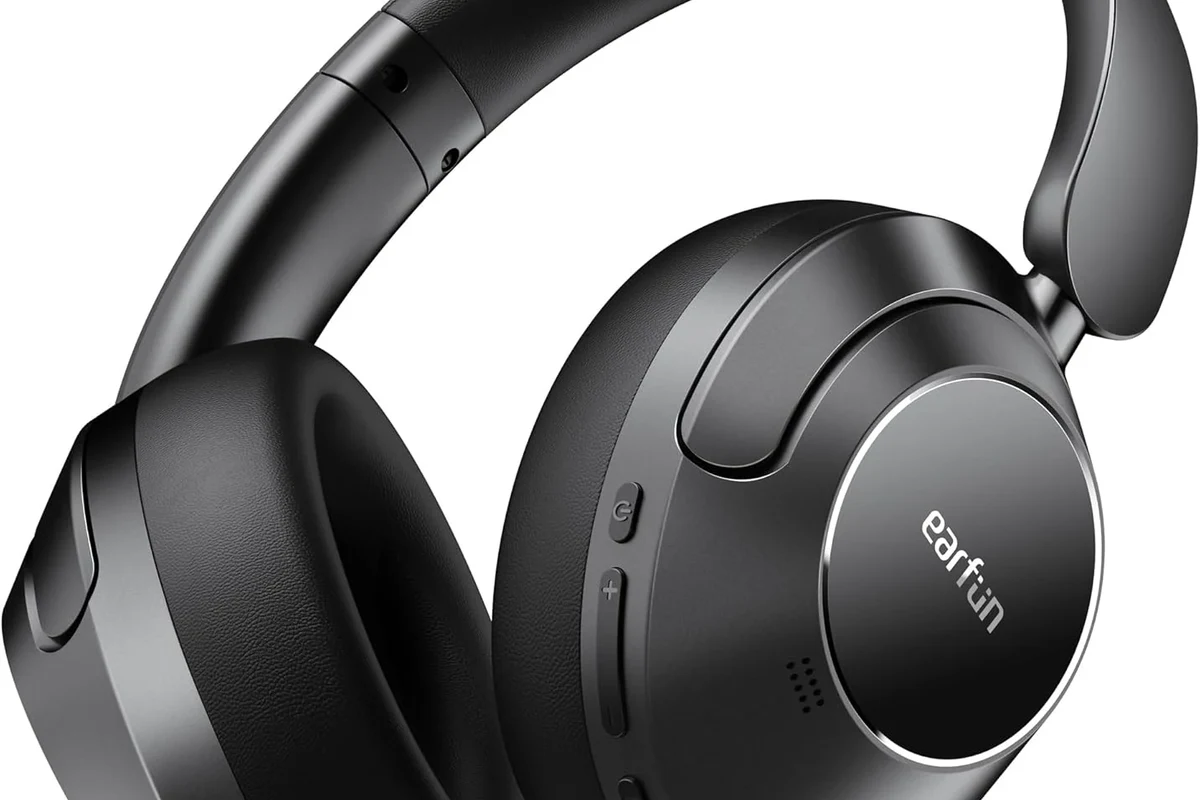
For most viewers, the goal is simple: better privacy, clearer dialogue, and more flexibility. Bluetooth headphones can help when you want to watch late at night, keep the volume low, or hear voices more clearly without turning the TV up for everyone else.
Many readers also look for a setup that works for gaming, since a wireless headset can make long sessions more comfortable. If you are comparing wireless options more broadly, our guide on bluetooth headphones explained can help you understand the basics before you connect anything to a TV.
Why people search for Bluetooth TV headphone setups
The most common reason is convenience. Nobody wants cables running across the room if they can avoid it, and many people already own wireless headphones they want to reuse with the television.
Another big reason is accessibility. Clearer speech, less background noise, and personal volume control can make TV easier to enjoy for people with hearing difficulty or for households with different listening preferences.
Best use cases: late-night viewing, gaming, and hearing support
Late-night viewing is probably the most obvious use case. Bluetooth headphones let you keep the room quiet while still hearing dialogue, sound effects, and music with decent clarity.
They are also useful for gaming on a TV-connected console, especially if you want a more immersive private setup. For viewers who need extra clarity, headphones may help with dialogue, but if hearing concerns are ongoing, it is best to follow safe listening habits or consult an audiologist.
Can Your TV Connect to Bluetooth Headphones?
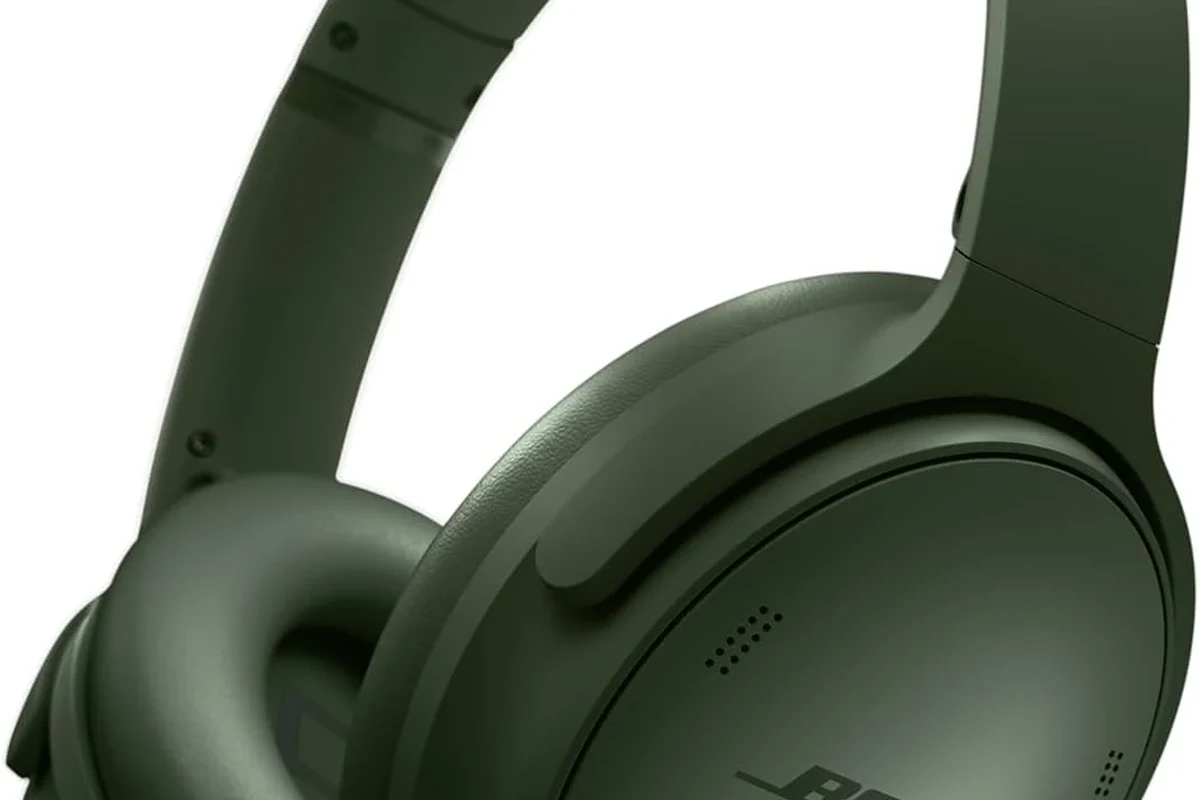
Not every TV supports Bluetooth audio in the same way. Some smart TVs have built-in pairing menus, while others only support Bluetooth for remotes or keyboards, which can be confusing if you are expecting instant headphone support.
How to check built-in Bluetooth on smart TVs
Start by opening the TV settings menu and looking for sound, audio output, or Bluetooth audio device options. If you see a headphone or speaker pairing section, your TV likely supports direct wireless audio output.
If the menu is unclear, check the TV manual or the manufacturer’s support page. Model names matter here, because Bluetooth support can vary even within the same brand and product family.
TV models that often need a workaround
Older TVs, budget models, and some mid-range sets may not offer Bluetooth audio at all. In those cases, you usually need a Bluetooth transmitter that plugs into the TV’s optical, AUX, or USB output.
Some TVs also limit Bluetooth to certain devices only. That means your headphones may work with a phone but still fail to show up in the TV menu.
What Bluetooth version and codec support mean for audio quality
Bluetooth version and codec support can affect range, stability, and delay, but they are not the only factors. The TV, headphones, and transmitter all need to play nicely together for the best result.
Codec support matters because it can influence how much lag you hear and how clean the audio sounds. If you are sensitive to lip-sync issues, look for a setup designed for low latency rather than assuming any Bluetooth device will sound the same.
Bluetooth audio quality can vary by TV brand, headphone model, and transmitter type. A setup that works well for music may still feel delayed for movies or gaming.
Step-by-Step: How to Pair Bluetooth Headphones with a TV
There are three main ways to do this: pair directly through the TV, use a transmitter, or route audio through another device that supports Bluetooth output. The best choice depends on your TV’s hardware and how much delay you can tolerate.
Pairing directly from the TV settings menu
Go to the TV settings and find the sound output or Bluetooth device section.
Follow the headphone manual so the TV can detect the device.
Choose the headphones from the list, then play a program and check volume and sync.
If the connection is successful, the TV should remember the headphones for future use. If it does not, remove the device and try pairing again after restarting both devices.
Connecting through a Bluetooth transmitter for non-Bluetooth TVs
A Bluetooth transmitter is the most common workaround for TVs without audio Bluetooth. It connects to the TV’s output port and sends the sound wirelessly to your headphones.
What You Need
Make sure the transmitter matches your TV’s available port. Optical often gives a cleaner setup, while AUX can be simpler on older TVs, and USB support depends on the model.
Using a soundbar or streaming device as the audio bridge
Some soundbars can pass audio through Bluetooth headphones, and a few streaming devices also support wireless audio features. This can be helpful if your TV itself is limited, but the exact process depends on the device chain.
In many homes, this setup works best when the soundbar or streamer is already the main audio hub. If you are trying to choose between wireless and wired audio for overall sound quality, our bluetooth vs wired headphones sound quality guide explains the trade-offs in simple terms.
Best Connection Methods for Different TV Setups
There is no single best method for every household. The right answer depends on whether you want simplicity, low latency, or the most stable connection possible.
Direct Bluetooth connection: simplest but not always ideal
Direct pairing is the easiest option when it works. You do not need extra hardware, and the TV menu usually handles the connection for you.
The downside is that direct Bluetooth can be inconsistent on some TVs. You may run into lag, limited volume control, or compatibility issues with certain headphone models.
Bluetooth transmitter via optical, AUX, or USB
A transmitter is often the most reliable upgrade for non-Bluetooth TVs and for users who want more control. Many people choose this route because it can improve compatibility and give them more headphone options.
A good transmitter often matters more than the headphone brand for TV useLow-latency support and stable pairing can make a bigger difference than fancy extras
If your TV supports optical audio, that is often a strong choice for a dedicated home setup. AUX is simpler, but optical is usually preferred when available because it avoids some of the limitations of analog output.
Wired backup options when Bluetooth is unstable
Bluetooth is convenient, but it is not always the most dependable option. If you get repeated dropouts or delay, wired headphones can be a practical backup for movie nights or gaming sessions.
For readers who still want to understand the difference between wireless and cable-based listening, our how to connect bluetooth headphones article is a useful companion guide for general pairing habits across devices.
Common Problems When Using Bluetooth Headphones with TV
Most Bluetooth TV issues are solvable, but the fix depends on the symptom. Start with pairing, then move to audio sync, then check interference and volume settings.
Audio delay and lip-sync issues
Audio delay is one of the biggest complaints with TV Bluetooth. If the sound arrives after the actor’s mouth moves, the setup may not be using a low-latency path.
Some TVs include audio delay controls, and some transmitters are designed to reduce lag. If you are gaming, even a small delay can feel distracting, so this is the first thing to test.
Headphones not appearing in the TV device list
If your headphones do not appear, the TV may not support audio output over Bluetooth, or the headphones may not be in pairing mode. It can also happen when the TV is already connected to another device.
Try turning off other Bluetooth devices nearby, restarting the TV, and resetting the headphones if needed. If that still fails, a transmitter is usually the next step.
Volume too low, dropouts, or one-side audio
Low volume can come from the TV output settings, the headphone volume, or both. Some TVs keep Bluetooth audio at a separate level from the main speaker volume, so check every control you can find.
Dropouts can happen when the signal is weak or when too many wireless devices are competing nearby. One-side audio is less common, but it usually points to a headphone fault, a bad pairing state, or a damaged cable on hybrid models.
How to avoid interference from Wi-Fi and other devices
Bluetooth can be affected by crowded wireless environments. Routers, game controllers, smart home devices, and other headphones may all add noise to the signal path.
Keep the transmitter and headphones within a reasonable range, and avoid placing them behind thick walls or metal objects. Interference can reduce range and make audio drop out unexpectedly.
Expert Advice: Mistakes to Avoid Before You Buy or Set Up
Many people focus only on price, but the cheapest option is not always the best for TV audio. A poor transmitter or the wrong headphone type can create more frustration than value.
Why cheap transmitters can create lag and poor range
Very low-cost transmitters may work, but they can struggle with stable pairing, consistent volume, and lip-sync. That matters a lot more for TV than for casual phone listening.
If your main goal is movie watching or gaming, look for a transmitter that is known for stable audio output and easy device pairing rather than just the lowest price.
Why not all Bluetooth headphones work well for TV audio
Some headphones are built more for calls or commuting than for TV use. Others may prioritize noise cancellation or portability over comfort for long viewing sessions.
Over-ear models are often more comfortable for longer movies, while in-ear options can be better for compact storage. If you want to compare styles, our types of headphones explained guide can help you decide which fit may suit your TV routine.
Warning about codec mismatch, battery life, and multi-device pairing
Codec mismatch can limit audio quality or increase delay, depending on the TV and headphones. Battery life also matters because a headset that dies halfway through a movie is not very practical.
Multi-device pairing can be convenient, but it can also cause confusion if your headphones keep reconnecting to your phone instead of the TV. If that happens often, disable auto-connect on other devices when you watch TV.
If you have persistent hearing difficulty, ringing in the ears, or trouble understanding dialogue even with headphones, consider speaking with an audiologist. A professional can help you separate device issues from hearing-related concerns.
Listening at high volumes for long periods can cause hearing damage. Keep volume at 60% or below for extended sessions.
Cost Breakdown: What You May Need to Spend in 2025
Costs vary a lot because the simplest setup may already be built into your TV, while other setups need extra accessories. It helps to think in terms of total system cost, not just headphone price.
Free setup with built-in TV Bluetooth
If your TV already supports Bluetooth audio and your headphones are compatible, you may not need to buy anything else. That is the cheapest and simplest path.
Even then, the result may still depend on latency, range, and how well the TV handles wireless audio switching.
Budget transmitter options vs. mid-range and premium models
Budget transmitters can be fine for casual use, but they may not be the best choice for gaming or frequent movie watching. Mid-range and premium models often offer better pairing stability, stronger range, and lower-latency support, though the exact improvement depends on the brand and model.
When it’s worth upgrading headphones or TV accessories
It is worth upgrading when your current setup causes repeated lag, weak volume, or frequent disconnects. Sometimes a better transmitter is the smarter purchase; other times the headphones themselves are the weak link.
Quick Summary
- Built-in Bluetooth is easiest when it works.
- Transmitters solve many older TV compatibility issues.
- Low-latency hardware matters for gaming and movies.
- Comfort and battery life matter for long viewing sessions.
Final Recap: The Easiest Way to Watch TV with Bluetooth Headphones
The easiest setup is usually the one your TV already supports without extra hardware. If that is not available, a Bluetooth transmitter is often the most practical fix for older or less flexible TVs.
Quick summary of the best setup by TV type
For newer smart TVs, start with the built-in Bluetooth menu. For older TVs, use a transmitter through optical or AUX if available. For unstable setups, wired headphones remain the most reliable backup.
Key takeaways for better sound, less delay, and more comfort
Choose headphones that are comfortable for your viewing time, not just for short calls. Check for pairing stability, low-latency support, and enough battery life to finish a movie or game session without interruption.
Most importantly, keep volume at a safe level and adjust your setup before assuming the headphones are the problem. A few small changes often make the biggest difference in TV listening quality.
Frequently Asked Questions
Wireless headphones are more convenient for moving around and avoiding cables. Wired headphones usually give more stable audio and can avoid Bluetooth lag.
Yes, noise cancelling headphones can help reduce background noise and make dialogue easier to hear. They are especially useful in noisy homes, but comfort and latency still matter for TV use.
Closed-back headphones are usually better for TV because they keep sound in and help block outside noise. Open-back models can sound spacious, but they leak sound and are less private.
Look at Bluetooth stability, latency support, battery life, comfort, and whether the headphones work well with your TV or transmitter. Driver size and frequency response can matter too, but real-world tuning is often more important.
Start with the TV and headphone EQ settings if they are available. Small adjustments can improve dialogue clarity or bass balance, but avoid overboosting volume because it can distort sound and strain your hearing.
Check comfort, weight, battery life, low-latency support, and whether the fit stays secure for long use. If you watch or play for hours, ear cushion material and headband pressure can matter as much as sound quality.