How to Pair PS5 Headphones to PC in Easy Steps

Most PS5 headphones can connect to a PC through Bluetooth, a USB wireless dongle, or a 3.5mm cable. The best method depends on the headset model, but USB wireless or wired audio is usually the most reliable for gaming and voice chat.
If you want to know how to pair PS5 headphones to PC, the good news is that most PS5-compatible headsets can also work on Windows with Bluetooth, a USB wireless dongle, or a simple audio cable. The exact method depends on how your headset connects, so the fastest setup is usually the one that matches the headset’s original connection type.
- Check the connection: Bluetooth, USB wireless, and 3.5mm each work differently.
- Set defaults: Choose the headset for both playback and recording in Windows.
- Test apps: Discord, Steam, and games may need manual input selection.
- Fix mic issues: Many problems come from the wrong recording device or cable type.
How to Pair PS5 Headphones to PC: What Works in 2026
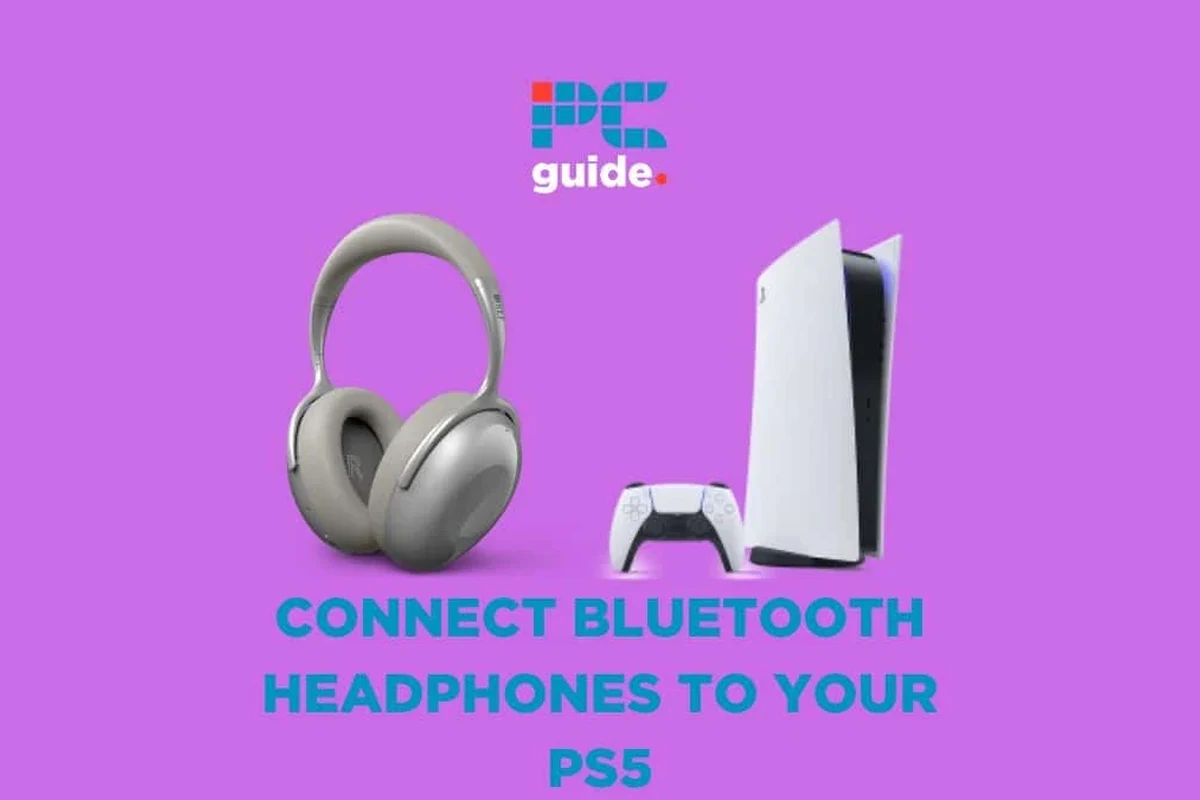
In 2026, pairing PS5 headphones to a PC is still straightforward, but not every headset connects the same way. Some models are built for Bluetooth, some rely on a USB wireless transmitter, and others work best as a wired headset through a 3.5mm jack.
The main thing to remember is that “PS5 headphones” is a broad label. A headset that works perfectly on PlayStation may behave differently on Windows 11, especially when it comes to microphone support, latency, and game chat.
Compatibility can vary by brand, model, and PC hardware. If your headset includes a manual or companion app, check those instructions first before changing Windows settings.
Check Your PS5 Headphones Before You Start
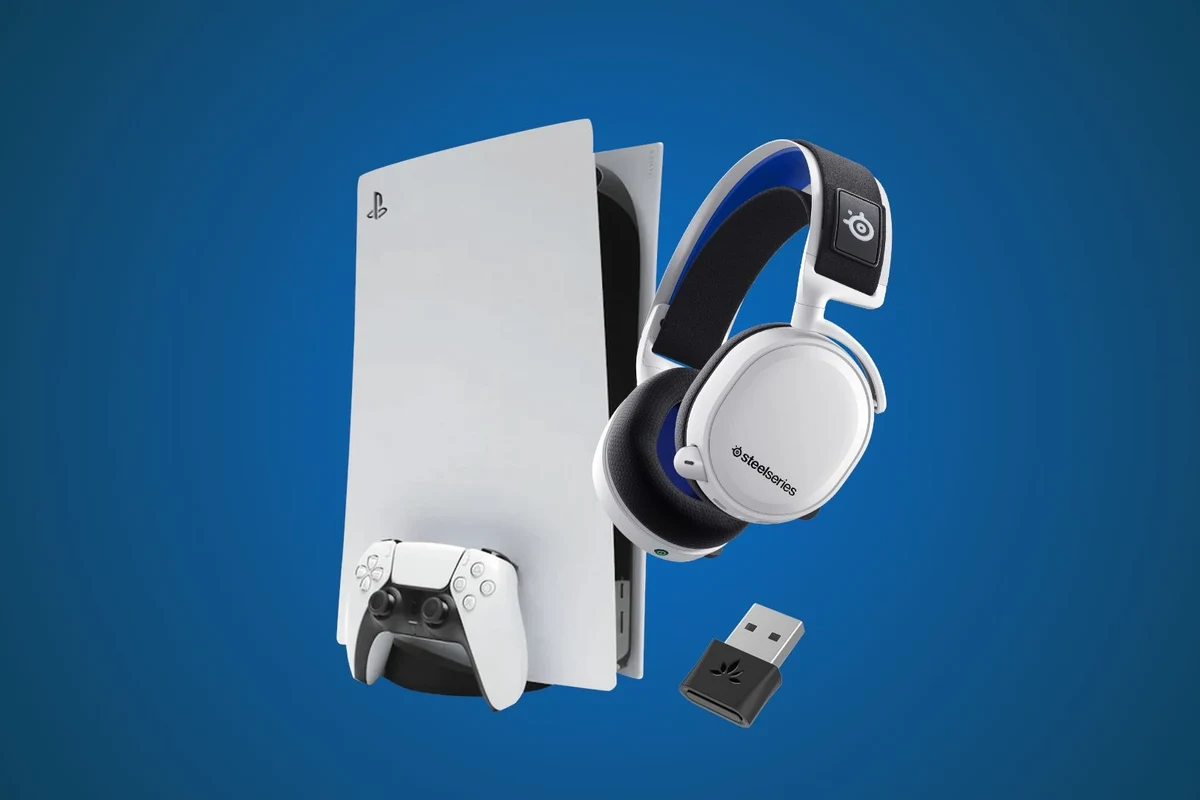
Before you try to pair anything, identify the connection type and confirm how the headset is supposed to work. This saves time and helps you avoid assuming Bluetooth is available when the headset actually depends on a wireless dongle.
Determine Whether They Use Bluetooth, USB Wireless, or a 3.5mm Cable
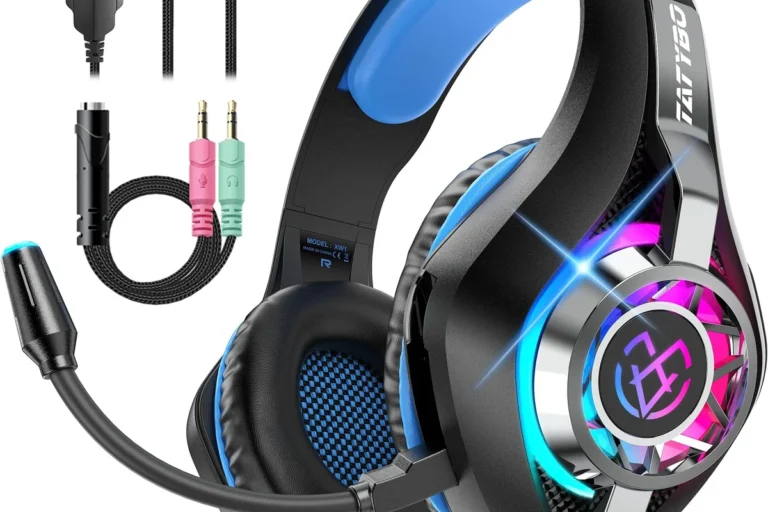
Start by checking the headset itself, the box, or the charging cable. If it came with a USB-A or USB-C dongle, it likely uses a proprietary wireless connection rather than standard Bluetooth.
If the headset has a 3.5mm cable, it can often connect directly to a PC headphone jack, controller jack, or USB audio adapter. If it is truly Bluetooth, Windows can usually pair it like any other wireless audio device.
- Does the headset mention Bluetooth in the manual?
- Did it come with a USB wireless adapter?
- Does it include a detachable 3.5mm cable?
- Does the microphone work through the same connection type?
Confirm PC Compatibility for Windows 11 and Modern Gaming Laptops
Most Windows 11 desktops and gaming laptops can handle headset audio without trouble, but the available ports matter. A laptop may only have USB-C ports or a single combo audio jack, while a desktop may need a separate microphone input.
If you are using Bluetooth, make sure your PC actually has Bluetooth built in. If it does not, you may need a USB Bluetooth adapter or a USB wireless dongle that matches the headset.
For the smoothest gaming setup, wired or USB wireless connections are often more reliable than standard Bluetooth, especially if you care about voice chat and lower delay.
Easy Ways to Connect PS5 Headphones to a PC
There are four common ways to connect PS5 headphones to a computer. The best choice depends on whether you want convenience, lower latency, or the simplest setup possible.
Pairing via Bluetooth on Windows
If your headset supports standard Bluetooth, open Windows Settings, go to Bluetooth and devices, and turn Bluetooth on. Put the headset into pairing mode, then select it from the list of available devices.
After pairing, Windows should route audio to the headset automatically. If the microphone does not activate, you may need to choose the headset as both the playback and recording device in Sound settings.
Turn on Bluetooth in Windows and make sure the PC is discoverable.
Follow the headset’s manual to enter pairing mode, then select it on the PC.
Choose the headset for sound output and microphone input in Windows Sound settings.
Using a USB Wireless Dongle or Adapter
Many PS5 gaming headsets use a USB dongle instead of Bluetooth. In that case, plug the dongle into your PC and wait for Windows to detect it. The headset may connect automatically, or you may need to press a sync button on the headset and receiver.
This is often the easiest option because the dongle handles the wireless link for you. It can also be more stable than Bluetooth for gaming and voice chat, depending on the headset design.
Connecting with a 3.5mm Audio Cable
If your PS5 headphones have a 3.5mm cable, plug it into your PC’s headphone jack or into a USB sound adapter if your computer lacks a proper audio port. This is the most universal method and usually requires the least setup.
For headsets with a microphone, make sure the plug is fully seated and that your PC supports a combined headset jack or split audio/mic input. Some PCs need a Y-splitter for full mic support.
Using a Controller as a Wired Audio Bridge
Some gamers connect the headset to a DualSense controller and then use the controller as a temporary audio bridge on PC. This can work for quick testing or casual use, but it is not always the cleanest long-term solution.
It may be useful if you already have the controller connected by USB and just want basic headphone audio without changing much else. Still, direct PC connection is usually simpler and more reliable.
Not every controller-to-headset setup will support microphone input correctly. If chat audio matters, test the mic before assuming the connection is fully working.
Step-by-Step Setup for Better Sound and Mic Performance
Once the headset is connected, spend a minute checking Windows sound settings. This helps avoid the common problem where audio plays through the wrong device or the microphone is detected but not actually selected.
Set the Headset as the Default Playback and Recording Device
Open Windows Sound settings and choose the headset for both output and input. If you only set playback, your game audio may work while the microphone still uses the laptop mic or another device.
For clearer results, also check the app-specific settings inside Discord or Steam. Some apps ignore the system default until you select the device manually inside the app.
Adjust Game Chat, Volume, and Mic Monitoring
After pairing, balance game volume and chat volume so voices do not get buried under effects. Many gaming headsets also include sidetone or mic monitoring, which lets you hear your own voice while speaking.
If the headset sounds too quiet, increase both the headset volume and the Windows output level. If the mic sounds harsh or too soft, adjust input gain in Windows, the headset software, or the game’s voice settings.
Some headsets sound fine for game audio but need manual mic selection before voice chat works properly. That is one reason setup issues often look like “audio works, but the mic is dead.”
Test Audio in Discord, Steam, and Windows Sound Settings
Before joining a match or call, test the headset in Windows and in the app you plan to use. Discord and Steam can each store separate input and output choices, so a headset may appear connected while still not being selected in the app.
A quick test call or voice recording can reveal low volume, background noise, or a disabled microphone before you start gaming or working.
Why does my PS5 headset work for sound but not voice chat on PC?
Usually the headset is connected, but Windows or the app is still using a different microphone. Check both the system sound settings and the app’s input device menu.
Common Pairing Problems and How to Fix Them
Most pairing problems come down to connection type, default device settings, or driver issues. The good news is that many of them can be fixed without special software or advanced troubleshooting.
Headphones Not Showing Up on PC
If the headset does not appear, first confirm that it is actually in pairing mode. For Bluetooth models, remove old pairings and try again; for USB wireless models, unplug the dongle and reconnect it to a different port.
Also check whether Windows sees the device under Sound, Bluetooth, or Device Manager. If your headset depends on a dongle, it may not show up as a normal Bluetooth device at all.
If a USB dongle is not detected, try a different USB port directly on the PC instead of a hub. Some hubs do not provide stable power or data for wireless audio devices.
Audio Works but the Microphone Does Not
This is one of the most common issues with gaming headsets on PC. The fix is often as simple as choosing the correct recording device in Windows or granting microphone permission to the app.
If the headset uses a single 3.5mm plug, your PC may need a combo jack or splitter. Without the right port setup, you can hear audio but lose mic support.
Lag, Dropouts, and Low Volume Issues
Bluetooth can introduce delay, and walls, other wireless devices, or low battery can make the connection less stable. If lag matters to you, switch to USB wireless or wired audio when possible.
Low volume can come from the headset itself, Windows volume limits, or game-specific audio settings. If the sound is still weak after checking those, the headset may simply be designed for a lower output level on PC.
Listening at high volumes for long periods can cause hearing damage. Keep volume at 60% or below for extended sessions.
Expert Advice: When a PS5 Headset Is Not the Best PC Option
Many PS5 headsets work well on PC, but that does not mean they are always the best choice for every user. If you play competitive games, stream often, or spend long hours in calls, a dedicated PC headset may be a better fit.
Latency and Codec Limits with Bluetooth Gaming
Bluetooth is convenient, but it is not always ideal for fast-paced games. Depending on the headset and PC, you may notice a small delay between the action on screen and the sound in your ears.
That delay may be acceptable for casual play, music, and calls, but it can be distracting in shooters or rhythm games. If you notice it, a USB wireless dongle or wired connection is usually the better fix.
When a Dedicated PC Gaming Headset May Be Worth the Extra Cost
A dedicated PC headset may offer easier software support, better microphone tuning, and more predictable Windows compatibility. Some also provide more flexible EQ options or clearer chat balancing tools.
If you are comparing options, our guide on selecting headphones in Windows 11 can help you set the right default devices after you buy. For readers who want a broader audio primer, our article on types of headphones explained is also a useful starting point.
If you have ongoing hearing discomfort, tinnitus, or trouble understanding speech even at normal volume, speak with an audiologist or hearing professional. Persistent audio issues should not be ignored.
Practical Examples for Gamers, Streamers, and Remote Workers
The best way to use PS5 headphones on a PC depends on what you do most. A casual gamer, a streamer, and someone joining work meetings may all want different trade-offs between convenience, quality, and reliability.
Using PS5 Headphones for Single-Player Gaming on a Budget
If you mostly play single-player games, a PS5 headset connected by Bluetooth or a 3.5mm cable can be perfectly practical. You do not always need the lowest possible latency if you are mainly enjoying story games, open-world titles, or solo sessions.
This can be a smart budget choice if you already own the headset and want to avoid buying another one. It is especially useful if the headset already sounds good to your ears and fits comfortably.
Using Them for Discord Calls, Streaming, or Work Meetings
For Discord, streaming, and remote work, mic clarity matters more than casual listening. A wired or USB wireless connection often gives fewer surprises than standard Bluetooth, especially when switching between apps.
If your current headset is comfortable but the mic sounds weak, you may still keep it for everyday use and add a separate desktop microphone later. That approach can be more cost-effective than replacing the whole headset at once.
- Bluetooth works if your PS5 headset supports standard pairing.
- USB dongles are often the easiest and most stable option.
- Wired 3.5mm connections are the simplest fallback for many PCs.
- Always set both playback and recording devices in Windows.
- Test Discord, Steam, and game chat before long sessions.
Final Recap: The Fastest Way to Pair PS5 Headphones to PC
The fastest way to pair PS5 headphones to PC is to match the connection type first, then set the headset as the default sound and microphone device in Windows. If your headset supports a USB wireless dongle or a 3.5mm cable, those options are often more reliable than Bluetooth for gaming.
In short, start with the headset’s original connection method, test audio in Windows and your chat app, and only switch to Bluetooth if that is the connection your model actually supports. That simple approach solves most setup problems without unnecessary trial and error.
Frequently Asked Questions
USB wireless is often more stable for gaming and voice chat. Bluetooth can work well, but it may add more delay depending on the headset and PC.
Check that the headset is selected as the recording device in Windows and inside the app you are using. If it uses a 3.5mm plug, make sure your PC supports mic input or use a splitter.
Wired headphones usually have the lowest delay and the simplest setup. Wireless is more convenient, but performance can vary by model and connection type.
Noise cancelling can help block background noise, which may make games and calls easier to hear. Sound quality still depends on the headset tuning, fit, and your personal preference.
Check the connection type, microphone quality, comfort, weight, and whether the headset works well with Windows. It also helps to compare battery life, cable options, and app support.
Over-ear models usually feel best for long gaming sessions, while in-ear options are more compact and portable. On-ear designs can be lighter, but comfort varies a lot by head shape and cushion material.