How to Add Headphones to Roku TV Easily and Fast

The easiest way to add headphones to Roku TV is usually the Roku mobile app’s Private Listening feature. If your TV supports it, Bluetooth or a remote headphone jack can be better for convenience or lower lag.
If you want to know how to add headphones to Roku TV, the easiest method is usually Roku’s Private Listening feature through the Roku mobile app. Depending on your TV model, you may also be able to use Bluetooth headphones, a Roku voice remote with a headphone jack, or a wired adapter setup.
- Fastest option: Roku app private listening is usually the quickest setup.
- Best for low lag: Wired connections are often more reliable than Bluetooth.
- Check compatibility: Roku TV features vary by model and software version.
- Best for comfort: Over-ear headphones are often easier for long sessions.
How to Add Headphones to Roku TV: What You Need to Know in 2025
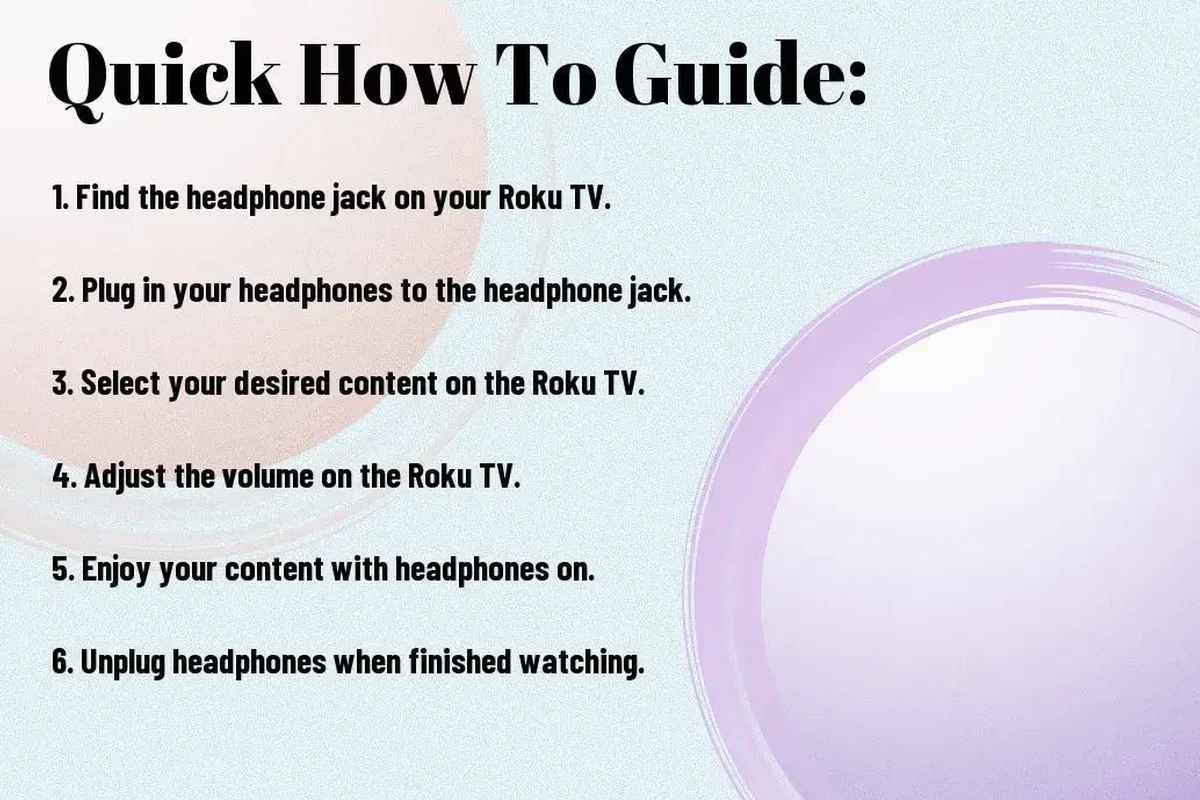
Roku TV headphone support is flexible, but the right method depends on your TV model and the type of headphones you already own. Some setups are free and simple, while others need an accessory or a compatible remote.
Before buying anything, check whether your Roku TV supports Bluetooth audio or only app-based private listening. If you already use wireless listening on other devices, our guide to Bluetooth headphones explained simply can help you understand what matters most for pairing, range, and latency.
Roku TV features can vary by brand, model, software version, and region, so the exact steps may look slightly different on your screen.
Listening at high volumes for long periods can cause hearing damage. Keep volume at 60% or below for extended sessions.
Best Ways to Connect Headphones to Roku TV
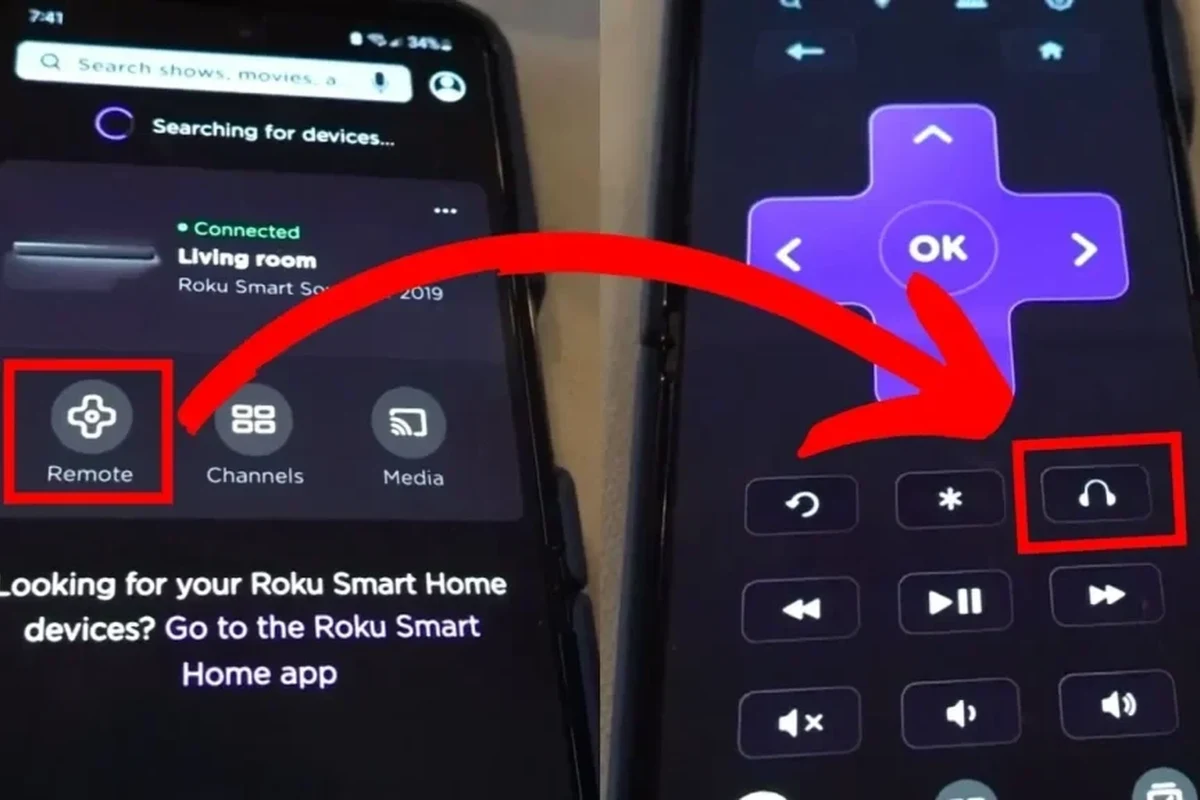
There are four main ways to listen privately on a Roku TV. The best choice depends on whether you want the simplest setup, the lowest delay, or the most comfortable long-term solution.
Using the Roku Mobile App for Private Listening
This is often the fastest and most accessible option. You connect your phone to the Roku TV through the Roku app, then route TV audio to headphones plugged into or paired with your phone.
It works well for casual viewing, late-night TV, and people who do not want to buy extra hardware. The tradeoff is that you must keep your phone nearby and the experience depends on your phone battery and app connection.
Connecting Bluetooth Headphones to Roku TV Models That Support It
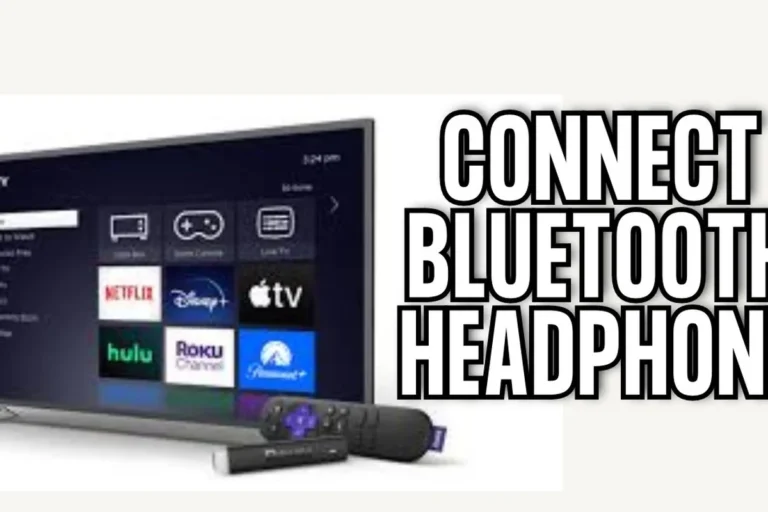
Some Roku TV models support Bluetooth audio directly, which lets you pair wireless headphones without using your phone. This is convenient if you want a cleaner setup and fewer cables.
For many viewers, this is the most comfortable option for everyday use. If you are comparing wireless options, the basics in our how to connect Bluetooth headphones guide can help you avoid pairing mistakes and connection confusion.
Using a Roku Voice Remote with a Headphone Jack
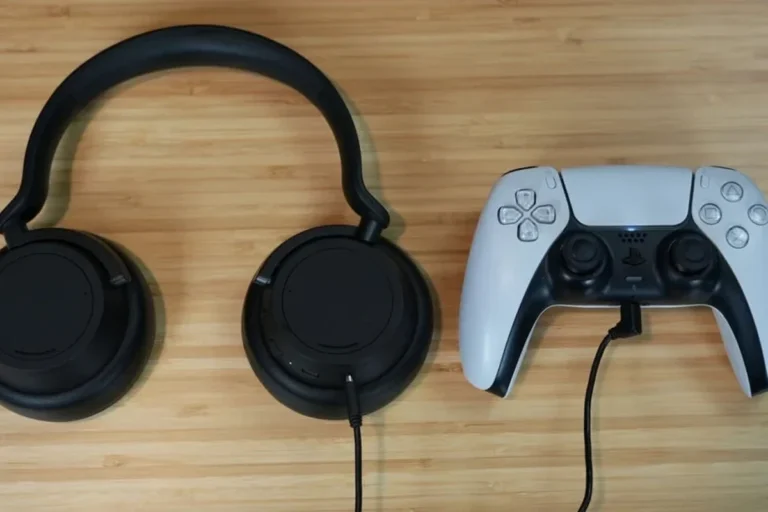
Some Roku remotes include a 3.5mm headphone jack. When you plug in wired headphones, the TV audio can route straight to the remote for private listening.
This is one of the simplest solutions if you already own a compatible remote and wired headphones. It is also a good choice for people who want low-latency sound without setting up Bluetooth.
Wired Options: TV Jack, USB Adapter, or Optical Audio Workaround
Not every Roku TV has a headphone jack, but some have audio outputs that can be adapted. Depending on your TV, you may be able to use a 3.5mm output, a USB-powered audio adapter, or an optical-to-analog converter.
These solutions can be useful for older TVs or home setups that need stable sound. They are usually more reliable than cheap wireless add-ons, but they may require extra cables and a little more setup time.
Step-by-Step Setup for Each Headphone Method
Once you know which method fits your TV, setup is usually straightforward. The key is to match the connection method to the exact hardware you have, then test audio before settling in for a long show or game.
How to Set Up Private Listening in the Roku App
Download the Roku mobile app on your phone and sign in to the same account or network setup used by your TV.
Make sure your phone and Roku TV are on the same network so the app can discover the TV correctly.
Open the app, select your Roku TV, and enable private listening. Then plug headphones into your phone or connect wireless headphones to the phone.
If you notice delay or dropouts, move closer to the router and close other apps on your phone before assuming the headphones are the problem.
How to Pair Bluetooth Headphones to Compatible Roku TVs
Go to the audio or Bluetooth section in settings and look for a pairing menu. The exact path may vary by model.
Follow your headphone brand’s pairing steps, usually by holding the power or Bluetooth button until the light flashes.
Choose the headphones from the Roku TV list and confirm the connection. Test the volume and audio sync right away.
Bluetooth headphone performance can feel very different from one TV to another because the TV’s Bluetooth implementation matters as much as the headphones themselves.
How to Use a 3.5mm or Converter Solution Safely
If your Roku TV or remote has a headphone output, use a standard 3.5mm cable and keep the volume low at first. If you need a converter, make sure it matches the TV’s output type before connecting anything.
For optical or USB workarounds, use quality cables and avoid forcing plugs into ports that do not fit. A bad adapter can create hiss, weak volume, or intermittent sound that feels like a headphone problem when it is really a connection issue.
If you have hearing sensitivity, tinnitus, or pain at moderate volume levels, speak with an audiologist before using headphones for long TV sessions.
Which Headphone Option Is Best for Your Roku TV?
The best option depends on what you care about most: convenience, low delay, or sound consistency. For many people, the right answer is not the fanciest method, but the one that fits their room and viewing habits.
Sound Quality, Lag, and Range Comparison
Wired connections usually give the most stable sound and the least lag. Bluetooth is more convenient, but audio delay can matter during dialogue-heavy shows, sports, and gaming.
Private Listening through the Roku app is easy, but it can depend on your phone and Wi-Fi quality. If you are sensitive to delay, you may prefer wired or a lower-latency wireless setup.
| Model | Best For | Price Range |
|---|---|---|
| Roku App Private Listening | Quick, free setup | Usually free |
| Bluetooth Headphones | Wireless convenience | Varies by brand |
| Remote with Headphone Jack | Simple wired use | Varies |
| Adapter or Converter Setup | Older TVs and workarounds | Budget to premium |
Best Choice for Gaming, Late-Night TV, and Shared Homes
For gaming, wired usually wins because lower latency makes controller actions and audio feel more aligned. For late-night TV, the Roku app can be the easiest if you do not mind using your phone.
In shared homes, Bluetooth or remote-based listening can be more convenient because you can move around without a cable. If you are comparing different headphone styles for comfort, our types of headphones explained article can help you choose between over-ear, on-ear, and in-ear designs.
Price Comparison: Free App Method vs Budget Adapters vs Premium Wireless Gear
The Roku app is usually the cheapest path because it often costs nothing extra. Budget adapters can work well, but quality varies, so the lowest price is not always the best value.
Premium wireless headphones may offer better comfort, stronger battery life, and more stable performance, but the final cost depends on brand, features, and compatibility. If you want a broader buying guide for value-focused models, see our best headphones under 100 roundup for general budget logic.
Common Mistakes When Adding Headphones to Roku TV
Most headphone setup problems come from compatibility assumptions, not broken headphones. A quick settings check and a look at the TV model usually solve more issues than repeated pairing attempts.
Why Headphones Do Not Show Up During Pairing
If your headphones do not appear, the TV may not support Bluetooth audio, or the headphones may not be in pairing mode. Sometimes the fix is as simple as restarting both devices and trying again.
Also check whether the Roku TV supports the specific connection method you are using. Not every Roku TV has the same audio features, so a missing menu option is often a model limitation rather than a defect.
Audio Delay, No Sound, and Volume Control Problems
Bluetooth delay is one of the most common complaints, especially for action scenes and games. If the sound is out of sync, try a wired method or reduce interference from nearby devices.
No sound can also happen if the phone app loses network connection or the remote volume is muted. Keep the TV volume, headphone volume, and app volume in a sensible range so you can isolate where the problem starts.
Compatibility Issues with Older Roku TV Models
Older Roku TV models may not support Bluetooth audio at all, and some remotes do not include a headphone jack. In those cases, a converter or app-based solution may be the most practical route.
If you are unsure about your TV’s age or feature set, check the model number in settings before buying accessories. That one step can save you from returning the wrong adapter or headset.
Expert Advice: What to Watch Out for Before Buying Accessories
Accessories can make Roku TV headphone use easier, but not every product is worth your money. Focus on compatibility, comfort, and latency before chasing extra features you may never use.
Latency Warnings for Gamers and Sports Viewers
If you watch sports or play games, even a small delay can be distracting. Wired setups are usually the safest choice when timing matters most.
Some wireless headphones handle latency better than others, but performance may vary by TV and codec support. If low delay is a priority, do not assume every Bluetooth headset will feel the same.
Battery Life, Comfort, and Multi-Device Interference
For long sessions, battery life and comfort matter just as much as sound quality. Over-ear headphones often feel better for extended TV use, while lighter earbuds may be easier for short viewing sessions.
Wireless gear can also face interference if your home has many active devices. If you already use headphones across multiple devices, it helps to understand the limits of noise cancelling headphones and how they behave in busy rooms.
When a Cheap Adapter Costs More in the Long Run
A very cheap adapter may seem like a bargain, but weak connectors and poor audio conversion can lead to frustration. If you end up replacing it twice, the “budget” choice may cost more than a better-made alternative.
Look for solid build quality, clear return policies, and compatibility with your TV’s output. That is usually a smarter buy than chasing the absolute lowest sticker price.
Final Recap: The Fastest and Easiest Way to Add Headphones to Roku TV
If you want the simplest answer for how to add headphones to Roku TV, start with Roku Private Listening in the mobile app. It is usually the easiest no-extra-hardware option and works well for most casual viewers.
If your Roku TV supports Bluetooth, that can be the cleanest wireless setup. If you want the lowest delay or the most reliable sound, a wired remote jack or adapter solution is often the better long-term choice.
- Use the Roku app for the fastest free private listening setup.
- Use Bluetooth only if your Roku TV model supports it.
- Wired connections usually offer the best stability and lowest lag.
- Check compatibility before buying any adapter or accessory.
Frequently Asked Questions
Yes, if your Roku TV supports Bluetooth audio or if you use the Roku mobile app for private listening. Compatibility depends on the TV model and headphone type.
Wired headphones usually have less delay and more stable sound. Bluetooth is more convenient, but latency and range can vary by model.
Over-ear headphones are often the most comfortable for long viewing sessions because they spread pressure across a larger area. Fit, weight, and ear cushion material can matter more than the style alone.
Yes, they can help reduce room noise and improve focus during movies or late-night viewing. Performance varies by brand and model, so try to match the headset to your comfort and sound preferences.
Check whether your TV supports Bluetooth, a headphone jack, or only app-based private listening. Also look at battery life, comfort, latency, and whether the accessory matches your TV’s output type.
Use a wired connection if low lag matters most. If you stay wireless, keep the TV and headphones close, reduce interference, and choose headphones known for lower latency when possible.