How to Connect Blue Tooth Headphones to TV Easily

The fastest way is to pair the headphones through the TV’s Bluetooth menu if headphone audio is supported. If not, use a Bluetooth transmitter connected to the TV’s audio output.
If you want to know how to connect blue tooth headphones to tv, the easiest path is usually to pair them through the TV’s Bluetooth menu. If your TV does not support headphone audio over Bluetooth, a Bluetooth transmitter is the next best fix.
- Direct pairing: Works best when the TV supports Bluetooth headphones.
- Transmitter backup: Fixes many older or limited TV models.
- Low lag matters: Especially for gaming, sports, and lip-sync.
- Check audio output: The TV may still be sending sound to speakers.
Why People Search for How to Connect Blue Tooth Headphones to TV in 2025
More people want wireless TV audio because homes are busier, screens are bigger, and late-night viewing is more common. Bluetooth headphones can keep the sound private without forcing everyone else to hear every explosion, laugh track, or sports replay.
For many Top Headphone Reviews readers, the goal is not just “wireless.” It is comfortable listening, simple setup, and audio that stays in sync with the picture.
Common viewing situations: late-night TV, shared living rooms, and hearing support
Late-night TV is one of the biggest reasons people look for Bluetooth headphone connections. You may want to watch a movie after others are asleep, or enjoy a game without turning up the volume.
Shared living rooms create another common need. One person may want full-volume dialogue while another wants silence, and wireless headphones make that easier to manage.
Some viewers also need a clearer listening setup for hearing support. In those cases, headphones can make dialogue easier to follow, but safe listening habits still matter.
What readers really want: simple setup, low latency, and no audio dropouts
Most people are not looking for a complicated audio chain. They want a method that works quickly, stays connected, and does not break the experience with lag or random dropouts.
That is especially important for sports and gaming, where even a small delay between picture and sound can be distracting. For more on wireless pairing basics, our guide on how to connect Bluetooth headphones covers the general process in a simple way.
Before You Start: Check Your TV’s Bluetooth and Audio Output Options
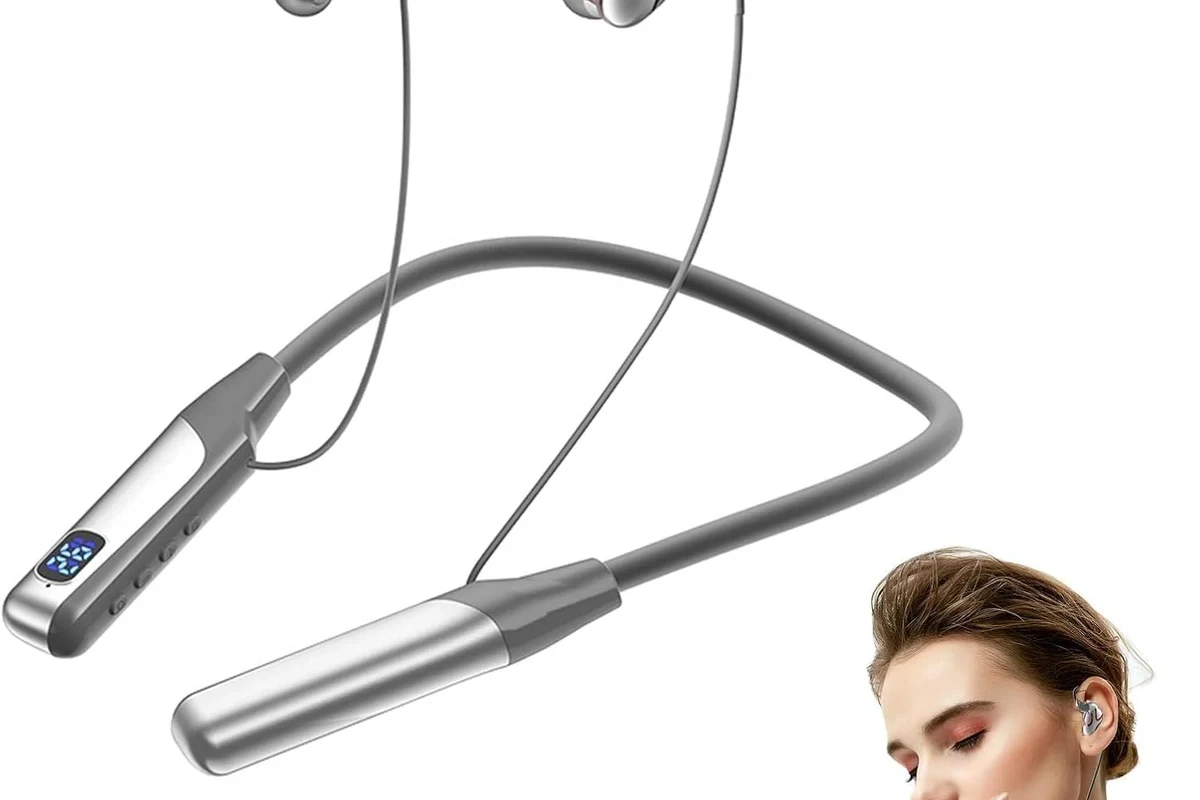
Before pairing anything, check what kind of audio output your TV actually supports. The word “Bluetooth” on a spec sheet does not always mean it supports headphone listening the way you expect.
Some TVs can send audio to headphones directly. Others only use Bluetooth for remotes, keyboards, or other accessories, which is where confusion starts.
How to tell if your TV has built-in Bluetooth audio support
Open your TV settings and look for an audio, sound, or Bluetooth devices menu. If you see options like “Bluetooth audio,” “headphones,” or “wireless speaker,” that is a good sign.
If the menu only mentions accessories, you may not have true headphone audio output. In that case, the TV may still need an external transmitter.
Why some TVs need a transmitter even if they have Bluetooth
Some TVs include Bluetooth, but only for input devices or limited audio features. That means your headphones may not appear in the pairing list, or they may connect but not carry sound properly.
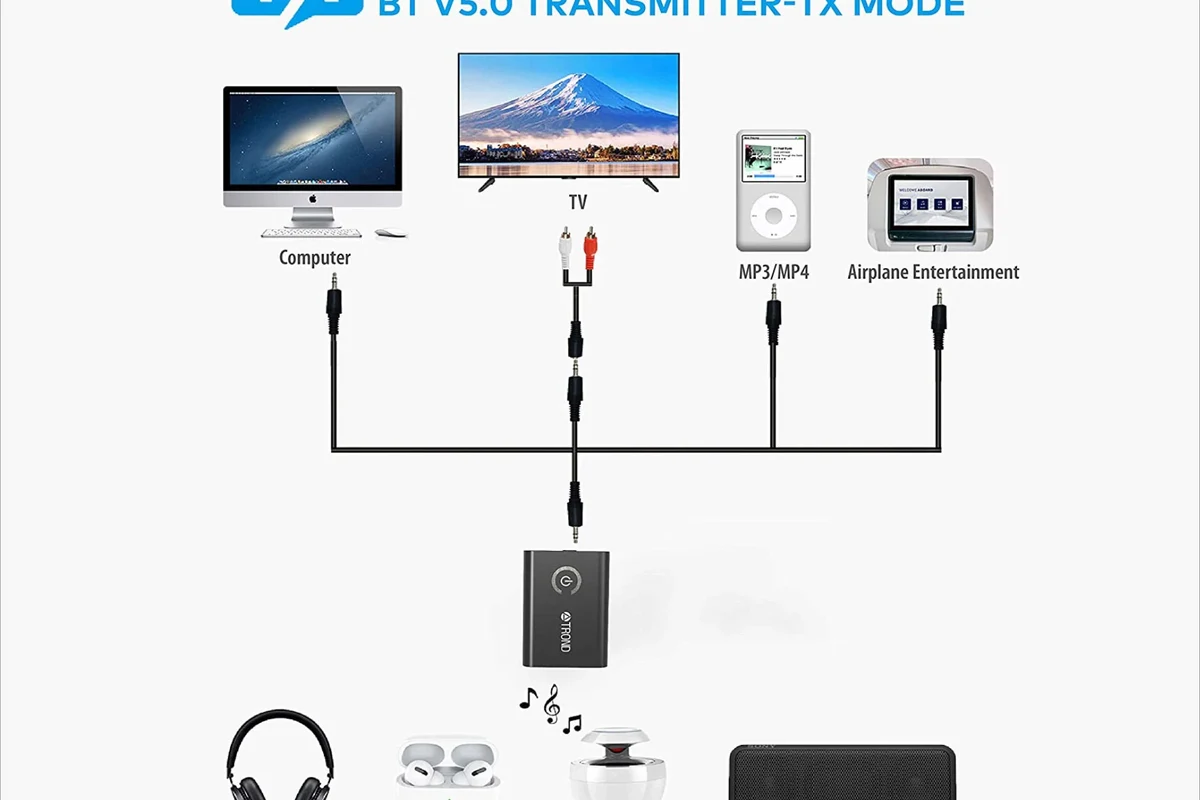
A Bluetooth transmitter plugs into the TV’s audio output and sends sound to your headphones independently. This is often the simplest fix for older TVs and models with limited wireless support.
Quick compatibility check for Samsung, LG, Sony, Roku TV, Fire TV, and older models
Compatibility varies by brand and model, so it is worth checking the exact TV manual or settings page. Samsung, LG, Sony, Roku TV, and Fire TV models often have better wireless support than older sets, but the details can still differ.
If you are using an older model, look for optical audio, 3.5 mm headphone out, RCA audio out, or HDMI ARC support. Those outputs can help you add a transmitter even when built-in Bluetooth is not enough.
Bluetooth support can vary not just by brand, but by year, region, and firmware version. Always check your exact TV model before buying extra gear.
Step-by-Step Ways to Connect Blue Tooth Headphones to TV
There are three main ways to do this. The best one depends on whether your TV supports headphone audio over Bluetooth, whether you already use a soundbar, and how much latency you can tolerate.
Method 1: Pair directly through the TV’s Bluetooth menu
This is the cleanest option if your TV supports it. Put your headphones into pairing mode, open the TV’s Bluetooth or audio output menu, and select the headphones when they appear.
Once paired, the TV may automatically route sound to the headphones. On some sets, you may need to switch the output from “TV speakers” to “Bluetooth headphones” manually.
Go to Settings, Sound, or Audio Output on the TV.
Put the headphones into Bluetooth pairing mode until the indicator flashes.
Choose the headphones from the TV list and confirm the connection.
Method 2: Use a Bluetooth transmitter for TVs without audio Bluetooth
If your TV cannot send audio to headphones directly, a transmitter is often the easiest workaround. Plug it into the TV’s audio output, pair it with your headphones, and let the transmitter handle the wireless link.
This method is especially useful for older TVs, projectors, and some budget models. It can also be a smart choice if you want lower latency than the TV’s built-in Bluetooth offers.
Method 3: Connect through a streaming device, soundbar, or console when supported
Some streaming devices, soundbars, and gaming consoles can also route audio to headphones. This can be useful if your TV itself is limited, but the connected device has better wireless support.
Still, this setup is not universal. Check the audio settings on the device you actually use most, especially if you switch between streaming, gaming, and live TV.
Practical pairing example: how to connect during first-time setup
A simple first-time setup might look like this: turn on the TV, open the sound output menu, and put the headphones in pairing mode. If the TV detects them, select them and wait for the connection confirmation.
If nothing appears, restart both devices and try again. If the TV still does not list the headphones, move to a transmitter instead of forcing repeated pairing attempts.
Best Audio Settings for Clear Sound and Low Lag
Once the headphones are connected, the next step is getting stable sound and acceptable sync. A good connection can still sound poor if the TV is sending audio through the wrong output mode.
Choosing the right output mode: TV speakers, headphones, or both
Many TVs let you choose between TV speakers, headphones, or both. If you want private listening, make sure the output is set to the headphones rather than leaving the speakers as the primary source.
Some people prefer both outputs for shared viewing, but that can create echo or delay if the TV and headphones are not synchronized well.
How to reduce audio delay for movies, sports, and gaming
For movies and sports, a small delay may be tolerable, but gaming is less forgiving. If your TV or transmitter has a low-latency mode, turn it on.
Also reduce extra processing when possible. Features like heavy sound enhancement, virtual surround, or audio delay correction can sometimes make sync worse instead of better.
Why codec support matters in 2025: SBC, aptX, aptX Low Latency, and LE Audio
Codec support can affect both sound quality and delay, but results vary by TV, transmitter, and headphone model. SBC is common and widely compatible, while aptX and aptX Low Latency may offer better performance on supported devices.
LE Audio is becoming more relevant in 2025, but not every TV and headphone combination supports it yet. If low lag matters most, check the codec support on all three parts of the chain: TV, transmitter, and headphones.
Even a great pair of wireless headphones can feel “bad” on TV if the source device adds delay. The connection path matters as much as the headphones themselves.
Common Problems and Mistakes That Stop Bluetooth Headphones from Working
Most connection problems are not caused by broken headphones. They usually come from a mismatch between the TV’s Bluetooth features, the audio output setting, or the pairing process.
Headphones not showing up in the TV’s device list
If the headphones do not appear, first make sure they are actually in pairing mode. Then move them closer to the TV and disconnect them from any phone or tablet they may already be using.
If they still do not show up, the TV may not support Bluetooth headphone audio at all. In that case, a transmitter is the more practical solution.
Sound still coming from the TV speakers
This usually means the TV has connected to the headphones, but the audio output has not switched over. Go back into the sound settings and select the headphones as the output device.
Some TVs also require you to lower or mute the internal speakers manually. The exact steps depend on the brand and software version.
Pairing succeeds but audio cuts out or lags behind video
Interference, weak signal strength, and codec mismatch are common causes of dropouts or lag. Try moving closer, removing other wireless interference, or using a transmitter with better latency support.
If the issue happens mostly during gaming, the TV itself may be the bottleneck. A low-latency transmitter can help more than changing headphones alone.
Expert warning: not all “Bluetooth” TVs support headphone audio the same way
Some TVs advertise Bluetooth but only support certain accessories or limited audio profiles. That is why two TVs from the same brand can behave very differently.
Do not assume “Bluetooth built in” automatically means “Bluetooth headphones will work well.” Always verify headphone audio support before buying or troubleshooting.
If you rely on headphones for hearing support, or if TV dialogue remains unclear even after setup, consider speaking with an audiologist or a qualified audio specialist. They can help you choose settings, fit, and listening levels that suit your needs.
What It Costs: Built-In Bluetooth vs Bluetooth Transmitter Solutions
The cheapest option is always using what the TV already supports. But if built-in Bluetooth is limited, a transmitter may save time and frustration.
Free option: using the TV’s built-in Bluetooth if it supports headphones
If your TV already supports headphone audio, the cost is effectively zero. You only need your existing headphones and a few minutes to pair them.
This is the best-case scenario for simplicity, though performance still depends on the TV’s wireless implementation.
Budget transmitter options and mid-range low-latency models
Budget transmitters are often good enough for casual TV watching. Mid-range models may be worth it if you want steadier pairing, better range, or lower latency for gaming and sports.
Features and pricing vary by brand, so compare the audio input types, supported codecs, and whether the transmitter can handle one or two headphones at once.
When it is worth paying more for dual-link or aptX Low Latency support
Dual-link support can be useful if two people want to listen at the same time. Low-latency support is more important if you watch a lot of sports or play console games.
If you mostly watch talk shows or casual streaming, you may not need the most advanced transmitter. For gaming-focused readers, though, latency is often worth paying for.
- Faster setup when TV supports headphones directly
- Transmitter options can improve compatibility
- Low-latency models help with sync
- Not all TVs support headphone audio natively
- Some setups still have delay or dropouts
- Extra hardware adds cost and cables
Final Recap: The Fastest Way to Get Wireless TV Audio Working
The best solution depends on your TV, your headphones, and how sensitive you are to delay. In many homes, direct Bluetooth pairing is the quickest answer, but a transmitter is often the more reliable backup.
Best choice for most users in 2025
For most people, start with the TV’s Bluetooth menu. If that fails, use a Bluetooth transmitter connected to the TV’s audio output.
This gives you the simplest path first and the most dependable fallback if the TV’s built-in wireless support is limited.
Quick checklist before you start watching
Check that the TV supports headphone audio, confirm the headphones are in pairing mode, and make sure the correct output is selected. If you use a transmitter, verify the input type and power connection first.
- TV supports Bluetooth headphone audio
- Headphones are in pairing mode
- Correct sound output is selected
- Transmitter matches the TV’s audio output
- Volume is set to a safe level
When to upgrade your setup for better range, sync, and comfort
If you hear frequent dropouts, notice obvious lag, or need to listen from farther away, it may be time to upgrade the transmitter or headphones. Comfort also matters for long sessions, especially with over-ear models and soft ear cushions.
And if you listen for long periods, keep volume at a reasonable level. For hearing safety, follow safe listening guidelines and consult an audiologist if you have tinnitus, sensitivity, or ongoing discomfort.
Listening at high volumes for long periods can cause hearing damage. Keep volume at 60% or below for extended sessions.
Frequently Asked Questions
Wired headphones can be more reliable and may avoid Bluetooth lag. Wireless headphones are more convenient, but sound quality and delay depend on the TV, transmitter, and headphone model.
Yes, noise cancelling headphones can help reduce background noise and improve dialogue clarity. They are especially useful in shared rooms, but comfort and sound balance still matter.
Closed-back headphones are usually better for TV because they keep sound in and block more outside noise. Open-back models can sound wider, but they leak sound and are less private.
For TV, check Bluetooth support, codec compatibility, latency, battery life, and comfort. For gaming, low-latency support and stable connection are usually more important than extra bass.
Look for a comfortable fit, clear dialogue, and reliable wireless connection before chasing premium extras. Budget models can work well if they match your TV setup and listening habits.
Choose lightweight headphones with soft ear cushions and an adjustable headband. If you listen for hours, comfort often matters more than small sound differences.