How to Connect JBL Headphones to Xbox Easily and Fast

Most JBL headphones do not connect directly to Xbox over Bluetooth. The fastest working setup is usually a 3.5mm cable from the JBL headset to the Xbox controller.
If you’re trying to figure out how to connect JBL headphones to Xbox, the short answer is this: most JBL Bluetooth headphones will not pair directly with an Xbox console. The easiest working setup is usually a wired connection from the JBL headphones to the Xbox controller, or a model with a compatible USB wireless transmitter.
That sounds limiting, but it’s actually simple once you know what your JBL model supports. In this guide from the Top Headphone Reviews Editorial Team, we’ll walk through what works in 2026, what doesn’t, and the fastest way to get game audio, chat, or TV sound without wasting time on failed Bluetooth pairing attempts.
- Best method: Use a 3.5mm cable to the Xbox controller for the simplest setup.
- Bluetooth limit: Most JBL Bluetooth headphones will not pair directly with Xbox.
- Wireless option: Only some USB dongle-based headsets work, depending on model support.
- Common fix: Check cable quality, controller firmware, and headset volume settings.
How to Connect JBL Headphones to Xbox: What Works in 2026 and What Doesn’t
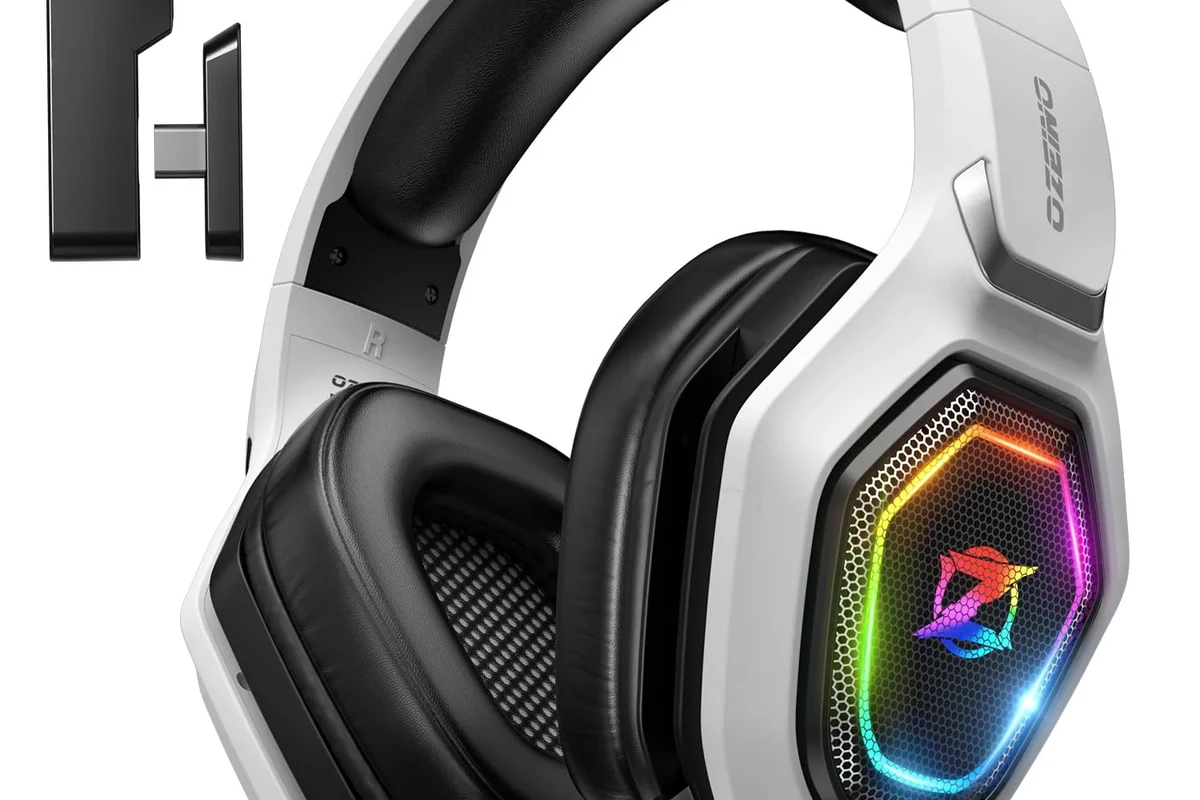
Xbox consoles still handle wireless audio differently from phones, tablets, and many PCs. That means a JBL headset that connects instantly to your phone may still need a cable, dongle, or workaround on Xbox.
Quick answer for Xbox Series X|S, Xbox One, and JBL wireless models
For Xbox Series X|S and Xbox One, the most reliable method is a 3.5mm wired connection from your JBL headphones to the Xbox controller. If your JBL model includes a USB wireless dongle and is designed for console or USB audio use, that may also work depending on the headset and the console setup.
Standard Bluetooth pairing is the part that usually fails. Xbox consoles do not support general Bluetooth headphone pairing the way a phone does, so most JBL wireless headphones cannot connect directly through Bluetooth alone.
Why Xbox audio compatibility is different from PlayStation, PC, and phones
Phones and many PCs are built for broad Bluetooth audio support, while Xbox prioritizes its own wireless ecosystem and controller-based audio options. That’s why some JBL models connect easily to a laptop or smartphone but not to an Xbox console.
If you’ve already used your JBL headphones with a PC, you may find them easier to manage there. For Windows users, our guide on selecting headphones in Windows 11 can help if you want to switch between gaming and desktop audio more smoothly.
Check Your JBL Headphones First: Bluetooth, Wireless Dongle, or Wired
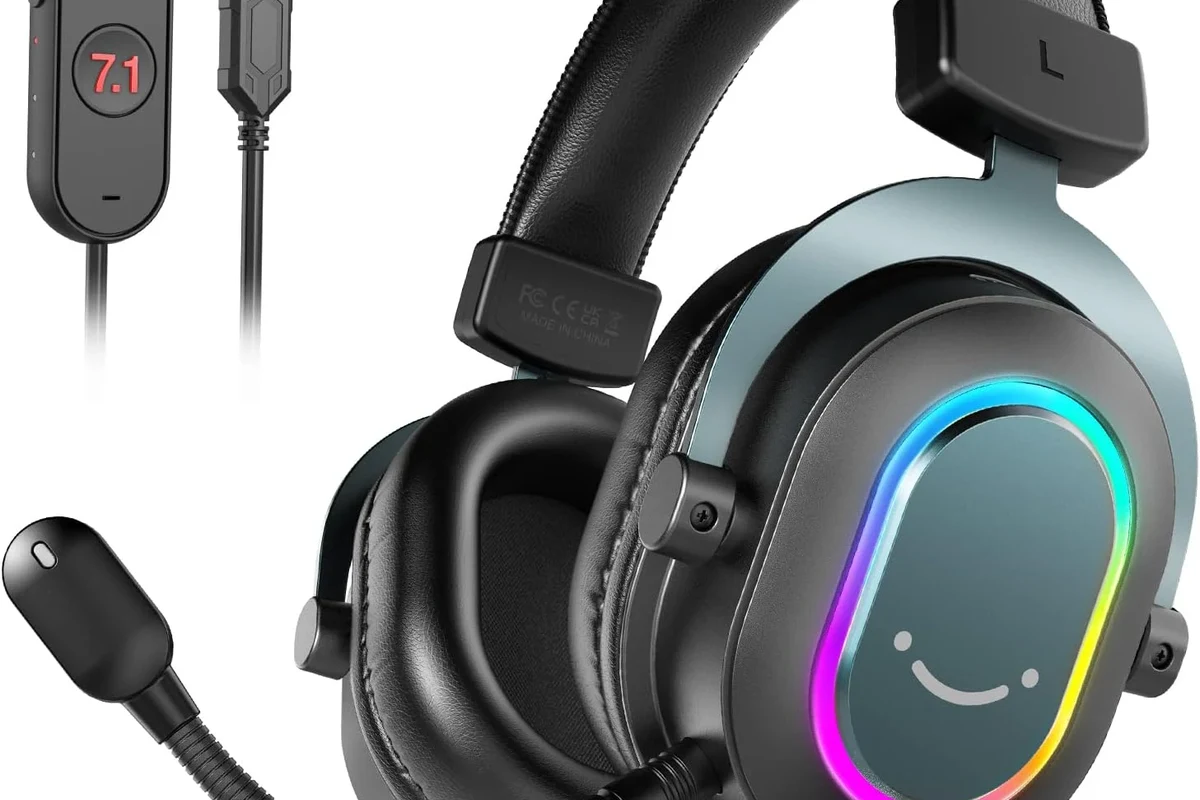
Before you try to connect anything, identify how your JBL headphones are designed to work. This saves time and helps you avoid buying the wrong adapter or assuming Bluetooth will solve the problem.
Which JBL models can connect directly, and which cannot
Most JBL Bluetooth headphones and earbuds are made for phones, tablets, and computers, not direct Xbox Bluetooth pairing. If your model relies only on Bluetooth, it will usually need a workaround on Xbox.
Wired JBL headphones are the simplest for Xbox because they can plug into the controller’s 3.5mm jack. Some wireless gaming headsets may include a USB transmitter or a console-friendly wireless mode, but support varies by model.
How JBL Tune, Quantum, Live, and Club series differ for Xbox use
JBL Tune and Live models are often consumer Bluetooth headphones, which makes them great for daily listening but less convenient for direct Xbox use. JBL Quantum models are more gaming-focused, so they are more likely to offer cable or dongle options that work better with consoles.
Club models may deliver strong sound for music and general media, but Xbox compatibility still depends on the exact connection type. In other words, the series name helps, but the actual port, cable, and wireless method matter more than the badge on the earcup.
Xbox compatibility depends on the console model, controller version, and the exact JBL headset. Always check the headset’s connection type before assuming it will work wirelessly with Xbox.
Best Ways to Connect JBL Headphones to Xbox Without Frustration
If your goal is the easiest possible setup, start with wired audio first. It is usually the least expensive, the fastest to configure, and the most dependable for both game sound and voice chat.
Using a 3.5mm cable with the Xbox controller for the simplest setup
This is the best all-around fix for most JBL headphones. Plug one end of the 3.5mm cable into your JBL headphones and the other end into the Xbox controller’s headphone jack.
If your JBL model supports wired listening while powered off, you may not need to turn the headset on at all. That can be especially convenient for long gaming sessions, since you avoid battery drain and pairing issues.
Connecting through the controller’s headphone jack for game audio and chat
Once the cable is connected, Xbox typically routes game audio through the controller automatically. If your JBL headphones include a built-in microphone and the cable supports it, you may also get party chat and in-game voice support.
Keep in mind that mic behavior can vary by cable and headset model. If chat does not work, the problem is often the cable type, the controller firmware, or the headset’s inline controls rather than the Xbox itself.
Using a compatible USB wireless transmitter or adapter when available
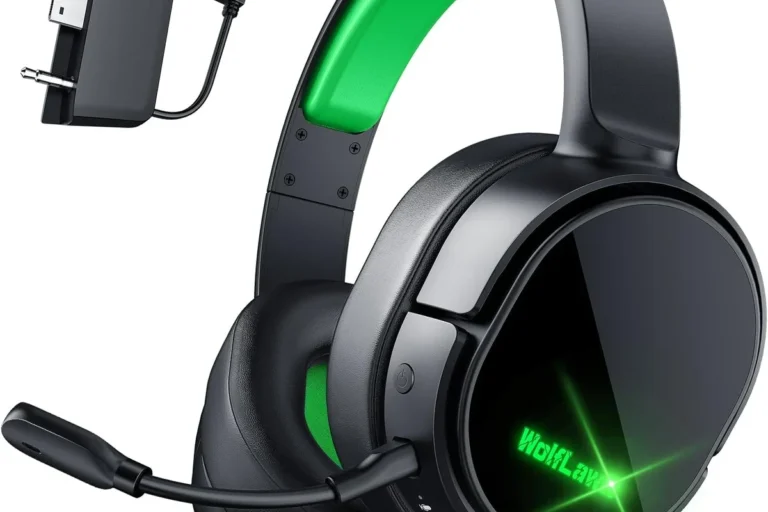
Some JBL gaming headsets are designed to work with a USB dongle or transmitter. In those cases, the dongle is often the key part that makes wireless audio possible on compatible hardware.
Check whether the accessory is made for Xbox, PC, or another platform. A USB transmitter that works on one device does not always mean it will work on Xbox, so read the headset documentation carefully before relying on it.
Pairing via Bluetooth workaround options for Xbox audio on other devices
If you want to use JBL Bluetooth headphones with Xbox audio indirectly, you may route the game sound through a TV, monitor, or another connected device instead of pairing the headphones to the console. This can work in some home setups, but it is not the same as native Xbox Bluetooth support.
Another option is using the headphones with a phone or PC for party chat, music, or streaming while the Xbox handles the game. That is not ideal for every gamer, but it can be a practical workaround if you already own a non-Xbox JBL model.
If you are using a cable, try a second 3.5mm cable before troubleshooting anything else. A low-quality or damaged cable is one of the most common reasons for weak sound or no mic input.
Step-by-Step Setup Guide for the Most Common JBL and Xbox Scenarios
Different JBL models need different setups, so it helps to follow the path that matches your gear. The good news is that the actual process is usually short once you choose the right connection method.
Wired setup: JBL headphones to Xbox controller in under a minute
Insert the 3.5mm cable into the JBL headphones and the other end into the Xbox controller.
Turn on Xbox and make sure the controller is connected and updated.
Start a game or party chat and confirm both sound and microphone input are working.
If the sound is too low, raise the headset volume if your JBL model has its own controls. Then adjust the Xbox audio settings so the controller output is not muted or restricted.
Wireless setup: JBL headset with USB dongle on Xbox-compatible hardware
Plug the USB wireless transmitter into the correct Xbox-compatible port or supported device.
Power on the JBL headset and wait for the wireless link to establish.
Check that game sound is coming through the headset and not still playing through the TV.
If your headset came with setup instructions or a pairing button, follow those steps exactly. Wireless gaming gear is often picky about sequence, so the order matters more than people expect.
TV or monitor setup when the Xbox is connected through HDMI audio
If your Xbox is connected to a TV or monitor, you may be able to route audio through the display and then into your JBL headphones using the display’s headphone output or an external audio solution. This is useful when the controller jack is unavailable or you want sound for the whole room setup.
Still, HDMI audio routing can introduce delay or limited volume controls depending on the TV or monitor. For most players, the controller jack remains the cleaner and easier choice.
Common Problems When Connecting JBL Headphones to Xbox
Most connection problems are not caused by the headphones being “bad.” They usually come from Xbox’s limited Bluetooth support, a weak cable, or a mismatch between the headset and the intended connection method.
No sound, only party chat, or audio cutting out
If you get only one type of audio, check the Xbox sound settings and the headset cable first. Some cables carry audio differently, and some inline controls can affect whether game sound, chat, or both are heard.
Audio cutting out can also happen if the controller is loose, the cable is worn, or the headset battery is low on a wireless model. Try a different cable and reconnect the controller before assuming the headset is faulty.
Why Bluetooth pairing fails on Xbox consoles
Xbox consoles do not work like Android phones or iPhones when it comes to Bluetooth audio. That is the core reason many JBL Bluetooth headphones will not appear as a normal pairing option.
If you were hoping for a simple phone-style pairing process, this is where many users get stuck. For a broader explanation of Bluetooth audio behavior, see our guide on Bluetooth headphones explained simply.
Mic not working, low volume, or delayed audio issues
Mic problems often come from cable compatibility, muted headset controls, or Xbox party settings. Low volume may come from the headset itself, the controller output, or the TV volume if you are routing through HDMI instead.
Delayed audio is more common with wireless workarounds than with a direct wired connection. If lag bothers you in competitive games, a cable is usually the better choice.
Listening at high volumes for long periods can cause hearing damage. Keep volume at 60% or below for extended sessions.
Expert Advice: The Mistakes Most Gamers Make Before Buying a JBL Headset for Xbox
Buying for Xbox is different from buying for phone use, and that difference causes a lot of avoidable frustration. A few checks up front can save you from returning the headset later.
Assuming every JBL wireless headset supports Xbox directly
This is the biggest mistake. Wireless does not automatically mean Xbox-friendly, and Bluetooth support on a phone does not equal direct support on a console.
Always look for a wired option, a USB dongle, or explicit Xbox compatibility before buying. If the listing does not clearly mention Xbox support, assume you may need a workaround.
Ignoring controller compatibility, firmware updates, and cable quality
Even with a wired setup, older controllers or outdated firmware can create problems. It is smart to update your Xbox controller and test the headset with a known-good cable before troubleshooting deeper issues.
For gamers who also use headphones on other devices, our article on how to connect Bluetooth headphones may help you compare setup steps across platforms.
Warning about overpriced adapters that do not solve Xbox Bluetooth limits
Some adapters are marketed as a universal fix, but they may not actually give you proper Xbox headset support. If an adapter does not specifically solve the audio path you need, it can become an expensive dead end.
Be careful with products that promise instant Bluetooth compatibility without explaining how they work. Clear compatibility information matters more than flashy marketing.
If you have persistent hearing discomfort, ringing, or trouble understanding speech during gaming, consider speaking with an audiologist. Long sessions at high volume can make these issues worse.
Cost, Value, and Better Alternatives if Your JBL Model Is Not Xbox-Friendly
If your JBL headphones already sound good and feel comfortable, it may be smarter to keep them and add a simple cable or compatible accessory. But if you want the easiest possible Xbox experience, a headset built for console use may be the better long-term choice.
Cheap wired fix vs. buying a new Xbox-compatible headset
A basic 3.5mm cable is usually the cheapest fix if your JBL headphones support wired use. That option gives you a fast path to game audio and chat without replacing the headset.
If your JBL model is Bluetooth-only and you want a clean wireless experience on Xbox, a new Xbox-compatible headset may be more practical than stacking adapters and workarounds. The right choice depends on how often you game and how much convenience matters to you.
When a JBL headset is still worth keeping for mixed gaming, TV, and mobile use
JBL headphones can still be a great buy if you use them across several devices. They may be excellent for music, streaming, phone calls, and casual gaming, even if Xbox requires a cable or workaround.
That flexibility is often the real value. If you want one headset for gaming, TV, and everyday listening, a JBL model can still make sense as long as you understand its Xbox limits.
Comparison note: JBL vs Xbox-certified headsets for convenience and price
Xbox-certified headsets are usually easier to set up because they are built with console compatibility in mind. JBL models can still offer strong comfort and sound, but they are not always the most convenient choice for direct console use.
If convenience is your top priority, Xbox-friendly headsets may save time. If you care more about using the same headset on your phone and TV too, JBL can still be a smart purchase.
Final Recap: The Fastest Way to Get JBL Headphones Working on Xbox
The fastest answer for most people is simple: use a 3.5mm cable from your JBL headphones to the Xbox controller. If your model supports a compatible USB wireless transmitter, that can be another good option, but standard Bluetooth pairing usually will not work directly on Xbox.
Best connection method by use case: casual gaming, chat, and all-day play
For casual gaming and party chat, wired is the easiest and most dependable method. For all-day play, wired also avoids battery anxiety and reduces the chance of lag or dropouts.
If you use your JBL headphones across multiple devices, keep them for music and mobile listening, then use the best Xbox-specific connection available when you game. That balance gives you the most value without forcing a full replacement.
Key takeaway for Top Headphone Reviews readers in 2026
When it comes to how to connect JBL headphones to Xbox, the winning formula is compatibility first, convenience second. Check whether your JBL model is wired, dongle-based, or Bluetooth-only, then choose the simplest working path instead of fighting Xbox’s Bluetooth limits.
Frequently Asked Questions
Most JBL Bluetooth headphones cannot connect directly to Xbox consoles. Xbox usually requires a wired connection, a compatible USB transmitter, or another workaround.
The easiest method is usually a 3.5mm cable from the JBL headphones to the Xbox controller. That setup is simple, fast, and often supports both game audio and chat.
Often yes, because some JBL gaming headsets include wired or dongle-based options. Regular Bluetooth JBL headphones are more likely to need a workaround.
Wired headphones are usually better for lower lag and fewer setup issues. Wireless is more convenient, but compatibility and battery life matter more for console gaming.
Check ear cushion material, headband pressure, weight, and build quality. For long sessions, comfort matters as much as sound quality.
Start with a good cable, check Xbox audio settings, and adjust EQ if your headset or device supports it. Bass, clarity, and soundstage can vary by model and personal preference.