
How to Hook Up Wireless Headphones to TV Easily

The easiest way is to pair Bluetooth headphones directly to a smart TV if the TV supports headphone audio. If not, a Bluetooth transmitter or RF headphone base is the most reliable workaround.
If you want to know how to hook up wireless headphones to TV, the good news is that most setups are straightforward once you know what audio outputs your TV supports. In many homes, the easiest path is Bluetooth pairing, but older TVs and gaming-focused setups may work better with a transmitter or a dedicated wireless headphone system.
- Fastest method: Use built-in TV Bluetooth when available.
- Best fallback: Add a transmitter for older TVs.
- Main issue: Watch for audio lag and lip-sync delay.
- TV behavior: Some models mute speakers when headphones connect.
How to Hook Up Wireless Headphones to TV: What Readers Need to Know in 2025
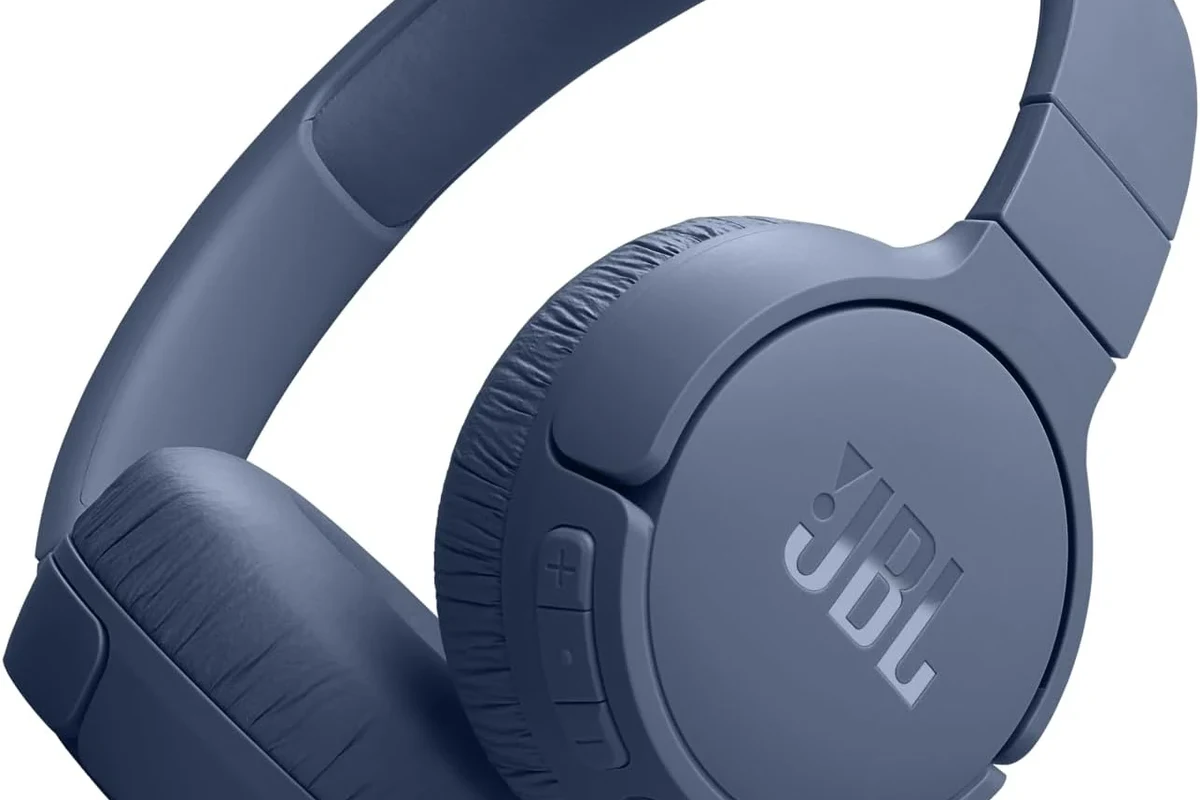
The best connection method depends on your TV model, your headphones, and how much delay you can tolerate. For casual TV watching, almost any wireless setup can work, but for gaming or fast-paced sports, low-latency audio matters more.
Before buying anything new, it helps to understand the difference between direct Bluetooth, external transmitters, and TV audio passthrough through a soundbar or receiver. If you already use wireless audio on other devices, our guide on wired vs wireless headphones can also help you decide which setup fits your living room best.
Check Your TV’s Audio Output Options Before You Start
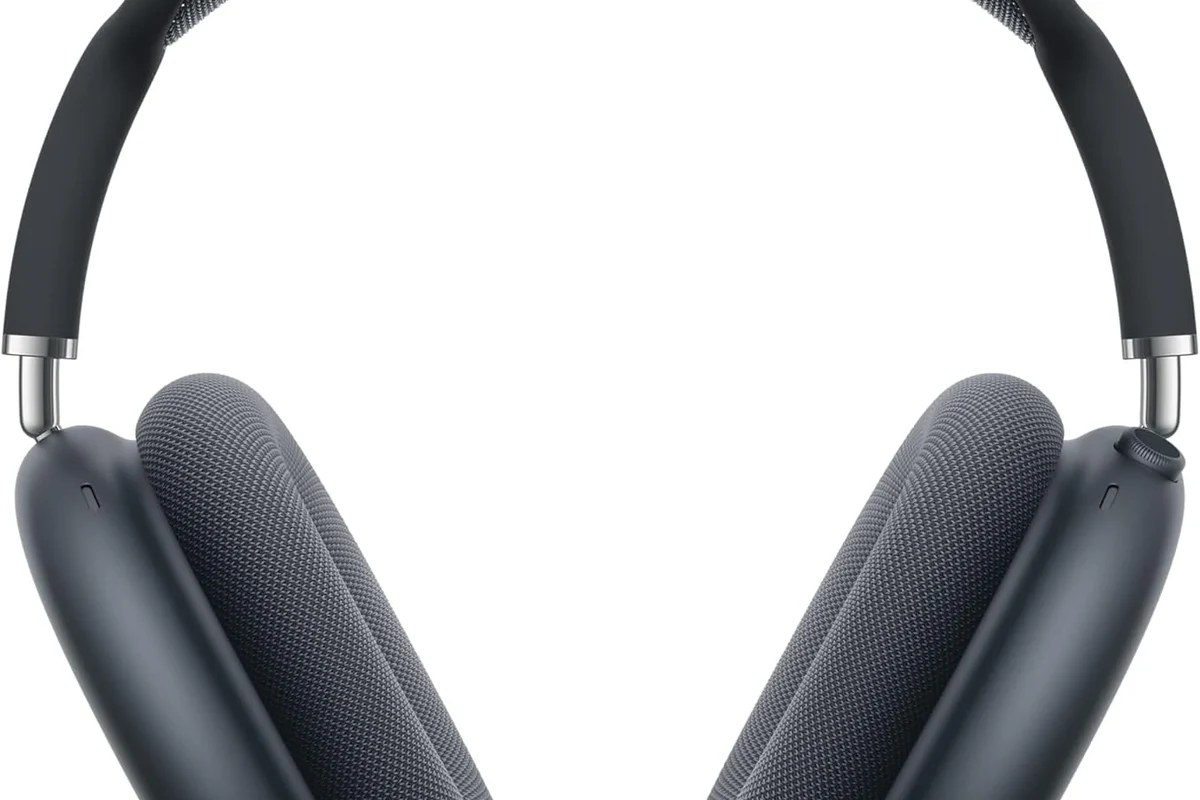
Not every TV sends audio the same way, and that matters when you connect wireless headphones. The first step is to check the ports and menus on your TV so you know whether you can pair directly or need extra gear.
Bluetooth built into the TV
If your smart TV has Bluetooth audio support, you may be able to pair your headphones directly without any adapter. This is the simplest option because it avoids extra cables and usually keeps the setup clean.
That said, Bluetooth support varies by brand and model. Some TVs only support Bluetooth for remotes or keyboards, not headphones, so check the settings menu or manual before assuming it will work.
3.5mm headphone jack and RCA audio outputs
Older TVs often include a 3.5mm headphone jack or red-and-white RCA audio outputs. These ports do not send wireless audio by themselves, but they can feed a Bluetooth transmitter or RF base station.
This is often the most practical route for non-smart TVs. A small transmitter plugs into the TV, then sends audio to your headphones wirelessly.
Optical audio port and HDMI ARC/eARC limitations
Many modern TVs include an optical audio port, and some use HDMI ARC or eARC for soundbars and receivers. These outputs can be useful for wireless headphone transmitters, but not every transmitter supports every format.
HDMI ARC and eARC are mainly designed for audio systems, so you may need a compatible adapter or receiver if you want to route TV sound to headphones.
If your TV uses optical out, make sure the transmitter accepts optical input. If it uses only HDMI ARC, check whether your soundbar, receiver, or adapter can pass audio to headphones without breaking TV speaker output.
Best Ways to Connect Wireless Headphones to a TV
There are several reliable ways to do this, and the best one depends on your TV age, your headphone type, and whether you care most about simplicity or audio performance. For many readers, Bluetooth is easiest, while a transmitter is often more flexible.
Pairing Bluetooth headphones directly to a smart TV
Direct pairing is usually the fastest method. Put your headphones into pairing mode, open the TV’s Bluetooth audio menu, and select the headphones when they appear.
This works well for casual viewing, late-night TV, and apartment listening. If you already know how to connect Bluetooth headphones to phones or laptops, the process will feel familiar here too.
Using a Bluetooth transmitter for non-Bluetooth TVs
A Bluetooth transmitter is one of the best solutions for older TVs or TVs with weak Bluetooth support. It plugs into the TV’s audio output and sends the sound wirelessly to your headphones.
- Does the transmitter match your TV output?
- Does it support low-latency audio?
- Can it pair with your headphone model?
This option is especially useful if you want to keep using a favorite pair of Bluetooth headphones instead of buying a new headset. It can also be a better choice if your TV’s built-in Bluetooth is unstable or has poor range.
Connecting through a streaming device, soundbar, or AV receiver
Some streaming devices and audio systems can act as the middleman between your TV and headphones. This can be helpful if your TV menus are limited or if your soundbar already manages most of your audio.
Just remember that routing audio through extra devices can add complexity. If you use a soundbar or AV receiver, test whether headphone audio and TV speakers behave the way you want before settling on the setup.
Step-by-Step Setup Examples for Common TV and Headphone Types
Different TV brands and headphone types need slightly different steps, but the general process is simple. Below are practical examples that cover the most common home setups.
Samsung, LG, Sony, and Roku TV Bluetooth setup example
On many smart TVs, you can open Settings, go to Sound or Audio, and look for Bluetooth audio devices. Once your headphones are in pairing mode, select them from the list and confirm the connection.
Go to sound or Bluetooth settings from the home screen or quick menu.
Hold the pairing button until the indicator light flashes.
Choose the headphones from the TV’s available device list and wait for confirmation.
Menu names vary by brand, so the exact path may differ. If you have trouble locating the setting, check the TV manual or support page for Bluetooth audio instructions.
Wireless headphones with a transmitter on older TVs
For older TVs, plug the transmitter into the headphone jack, RCA output, or optical output depending on what your TV provides. Then power the transmitter, put your headphones into pairing mode, and connect them to the transmitter.
If your TV has both optical and headphone outputs, test both. One may sound cleaner or be easier to control with your specific transmitter.
After pairing, adjust the TV volume and the headphone volume separately if your gear allows it. This can help you avoid distortion and keep dialogue easier to hear.
Using RF or infrared wireless headphones for long-range listening
RF and infrared wireless headphones are less common than Bluetooth, but they can still be useful for TV viewing. RF systems often offer strong range through walls and furniture, while infrared systems usually need a clearer line of sight.
These headphones can be a smart choice if you want a simple dock-style base station and long listening sessions without worrying much about phone-style Bluetooth menus. They are often favored by viewers who mostly stay in one room and want a straightforward TV audio experience.
Common Problems When Hooking Up Wireless Headphones to TV
Even when the setup is technically correct, a few common issues can get in the way. The good news is that most of them are easy to troubleshoot once you know what to look for.
Audio lag and lip-sync delay
Audio delay is one of the biggest complaints with TV headphones, especially for gaming and fast dialogue scenes. Bluetooth compression and TV processing can both add latency.
If the delay is noticeable, look for a low-latency transmitter or a headphone system that supports a faster codec. Some TVs also include audio sync adjustments in the sound menu.
Headphones not showing up in pairing mode
If your headphones do not appear in the TV’s device list, make sure they are actually in pairing mode and not just powered on. Many models need a long button press before they become discoverable.
Also check whether the headphones are already connected to a phone or tablet. Disconnecting them from another device often solves pairing problems right away.
No sound from the TV speakers or headphones
Some TVs automatically mute the speakers when headphones connect, while others let you choose shared audio output. If you hear nothing, check the TV’s sound output settings and volume controls.
Some TVs disable speaker output when headphones are connected, and some transmitters only pass one audio path at a time. Check the output mode before assuming the hardware is broken.
If you are using a transmitter, confirm that the TV output format matches the transmitter input. A mismatch between optical, analog, and HDMI-based audio can cause silence even when everything looks connected.
Expert Advice: What to Watch Out for Before Buying or Connecting
A little planning can save you a lot of frustration. The most common mistakes are buying a transmitter that does not match the TV, or choosing headphones that sound fine on paper but are annoying for long viewing sessions.
Compatibility issues with codecs and low-latency support
Bluetooth codec support can affect sound quality and delay, but compatibility depends on both the TV and the headphones. Not every device supports the same codec, so do not assume a feature will work just because it is listed on the box.
For gaming and action movies, low-latency support is especially helpful. If your TV audio needs to stay tightly synced, prioritize a transmitter and headphone combo designed for reduced delay.
If you notice persistent lip-sync issues, hearing imbalance, or discomfort during long sessions, consider consulting an audiologist or a qualified audio specialist. Safe listening habits matter as much as sound quality.
Why some TVs disable speaker output when headphones are connected
Some TVs are designed to send audio to only one output at a time. That means the moment wireless headphones connect, the TV speakers may mute automatically.
This is not always a defect. It is often just how the TV’s audio routing is programmed, especially on simpler smart TV models.
Warning about shared audio and volume control limitations
Shared audio can be convenient for households, but it is not always available. Even when it is, the TV volume and headphone volume may not sync perfectly, which can make fine-tuning a bit annoying.
Listening at high volumes for long periods can cause hearing damage. Keep volume at 60% or below for extended sessions.
If you use headphones for nightly movies or gaming, keep an eye on comfort too. A light clamp force, soft ear cushions, and manageable volume can make a bigger difference than fancy specs.
Cost, Convenience, and Performance: Bluetooth vs Transmitter vs Dedicated Wireless Headphones
Each method has tradeoffs, so the right choice depends on your budget and how often you use headphones with the TV. If you only need occasional private listening, Bluetooth may be enough. If you want a more dependable home-theater feel, a transmitter or dedicated wireless headset may be better.
Budget-friendly setup options
The cheapest route is often a basic Bluetooth setup if your TV already supports it. If not, a simple transmitter can still be affordable compared with buying a whole new headphone system.
Budget options are best when convenience matters more than absolute audio performance. Just make sure the product supports your TV’s output type before you buy.
Mid-range and premium solutions for gaming and TV viewing
Mid-range and premium setups usually focus on better range, lower delay, and more stable connections. That can matter a lot for gaming, where even a small audio delay can feel distracting.
Dedicated wireless headphones can also be more comfortable for long sessions, especially if you prefer over-ear designs with larger ear pads. For readers comparing listening styles, our guide to types of headphones explained is a useful next step.
Some viewers prefer RF headphones for TV because they can feel more stable across a room than standard Bluetooth, especially in homes with lots of wireless devices.
Final Recap: The Easiest Way to Hook Up Wireless Headphones to TV
The easiest way to hook up wireless headphones to TV is usually direct Bluetooth pairing, if your TV supports it. If your TV does not have Bluetooth audio, a transmitter is the next most practical option for most households.
For the best result, match the connection method to your TV’s outputs, your headphone type, and your tolerance for audio delay. If you want more help choosing gear, our Bluetooth headphones explained guide can help you understand the basics before you buy.
- Bluetooth is the easiest option if your TV supports headphone pairing.
- A transmitter is the best fix for older TVs or unsupported models.
- Low-latency support matters most for gaming and lip-sync accuracy.
- Check speaker-output behavior before assuming your setup is broken.
Frequently Asked Questions
Wireless headphones are more convenient for couch viewing and late-night listening. Wired headphones can still be better if you want zero lag and do not mind the cable.
Yes, noise cancelling headphones can reduce background noise and make dialogue easier to hear. They are especially useful in shared homes, but results vary by model.
Over-ear headphones are usually the most comfortable for long TV sessions. In-ear models can be lighter and more portable, but fit and comfort depend on your ear shape.
Look at codec support, latency, battery life, and comfort before focusing on driver size alone. EQ settings can also improve clarity, bass, and dialogue depending on your TV and headphones.
Budget setups can work well for casual TV use if your TV already supports Bluetooth. For gaming or longer sessions, mid-range and premium options may offer better comfort and lower delay.
Check weight, clamp force, ear cushion material, and build quality for long listening sessions. If you have ear pain or hearing concerns, consider safe listening habits and speak with an audiologist if needed.


