How to Use Headphones with Roku TV Easily Today

The easiest way to use headphones with Roku TV is usually the Roku mobile app private listening feature. If your TV supports it, wired headphones or a dedicated wireless transmitter are often the most reliable options.
If you’re trying to figure out how to connect headphones to a Roku TV, the answer depends on your exact TV model and the type of headphones you own. In 2025, the easiest setup is usually Roku’s Private Listening feature through the mobile app, while wired and wireless adapters remain the most reliable fallback options.
- Best starter method: Use Roku app private listening when available.
- Most stable option: Wired headphones usually give the least delay.
- Bluetooth caution: Roku Bluetooth support varies by model and setup.
- Better for gaming: 2.4GHz or RF wireless can reduce lag.
- Buy smart: Match the headphone type to your TV outputs and comfort needs.
How to Use Headphones with Roku TV: What the Best Setup Looks Like in 2025
Roku TV does not work the same way as a phone or laptop when it comes to audio output. Some Roku TVs support Bluetooth only through the remote, some rely on the Roku app, and others need a wired connection or an external transmitter.
For most people, the best setup is the one that matches their habits. If you want simple late-night streaming, the Roku app is convenient. If you want lower latency for gaming or sports, wired headphones or a dedicated wireless transmitter often make more sense.
Before buying anything, it helps to know whether your Roku TV has a headphone jack, whether your remote supports private listening, and whether your headphones are wired, Bluetooth, or RF/2.4GHz wireless. That small check can save a lot of frustration later.
Roku TV Headphone Options: Roku App, Bluetooth Workarounds, Wired, and Wireless Alternatives
There are several ways to listen privately on Roku TV, but not all of them are equally simple. The right choice depends on whether you care most about convenience, sound quality, range, or low delay.
Using the Roku Mobile App Private Listening Feature
The Roku mobile app is one of the easiest ways to use headphones with Roku TV. After connecting your phone to the same Wi-Fi network as the TV, you can activate Private Listening and route TV audio to your phone, then listen through wired or Bluetooth headphones paired to the phone.
This method is especially handy if your TV has no headphone jack and your Roku remote does not support headphone output. It is also a good option for casual streaming because you do not need extra hardware.
If you use the Roku app often, keep your phone charged and close by. Private Listening can drain battery faster than normal streaming, especially during long movie nights.
Connecting Bluetooth Headphones Through Roku-Compatible Devices
Many readers assume every Roku TV can pair directly with Bluetooth headphones, but that is not always true. Some Roku devices support Bluetooth audio only in limited ways, while others use Bluetooth for remotes or accessories rather than full headphone output.
If your specific Roku TV or streaming device supports Bluetooth audio, pairing is usually straightforward. But if it does not, you may need a Bluetooth transmitter connected to the TV’s audio output instead.
Bluetooth compatibility can vary by Roku model, TV brand, and software version. Always check your TV settings or product manual before assuming direct pairing will work.
Wired Headphones via TV Jack, Remote Jack, or Audio Adapter
Wired headphones are often the simplest and most stable option for Roku TV. If your TV has a 3.5mm headphone jack, you can plug in directly and enjoy instant audio without worrying about pairing or battery life.
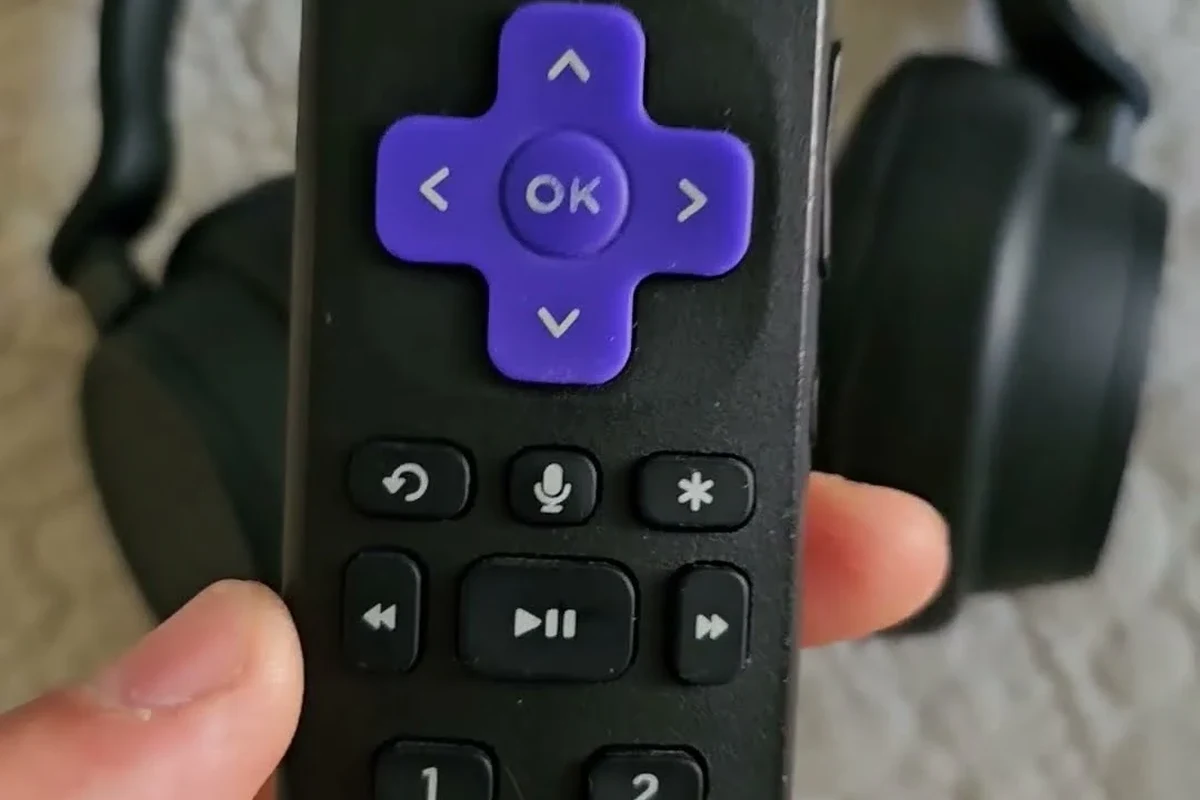
Some Roku remotes include a headphone jack for private listening, which can be very convenient. If neither the TV nor remote has a jack, an audio adapter or external DAC may help, depending on the TV’s output ports.
Not every adapter works with every TV. Check whether your TV uses 3.5mm, optical, USB, or RCA audio output before buying an accessory.
Using RF or 2.4GHz Wireless Headphones for TV Listening
RF and 2.4GHz wireless headphones are a strong choice when you want more range and less lag than standard Bluetooth. These systems usually come with a transmitter base that connects to the TV, then sends audio to the headphones.
This can be a smart pick for living rooms, gaming, or anyone who wants to walk around without losing audio. The tradeoff is that you need extra hardware and one more device to power and maintain.
TV listening headphones often sound better when the connection is stable, even if the codec is not the fanciest one. For many people, low delay matters more than chasing the most advanced wireless label.
Step-by-Step: How to Use Headphones with Roku TV the Right Way
Once you know which connection method you are using, setup becomes much easier. The goal is to get clear audio, avoid lag, and make sure your volume is comfortable for long sessions.
Pairing Headphones for Private Listening on the Roku App
Start by installing the Roku mobile app on your phone and connecting the phone to the same Wi-Fi network as your Roku TV. Open the app, select your Roku device, and look for the private listening option.
Then pair your headphones to the phone, not the TV. Once the headphones are connected, the TV audio should route through your phone and into your headset or earbuds.
Make sure your phone and Roku TV are on the same network.
Select your Roku device and turn on the headphone listening mode.
Pair Bluetooth headphones to the phone or plug in wired headphones.
Setting Up Headphones with a Roku Voice Remote or TV Audio Output
If your Roku remote has a headphone jack, plug in your wired headphones and wait for the TV audio to switch automatically. This is one of the cleanest setups because it keeps the connection local and avoids wireless delay.
If you are using the TV’s audio output, connect your headphones directly or through an adapter that matches the port. In some cases, a Bluetooth transmitter connected to the output can give you a wireless experience without relying on the TV’s built-in Bluetooth support.
- Whether the remote has a headphone jack
- Whether the TV has a usable audio output
- Whether the adapter matches the TV port type
Choosing the Correct Audio Output and Volume Settings
After connecting, go into the Roku TV audio settings and confirm that the sound is being sent to the correct output. If the TV still plays audio through speakers, you may need to switch the output manually or disable speaker audio.
Set the headphone volume carefully. Start low, then raise it gradually until dialogue is clear. If the sound is too quiet, check both the TV and headphone volume controls before assuming the headphones are the problem.
Listening at high volumes for long periods can cause hearing damage. Keep volume at 60% or below for extended sessions.
Best Use Cases for Headphones on Roku TV
Headphones are not just for avoiding noise. They can improve clarity, reduce distractions, and make TV watching more comfortable for people with different schedules or listening preferences.
Late-Night Streaming Without Disturbing Others
This is the most common reason people ask how to use headphones with Roku TV. If someone is sleeping nearby or you share a room, private listening lets you keep up with shows without turning the TV down too far.
For this use case, comfort matters as much as sound quality. Lightweight over-ear headphones or soft in-ear options can be easier to wear for a full episode or movie.
Gaming on Roku TV with Lower Latency Audio
If you use Roku TV for gaming, delay matters. Bluetooth can be fine for casual viewing, but some gamers notice lag between the picture and the sound, especially in fast-moving games.
That is why wired headphones or 2.4GHz wireless headsets are often better for gaming. They usually feel more responsive and can make dialogue, effects, and timing cues easier to follow.
For readers comparing gaming-friendly audio setups, it also helps to understand the basics of Bluetooth headphones explained simply so you know where wireless convenience may come with tradeoffs.
Watching Sports, Movies, and Live TV with Clear Dialogue
Headphones can make commentary, dialogue, and announcer voices easier to hear, especially in noisy rooms. This is useful for sports broadcasts, action movies, and live TV where background sound can get crowded.
If you want more clarity, closed-back headphones or well-fitting earbuds often help block outside noise. Some people also prefer a mild EQ boost in the midrange so speech sounds more natural and less muffled.
Common Mistakes When Trying to Use Headphones with Roku TV
A few setup mistakes keep coming up again and again. Avoiding them can save time and help you get a better listening experience right away.
Assuming Every Roku TV Supports Native Bluetooth Audio
This is the biggest misconception. Just because a device is a Roku TV does not mean it can send audio directly to Bluetooth headphones the way a phone can.
Always verify the exact model’s audio features before buying Bluetooth-only headphones for TV use. If the TV does not support it, a transmitter or the Roku app may be the better route.
Ignoring Audio Delay, Lip-Sync, and Volume Imbalance
Even when headphones connect successfully, delay can still be annoying. If the sound arrives late, dialogue may look out of sync with the picture, which is especially noticeable during movies and gaming.
Volume imbalance is another common issue. One ear may sound louder than the other if the cable, adapter, or headphone fit is not secure.
Using the Wrong Adapter or Incompatible Headphone Type
Adapters are useful, but only when they match the output you actually have. A wrong connector can lead to silent audio, weak volume, or distorted sound.
Some headphones also work better than others for TV listening. For example, very long-cable studio headphones may be awkward for couch use, while tiny earbuds may not be ideal if you want comfort for long sessions.
If you hear distortion, one-sided audio, or persistent lip-sync issues even after checking connections, consult the TV manual or a qualified audio specialist. If you have hearing concerns, tinnitus, or discomfort at normal volumes, speak with an audiologist.
Expert Advice: What to Watch Out for Before Buying Headphones or Adapters
Buying for Roku TV is a little different from buying for a phone or laptop. The best choice depends on how you watch, how far you sit from the screen, and whether you care more about convenience or performance.
Latency, Range, and Battery Life Considerations
Latency is the delay between the picture and the sound. For movies and casual shows, a small delay may not bother you, but for gaming or fast dialogue it can be distracting.
Range matters too. If you plan to walk into another room, RF or 2.4GHz systems may be more dependable than standard Bluetooth. Battery life is also important for wireless headphones, especially if you watch TV nightly.
Price Comparison: Budget Wired Options vs Premium Wireless Headphones
Budget wired headphones are usually the easiest and cheapest place to start. They do not need charging, pairing, or special software, which makes them practical for everyday TV watching.
Premium wireless headphones can be worth it if you want better comfort, better build quality, or more advanced noise cancelling. Still, price does not always guarantee the best Roku TV experience, so it is smart to match the product to your actual setup.
When an External Transmitter Is Worth the Extra Cost
An external transmitter is worth considering when your Roku TV lacks Bluetooth audio support or when you want a more stable wireless connection than the built-in options provide. It can also be a better fit if you want to use your favorite wireless headphones without changing your TV.
That said, not every household needs one. If the Roku app works well for you, or if a simple wired setup gets the job done, there is no need to add extra hardware just for the sake of it.
- Can improve compatibility
- May reduce wireless frustration
- Works with many headphone types
- Extra device to buy
- More cables and setup steps
- Compatibility still varies
Final Recap: The Easiest and Most Reliable Way to Use Headphones with Roku TV
If you want the simplest answer, start with the Roku mobile app private listening feature. It is easy, flexible, and works well for many casual viewers who just want quiet TV audio.
If you want the most reliable performance, especially for gaming or low-delay viewing, wired headphones or a dedicated 2.4GHz wireless setup usually make more sense. The best choice depends on your TV model, your headphones, and how sensitive you are to delay, comfort, and volume control.
- Roku app private listening is the easiest starting point.
- Wired connections are usually the most stable.
- Bluetooth support varies by Roku TV model.
- External transmitters help when native audio options fall short.
Frequently Asked Questions
Wired headphones are usually more stable and have less delay. Wireless headphones are more convenient, but performance depends on the TV, adapter, and headphone type.
Yes, noise cancelling headphones can work well for Roku TV if they connect through the app, a jack, or a transmitter. They are helpful in noisy rooms, but comfort and latency still matter.
Closed-back headphones are usually better for TV because they block more outside noise and keep dialogue focused. Open-back headphones can sound wider, but they leak sound and are less private.
Check connection type, latency, battery life, comfort, and whether you need a microphone. For wireless models, also look at range and whether they support low-delay listening.
A simple wired over-ear headset is often the best budget choice because it is easy to use and does not need charging. Budget wireless options can work too, but compatibility and delay may vary.
Choose lightweight headphones with soft ear cushions and a secure but gentle fit. If you feel pressure, heat, or pain, take breaks and lower the volume.