How to Get Headphones to Work on PC Fast and Easy

Start by checking the plug, port, and headphone type, then switch the Windows playback device to your headphones. If that does not fix it, test the volume mixer, app audio settings, drivers, and Bluetooth or USB connection.
Getting headphones to work on a PC is usually less complicated than it seems. In most cases, the problem is a wrong port, the wrong playback device, a driver conflict, or a Bluetooth pairing issue.
This guide from the Top Headphone Reviews Editorial Team walks through the fastest fixes first, so you can get sound back without wasting time on deep troubleshooting.
- Check hardware first: Wrong port or loose plug is the most common issue.
- Set output manually: Windows may still send sound to speakers or monitors.
- Test by headphone type: Wired, USB, and Bluetooth fail for different reasons.
- Use cheap fixes wisely: Splitters, adapters, or USB sound cards can solve many problems.
How to Get Headphones to Work on PC: What Usually Goes Wrong in 2026
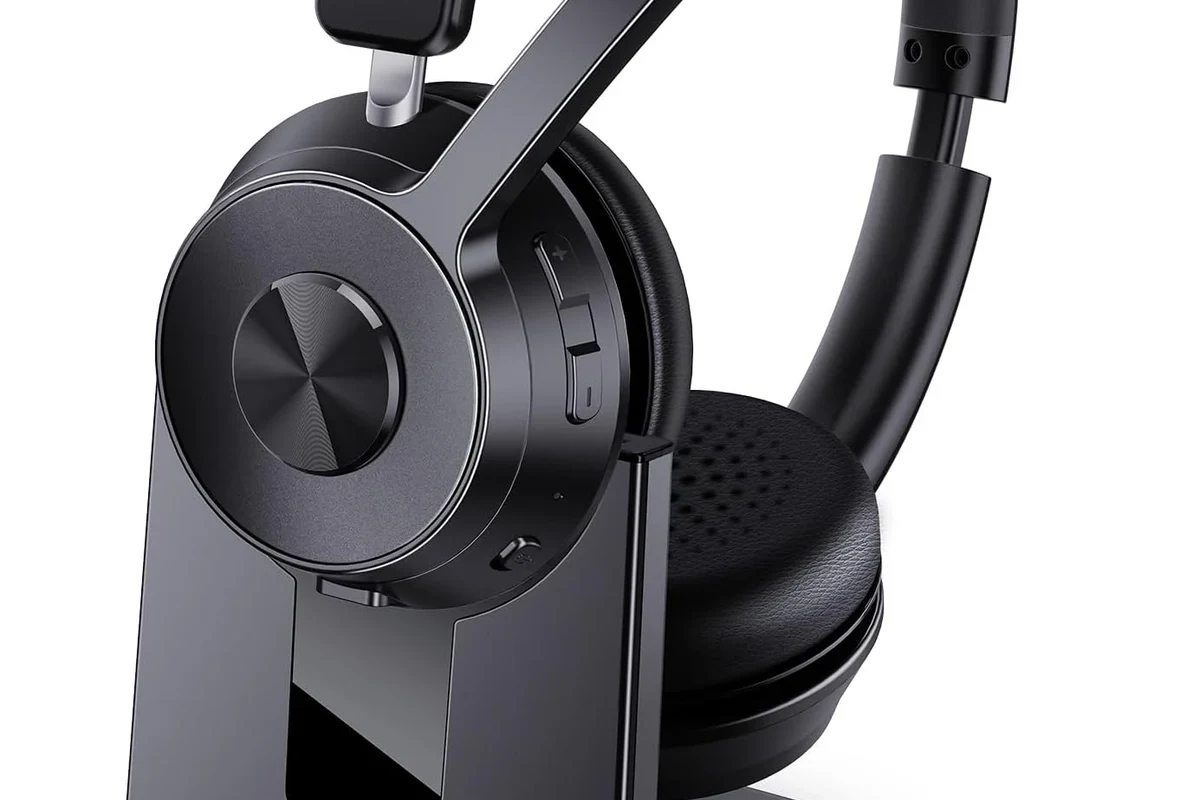
Most headphone problems on a computer fall into a few simple categories: the headphones are not fully connected, Windows is sending audio to the wrong output, or the headset needs a driver or app setting change. That is true whether you use wired headphones, USB headsets, or Bluetooth models.
If your headphones are physically fine but still silent, the issue is usually software. If you hear crackling, one side cuts out, or the mic does not work, the issue may be the cable, adapter, or compatibility between your headset and PC.
Quick overview of the most common PC headphone problems
The most common complaints are “headphones connected but no sound,” “PC still plays through speakers,” “Windows does not detect my headset,” and “Bluetooth headphones pair but stay quiet.”
For gaming headsets and combo mic headphones, another common issue is using the wrong splitter or plugging into the wrong jack.
Why search intent here is usually fast fixes, not deep troubleshooting
Most people searching this topic want sound working now, not a full repair manual. That means the best approach is to check the basics first, then move to Windows settings, then drivers, then headphone-specific fixes.
Note
If your headphones work on another device, the PC is likely the problem. If they fail everywhere, the headphones or cable may be damaged.
Check the Basics First: Plug, Port, and Headphone Type
Before changing settings, make sure the connection itself is correct. A surprising number of “broken” headphones are really just plugged into the wrong port or using the wrong adapter.
3.5mm wired headphones vs USB vs Bluetooth headsets
3.5mm wired headphones rely on the analog audio jack, USB headphones use the computer’s digital audio path, and Bluetooth headsets depend on wireless pairing plus Windows audio routing. Each type fails in a different way.
If you are using a headset with both headphones and a mic, check whether it needs a single combined TRRS plug or two separate plugs. A mismatch here can stop audio or microphone input from working correctly.
Front panel jack, rear audio port, and USB port differences
Desktop PCs often have a front headphone jack and rear motherboard audio ports. The front jack may be convenient, but the rear port is sometimes more reliable if the front panel cable is loose or not connected properly.
USB ports also vary. A weak port, hub, or loose connection can prevent USB headphones from being recognized. Try a direct port on the PC before assuming the headset is defective.
Simple connection mistakes that stop audio instantly
Make sure the plug is fully inserted. Half-inserted 3.5mm plugs can cause one ear to work, muffled sound, or no sound at all.
Also check for obvious issues like a mute switch on the cable, a volume wheel turned down, or a Bluetooth headset that is connected to a phone instead of the PC.
Set the Right Playback Device in Windows
Even when headphones are connected correctly, Windows may still send sound to speakers, monitors, or another audio device. This is one of the most common reasons headphones seem “dead” on a PC.
How to switch output from speakers to headphones
Open the sound output menu in Windows and choose your headphones manually. In many cases, the fix is as simple as changing the default playback device.
If you want a deeper walkthrough for Windows 11, see our guide on how to select headphones in Windows 11. The same idea applies in Windows 10, even if the menu layout looks slightly different.
Why Windows 11 and Windows 10 sometimes choose the wrong device
Windows often remembers a previous output device, such as speakers, a monitor with built-in audio, or a USB DAC. If that device is still available, the system may keep using it even after you plug in headphones.
This is especially common after updates, sleep mode, or reconnecting Bluetooth headphones.
Example: headphones connected but sound still plays through monitors
A very common desktop setup is a monitor with speakers connected by HDMI or DisplayPort. In that case, Windows may send audio to the monitor instead of the headphones.
Switch the output manually, then test sound in a browser or media app. If that works, set the headphones as the default device so the problem does not return.
Fix Driver, Sound Settings, and App-Level Audio Issues
If the plug and output device are correct, the next step is checking software. Audio drivers, volume settings, and app-specific output choices can all block sound.
Updating or reinstalling audio drivers the safe way
Start with Windows Update or your PC or motherboard support page. If the audio driver seems corrupted, uninstalling and reinstalling it can help, but do it carefully so you do not remove other important system components.
For many users, the safest approach is to update the existing driver first. If that does not help, reinstalling the audio device in Device Manager is a reasonable next step.
Checking volume mixer, mute settings, and app-specific output
Windows has both system volume and app volume. A browser, game, or chat app can be muted even when the main system volume looks normal.
Open the volume mixer and confirm that the app is not muted and that its output is set correctly. This matters a lot for gaming headsets, voice chat, and streaming apps.
When Realtek, USB audio, or Bluetooth drivers cause conflicts
Realtek audio software, USB headset drivers, and Bluetooth audio drivers can sometimes conflict after updates. If headphones suddenly stop working after a change, a driver conflict is a strong possibility.
Audio Tip
If one device works and another does not, test with a different USB port, a different browser, and a different audio app before replacing the headset.
Troubleshoot by Headphone Type: Wired, USB, and Bluetooth
Each headphone type has its own common failure points. Fixing the right category first saves time and avoids unnecessary settings changes.
Wired headphones: loose jacks, splitter issues, and TRRS compatibility
With wired headphones, the most common problems are a loose plug, a damaged cable, or a splitter that does not match the headset type. If you have a headset with a mic, the plug style matters.
Some PCs and some headsets need a TRRS splitter or adapter. If your audio works but the mic does not, or vice versa, the adapter is often the real problem.
USB headphones: power, recognition, and device manager checks
USB headphones should usually appear as a separate audio device. If they do not, try another port, avoid USB hubs, and check Device Manager for warning icons or unknown devices.
If the headset has lighting or extra features, it may need more power than a weak front port can provide. A direct rear USB port is often the better test on a desktop PC.
Bluetooth headphones: pairing mode, codec delays, and reconnection problems
Bluetooth headphones may connect but not switch to audio mode right away. Put the headset back into pairing mode, remove the device from Windows, and reconnect it cleanly if needed.
For a broader setup guide, see our article on how to connect Bluetooth headphones. If your headset keeps dropping or reconnecting poorly, our Bluetooth headphone lag fix guide may also help.
Important
Bluetooth performance can vary by headset, PC adapter, and wireless interference. A reliable connection on a phone does not always mean the same result on a computer.
Common Mistakes That Keep Headphones From Working on a PC
Some problems repeat so often that they are worth calling out directly. If you are stuck, check these before you start changing advanced settings.
Using the wrong splitter or adapter for mic-plus-audio headsets
One of the biggest mistakes is using a cheap splitter that does not match the headset standard. That can lead to no sound, a dead mic, or distorted audio.
If your headset has one plug and your PC has separate headphone and mic jacks, you may need a proper combo adapter. The exact compatibility can vary by brand and model.
Forgetting to disable speaker output after plugging in headphones
Some PCs keep both speakers and headphones active as available outputs. If Windows does not switch automatically, you may think the headset is broken when the sound is simply going somewhere else.
Set the headphones as the default output and test again. This is especially important on shared family PCs or workstations with multiple audio devices.
Ignoring BIOS, chipset, or front-panel audio settings on desktop PCs
Desktop users sometimes overlook motherboard audio settings, chipset drivers, or a front-panel audio cable that is not seated correctly. These are less common than Windows issues, but they can block the jack entirely.
If the rear audio port works but the front does not, the front panel connection is a likely suspect.
When to Spend Money: Cheap Fixes vs Replacement Gear
Not every headphone problem needs a new headset. Sometimes a low-cost accessory solves the issue faster than hours of troubleshooting.
Low-cost accessories that can solve the issue fast
A basic USB sound card, a better splitter, or a simple Bluetooth adapter can be a smart fix when the PC’s built-in audio is unreliable. These are often worth trying before replacing perfectly good headphones.
Price Estimate
When a new USB sound card or Bluetooth adapter is worth it
If your motherboard audio is noisy, the jack is physically damaged, or Bluetooth keeps dropping, an external adapter can be a practical upgrade. This is often easier than opening a desktop case or replacing internal parts.
For people comparing connection types, our guides on wired vs wireless headphones and Bluetooth vs wired headphones sound quality can help you decide whether to stay wired or switch formats.
Comparison: repair, adapter, or replace the headphones
If the headphones work on another device, repair or adapter fixes make sense. If the cable is frayed, the plug is bent, or the headset is failing on every device, replacement may be the better long-term choice.
For buyers who want a fresh start, it can also help to look at the broader types of headphones explained before choosing a new pair for gaming, commuting, or office use.
Final Recap: Fastest Way to Get Headphones Working on PC
If you want the fastest path, start with the plug, then check the Windows output device, then test the volume mixer and app settings, and finally move to drivers or adapters. That order solves most PC headphone problems quickly.
Step-by-step priority order for the quickest fix
1) Reseat the plug or reconnect Bluetooth. 2) Switch the Windows playback device. 3) Check volume and mute settings. 4) Try another port or USB jack. 5) Update or reinstall audio drivers. 6) Test on another device to confirm whether the headset itself is the issue.
Quick Summary
- Check the connection type first.
- Manually select headphones in Windows.
- Test drivers, app audio, and adapters next.
Expert advice warning: when a hardware fault means it is time to stop troubleshooting
If you smell burning, see visible damage, or get repeated cutouts from multiple devices and cables, stop troubleshooting and replace the faulty part. Continued use of damaged audio gear can be unreliable and, in rare cases, unsafe.
If you experience ringing, pain, or hearing changes after listening, follow safe volume habits and consult an audiologist or hearing professional.
Listening at high volumes for long periods can cause hearing damage. Keep volume at 60% or below for extended sessions.
Frequently Asked Questions
Your PC may be sending audio to the wrong output device, or the headset may need a driver or adapter change. Bluetooth and USB headsets can also behave differently on Windows than on a phone.
Gaming headsets often focus on mic clarity and comfort, while commuting headphones may prioritize noise cancellation and portability. Studio use usually benefits from accurate sound and a wired connection, but the best choice depends on your budget and preferences.
Wired headphones are usually simpler to set up and avoid pairing issues, while wireless headphones offer more freedom. Sound quality and latency can vary by model, so the better choice depends on how you use your PC.
Yes, but they may need Bluetooth or USB support depending on the model. Noise cancelling can help reduce background noise, though performance varies by brand and fit.
Check connection type, mic support, comfort, weight, and whether the headset is compatible with your PC ports. If sound quality matters, also review driver size, tuning, and whether you prefer open-back or closed-back design.
Look for lighter designs, softer ear cushions, and a headband that does not clamp too hard. Comfort is personal, so fit and materials matter as much as sound quality.