How to Connect Bluetooth Headphones to TV Easily

If you want to know how to connect bluetooth headphones to tv, the easiest path is usually the TV’s built-in Bluetooth menu. If your TV does not support Bluetooth audio, a Bluetooth transmitter is the next best option for wireless listening.
- Check compatibility first: Not every TV supports Bluetooth audio output.
- Pair through sound settings: Use the TV’s Bluetooth or audio menu, not just the accessory pairing screen.
- Use a transmitter if needed: Optical or AUX transmitters can add wireless headphone support.
- Watch for latency: Low-latency codecs and lip-sync settings help with movies and gaming.
How to Connect Bluetooth Headphones to TV: What Viewers Need to Know in 2025
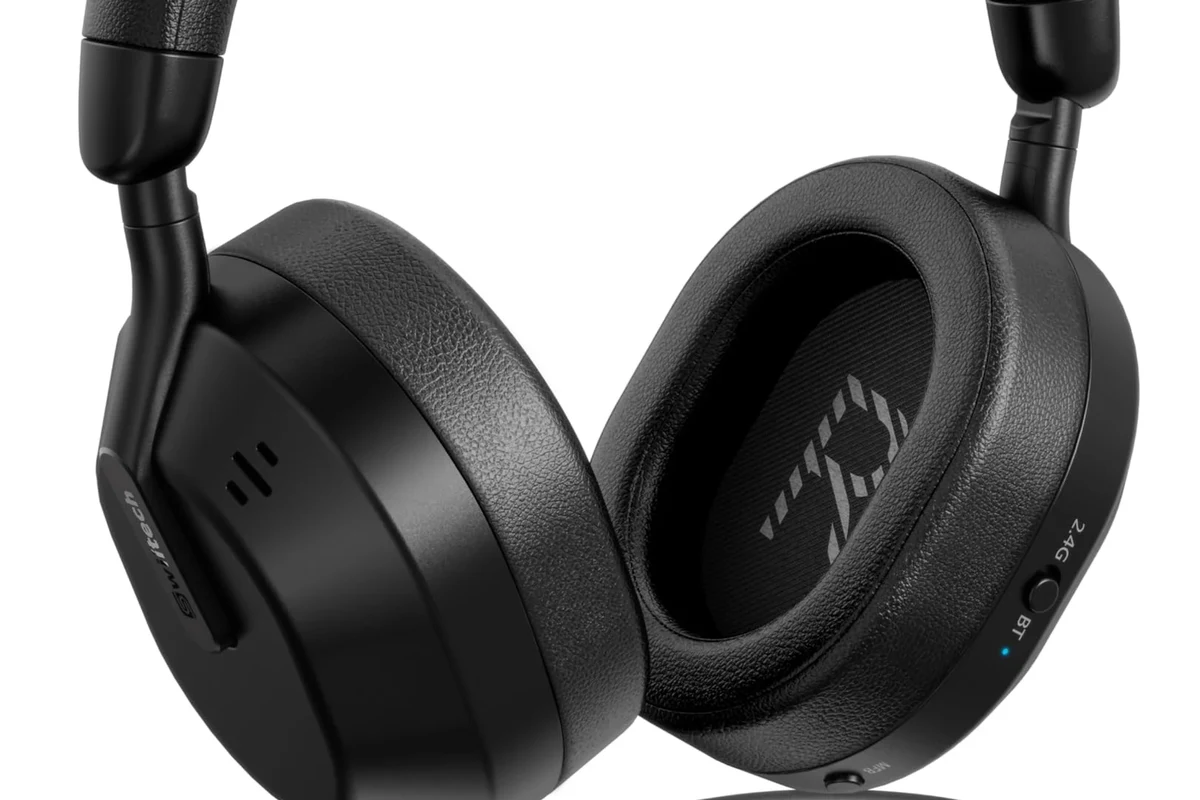
Bluetooth TV listening is popular because it keeps sound private without running a long cable across the room. It is especially useful for late-night movies, shared living spaces, and gaming setups where you want audio without disturbing others.
That said, not every TV handles Bluetooth the same way. Some models support headphones directly, some only support remotes or game controllers, and some do not include Bluetooth audio at all.
If you are still learning the basics of wireless audio, our guide on Bluetooth headphones explained simply can help you understand pairing, range, and common connection limits before you start.
Check TV Bluetooth Compatibility Before You Start
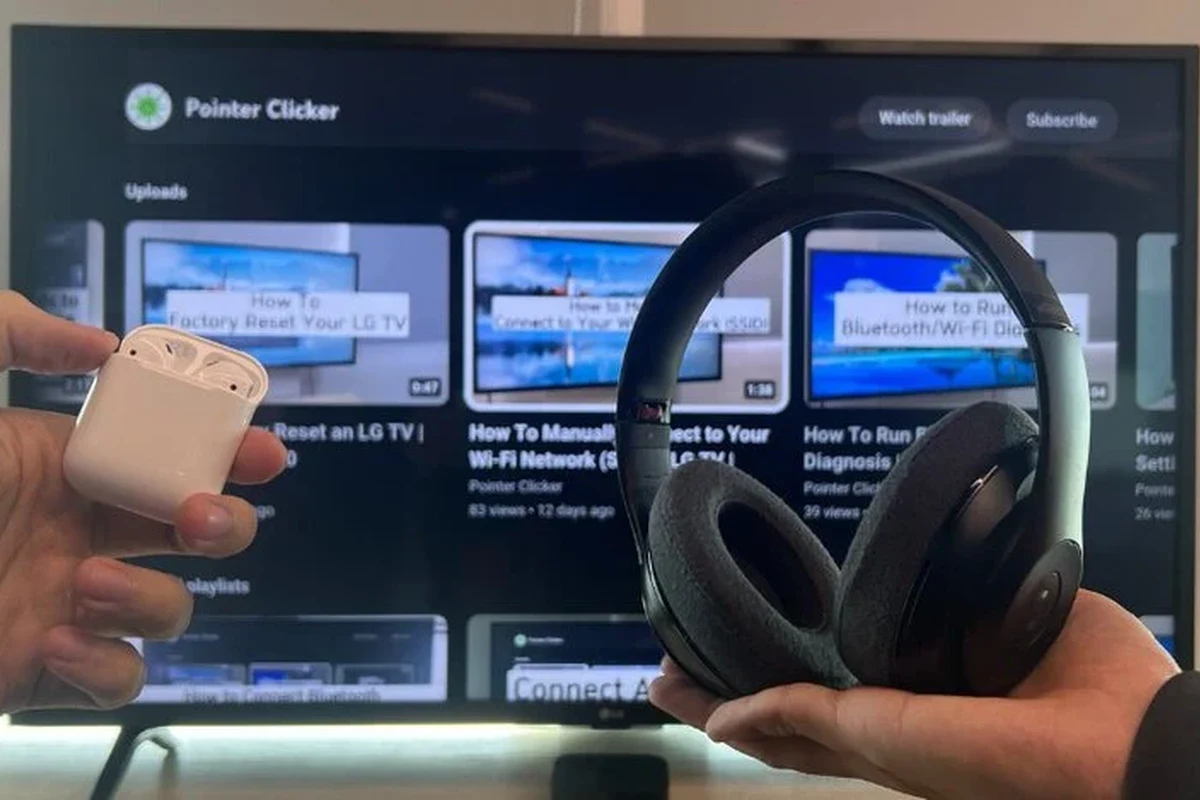
Before pairing anything, check whether your television supports Bluetooth audio output. This saves time and helps you avoid assuming the headphones are faulty when the TV is actually the limitation.
How to tell if your TV supports Bluetooth audio
Open the TV settings menu and look for audio, sound, or Bluetooth device options. If you see items like “Bluetooth speaker,” “headphones,” “audio output,” or “wireless audio,” your TV likely supports headphone pairing.
You can also check the manual or the manufacturer’s support page for your exact model. TV Bluetooth features vary a lot by brand and year, so two similar-looking TVs may not offer the same audio options. How to Connect Bluetooth Headphones to TV Easily
- TV settings menu for Bluetooth audio output
- Model manual or support page
- Whether the TV lists headphones, speakers, or audio devices
What to do if your TV only supports Bluetooth for remotes or controllers
Some TVs include Bluetooth only for accessories like remotes, keyboards, or game controllers. In that case, the TV may detect Bluetooth devices but still refuse to send audio to headphones.
If that happens, a transmitter is usually the simplest fix. It plugs into the TV’s audio output and sends sound to your headphones independently of the TV’s built-in Bluetooth limitations.
Step-by-Step: How to Pair Bluetooth Headphones with a TV
Once you confirm compatibility, pairing is usually straightforward. The exact menu names differ by brand, but the process is similar across most modern TVs.
Using the TV’s built-in Bluetooth menu
Start by putting your headphones into pairing mode. On most models, this means holding the power or Bluetooth button until the indicator light flashes.
Then open the TV’s Bluetooth or audio device menu and choose “Add device,” “Pair new device,” or a similar option. Select your headphones from the list, wait for the connection confirmation, and test audio with a show or game.
Pairing Sony, Samsung, LG, Roku, and Fire TV models
Popular TV platforms often place Bluetooth options in slightly different spots. Sony and LG models may keep them under sound output, Samsung often groups them under sound or general settings, and Roku or Fire TV may route pairing through system or audio menus.
If you cannot find the setting quickly, use the search function in the TV menu or check the user guide for “Bluetooth audio” or “headphones.” A few extra minutes here can save a lot of frustration later.
For readers who also use Bluetooth on phones and tablets, our guide on how to connect Bluetooth headphones covers general pairing steps that can help you troubleshoot the headphone side of the process too.
What to Do If Your TV Doesn’t Have Bluetooth
If your TV lacks Bluetooth audio, you still have options. A dedicated transmitter can add wireless headphone support to many older and budget TVs without replacing the television itself.
Using a Bluetooth transmitter for TVs
A Bluetooth transmitter connects to the TV’s audio output and sends sound to your headphones. This is often the best workaround when the TV has no built-in wireless audio or when the built-in Bluetooth is unreliable.
Some transmitters are simple plug-and-play devices, while others include extra features such as dual headphone support or low-latency modes. The right choice depends on your TV’s outputs and how sensitive you are to audio delay.
Optical, AUX, and USB transmitter options compared
Optical transmitters are often a strong choice for TVs with optical audio output because they can provide a clean digital signal. AUX transmitters are common and simple, but the quality and compatibility depend on the TV and transmitter design.
USB transmitter support is less universal for TVs, so it is worth checking whether the USB port actually sends audio or only powers accessories. In many cases, optical or AUX is the safer route for dependable TV headphone use.
- Optical can be stable and clean
- AUX is widely familiar and easy to use
- Transmitters can add Bluetooth to older TVs
- Not every TV supports every output type
- Some setups may still have audio delay
- Extra hardware adds one more device to manage
Best Audio Settings for Low-Latency Listening
For movies and gaming, Bluetooth delay can be the biggest complaint. Even a small lag between picture and sound can make dialogue look off or make game effects feel disconnected.
Why audio delay happens during movies and gaming
Bluetooth has to encode, transmit, and decode the signal, and that process can introduce delay. The amount varies by TV, headphones, transmitter, and codec support.
That is why a setup that sounds fine for casual TV watching may still feel distracting during fast-paced games or action scenes. If you care about lip-sync, latency matters as much as sound quality.
How to reduce lip-sync issues with aptX Low Latency or LE Audio
If your TV and headphones support low-latency codecs, they may reduce the gap between speech and sound. aptX Low Latency and LE Audio can help in some setups, but support is not universal and results vary by brand and model.
Many TVs also include an audio delay or lip-sync adjustment in the settings menu. If the sound is slightly off, this setting can help fine-tune the match between the picture and the headphones.
Common Mistakes That Cause Bluetooth Headphone Connection Problems
Most pairing issues come down to simple setup mistakes rather than broken hardware. A quick reset, a fresh pairing attempt, or a settings check often solves the problem.
Headphones not appearing in the TV scan
If the headphones do not show up, make sure they are in pairing mode and close enough to the TV. Also check whether they are already connected to a phone, tablet, or console, since many headphones can only stay connected to one device at a time.
Restarting both devices can help clear a stale connection. If the headphones still do not appear, reset the headphones and try again with other nearby Bluetooth devices turned off.
If your headphones need a reset, our guide on how to reset Bluetooth headphones can help you clear pairing memory and start fresh.
Audio still playing through the TV speakers
Some TVs keep internal speakers active unless you manually switch the sound output. Look for an audio output setting and choose Bluetooth headphones, external audio, or wireless headset instead of TV speakers.
On certain models, the TV may automatically mute the speakers when headphones connect, but not always. If you still hear sound from the room speakers, check for dual audio, speaker output, or sound share options in the menu.
Why is my TV still using speakers after pairing?
Because pairing and audio output are not always the same setting. You may need to manually switch the TV’s sound output to headphones or Bluetooth audio.
Connection drops, weak range, and battery issues
Bluetooth range can be reduced by walls, furniture, interference, and poor device placement. Keeping the transmitter or TV in a clear line of sight with your seating area can improve stability.
Battery level also matters. Low headphone battery can cause dropouts, weaker signal quality, or random disconnects, so charge the headphones fully before a long movie or gaming session.
Expert Advice: When a Bluetooth Setup Is Worth It vs. a Dedicated TV Headphone Solution
Bluetooth is convenient, but it is not always the best long-term TV listening setup. The right choice depends on whether you value simplicity, latency, sound quality, or pure reliability.
Bluetooth headphones vs. wireless RF TV headphones
Bluetooth headphones are flexible because you can often use them with phones, tablets, laptops, and TVs. They are a good option if you want one headset for multiple devices and do not mind occasional latency or setup quirks.
Wireless RF TV headphones are often easier for pure TV use because they are designed for low-lag home listening. They may be less versatile than Bluetooth, but they can be a better fit for viewers who want stable audio with minimal delay.
Typical cost breakdown for transmitters and compatible headphones
Costs vary widely by brand, features, and compatibility. A basic transmitter may be affordable, while a premium low-latency model with better outputs and dual-device support will usually cost more.
Headphone pricing also varies a lot depending on whether you want a simple TV headset, noise cancelling, over-ear comfort, or gaming-focused features. It is smart to compare total system cost, not just the headphone price.
For help choosing the right style, our article on types of headphones explained can help you compare over-ear, on-ear, and in-ear designs before you buy.
Final Recap: The Easiest Way to Enjoy TV Audio Wirelessly
The easiest way to connect Bluetooth headphones to a TV is to check whether the TV supports Bluetooth audio, then pair the headphones through the sound or device menu. If the TV does not support audio output over Bluetooth, use a transmitter connected to the TV’s optical or AUX output.
For the best experience, look for low-latency support, test lip-sync before settling in, and make sure your headphones are charged and within range. With the right setup, wireless TV listening can be simple, comfortable, and very convenient for everyday viewing.
Frequently Asked Questions
Wireless headphones are more convenient for moving around the room, but wired models can avoid Bluetooth delay. For TV watching, the better choice depends on whether you value freedom or perfect lip-sync.
Yes, noise cancelling headphones can help reduce background noise from fans, appliances, or roommates. They are especially useful for dialogue-heavy shows, but comfort and latency still matter.
Closed-back headphones usually work better for TV because they keep sound in and block more outside noise. Open-back models can sound more spacious, but they leak sound and are less private.
Look at Bluetooth support, codec compatibility, comfort, battery life, and latency features before focusing on frequency response numbers. For TV use, clear dialogue and low delay are usually more important than deep bass alone.
Start by checking whether your TV already supports Bluetooth audio, because that may save you from buying a transmitter. If not, compare the cost of a basic transmitter with a comfortable headset that works well for long viewing sessions.
Choose lightweight headphones with soft ear cushions, a secure but gentle headband, and enough battery life for your usual viewing time. Build quality and fit matter a lot when you wear them for movies, sports, or gaming marathons.