How to Connect Wireless Headphones to Xbox One Easily

The easiest way to connect wireless headphones to Xbox One is to use an Xbox-compatible wireless headset or a 2.4GHz USB dongle headset. Standard Bluetooth headphones usually need a transmitter or TV audio workaround instead of direct pairing.
If you’re trying to figure out how to connect wireless headphones to Xbox One, the short answer is that most standard Bluetooth headphones will not pair directly with the console. The most reliable options are Xbox-compatible wireless headsets, a USB transmitter setup, or routing audio through your TV or monitor.
- Direct pairing: Most Bluetooth headphones do not connect straight to Xbox One.
- Best method: Xbox wireless or USB dongle headsets are the most reliable.
- Workarounds: TV audio and transmitters can help with casual listening.
- Common fixes: Check output settings, firmware, and chat mix if audio fails.
How to Connect Wireless Headphones to Xbox One: What Actually Works in 2026
Xbox One can absolutely work with wireless audio, but not in the same simple way as a phone or laptop. The console’s audio system is more limited than many people expect, so the “easy” method depends on the type of headphones you own.
For most gamers, the goal is not just getting sound. It’s also keeping chat clear, avoiding delay, and making sure the headset mic works properly. That’s why it helps to know which connection path matches your headphones before buying adapters or changing settings.
Xbox One Audio Compatibility: Why Most Wireless Headphones Won’t Pair Directly
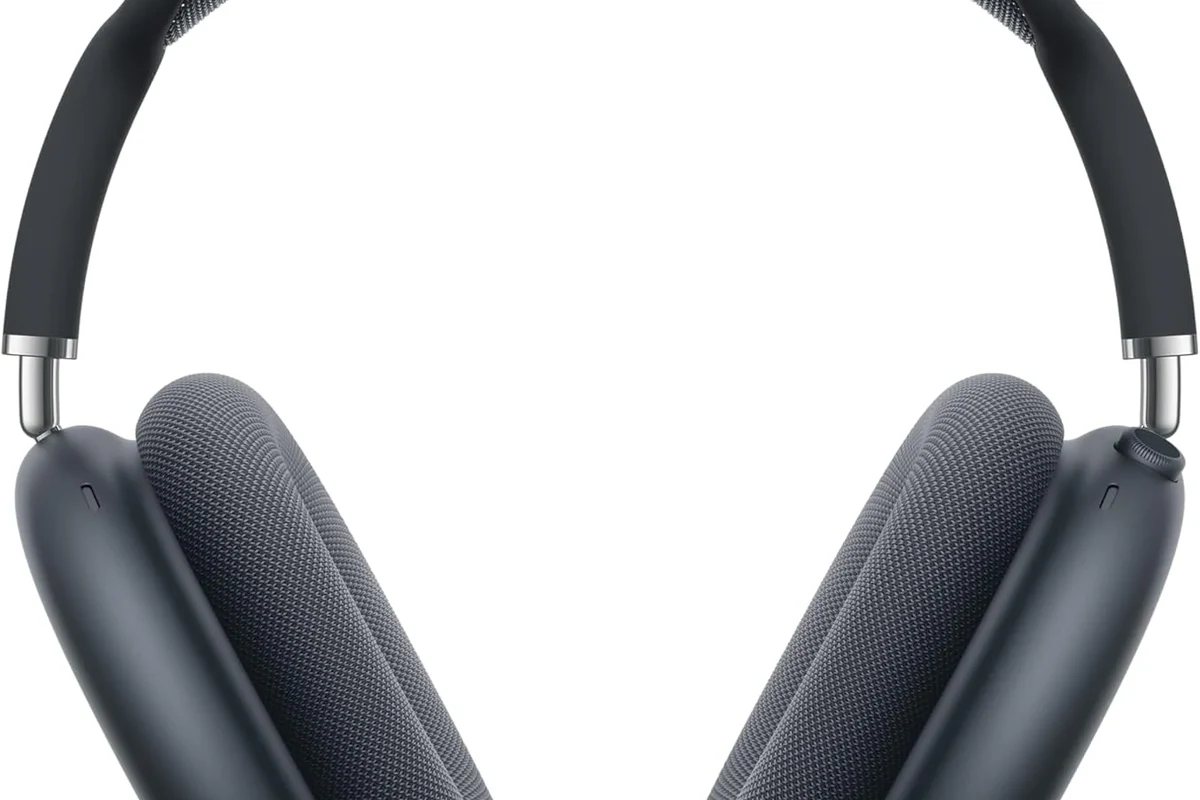
Xbox One is picky about wireless audio. It was designed to work best with Xbox-specific wireless accessories rather than generic Bluetooth headphones, and that catches a lot of people off guard.
Bluetooth limitations on Xbox One consoles
Standard Bluetooth headphones usually cannot connect directly to Xbox One for game audio. In practice, that means you won’t find the console in your headphone’s normal Bluetooth pairing list, and the Xbox One won’t behave like a phone, tablet, or PC.
This is why many readers search for a workaround after trying to pair their headset and getting nowhere. If you want a broader explanation of wireless audio behavior, our guide to Bluetooth headphones explained can help clarify why some devices connect easily while others need adapters.
Which wireless headphone types are supported through the controller or TV
Some wireless headphone setups can still work well with Xbox One, but usually through a different route. The most common options are Xbox wireless headsets, headsets that use a 2.4GHz USB dongle, or headphones connected to your TV, monitor, or soundbar output.
If your headset has a 3.5mm cable option, you may also be able to use it with the controller and a wireless adapter, depending on the accessory. That makes hybrid headsets more flexible than Bluetooth-only models.
The Easiest Ways to Use Wireless Headphones with Xbox One
The easiest method is usually the one that creates the fewest compatibility problems. In most cases, that means choosing a headset designed for Xbox or using a transmitter that sends audio to your headphones without relying on the console’s built-in Bluetooth.
Using Xbox-compatible wireless headsets with a USB transmitter
Many gaming headsets use a 2.4GHz USB dongle or Xbox wireless protocol. These are often the most dependable because they are made for low-latency gaming and usually handle game audio more smoothly than generic Bluetooth setups.
The main benefit is convenience: plug in the transmitter, power on the headset, and the audio path is usually straightforward. The exact pairing steps can vary by brand, so always check the headset manual before assuming the dongle is universal.
Connecting via the Xbox controller’s 3.5mm jack with a wireless adapter
If your headphones are not Xbox wireless models, one workaround is using the controller’s 3.5mm jack with a compatible wireless adapter. This is more common with headsets that support a wired fallback, or with accessories that convert audio into a wireless signal.
This method can be practical, but it adds another device into the chain. That means more variables for battery life, latency, and microphone behavior, so it’s best for users who are comfortable troubleshooting a little.
Routing audio through your TV, monitor, or soundbar
Another simple route is sending Xbox One audio to your TV or monitor, then connecting wireless headphones to that device instead. This is often the easiest choice for single-player gaming, casual play, or late-night sessions where chat quality matters less.
It can also work well if your TV already supports Bluetooth audio or has a headphone output. The tradeoff is that TV audio paths may add delay or limit mic support, so it’s not always the best option for competitive multiplayer.
Step-by-Step Setup Guide for the Most Reliable Method
If you want the least frustrating setup, start with an Xbox-compatible wireless headset or a headset that uses a USB dongle. That approach usually gives you the best mix of sound quality, chat support, and low delay.
If your headset supports both wireless and wired use, keep the cable handy. It’s often the fastest way to confirm whether the issue is the headset, the transmitter, or the Xbox settings.
Pairing an Xbox wireless headset or USB dongle headset
First, plug the USB transmitter into an available USB port on the Xbox One if your headset uses one. Then power on the headset and follow the pairing sequence in the manufacturer’s guide, since some models require a button press on both the headset and dongle.
If you’re using an Xbox wireless headset made for the console, pairing is usually handled through the headset’s sync process and the console’s accessory connection flow. The exact steps can vary by model, but the basic idea is the same: put both devices into pairing mode and wait for the connection light or audio confirmation.
- USB transmitter is fully inserted
- Headset is charged before pairing
- Firmware or app updates are installed if available
- Pairing mode is active on both devices
Adjusting Xbox One audio settings for game and chat balance
Once the headset is connected, check the Xbox One audio settings so game sound and chat are balanced properly. If the mix feels too loud in one direction, adjust the headset chat mixer or console audio options until voices and game effects feel natural.
This is also where controller firmware can matter. If the headset behaves oddly, make sure the controller is updated, since some audio or microphone issues can come from outdated controller software rather than the headset itself.
Audio menus can look slightly different depending on your Xbox One model, system updates, and headset brand. If a setting name is different, look for the closest match related to volume, chat mixer, or headset output.
Testing mic, volume, and latency before gaming
Before jumping into a match, test the microphone in a party chat or system voice test if available. Speak normally, then check whether your voice sounds clear and whether the mic picks up too much background noise.
Also listen for delay. If footsteps, gunfire, or dialogue feel slightly behind the action, the connection may be introducing latency. That’s a common problem with some Bluetooth workarounds and cheaper transmitters.
Listening at high volumes for long periods can cause hearing damage. Keep volume at 60% or below for extended sessions.
Practical Examples: Best Connection Methods for Different Headphone Types
The right setup depends on what kind of headphones you already own. A good connection method for one headset may be a poor choice for another, especially when mic support and delay are involved.
Bluetooth headphones with a transmitter workaround
If you already own Bluetooth headphones, the usual workaround is a Bluetooth transmitter connected to the TV, monitor, or controller-compatible audio source. This can let you hear game audio wirelessly even though the Xbox One itself is not pairing directly.
That said, Bluetooth transmitters vary a lot in quality. Some are fine for casual play, while others add noticeable delay or weaker sound, especially with action games where timing matters.
Gaming headsets with 2.4GHz wireless dongles
For gaming, 2.4GHz wireless headsets are often the best balance of simplicity and performance. They tend to be more responsive than standard Bluetooth and are usually designed with gaming chat and low-latency audio in mind.
These are the setups most readers end up happiest with because they reduce guesswork. If you want fewer connection issues and better mic support, this is often the safest route for Xbox One owners.
Wireless gaming headsets often prioritize lower delay over maximum audio codec variety, which is one reason they can feel more responsive than generic Bluetooth headphones.
Using TV audio for casual single-player play
If you mainly play story games, route the sound through your TV and connect headphones there. This is a simple way to enjoy wireless listening without worrying about Xbox-specific headset compatibility.
It’s a good fit for casual players, but it may not be ideal for multiplayer chat or precise audio timing. For that reason, it’s best treated as a comfort-first option rather than a competitive gaming solution.
Common Mistakes That Cause No Sound or Lag
Most connection problems come from a few repeat mistakes. The good news is that they’re usually easy to fix once you know what to look for.
Trying to pair standard Bluetooth headphones directly to Xbox One
This is the most common mistake. If your headphones are regular Bluetooth models, the Xbox One will usually not recognize them the way a phone or laptop would.
Instead of wasting time on repeated pairing attempts, move straight to a transmitter, controller-based workaround, or Xbox-compatible headset. That saves time and avoids unnecessary frustration.
Ignoring audio output settings and controller firmware
Even when the headset is connected correctly, wrong output settings can make it seem broken. Check whether audio is being sent to the headset, TV, or both, and confirm that chat mix settings are not muting the wrong channel.
Controller firmware is another overlooked issue. If your headset mic or volume controls act strangely, updating the controller can sometimes solve the problem without any hardware changes.
Using low-quality transmitters that add delay
Cheap transmitters can work, but they may introduce lag, dropouts, or weak sound. That is especially noticeable in shooters, rhythm games, and any title where audio timing matters.
If low latency is important to you, prioritize a transmitter or headset made for gaming rather than a generic audio dongle. In this category, better compatibility usually matters more than the lowest possible price.
Not every transmitter supports microphone input, chat mixing, or stable low-latency performance. Check compatibility carefully before buying, since results can vary by brand and model.
Expert Advice: When to Upgrade Instead of Adapting
Sometimes the best fix is not another adapter. If you keep running into delays, connection drops, or missing mic support, it may be more sensible to move to a headset designed for Xbox use.
If you have ongoing hearing discomfort, ringing after gaming, or trouble understanding chat at normal volume, consider speaking with an audiologist. A professional audio specialist can also help if you need a more comfortable long-session setup.
When a dedicated Xbox wireless headset is worth the price
A dedicated Xbox wireless headset is worth considering if you want the simplest path with the fewest moving parts. It can be especially helpful for players who use party chat often, switch between games frequently, or do not want to manage extra adapters.
For many users, the convenience alone justifies the upgrade. You get a cleaner setup, fewer compatibility questions, and usually a more reliable gaming experience overall.
Budget vs premium options: what you gain in sound, mic quality, and convenience
Budget options can be perfectly fine for casual gaming, but premium models often improve comfort, microphone clarity, and wireless stability. Depending on the brand, you may also get better battery life, stronger build quality, and easier controls.
The right choice depends on how often you play and what matters most to you. If you game for long sessions, comfort and mic clarity may matter more than extra bass or flashy features. For readers comparing broader headset categories, our guide to wired vs wireless headphones is a useful next read.
Final Recap: The Fastest Way to Connect Wireless Headphones to Xbox One
The fastest reliable method is usually an Xbox-compatible wireless headset or a headset with a 2.4GHz USB dongle. Those options are built for gaming audio, so they typically give you better sound sync and easier chat support than standard Bluetooth headphones.
If you already own Bluetooth headphones, use a transmitter or route audio through your TV or monitor instead of trying to pair them directly. That approach is often the difference between a frustrating setup and a simple, working one.
- Xbox One usually does not pair directly with standard Bluetooth headphones.
- USB dongle headsets and Xbox wireless models are the most reliable choices.
- TV audio or a transmitter can work for casual listening and single-player games.
- Check audio settings, controller firmware, and mic behavior before gaming.
Frequently Asked Questions
Most standard Bluetooth headphones do not pair directly with Xbox One. You usually need an Xbox-compatible headset, a USB transmitter, or a TV audio workaround.
A headset made for Xbox or a 2.4GHz wireless dongle headset is usually the most reliable choice. These setups tend to offer lower delay and better chat support than generic Bluetooth.
Sound quality depends more on the headset design than whether it is wireless or wired. Wired models can be simpler, while wireless models offer more freedom and convenience.
Closed-back headphones are usually better for gaming because they block more outside noise and keep sound from leaking out. Open-back models can feel more spacious, but they are less private and less isolated.
Check wireless type, mic support, latency, comfort, battery life, and whether the headset works with Xbox One. If possible, also look for easy volume controls and a clear chat mix option.
Look for lightweight builds, soft ear cushions, and an adjustable headband. If you feel pressure or soreness during long sessions, lower volume and take breaks to protect your hearing.