How to Link Bose Headphones to iPhone in Easy Steps

Turn on Bluetooth on your iPhone, put the Bose headphones into pairing mode, and tap the Bose device when it appears in the Bluetooth list. If the connection fails, forget old pairings, restart both devices, and try again.
If you want to know how to link Bose headphones to iPhone, the process is usually quick once Bluetooth is turned on and the headphones are in pairing mode. Most Bose models connect in just a few taps, and the steps below will help you avoid the common hiccups that can slow things down.
Before you start, it helps to know that Bose headphones typically pair wirelessly through Bluetooth, so there is no cable involved for the connection itself. If you are still deciding between Bose and other wireless options, our guide on Bluetooth headphones explained simply can help you understand the basics first.
- Pairing basics: Bluetooth on, headphones in pairing mode, then select the Bose device.
- Common fix: Forget old connections and reconnect cleanly if pairing fails.
- Audio check: Confirm sound output in Control Center if audio stays on the iPhone.
- Best use: Bose is a strong pick for comfort, ANC, and travel-friendly listening.
How to Link Bose Headphones to iPhone: What You Need Before You Start
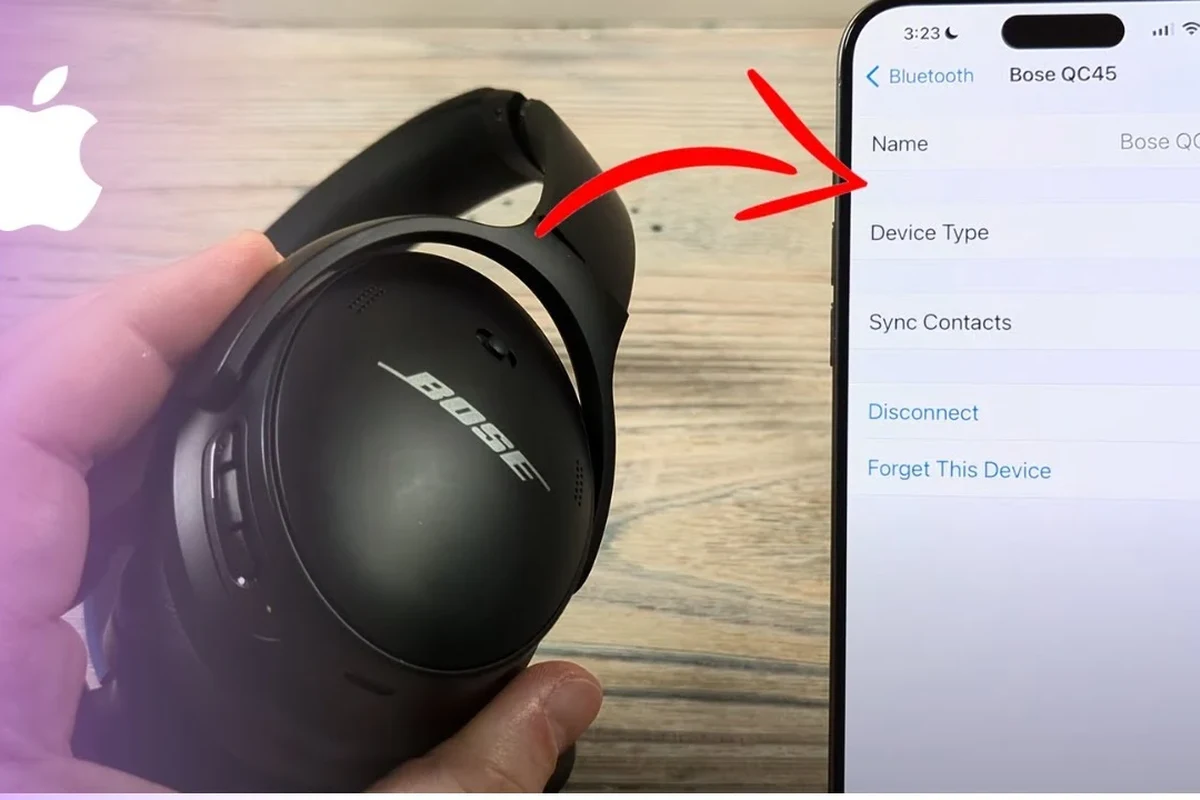
You do not need much to connect Bose headphones to an iPhone, but a few basics make the process smoother. Your iPhone should have Bluetooth enabled, your Bose headphones should have enough battery, and the headphones should not already be connected to another device nearby.
It also helps to keep the Bose headphones close to the iPhone during the first connection. Bluetooth range is usually generous, but pairing is more reliable when both devices are within a few feet of each other.
Some Bose models remember multiple devices, so if your headphones keep connecting to a laptop or tablet first, you may need to disconnect that device before pairing with your iPhone.
Step-by-Step Pairing Guide for Bose Headphones and iPhone
The fastest way to connect is to turn on Bluetooth on the iPhone, put the Bose headphones into pairing mode, and choose them from the Bluetooth list. If the connection does not appear immediately, wait a few seconds and make sure the headphones are not already linked to something else.
Open Settings, tap Bluetooth, and switch it on. You can also open Control Center and make sure the Bluetooth icon is active.
Turn on the headphones and hold the Bluetooth or power button until you hear the pairing prompt or see a blinking light. The exact method can vary by model, so check your Bose manual if needed.
Look under Other Devices on the iPhone and tap the Bose name when it appears. Wait for the status to change to Connected.
Play music, a video, or a short voice note to confirm sound is coming through the headphones. If audio still plays from the phone speaker, revisit the Bluetooth list and check the output source.
Turn on Bluetooth on Your iPhone
Start in the iPhone’s Settings app and make sure Bluetooth is switched on. If Bluetooth is already on, toggle it off and back on again to refresh nearby device scanning.
Sometimes the iPhone will show your Bose headphones faster if you keep the Bluetooth screen open. This is especially useful when you are pairing for the first time or reconnecting after a reset.
Put Your Bose Headphones in Pairing Mode
Most Bose headphones enter pairing mode by holding the Bluetooth button or the power switch until you hear a voice prompt or see a blinking indicator light. That signal tells you the headphones are discoverable and ready for a new connection.
If your Bose model was already paired with another phone, it may try to reconnect there first. In that case, turn Bluetooth off on the other device or temporarily move it away so the iPhone can find the headphones.
If pairing fails, keep the headphones and iPhone within arm’s reach and restart both devices before trying again. A simple refresh often solves temporary Bluetooth glitches.
Select the Bose Device in iPhone Bluetooth Settings
Once the Bose headphones appear in the Bluetooth list, tap the device name to connect. If you see more than one Bose entry, choose the one that matches your model name rather than a generic or old saved entry.
For readers comparing Bose with other wireless options, our guide to how to connect Bluetooth headphones explains the same basic process in a more general way. That can be useful if you use more than one headphone brand at home.
Confirm the Connection and Test Audio
After the iPhone says the headphones are connected, play a song, video, or podcast to confirm the sound is routed correctly. If you hear audio from the phone instead, open the Control Center audio output panel and select the Bose headphones manually.
You should also test the microphone if you plan to use the headphones for calls. A quick voice memo or phone call can confirm that both playback and voice input are working properly.
Best Bose Headphone Models for iPhone Users in 2026
Different Bose models can work well with iPhone, but the best choice depends on how you listen. Some users want strong noise cancellation for commuting, while others care more about comfort, battery life, or a lighter design for everyday use.
QuietComfort vs. Noise Cancelling Headphones 700 vs. Ultra Models
Bose QuietComfort models are often a safe pick for everyday listeners who want a familiar fit and dependable noise cancellation. The Noise Cancelling Headphones 700 line is typically chosen by users who want a more modern control layout and a premium wireless experience.
Ultra models are usually aimed at buyers who want Bose’s newer feature set and a more premium feel. That said, the best option still depends on your comfort preference, budget, and whether you value portability, ANC, or call quality most.
| Model | Best For | Price Range |
|---|---|---|
| QuietComfort | All-day comfort and travel | Varies by retailer |
| Noise Cancelling Headphones 700 | Modern wireless use and calls | Varies by retailer |
| Ultra models | Premium features and newer design | Usually higher, varies by market |
Which Bose Features Work Best with iPhone
iPhone users usually benefit most from stable Bluetooth pairing, strong noise cancellation, and easy device switching. Bose headphones also tend to work well for calls, travel, and long listening sessions when the fit matches your head shape.
If you are interested in how noise cancellation affects listening comfort, our article on how noise cancelling headphones work is a helpful companion read. It explains why ANC can make a big difference on planes, trains, and busy streets.
Noise cancelling works best when the earcups seal well around your ears, so comfort and fit can affect performance as much as the electronics do.
Common Problems When Connecting Bose Headphones to iPhone
Even though Bose and iPhone usually pair easily, Bluetooth can still be picky. Most issues come from old pairings, low battery, distance between devices, or the headphones trying to connect somewhere else first.
Headphones Not Showing Up in Bluetooth
If the Bose headphones do not appear in the iPhone Bluetooth list, first check that they are truly in pairing mode. Then make sure they are not already connected to another device, because many Bluetooth headphones will prioritize a known connection before showing up as available.
It can also help to turn Bluetooth off and back on, restart the iPhone, and move the headphones closer. If the problem continues, a reset of the headphones may be needed.
Connection Drops or One Earbud Not Syncing
Connection drops are often caused by weak battery, interference, or outdated firmware. If you are using Bose earbuds rather than over-ear headphones, one side may stop syncing if the case is low on charge or the earbuds need a fresh reset.
Try forgetting the device on the iPhone and pairing it again from scratch. If you are troubleshooting wireless audio in general, our guide on how to reset Bluetooth headphones can help you start clean.
Audio Plays Through iPhone Instead of Bose Headphones
If the iPhone shows the Bose headphones as connected but sound still comes from the speaker, the audio output may not have switched automatically. Open Control Center and select the headphones as the playback device manually.
This issue can also happen if another Bluetooth accessory is taking over the audio route. Disconnect nearby devices and test again to make sure the Bose headphones are the active output.
If you hear crackling, sudden disconnects, or repeated pairing failures, the issue may be with the headphones, the iPhone, or both. Try a clean re-pair before assuming the headphones are defective.
Expert Tips to Improve Bose and iPhone Bluetooth Performance
Once Bose headphones are linked to an iPhone, a few small habits can keep the connection more stable. Firmware updates, clean pairings, and app-based control often make a noticeable difference in day-to-day use.
Update Bose Firmware and iPhone iOS
Keeping both the headphones and the iPhone updated can improve Bluetooth stability and fix known bugs. Bose firmware updates are usually managed through the Bose app, while iPhone updates are handled in the Settings app.
If pairing problems start after a system update, do not panic. Temporary Bluetooth issues can happen after updates, and a restart often helps everything settle down.
If you have persistent Bluetooth dropouts, hearing imbalance, or sound distortion that does not improve after resetting and updating, consider contacting Bose support or an audiologist if the problem affects how you hear audio comfortably.
Forget Old Pairings and Reconnect Cleanly
If your Bose headphones have connected to many devices over time, the Bluetooth memory can become messy. Forgetting the headphones in the iPhone Bluetooth menu and pairing them again often solves stubborn connection problems.
This is one of the easiest fixes when the iPhone keeps refusing to recognize the headphones or connects to the wrong device. A clean reconnect is often faster than trying several small changes at once.
Use the Bose Music App for Better Control
The Bose Music app can help with settings, firmware updates, and device management on supported models. It is also useful if you want to adjust features like noise cancellation or check whether your headphones need attention.
For iPhone users who like simple control, the app can make the Bose experience easier to manage. It is not required for basic Bluetooth pairing, but it is helpful for keeping everything organized.
How Much Bose Headphones Cost and Whether They’re Worth It for iPhone Users
Bose headphones are generally positioned as premium wireless audio products, so they are not usually the cheapest option. Whether they are worth it depends on how much you value comfort, ANC, call quality, and easy iPhone pairing.
Price Range by Model and What You Get for the Money
Prices vary by model, color, retailer, and seasonal discounts, so it is best to compare current listings before buying. In general, you are paying for Bose’s wireless convenience, comfort-focused design, and noise cancellation rather than just raw audio specs.
If you want a broader buying perspective, our guide to best headphones under 100 can help you compare lower-cost alternatives before deciding whether Bose fits your budget.
Value Comparison Against Apple AirPods and Other Premium Headphones
AirPods are often the more seamless choice for users deeply tied to Apple’s ecosystem, especially if they want fast switching and compact portability. Bose can be the better fit if you prefer over-ear comfort, stronger isolation, or a more traditional headphone shape.
Other premium brands may offer different strengths in sound signature, battery life, or app features, so the “best” choice is personal. The right option depends on whether you care more about commuting, office use, travel, gaming, or long music sessions.
- Easy Bluetooth pairing with iPhone
- Strong comfort on many models
- Good noise cancellation for travel
- Premium pricing on many models
- Some features vary by model
- Bluetooth issues can still happen
Listening at high volumes for long periods can cause hearing damage. Keep volume at 60% or below for extended sessions.
Final Recap: The Easiest Way to Link Bose Headphones to iPhone
The easiest way to link Bose headphones to iPhone is to turn on Bluetooth, put the headphones in pairing mode, and tap the Bose name in the iPhone Bluetooth list. If sound does not switch right away, confirm the output in Control Center and try reconnecting cleanly.
For most users, Bose and iPhone work well together with very little setup. If you keep your devices updated, avoid old pairings, and use the Bose app when needed, the connection should stay simple and reliable for everyday listening.
- Turn on Bluetooth on the iPhone first.
- Put Bose headphones into pairing mode.
- Select the Bose device from the Bluetooth list.
- Test audio and check the output source if needed.
Frequently Asked Questions
Bose headphones work well with both iPhone and Android, but the experience can feel smoother on iPhone for some users because pairing is simple. Actual performance still depends on the model, app support, and your device settings.
Over-ear Bose headphones usually offer better comfort and stronger passive isolation for long listening sessions. Bose earbuds are more compact and portable, so the better choice depends on where and how you listen.
No, noise cancelling is not required for good sound quality. ANC mainly helps reduce outside noise, which can make music and calls easier to hear in busy places.
Check Bluetooth compatibility, comfort, battery life, app support, and whether the fit matches your use case. If you commute, travel, or work long hours, noise cancellation and cushion comfort may matter most.
Start with a clean Bluetooth connection and use the Bose app or iPhone EQ settings if your model supports them. Small EQ changes can improve bass or clarity, but the best tuning depends on your hearing and preference.
Many Bose models are designed for comfort, but fit still varies by head shape and ear size. Try to choose a model with soft ear cushions, reasonable weight, and a clamp force you can wear for hours without discomfort.