Do USB C Headphones Work on Mac A Complete Guide

Yes, most USB-C headphones work on Mac if they support standard USB audio. Some models may need an app, firmware update, or extra setup for full microphone and control support.
If you’re asking whether USB-C headphones work on Mac, the short answer is yes, many of them do. The real question is whether your specific pair is using standard USB audio or needs extra software, power, or special support from macOS.
- Compatibility: Most USB-C headphones work on Mac when they use standard USB audio.
- Setup: Plug-and-play models are the easiest choice for most users.
- Limitations: Some features may not work if the brand relies on Windows-only software.
- Troubleshooting: Check Sound settings, app input/output, and adapter quality first.
- Buying tip: Confirm macOS support before you buy, especially for mic and controls.
Do USB-C Headphones Work on Mac? Quick Answer and What “Works” Really Means
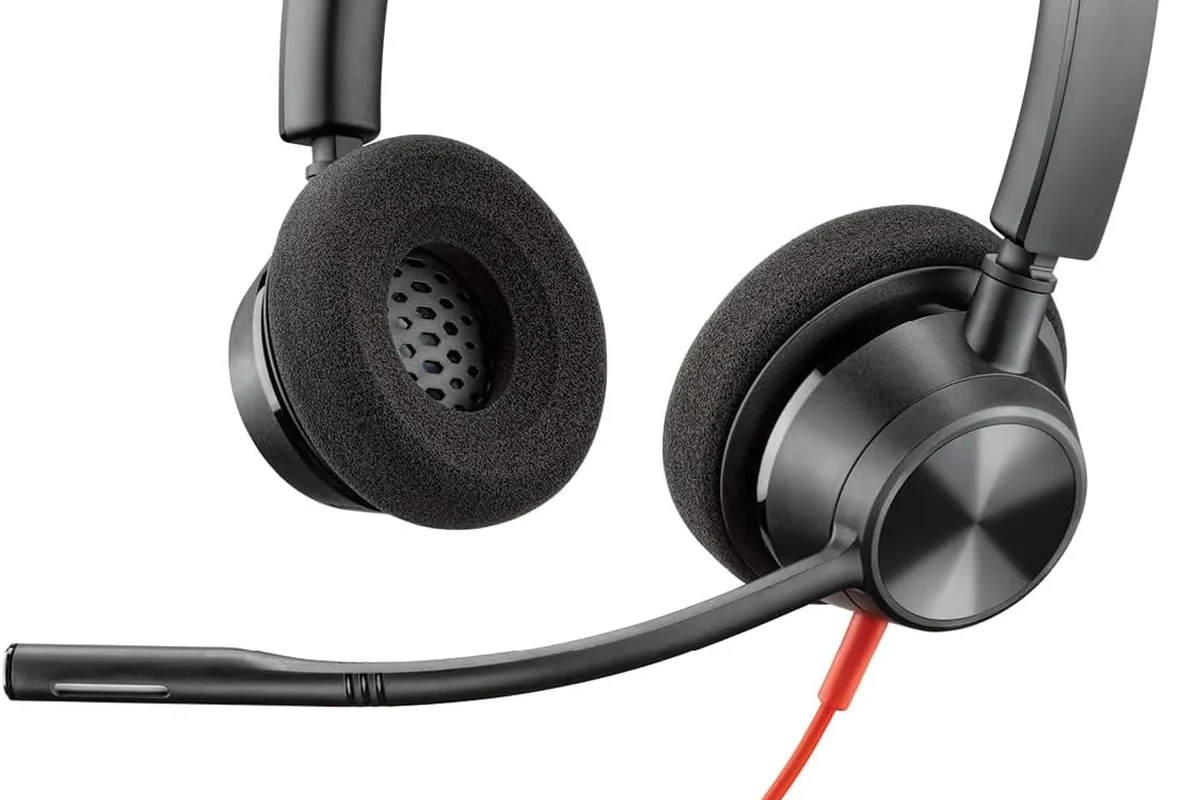
Most USB-C headphones will work on a Mac if they are built as standard USB audio devices. That means the Mac can recognize them the same way it would recognize a USB microphone, DAC, or audio interface.
But “works” can mean different things. Some headphones will play audio right away, while others may need an app for EQ, a firmware update, or a driver for the microphone, buttons, or surround features.
How Mac Computers Handle USB-C Audio in 2026
Modern Macs generally support USB audio well, and that includes many USB-C headphones. In practice, macOS can detect the device, route sound to it, and often switch the microphone input too.
This is one reason USB-C audio can feel simpler than older analog setups. There is no need to match headphone impedance or worry about a weak built-in jack in the same way you might with some wired analog headphones.
macOS support can vary by headphone model, firmware version, and the exact feature set the brand built into the headset.
MacBook Air, MacBook Pro, and Mac Studio: Port Differences That Matter
MacBook Air and MacBook Pro models usually have USB-C or Thunderbolt ports that can handle USB audio devices directly. Mac Studio and desktop Macs also support USB-C audio, but you may be using a dock, hub, or adapter depending on your setup.
The port type matters less than the device support behind it. A USB-C headphone can work through a compatible USB-C port, and in some cases even through a USB-A adapter if the device is designed for standard USB audio.
USB-C vs. Thunderbolt vs. USB-A Adapters on Mac
Thunderbolt ports on Mac are also USB-C shaped, which confuses a lot of buyers. For USB-C headphones, that is usually fine because Thunderbolt ports still support USB data and audio in normal use.
USB-A adapters can also work if the headphones only need standard USB audio and the adapter is reliable. However, very cheap hubs or damaged adapters can cause dropouts, microphone issues, or no sound at all.
If your headphones depend on extra power, a hub or adapter may not supply enough stable power. Try a direct connection to the Mac first before troubleshooting the headset itself.
When USB-C Headphones Are Compatible with Mac
Compatibility depends on how the headphones are designed. The easiest models are plug-and-play USB audio headsets that do not need special software to play sound or activate the mic.
More advanced models can still work, but they may lose some features if the brand’s app is not available for macOS or if the headset was built mainly for another platform.
Some USB-C headphones include a built-in DAC, which converts digital audio inside the headset instead of relying on the Mac’s analog headphone jack.
Plug-and-Play Models That Use Standard USB Audio
These are the best choice for Mac users who want the least hassle. You plug them in, select them in Sound settings, and they usually start working immediately for music, calls, and meetings.
If you want a deeper look at how different headset styles fit into everyday use, our guide to types of headphones explained can help you compare in-ear, on-ear, and over-ear designs before you buy.
Headphones That Need Drivers, Apps, or Firmware Updates
Some USB-C headphones rely on companion software for EQ, sidetone, mic tuning, or spatial audio features. On Mac, those extras may work differently than they do on Windows, or they may not be available at all.
That does not always mean the headphones are a bad choice. It just means you should check whether the core audio features work without the app, especially if you plan to use them mainly for calls or everyday listening.
Common Problems Users Run Into with USB-C Headphones on Mac
Most problems are not caused by USB-C itself. They usually come from the wrong output selection, a hub issue, a software conflict, or a headset feature that macOS does not fully support.
No Sound, Low Volume, or Wrong Output Device
If the headphones are connected but silent, open Sound settings and confirm that the USB-C headset is selected as the output device. macOS may keep sending audio to the internal speakers or another connected accessory.
Low volume can also happen if the headset has its own volume control, the Mac volume is limited, or the device is not getting enough power through a hub. A direct connection is the easiest first test.
If a USB-C headset sounds weak, test it with a direct Mac port first, then compare volume in both macOS and the headphone’s own controls.
Microphone Not Working in Zoom, Teams, or FaceTime
The audio output may work while the microphone fails in a specific app. In that case, check the app’s audio settings and make sure the USB-C headset is selected as the input device.
Meeting apps often keep their own device preferences. If you use headphone selection steps on other systems, the Mac version is similar in spirit: confirm the app, the system input, and the headset itself are all pointing to the same device.
Charging, DAC, and Power-Draw Confusion
Some USB-C headphones only use USB-C for audio, while others also charge through the same port. A few models do both at once, but not every Mac port or adapter handles that equally well.
If the headphones include a DAC, they may sound different from analog wired headphones, but that does not automatically mean better or worse. The result depends on the tuning, the driver quality, and your own listening preferences.
How to Check If Your USB-C Headphones Will Work on Your Mac
The safest approach is to check compatibility before buying. Look for plain language like “USB Audio Class,” “macOS compatible,” or “works without drivers” on the product page or box.
You should also check whether the brand mentions any Mac limitations, since some features may be Windows-only even when basic playback still works on macOS.
Compatibility Signs on the Product Box or Spec Sheet
Look for mentions of USB Audio Class support, plug-and-play operation, or support for Mac in the official specs. If the brand only highlights Windows software, be cautious about advanced features on macOS.
If you are comparing headphone types at the same time, our guide to wired versus wireless headphones can help you decide whether USB-C is the right fit or whether Bluetooth would be simpler for your Mac workflow.
Mac Settings to Check Before You Blame the Headphones
Before assuming the headset is broken, check Sound settings, Input settings, and the app you are using. Also unplug other audio devices, since Mac can sometimes switch to another output automatically.
If you want to understand why a headset seems quiet or muffled, our article on why headphones sound muffled covers common causes like poor fit, EQ settings, and output problems.
Best Use Cases and Practical Examples for Mac Users
USB-C headphones can be a very practical Mac accessory for office work, online classes, and casual entertainment. They are especially useful if you want a simple wired connection without charging a wireless headset.
They may be less ideal if you switch constantly between devices or need full cross-platform software support for advanced controls.
Remote Work, Calls, and Online Meetings
For remote work, USB-C headphones can be a strong choice because they often combine stable audio with a built-in microphone. That makes them useful for Zoom, Teams, FaceTime, and other call platforms.
If call clarity matters more than extra features, a straightforward USB-C model is often easier to manage than a more complex gaming headset with multiple software layers.
Music Listening, Editing, and Casual Gaming on macOS
For music, USB-C headphones can sound clean and consistent, especially if the brand’s tuning matches your taste. For editing, a stable wired connection is helpful because it avoids Bluetooth latency and battery concerns.
For casual gaming, USB-C can be a good middle ground if you want lower delay than wireless. If delay is a major concern, our overview of Bluetooth headphone lag fixes may help you compare what you gain or lose with each connection type.
If you use headphones for long work sessions and notice ear pain, ringing, or persistent discomfort, consider speaking with an audiologist. Safe listening habits matter more than the connector type.
Price, Value, and Alternatives if USB-C Headphones Are Not a Good Fit
USB-C headphones range from simple budget picks to more expensive models with better microphones, stronger build quality, and app support. Value depends less on the connector and more on how well the headset fits your Mac use case.
If a USB-C model feels too limited, a traditional 3.5mm headphone with a DAC or a good Bluetooth headset may be a better long-term choice.
USB-C Headphones vs. 3.5mm Headphones with a DAC
USB-C headphones include the digital-to-analog conversion inside the headset or cable, while a 3.5mm setup usually relies on the Mac’s audio output or an external DAC. Either path can sound good, but the user experience is different.
3.5mm headphones with a DAC can be a smart option if you already own a favorite pair and want more flexibility. USB-C headphones are simpler if you want one cable and fewer extra parts.
Budget vs. Premium Options for Mac Users in 2026
Budget USB-C headphones often cover the basics: audio playback, microphone use, and simple controls. Premium models may add better materials, more refined tuning, and stronger software support, though that varies by brand.
If you are shopping on a tighter budget, our guide to best headphones under 100 can be a useful starting point before you decide whether USB-C is worth the extra convenience.
Expert Advice: Mistakes to Avoid Before Buying USB-C Headphones for Mac
Do not assume every USB-C headset is fully Mac-friendly just because the connector fits. Check for macOS support, standard USB audio compatibility, and whether the microphone works without special software.
Avoid buying based only on charging claims, gaming marketing, or flashy app features. For most Mac users, sound quality, comfort, and reliable microphone performance matter more than extra effects.
- macOS compatibility in the product specs
- Whether audio works without drivers
- Whether the microphone is supported on Mac
- Whether the headset needs an app for key features
- Whether you will use it through a hub or directly
Listening at high volumes for long periods can cause hearing damage. Keep volume at 60% or below for extended sessions.
Final Recap: The Short Answer for Mac Owners Considering USB-C Headphones
Yes, USB-C headphones do work on Mac in many cases, especially when they use standard USB audio and do not depend on special Windows-only software. The most reliable options are plug-and-play models that support both playback and microphone input without extra setup.
If you check compatibility first and test the Mac sound settings before troubleshooting, you can avoid most problems. For many Mac users, USB-C headphones are a simple and practical choice, but the best model still depends on comfort, use case, and the features you actually need.
Frequently Asked Questions
They can, if you want a wired connection with no pairing or battery concerns. Bluetooth is still better for convenience, while USB-C is often better for stable audio and lower delay.
Yes, if the headset’s noise cancelling works independently of the operating system. Just check whether any ANC app or advanced controls are supported on macOS.
Closed-back headphones are usually better for calls, shared spaces, and blocking outside noise. Open-back models can sound more spacious, but they leak sound and are less private.
All three can work if they are designed as USB audio devices. The best choice depends on comfort, portability, and whether you want stronger isolation or a lighter fit.
Check for macOS compatibility, USB Audio Class support, microphone support, and whether the brand requires drivers or an app. Comfort, build quality, and cable length also matter for daily use.
Start by checking output settings, app volume, and any EQ options in macOS or the headset app. If the sound still feels off, compare it with another port, another adapter, or a different audio app.